Table of Contents >> Show >> Hide
- Can You Change Your Birthday on Facebook?
- Before You Change Your Birthday: Important Things to Know
- How to Change Your Birthday on Facebook Mobile
- How to Change Your Birthday on Facebook Desktop
- How to Change Who Can See Your Birthday on Facebook
- What to Do If Facebook Will Not Let You Change Your Birthday
- Common Problems and Simple Fixes
- Best Privacy Settings for Your Facebook Birthday
- Should You Remove Your Birthday from Facebook?
- Mobile vs. Desktop: Which Method Is Better?
- Quick Checklist Before You Tap Save
- Experience-Based Tips for Changing Your Birthday on Facebook
- Conclusion
Note: This guide is written for correcting your real birthday on Facebook, not for bypassing age rules, identity checks, or platform restrictions. Facebook may limit birthday changes and may ask for verification when needed.
Changing your birthday on Facebook sounds like it should be as simple as changing your profile picture. Tap, type, save, done. Easy, right? Well, mostly. Facebook lets you edit your birthday from both the mobile app and desktop site, but the setting is tucked behind profile details, privacy controls, and sometimes Meta’s Accounts Center. In other words, it is not exactly hidden in a secret digital basement, but it is not sitting on the front porch either.
Whether you entered the wrong date years ago, used a joke birthday during your “random internet phase,” or simply want to fix your profile information so birthday posts do not arrive six months early, this guide walks you through the process clearly. You will learn how to change your birthday on Facebook using the mobile app, how to update it from a desktop browser, how to manage who can see your birthday, and what to do if Facebook will not let you change it.
The most important thing to know before you begin: Facebook expects your birthday to reflect your real date of birth. Your birthday helps the platform apply age-related features, safety rules, and account eligibility requirements. So, while you can correct an error, you should avoid repeatedly changing the date or entering false information. Facebook is not a birthday slot machine.
Can You Change Your Birthday on Facebook?
Yes, you can change your birthday on Facebook, but there are limits. Facebook allows users to edit birthday information from the profile’s “About” or “Basic info” area, and in many account versions, the final edit may happen through Accounts Center. The exact wording can vary slightly depending on whether you are using iPhone, Android, mobile browser, desktop browser, or a newly updated version of the Facebook app.
For most users, the process follows the same general path: open your profile, go to your About information, find Basic info, edit your birthday, choose the correct date, then save. If Facebook sends you to Accounts Center, do not panic. That is normal. Accounts Center is where Meta manages some personal details across connected accounts and services.
However, Facebook may stop you from changing your birthday if you have changed it too many times, recently edited it, or entered a date that creates an age-related account issue. In those cases, you may need to wait or request a birthday change through Facebook’s help process. If verification is required, Facebook may ask for documentation that confirms your real date of birth.
Before You Change Your Birthday: Important Things to Know
1. Use Your Real Birthday
Your birthday is not just decoration on your profile. Facebook uses age information for account eligibility, safety features, age-appropriate experiences, and certain product restrictions. If you are correcting your birthday, enter your real date of birth. Do not change it to access features you are not eligible to use.
2. You May Not Be Able to Change It Unlimited Times
Facebook places limits on how often you can edit your birthday. This helps prevent abuse, impersonation, and age misrepresentation. If you see a message saying you cannot change your birthday right now, it may mean you recently changed it or have reached a change limit.
3. Birthday Visibility Is Separate from Birthday Accuracy
You can have the correct birthday on your account while still keeping it private. Facebook lets you control who can see your birth date and who can see your birth year. That means you can show friends the month and day so they can send birthday wishes, while hiding the year because, honestly, the internet does not need to do math on your age before breakfast.
4. The Interface May Look Slightly Different
Facebook updates its app and desktop design often. Some users will see “See your About info,” while others may see “Edit profile details,” “Basic info,” “Personal details,” or “Accounts Center.” If one label does not appear exactly as written here, look for the closest profile or personal information option.
How to Change Your Birthday on Facebook Mobile
The Facebook mobile app is the most common way people update profile information. The steps below work generally for both iPhone and Android, although menu labels may vary slightly.
Step-by-Step: Change Birthday in the Facebook App
- Open the Facebook app on your phone.
- Tap your profile picture or your name to open your profile.
- Scroll down and tap See your About info. In some versions, you may need to tap Edit profile first.
- Find the Basic info section.
- Tap Edit next to your birthday or basic information.
- If Facebook shows an Accounts Center option under birthday settings, tap it.
- Select your correct month, day, and year.
- Review your birthday visibility settings if they appear on the same screen.
- Tap Save or Confirm.
After saving, go back to your profile and check your About section to make sure the new birthday appears correctly. If your birthday does not update immediately, close and reopen the app. Sometimes Facebook behaves like it needs a tiny digital nap before showing the latest profile changes.
Mobile Tip: Check Both Date and Year Privacy
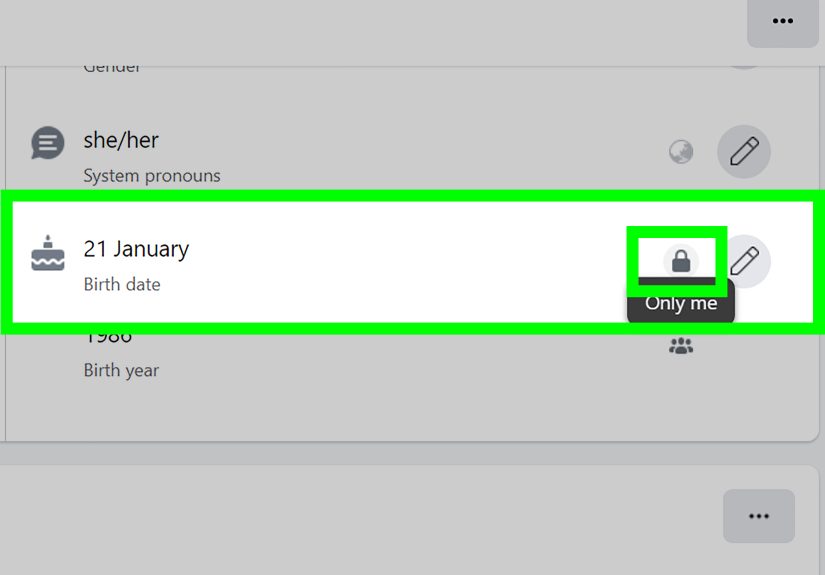
When editing your birthday on mobile, pay close attention to privacy icons beside your birth date and birth year. These are separate controls. You may set your birth date to “Friends” and your birth year to “Only me,” which is a popular privacy-friendly setup. That way, friends can still celebrate your birthday without seeing your full age.
How to Change Your Birthday on Facebook Desktop
If you prefer a larger screen, Facebook’s desktop site may be easier to navigate. Desktop is also helpful if the mobile app is glitching or if you want to see all profile settings more clearly.
Step-by-Step: Change Birthday on Desktop
- Go to Facebook.com and log in to your account.
- Click your profile picture or name to open your profile.
- Click the About tab.
- Select Contact and Basic Info or a similar basic information section.
- Scroll to your birthday.
- Click the Edit icon or pencil icon next to your birthday.
- Choose the correct month, day, and year.
- Adjust the audience settings if needed.
- Click Save.
If Facebook redirects you to Accounts Center, follow the prompts there. In newer Meta account setups, personal details may be managed in a central place rather than directly inside the old profile editing screen.
How to Change Who Can See Your Birthday on Facebook
Sometimes people do not actually need to change their birthday. They just want to hide it. Maybe you are tired of 94 “HBD!” comments from people you have not spoken to since middle school. Maybe you prefer privacy. Maybe you just want to avoid the annual awkwardness of replying “Thanks!” fifty times in a row. Good news: you can change birthday visibility without changing the birthday itself.
Birthday Privacy Options
Facebook usually lets you choose an audience for your birthday information. Common options include:
- Public: Anyone may be able to see it.
- Friends: Only Facebook friends can see it.
- Only me: Only you can see it.
- Custom: You choose specific people or groups.
Facebook may let you control your birth date and birth year separately. For example, you can show your birthday month and day to friends but keep your birth year private. This is usually the best balance between social convenience and personal privacy.
How to Hide Your Birthday on Mobile
- Open the Facebook app.
- Go to your profile.
- Tap See your About info.
- Find Basic info and tap Edit.
- Tap the audience selector next to your birthday or birth year.
- Choose Only me if you want to hide it.
- Tap Save.
How to Hide Your Birthday on Desktop
- Open Facebook on your browser.
- Go to your profile.
- Click About.
- Open Contact and Basic Info.
- Find your birthday and click the audience icon.
- Select Only me, Friends, or another audience.
- Save your changes.
What to Do If Facebook Will Not Let You Change Your Birthday
If the edit button is missing, the save button does not work, or Facebook says you cannot change your birthday, do not immediately assume your account is cursed. There are several common reasons this happens.
You Changed It Too Recently
Facebook may temporarily block another birthday edit after a recent change. If that happens, wait before trying again. Repeatedly tapping the same button usually does not help and may make Facebook think something suspicious is happening.
You Reached the Birthday Change Limit
Facebook limits birthday changes. If you have changed your birthday several times, the platform may require a formal request before allowing another correction. This is especially common for older accounts that have been edited over many years.
Your Birthday Creates an Age Eligibility Issue
If the new date suggests that the account holder is below the minimum age allowed in the region, Facebook may restrict the account or request confirmation. You should not enter a false older birthday to avoid age rules. Use your real birthday and follow Facebook’s verification process if asked.
You May Need to Request a Birthday Change
If you cannot edit your birthday normally, look for Facebook’s birthday change request option in the Help Center. You may need to provide your correct birthday and, in some cases, submit acceptable identification showing your face and date of birth. Make sure any information you submit matches the correction you are requesting.
Common Problems and Simple Fixes
The Birthday Field Is Grayed Out
If the birthday field is grayed out, your account may be temporarily restricted from editing it. Try again later from desktop, update your app, or check whether Accounts Center offers the birthday setting.
The Save Button Does Nothing
First, make sure all required fields are selected. Then check your internet connection, update the app, clear the browser cache, or try another browser. Desktop often works better when the mobile app is being dramatic.
The New Birthday Is Correct, But Friends Still Cannot See It
This is likely a privacy setting issue. Go back to your birthday audience controls and check both your birth date and birth year visibility. If both are set to “Only me,” your friends will not see birthday reminders.
Facebook Asks for ID
If Facebook asks for ID, follow the official instructions carefully. Use a valid document that shows the required information. Do not upload edited or fake documents. That can cause bigger account problems than the original birthday mistake.
Best Privacy Settings for Your Facebook Birthday
For most people, the smartest setting is simple: show the month and day to friends, hide the year from everyone else. This allows birthday reminders and friendly messages without exposing your full date of birth publicly.
Your full birthday can be sensitive personal information. Combined with your name, location, photos, school, workplace, or family connections, it can help strangers build a more complete profile of you. That does not mean you need to panic and move to a cabin with no Wi-Fi. It simply means your birthday deserves the same privacy attention as your phone number or home address.
If you use Facebook mainly for close friends and family, “Friends” may be fine for your month and day. If you rarely use Facebook or accept friend requests from people you do not know well, consider “Only me” or a custom audience.
Should You Remove Your Birthday from Facebook?
You usually cannot remove your birthday completely because Facebook needs age information for account and safety reasons. But you can hide it from other users. In practical terms, hiding your birthday makes it invisible on your profile to the audience you exclude.
If you hide your birthday, friends may not receive birthday notifications. That can be either peaceful or disappointing, depending on whether you love birthday attention or consider it a yearly group project in forced politeness. If you enjoy birthday wishes, keep the month and day visible to friends. If you prefer privacy, set it to “Only me.”
Mobile vs. Desktop: Which Method Is Better?
Both methods work, but desktop is often easier for careful edits. The larger screen makes it simpler to see profile sections, privacy icons, and save buttons. Mobile is faster if you already use the Facebook app daily, but app menus can shift around more often.
If the mobile app does not show the birthday setting, try desktop. If desktop sends you to Accounts Center, follow the Accounts Center path. If both fail, check whether you have reached a change limit or need to submit a birthday change request.
Quick Checklist Before You Tap Save
- Confirm the month, day, and year are correct.
- Use your real date of birth.
- Check whether the birth date and birth year have separate privacy settings.
- Set the audience to Friends, Only me, or Custom based on your comfort level.
- Do not make repeated changes unless necessary.
- If blocked, use Facebook’s official request process instead of guessing random dates.
Experience-Based Tips for Changing Your Birthday on Facebook
From a practical user-experience point of view, changing your birthday on Facebook is usually easy when you are correcting a small mistake, but it becomes more complicated when the account has a long history of edits. The first tip is to treat the change like an official profile correction, not a casual experiment. Before opening the edit screen, write down the correct birthday exactly as you want it to appear. This sounds obvious, but many mistakes happen because people scroll too quickly through date menus on mobile.
On phones, the most common issue is missing the right menu. Users often tap “Edit profile” and expect the birthday field to appear immediately. Sometimes it does, but sometimes Facebook hides it under “See your About info,” “Basic info,” or Accounts Center. If you feel lost, go back to your profile and look specifically for the About section. The birthday setting usually lives near other personal details such as contact information, relationship status, and profile basics.
Another helpful habit is to update the Facebook app before changing important account details. An outdated app may display older menus or fail to save properly. If the app keeps looping or freezing, switch to a desktop browser. Desktop is especially useful when you need to adjust birthday privacy because the audience icons are easier to see. Those tiny icons matter. One wrong tap can make your birth year more visible than you intended.
Privacy is where many users accidentally surprise themselves. Someone may correctly change their birthday, then wonder why friends still cannot see it. In most cases, the birthday is saved, but the audience is set to “Only me.” Another person may hide their birth year but forget the month and day are still public. The best move is to review both settings separately. Think of your birthday as two pieces: the celebration date and the age-revealing year. You may want different audiences for each.
If Facebook refuses the change, avoid rapid retries. People often click save over and over, hoping the platform will suddenly surrender. It usually will not. Instead, pause and check the message Facebook gives you. If it says you have changed your birthday too many times, look for the official birthday change request route. If Facebook asks for verification, follow the instructions exactly. A clear, honest request has a better chance than multiple confusing attempts.
Finally, after you save the change, check your profile from your own account and, if possible, use Facebook’s viewing tools or ask a trusted friend what they can see. This confirms both the birthday and the privacy settings. It is a small final step, but it prevents the classic “Why did nobody remember my birthday?” mystery. Sometimes the answer is not that your friends forgot. Sometimes the answer is that your privacy setting quietly put your birthday in witness protection.
Conclusion
Changing your birthday on Facebook is straightforward once you know where to look. On mobile, start from your profile, open your About information, find Basic info, and edit your birthday. On desktop, go to your profile’s About section, open Contact and Basic Info, then update the birthday field. If Facebook sends you to Accounts Center, continue there and save the correct date.
The key is to use your real birthday, avoid unnecessary repeat edits, and review your privacy settings before leaving the page. You can usually control who sees your birth date and birth year separately, which gives you a nice balance between birthday fun and personal privacy. And if Facebook blocks the change, use the official request process rather than trying random workarounds. Your profile will be more accurate, your privacy will be cleaner, and your birthday wishes will finally arrive on the right day. A small win, but hey, the internet owes us those.