Table of Contents >> Show >> Hide
- What Is a Facebook Profile or Page URL?
- Why You Might Need to Copy a Facebook URL
- How to Copy Your Facebook Profile URL on iPhone
- How to Copy Someone Else’s Facebook Profile URL on iPhone
- How to Copy Your Facebook Profile URL on Android
- How to Copy Someone Else’s Facebook Profile URL on Android
- How to Copy a Facebook Page URL on iPhone
- How to Copy a Facebook Page URL on Android
- How to Copy a Facebook URL from a Mobile Browser
- How to Paste and Test the Facebook URL
- How to Clean Up a Facebook URL
- What to Do If “Copy Link” Does Not Appear
- Profile URL vs. Page URL: What Is the Difference?
- Can You Change Your Facebook URL?
- Common Mistakes When Copying a Facebook URL
- Best Practices for Sharing a Facebook Profile or Page URL
- Experience-Based Tips for Copying Facebook URLs on iPhone and Android
- Conclusion
Copying a Facebook profile or Page URL sounds like the kind of task that should take three seconds. Then Facebook moves a button, changes a menu label, hides a link behind three dots, and suddenly you are tapping around your phone like you are trying to unlock a secret level in a 1990s video game.
The good news: copying a Facebook URL on iPhone or Android is still simple once you know where to look. Whether you want to share your personal profile, send a business Page link to a customer, add your Facebook Page to an email signature, or paste your profile URL into a job application, this guide walks you through the exact steps.
In this article, you will learn how to copy a Facebook profile link, how to copy a Facebook Page URL, how to do it from the Facebook app, how to use a mobile browser when the app is being dramatic, and how to fix common problems when the copy-link option does not appear.
What Is a Facebook Profile or Page URL?
A Facebook URL is the web address that opens a specific Facebook profile, Page, group, post, or event. For a personal profile, it may look like this:
https://www.facebook.com/yourname
Or, if the account does not have a custom username, it may look something like this:
https://www.facebook.com/profile.php?id=123456789
A Facebook Page URL usually looks like this:
https://www.facebook.com/YourBusinessName
The cleaner version is created when a profile or Page has a custom username. The longer version with numbers still works, but it is not exactly beautiful. It is the difference between handing someone a business card and handing them a grocery receipt with directions written on the back.
Why You Might Need to Copy a Facebook URL
There are many everyday reasons to copy a Facebook profile or Page URL. You might need it for a resume, email signature, social media bio, website footer, online form, customer support request, event invitation, digital business card, or cross-promotion campaign.
For businesses, the correct Facebook Page URL is especially important. If you add only facebook.com to your website or newsletter, visitors land on Facebook’s general homepage instead of your brand Page. That is like inviting someone to your store and dropping them in the middle of a mall parking lot. Technically nearby, but not helpful.
How to Copy Your Facebook Profile URL on iPhone
If you are using the Facebook app on an iPhone, follow these steps to copy your personal profile link:
Step-by-Step: Copy Your Own Profile Link on iPhone
- Open the Facebook app on your iPhone.
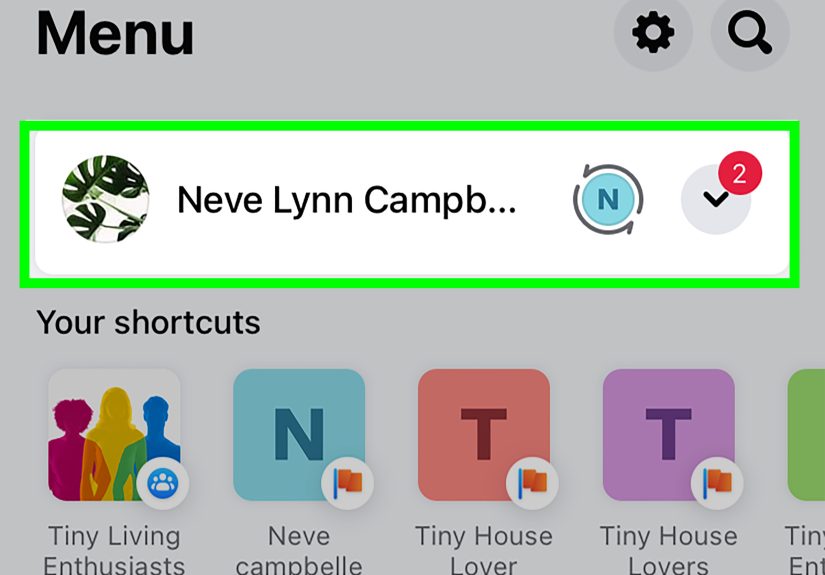
- Tap your profile picture or your name to open your profile.
- Tap the three-dot menu near your profile controls, usually close to “Edit profile.”
- Scroll down until you see a section such as Your profile link.
- Tap Copy link or Copy link to profile.
- The Facebook profile URL is now copied to your clipboard.
To confirm that it worked, open Notes, Messages, Gmail, or any text field. Tap and hold, then choose Paste. If the Facebook link appears, congratulations: you have officially defeated the tiny three-dot menu monster.
How to Copy Someone Else’s Facebook Profile URL on iPhone
You can also copy another person’s Facebook profile link, as long as the profile is visible to you and available through search or a direct visit.
Steps for Copying Another Profile Link on iPhone
- Open the Facebook app.
- Tap the search icon.
- Search for the person’s name.
- Open the correct profile.
- Tap the three-dot menu on the profile.
- Choose Copy link or Copy link to profile.
Before sharing someone else’s profile link publicly, use common sense. Sharing a link in a private message to help a friend connect is normal. Posting someone’s profile link in a public place without context can feel uncomfortable, especially if the person keeps a low profile online.
How to Copy Your Facebook Profile URL on Android
The Android process is very similar to iPhone, although the placement of menu buttons may vary slightly depending on your Facebook app version, phone brand, and screen size.
Step-by-Step: Copy Your Own Profile Link on Android
- Open the Facebook app on your Android phone.
- Tap your profile picture, name, or Menu icon to go to your profile.
- Tap the three-dot menu on your profile page.
- Scroll down to find Your profile link or a similar link section.
- Tap Copy link or Copy link to profile.
- Your Facebook profile URL is copied to your clipboard.
On many Android devices, you may see a small confirmation message saying the link was copied. If you do not see one, paste the link into a text message or note to check it.
How to Copy Someone Else’s Facebook Profile URL on Android
To copy another profile link from an Android phone:
- Open Facebook.
- Use the search bar to find the person.
- Open the correct profile.
- Tap the three-dot menu.
- Select Copy link or Copy link to profile.
If you cannot find the person, the profile may be private, blocked, deactivated, restricted by search settings, or simply not using the name you searched. Facebook profiles are searchable only within the limits of Facebook’s privacy and account settings.
How to Copy a Facebook Page URL on iPhone
A Facebook Page is different from a personal profile. Pages are used by businesses, public figures, creators, organizations, schools, restaurants, local services, and brands. If you manage a Page, you may need the Page URL for your website, Google Business Profile, email newsletter, ads, or printed materials.
Method 1: Copy a Facebook Page URL in the iPhone App
- Open the Facebook app on your iPhone.
- Go to the Page you want to copy. You can use search, Menu, or your Page shortcut.
- If you manage the Page, switch into the Page profile if needed.
- Tap the three-dot menu on or near the Page header.
- Look for Copy link or Copy link to Page.
- Tap it to copy the URL.
On iPhone, Facebook sometimes changes what appears inside the app menu. If the copy option is missing, do not start questioning your life choices. Use the browser method below.
Method 2: Copy a Facebook Page URL on iPhone Using Safari or Chrome
- Open Safari or Chrome on your iPhone.
- Go to facebook.com and log in.
- Search for the Facebook Page or open it from your account menu.
- Once the Page loads, tap the browser address bar.
- Select the full URL.
- Tap Copy.
This method is often the most reliable for iPhone users because the mobile browser shows the actual address. If the address bar disappears in Safari, scroll slightly upward and it should reappear.
How to Copy a Facebook Page URL on Android
Android users usually have an easier time finding the Page copy option inside the Facebook app, although Facebook menus can still vary.
Method 1: Copy a Facebook Page URL in the Android App
- Open the Facebook app on your Android phone.
- Search for the Page or open it from your Pages section.
- Tap the Page to open it.
- Tap the three-dot menu.
- Scroll until you see Copy link or Copy link to Page.
- Tap the option to copy the Page URL.
Method 2: Copy a Facebook Page URL in Chrome on Android
- Open Chrome on your Android phone.
- Visit facebook.com and log in.
- Open the Facebook Page.
- Tap the address bar.
- Copy the full URL.
You can also use Chrome’s share menu. Open the Page, tap the browser menu or share icon, and choose a copy option if available. Different Android phones may label this slightly differently, but the idea is the same: get the link from the browser and place it on your clipboard.
How to Copy a Facebook URL from a Mobile Browser
The mobile browser method works for profiles and Pages on both iPhone and Android. It is also helpful when the Facebook app is outdated, glitching, or refusing to show the link option.
Universal Browser Method
- Open Safari, Chrome, or another trusted mobile browser.
- Go to facebook.com.
- Log in to your Facebook account.
- Navigate to the profile or Page you want to share.
- Tap the address bar.
- Select the full link.
- Tap Copy.
This is the cleanest fallback because it copies the real web address directly from the browser. It also lets you see whether the link uses a custom username or a numeric profile ID.
How to Paste and Test the Facebook URL
After copying the link, test it before sending it to customers, clients, coworkers, or your aunt who still signs every Facebook comment with her full name.
Easy Ways to Test the Link
- Paste it into Notes or Google Keep.
- Send it to yourself in Messages or email.
- Open a private browsing tab and paste the URL.
- Ask a friend to open the link if it is for a public Page.
- Check that the link opens the correct profile or Page, not a post, photo, or general Facebook homepage.
Testing matters because Facebook sometimes copies a link with extra tracking text. In most cases, the link still works, but a clean URL looks more professional when used on websites, resumes, newsletters, and business materials.
How to Clean Up a Facebook URL
Sometimes copied Facebook links are long. They may include extra characters after a question mark, such as tracking parameters. For example:
https://www.facebook.com/YourPageName?mibextid=example
In many cases, the clean version is simply:
https://www.facebook.com/YourPageName
If you remove tracking text, test the cleaned link before publishing it. Do not remove important parts of a numeric profile link, especially if it looks like profile.php?id=. That number may be necessary for the link to work.
What to Do If “Copy Link” Does Not Appear
If you cannot find the copy-link option, try these fixes:
1. Update the Facebook App
Open the App Store on iPhone or Google Play on Android and check whether Facebook needs an update. App menus often change after updates, and an outdated version may behave differently from current instructions.
2. Use a Browser Instead
If the app does not show “Copy link,” open Facebook in Safari or Chrome and copy the URL from the address bar. This is often the fastest workaround.
3. Make Sure the Page Is Published
If you are trying to copy a business Page link, the Page should be published and visible. An unpublished Page may not open properly for other people, even if you can see it as an admin.
4. Check That You Are on the Main Profile or Page
Facebook has separate links for posts, photos, videos, profiles, Pages, groups, and events. If you copied the link from a photo or post, it may not take people to the main profile or Page.
5. Restart the App
Close Facebook fully and reopen it. This is not glamorous advice, but it works often enough to earn its place at the troubleshooting table.
Profile URL vs. Page URL: What Is the Difference?
A Facebook profile URL points to an individual person’s account. A Facebook Page URL points to a business, brand, organization, creator, or public identity. The difference matters because profiles and Pages have different purposes.
Use a profile URL when you want someone to find a personal account. Use a Page URL when promoting a business, public figure, store, service, nonprofit, restaurant, blog, or community brand.
For professional use, a Page URL is usually better. It can be shared publicly, added to marketing materials, and managed by multiple people if roles and permissions are set up. A personal profile is more private and should not be treated like a business landing page.
Can You Change Your Facebook URL?
Yes, in many cases you can change a Facebook profile or Page URL by changing the username. A username is the custom part of the link after facebook.com/. For example, in facebook.com/BlueOakBakery, the username is BlueOakBakery.
For personal profiles, username settings are generally handled through Facebook settings or Accounts Center. For Pages, you usually need admin access to change the Page username. If the username you want is already taken or does not meet Facebook’s rules, you will need to choose a different one.
Tips for Choosing a Good Facebook Username
- Keep it short and easy to spell.
- Use your real name, brand name, or business name.
- Avoid random numbers unless they are part of your brand.
- Make it consistent with your website and other social media handles.
- Do not use confusing punctuation or hard-to-read abbreviations.
A clean username makes your Facebook URL easier to remember, easier to print, and less likely to be mistyped. In other words, it saves everyone from playing “Guess the Missing Underscore.”
Common Mistakes When Copying a Facebook URL
Copying the Wrong Link
The most common mistake is copying a post link instead of the profile or Page URL. If the link opens a single photo, Reel, or status update, go back to the main profile or Page and copy the link from there.
Sharing an Admin-Only Page Preview
If you manage a Page, make sure you are not copying a private admin view or settings page. The public Page URL should open for normal visitors.
Forgetting to Test the Link
Always paste and test the URL before publishing it. One small mistake can send visitors to the wrong place or to a page that asks them to log in.
Using a Personal Profile for a Business
If you are promoting a brand, use a Facebook Page rather than a personal profile. A Page is designed for public business visibility, followers, insights, ads, and customer communication.
Best Practices for Sharing a Facebook Profile or Page URL
Once you have the correct link, use it thoughtfully. Add your Page URL to your website footer, contact page, email signature, business card, social media profiles, YouTube description, Google Business Profile, and digital brochures. For personal profile links, share them only where it makes sense, such as networking messages or private introductions.
If the link is for a business, keep the Page updated before sending traffic to it. A correct URL is helpful, but a Page with old hours, missing contact information, and a cover photo from six years ago may not make the best first impression. Your Facebook Page should answer the visitor’s basic questions quickly: Who are you? What do you offer? Where are you located? How can people contact you?
Experience-Based Tips for Copying Facebook URLs on iPhone and Android
After helping many users find social profile links, one pattern becomes clear: the hardest part is rarely the actual copying. The hard part is knowing which screen Facebook wants you to be on. If you are one tap too deep inside a photo, a Reel, a story, or a post, the link you copy may not be the main profile or Page link. That is why the safest habit is to first navigate to the main profile or Page header, then look for the three-dot menu.
On iPhone, the browser method is often the most dependable backup. If the Facebook app does not display “Copy link to Page,” open Safari, visit Facebook, load the Page, and copy the URL from the address bar. It may feel slightly old-school, but it gives you more control. Safari and Chrome both make it easy to select the address, copy it, and paste it somewhere else. When preparing a link for a website or email campaign, this method is especially useful because you can see the entire URL before using it.
On Android, the Facebook app usually makes the copy-link option easier to find, especially for profiles. Still, Android phones vary widely. A Samsung phone, a Google Pixel, and a budget Android device may show slightly different keyboard, clipboard, or share options. If copying from the Facebook app feels confusing, Chrome is a reliable alternative. Load the profile or Page in Chrome, tap the address bar, and copy the link directly. Simple, boring, effectivethe oatmeal of troubleshooting.
For business owners, the best experience comes from creating a clean Page username before sharing the link everywhere. A URL such as facebook.com/SunnysideDentalAustin looks far more trustworthy than a long address filled with numbers and extra characters. It also fits better on flyers, menus, email signatures, and business cards. If you change your Page username later, update every place where the old URL appears. Old links can confuse customers and weaken your local marketing efforts.
Another helpful habit is keeping a small “brand links” note on your phone. Add your Facebook Page URL, Instagram link, website, booking page, and preferred contact email. When someone asks for your Facebook link, you can copy it from that note instead of opening the Facebook app and hunting through menus while pretending everything is fine.
Finally, remember that privacy and visibility matter. A copied link does not magically make private content public, and a public Page link will not help much if the Page is unpublished or incomplete. Before sending the URL, open it in a private browser tab or ask someone outside your admin team to test it. If it opens correctly, you are ready to share it with confidence. If not, fix the visibility issue first. A Facebook link should be a doorway, not a locked door with a very long address.
Conclusion
Copying a Facebook profile or Page URL on iPhone or Android is easy once you know the right route. In the Facebook app, open the profile or Page, tap the three-dot menu, and choose the copy-link option. If the app does not show it, use Safari or Chrome, open Facebook in the browser, and copy the address from the URL bar.
For personal use, a Facebook profile link helps people find the right account quickly. For business use, a Facebook Page URL is essential for websites, email signatures, ads, newsletters, and customer communication. The smartest move is to copy the link, paste it somewhere, test it, clean it if needed, and save it for future use.
Note: Facebook updates its app layout often, so button names and menu positions may vary slightly by account, region, phone model, and app version. When in doubt, use the mobile browser method because the address bar shows the actual URL.