Table of Contents >> Show >> Hide
- What Is Roblox Error Code 277?
- Common Causes of Roblox Error Code 277
- Start Here: Quick Fixes That Work on Almost Any Device
- How to Fix Roblox Error Code 277 on Windows PC
- How to Fix Roblox Error Code 277 on Mac
- How to Fix Roblox Error Code 277 on Android
- How to Fix Roblox Error Code 277 on iPhone or iPad
- How to Fix Roblox Error Code 277 on Chromebook
- Router and Network Fixes for Roblox Error Code 277
- Browser Fixes If You Launch Roblox from the Web
- When Error 277 Is Not Your Fault
- Best Fix Order: The Fast Troubleshooting Checklist
- Personal Experience: What Error 277 Usually Feels Like in Real Life
- Conclusion
Roblox Error Code 277 is one of those gaming errors that appears right when things are finally getting interesting. You are mid-round, your avatar is thriving, your friends are shouting in chat, and suddenly Roblox taps you on the shoulder like a strict librarian: “Lost connection to the game server, please reconnect.” Charming? Not exactly. Fixable? Very often, yes.
In simple terms, Roblox Error Code 277 usually means the Roblox client on your device failed to maintain a stable connection with the game server. That can happen because of weak Wi-Fi, a blocked firewall, corrupted Roblox app files, outdated software, browser conflicts, a bad server, or a full Roblox outage. The annoying part is that the same message can appear for different reasons, which is why the best fix is not one magic buttonit is a smart troubleshooting path.
This guide walks through the best fixes for PC, Mac, iPhone, Android, Chromebook, console-style setups, and home networks. We will keep it practical, slightly funny, and very focused on getting you back into Roblox before your character becomes digital furniture.
What Is Roblox Error Code 277?
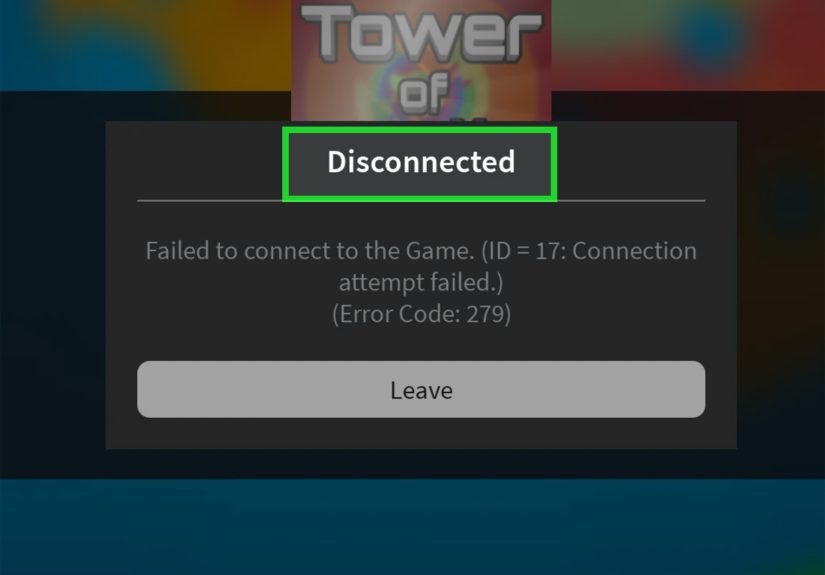
Roblox Error Code 277 is a connection error. The message usually says something like: “Lost connection to the game server, please reconnect. Please check your internet connection and try again.” It can appear when joining an experience, teleporting between servers, loading a large map, playing on unstable Wi-Fi, or when Roblox itself is having server issues.
The important detail is this: Error 277 does not always mean your internet is “bad.” You might be able to stream videos, browse websites, and send messages just fine while Roblox still disconnects. Roblox experiences require constant communication between your device and Roblox servers. If that communication gets interrupted, blocked, delayed, or confused, Roblox may drop the session and show Error Code 277.
Common Causes of Roblox Error Code 277
1. Unstable Wi-Fi or Packet Loss
Roblox does not only need speed; it needs stability. A fast connection with random drops can still trigger Roblox connection errors. Think of it like driving a sports car on a road full of potholes. Yes, the car is fast. No, the ride is not going well.
2. Firewall, Antivirus, or Router Restrictions
Security software can sometimes treat Roblox like a suspicious stranger knocking on the router’s front door. If Roblox is blocked from sending or receiving data properly, Error 277 may appear. Router settings, school networks, public Wi-Fi, VPNs, and strict firewall rules can all cause connection trouble.
3. Corrupted Roblox Files or Cache
Roblox updates frequently. Over time, temporary files, cached data, or damaged app files can cause loading and connection issues. Reinstalling Roblox or clearing app data can remove those broken bits and give the app a clean start.
4. Outdated App, Browser, or Operating System
If your Roblox app, browser, Windows version, macOS version, Android system, iOS version, or ChromeOS build is outdated, Roblox may not run smoothly. Updates often include security, compatibility, and networking improvements.
5. Roblox Server or Experience-Specific Problems
Sometimes your device is innocent. A specific Roblox experience may have heavy scripts, a huge map, overloaded servers, or a temporary bug. In other cases, Roblox may be having a wider outage. Before you blame your router and threaten to replace it with a potato, check whether Roblox is down.
Start Here: Quick Fixes That Work on Almost Any Device
Restart Roblox
Close Roblox completely and reopen it. On mobile, swipe it away from recent apps. On PC, check Task Manager to make sure Roblox is not still running in the background. This tiny step fixes more problems than it gets credit for, mostly because apps occasionally need a nap.
Restart Your Device
Restart your computer, phone, tablet, or Chromebook. A reboot clears temporary memory, closes stuck background processes, and refreshes network services. It is not glamorous, but neither is Error 277.
Switch Networks
Try another internet connection. If you are on Wi-Fi, test mobile data or another Wi-Fi network. If you are on PC, try Ethernet. If Roblox works on one network but not another, the problem is probably your router, ISP, school network, or local firewall settings.
Check Roblox Server Status
Before changing everything on your device, check whether Roblox is experiencing an outage. If many users are reporting connection failures, waiting may be the only real fix. During a platform-side issue, clearing cache for the seventh time is just emotional cardio.
How to Fix Roblox Error Code 277 on Windows PC
1. Reinstall Roblox
On Windows, corrupted Roblox files are a common reason for repeated connection errors. Open Settings, go to Apps, find Roblox, and uninstall it. After that, restart your PC and install Roblox again from the official Roblox website or Microsoft Store.
A fresh install replaces damaged files and updates Roblox to the latest version. This is especially helpful if Error Code 277 started after an update, crash, or failed installation.
2. Clear Roblox App Data
If reinstalling alone does not help, clear leftover Roblox folders. Press Windows + R, type %localappdata%, and press Enter. Look for the Roblox folder and remove it after Roblox has been uninstalled. Then restart your PC and reinstall Roblox.
Be careful to delete only Roblox-related temporary files. Do not wander through system folders like you are exploring a haunted mansion. If you are unsure, stop and use the standard uninstall method instead.
3. Allow Roblox Through Windows Firewall
Open Windows Security, go to Firewall & network protection, and allow Roblox through the firewall. Make sure Roblox can communicate on private networks. If you use third-party antivirus software, check its app-control or firewall section as well.
Do not permanently turn off your firewall just to play Roblox. That is like removing your front door because the delivery driver knocked too softly. Instead, add Roblox as an allowed app.
4. Reset Your Network Settings
Windows includes tools for fixing stubborn connection problems. Run the Network and Internet troubleshooter first. If the issue continues, open Command Prompt as administrator and run these commands one by one:
Restart your PC afterward. These commands refresh DNS records, renew your IP address, and reset parts of the Windows networking stack. For many Roblox players, this is where Error 277 quietly packs its bags.
5. Use Ethernet or Improve Wi-Fi
If possible, connect your PC directly to the router with an Ethernet cable. Wired connections are usually more stable than Wi-Fi, especially in crowded homes where every device is fighting for bandwidth like shoppers on Black Friday.
If Ethernet is not an option, move closer to the router, use a 5 GHz Wi-Fi network when available, restart the router, and reduce heavy downloads or streaming while playing.
How to Fix Roblox Error Code 277 on Mac
1. Delete and Reinstall Roblox
On macOS, open Finder, go to Applications, and move Roblox to the Trash. Then download and install Roblox again. A clean install can fix corrupted files and update the app.
2. Check Security and Privacy Permissions
Go to System Settings, then Privacy & Security. Make sure macOS is not blocking Roblox from opening or connecting properly. If you recently updated macOS, permissions may need to be reviewed.
3. Test a Different Network
If Roblox keeps disconnecting on your home Wi-Fi but works on another network, the issue may be your router or ISP. Restart your router, check parental controls, and avoid VPNs while testing.
How to Fix Roblox Error Code 277 on Android
1. Force Stop Roblox
Open Settings, go to Apps, select Roblox, and tap Force Stop. Then reopen the app. This closes stuck background processes and can fix temporary runtime issues.
2. Clear Cache
In the Roblox app settings, open Storage and tap Clear Cache. Cache files are temporary, and clearing them will not delete your Roblox account. It may log you out or reset small app behaviors depending on the device, but your account and purchases remain tied to your Roblox login.
3. Reinstall Roblox
If clearing cache does not work, uninstall Roblox and reinstall it from Google Play. This gives you the latest app version and removes corrupted local files.
4. Check Date and Time
Incorrect date and time settings can interfere with server communication. Open your Android settings and enable automatic date and time. Then relaunch Roblox.
How to Fix Roblox Error Code 277 on iPhone or iPad
1. Restart the Device
Restart your iPhone or iPad first. Mobile apps can behave strangely after long sessions, low memory, or background network changes.
2. Update Roblox
Open the App Store, search for Roblox, and install any available update. An outdated version may cause connection or compatibility problems.
3. Delete and Reinstall Roblox
Press and hold the Roblox app icon, delete the app, then reinstall it from the App Store. This is the iOS equivalent of clearing stubborn app files. Log back in after reinstalling.
4. Fix Date and Time
Go to Settings, open General, choose Date & Time, and enable Set Automatically. A wrong clock can cause server authentication and connection issues.
How to Fix Roblox Error Code 277 on Chromebook
For Chromebooks, update ChromeOS first. Then restart the device and reinstall Roblox from Google Play if your Chromebook supports Android apps. Make sure the Google Play Store is enabled and that your device meets Roblox requirements.
If you are using a school-managed Chromebook, Roblox may be restricted by administrator settings. In that case, you may not be able to fix Error 277 yourself because the network or device policy is doing exactly what it was configured to do.
Router and Network Fixes for Roblox Error Code 277
Restart Your Modem and Router
Unplug your modem and router for about 30 seconds, then plug them back in. Wait until the connection fully returns before reopening Roblox. This refreshes your network connection and clears temporary router issues.
Check Firewall and Router Rules
Roblox uses dynamic UDP ports, and strict routers may block the traffic Roblox needs. If you manage your router, make sure Roblox is not blocked by parental controls, security rules, or device restrictions. Advanced users can review UDP port settings, especially the high UDP range commonly used by Roblox.
Avoid VPNs While Testing
VPNs can sometimes help with routing problems, but they can also add latency, trigger security checks, or create unstable connections. Turn off VPNs while testing Error Code 277. If Roblox works without the VPN, you found the gremlin.
Reduce Network Congestion
Pause large downloads, cloud backups, 4K streaming, and other bandwidth-heavy tasks while playing. Roblox does not usually require extreme speed, but it does benefit from a clean, steady connection.
Browser Fixes If You Launch Roblox from the Web
Use an Updated Browser
If you launch Roblox from a browser, use the latest version of Chrome, Edge, Firefox, or Safari. Outdated browsers can cause launch loops, failed handoffs to the Roblox app, or blocked scripts.
Disable Extensions Temporarily
Ad blockers, privacy extensions, script blockers, and Roblox-related add-ons can interfere with loading. Disable extensions temporarily, then try joining an experience again.
Clear Browser Cache and Cookies
Clear your browser cache and cookies if Roblox launches incorrectly or keeps failing to connect after clicking Play. This removes stale website data that may conflict with the current Roblox session.
When Error 277 Is Not Your Fault
Sometimes Error Code 277 happens because Roblox is having a wider server issue or because a specific experience is overloaded or poorly optimized. Large maps, heavy scripts, and crowded servers can cause timeouts, especially on lower-end devices or weaker connections.
Try joining a different Roblox experience. If only one game disconnects, the problem may be that experience. If every experience fails across multiple devices on the same network, your network may be the issue. If every device on every network is struggling and other players are reporting the same thing, Roblox may be having an outage.
Best Fix Order: The Fast Troubleshooting Checklist
- Check Roblox server status.
- Close and reopen Roblox.
- Restart your device.
- Switch from Wi-Fi to Ethernet or mobile data.
- Update Roblox.
- Clear Roblox cache or app data.
- Reinstall Roblox.
- Disable VPNs and suspicious browser extensions.
- Allow Roblox through firewall or antivirus software.
- Reset network settings if the problem continues.
Personal Experience: What Error 277 Usually Feels Like in Real Life
The most frustrating thing about Roblox Error Code 277 is that it often feels random. In real use, it rarely walks in politely and says, “Hello, I am caused by your router’s UDP handling.” No, it usually appears after you have already loaded into a game, started doing something important, and mentally committed to winning. Then the server freezes, other players stop moving, chat becomes silent, and the error appears like a tiny digital villain.
From practical troubleshooting experience, the first clue is timing. If Error 277 appears immediately after joining, the issue may be app files, firewall settings, browser launch problems, or the specific game server. If it appears after five to fifteen minutes, suspect unstable Wi-Fi, packet loss, router congestion, overheating, or a background app stealing network resources. If it happens only in large Roblox experiences, your device may be struggling to load assets quickly enough, especially on mobile data or older hardware.
One of the most useful tests is the “different network test.” For example, if Roblox disconnects on home Wi-Fi but works on mobile data, the Roblox app is probably fine. The problem is more likely the router, ISP routing, DNS, firewall, or Wi-Fi stability. If Roblox fails on mobile data too, then the issue may be the app installation, account session, device settings, or Roblox service status.
Another common pattern is the “one game only” problem. A player may say, “Roblox is broken,” but every other experience works except one huge game with lots of terrain, effects, or active players. In that case, Error 277 may not be a universal Roblox problem. It may be that one experience timing out, loading too slowly, or running into server-side issues.
On PC, the fixes that tend to help most are reinstalling Roblox, clearing local Roblox data, allowing Roblox through the firewall, and resetting network settings. On mobile, force closing the app, clearing cache, reinstalling, and correcting date and time are usually the most practical steps. On school or public Wi-Fi, the honest answer is sometimes less exciting: the network may block Roblox traffic, and no amount of app reinstalling will convince a managed network to behave like your home router.
The biggest mistake is doing advanced fixes first. Do not start by changing router ports, editing DNS, or resetting every network setting on your device before checking the simple stuff. Start with status, restart, update, reinstall, and network switching. Those steps solve the largest number of cases with the least drama. Save advanced router and command-line fixes for when the easy fixes fail.
Also, do not ignore patterns across devices. If Roblox fails on your PC, phone, and tablet while connected to the same Wi-Fi, the device is probably not the main villain. If Roblox works perfectly on one device but not another, focus on that device’s app installation, firewall, operating system, or stored cache.
In short, Error 277 is less of a single bug and more of a connection mystery. The good news is that mysteries become much easier when you test one suspect at a time. Change one thing, test Roblox, then move to the next step. That way, when the error finally disappears, you know what fixed itand you can feel slightly smug, which is an important part of technical support.
Conclusion
Roblox Error Code 277 means Roblox lost its connection to the game server, but the reason can vary. It may be your Wi-Fi, your firewall, your app files, your browser, your device settings, the specific Roblox experience, or Roblox itself. The best approach is to start simple: restart Roblox, restart your device, check Roblox status, test another network, and update or reinstall the app.
If the problem continues, move into deeper fixes like clearing Roblox data, allowing Roblox through firewall settings, resetting Windows network settings, checking router rules, and avoiding VPNs. The key is not to panic-click every setting on your device like it owes you money. Work through the steps calmly, test after each change, and you will usually find the cause.
Note: This article is written for general troubleshooting and web publishing. Menu names may vary slightly by device model, operating system version, router brand, or Roblox app version.