Table of Contents >> Show >> Hide
- Can You Gift Someone a Game on Steam?
- Before You Gift a Game on Steam: What You Need
- How to Gift Someone a Game on Steam: Step-by-Step
- Step 1: Open Steam and Sign In
- Step 2: Find the Game You Want to Gift
- Step 3: Open the Game’s Store Page
- Step 4: Click “Add to Cart”
- Step 5: Choose “Purchase as a Gift”
- Step 6: Select the Recipient
- Step 7: Choose Delivery Time
- Step 8: Add a Personal Message
- Step 9: Review and Pay
- Step 10: Confirm the Gift Was Sent
- How the Recipient Accepts a Steam Gift
- How to Gift a Game on the Steam Mobile App
- When to Send a Steam Gift Card Instead
- Common Problems When Gifting Games on Steam
- Can You Refund a Gifted Game on Steam?
- Best Games to Gift on Steam: How to Choose Well
- Smart Tips for Steam Sale Gifting
- Safety and Etiquette: Do Not Be Weird With Gifts
- Experience Notes: What Usually Works Best When Gifting on Steam
- Conclusion
Gifting a game on Steam is one of the easiest ways to say, “I care about you, and I also believe you should lose 47 hours of your life to an open-world RPG.” Whether you are buying a birthday surprise, sending a co-op game to a friend, or quietly nudging someone into your favorite franchise, Steam makes digital game gifting fairly simpleas long as you know where to click and what rules to watch for.
This guide walks you through exactly how to gift someone a game on Steam, how scheduled delivery works, what to do if the gift will not send, when a Steam Gift Card is the better choice, and how refunds work if the recipient already owns the game or changes their mind. Think of it as your friendly map through the Steam checkout maze, minus the boss fight.
Can You Gift Someone a Game on Steam?
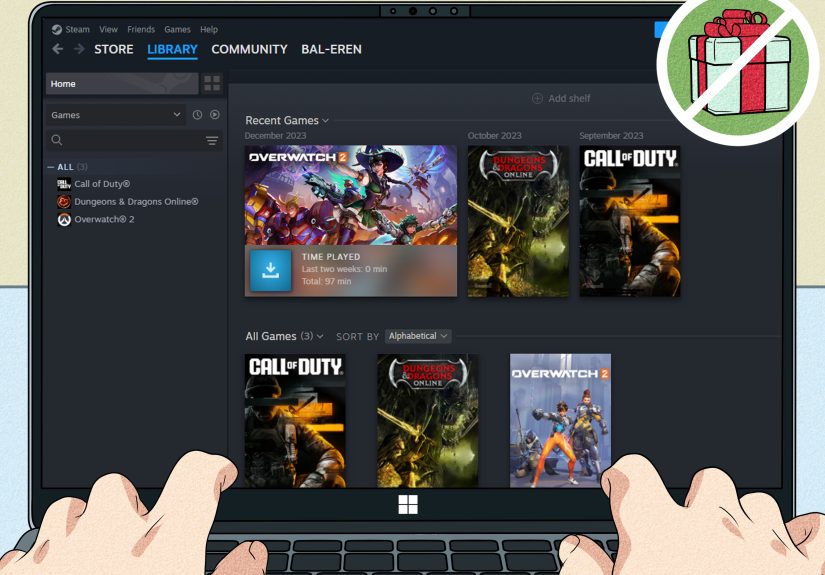
Yes, you can gift many games on Steam directly to someone on your Steam Friends List. Instead of buying the game for your own library, you choose the option to purchase it as a gift during checkout. Steam then sends the gift to your selected friend, either immediately or on a scheduled date.
However, not every game, bundle, DLC, or region combination is gift-friendly. Some purchases may be restricted because of regional pricing, publisher settings, account limitations, or the recipient already owning the game. In other words, Steam gifting is easy most of the timebut it still has a few “why is this button gray?” moments.
Before You Gift a Game on Steam: What You Need
Before you start shopping, make sure the basics are covered. A little preparation saves you from buying the perfect game and then discovering Steam has decided to be the bouncer at the club.
1. You Need a Steam Account
You must be logged into your Steam account to buy and send a game gift. You can do this through the Steam desktop client, the Steam website, or the Steam mobile app. The desktop client is usually the smoothest option because the store, cart, library, and Friends List are all in one place.
2. The Recipient Should Be on Your Steam Friends List
For regular game gifts, the recipient needs to appear on your Steam Friends List during checkout. If you do not see them, add them as a friend first and make sure they accept the request. For Steam Digital Gift Cards, Steam commonly requires the person to have been on your Friends List for a short waiting period before you can send wallet funds, so plan ahead if the gift is time-sensitive.
3. Check Whether They Already Own the Game
Steam usually warns you if your friend already owns the game. Still, it is smart to check their public library, wishlist, or simply ask a sneaky question like, “Totally unrelated, how do you feel about tactical farming simulators with dragons?” If the game is already in their account, they may not be able to accept another copy.
4. Watch for Region Restrictions
Steam uses regional pricing in many countries. Because of this, some gifts cannot be sent or redeemed across certain regions. If a gift has a regional restriction, Steam should show a warning before you complete checkout. Do not ignore checkout warnings; they are the tiny red flags of digital gift-giving.
How to Gift Someone a Game on Steam: Step-by-Step
Here is the standard method for gifting a Steam game from the store. These steps work best on the Steam desktop client or the Steam website.
Step 1: Open Steam and Sign In
Launch the Steam desktop client or go to the Steam store in your browser. Sign in with your account. If you use Steam Guard, confirm your login through the Steam Mobile App or email verification.
Step 2: Find the Game You Want to Gift
Use the search bar at the top of the Steam store to find the game. You can also browse categories such as New & Trending, Specials, Top Sellers, Co-op, RPG, Strategy, Simulation, or whatever genre best matches the recipient’s personality. For example, if your friend loves chaos, co-op survival games are usually a strong choice. If they love spreadsheets, strategy games may speak directly to their soul.
Step 3: Open the Game’s Store Page
Click the game to open its store page. Before adding it to your cart, check the details carefully. Look at the operating system requirements, multiplayer features, supported languages, controller support, reviews, and whether the game requires a third-party account or launcher. A gift is more fun when it actually runs on the recipient’s computer.
Step 4: Click “Add to Cart”
Once you are confident the game is a good match, click Add to Cart. If there are multiple editions, compare what each edition includes. The deluxe version may include cosmetic items, expansions, or soundtracks, but the base game is often enough unless you know the recipient is a serious fan.
Step 5: Choose “Purchase as a Gift”
In your cart, Steam usually gives you two main options: buying for yourself or purchasing as a gift. Select Purchase as a Gift. This tells Steam you do not want the game added to your own library.
Step 6: Select the Recipient
Steam will show your Friends List. Choose the friend who should receive the game. If their name is unavailable, there may be a reason: they already own the game, the game cannot be gifted to their region, or your account does not meet a requirement for that specific purchase.
Step 7: Choose Delivery Time
Steam lets you send many gifts right away or schedule them for a future date. Immediate delivery is perfect for “we are playing tonight” gifts. Scheduled delivery is better for birthdays, holidays, graduations, or surprise events. If you schedule a gift, double-check the date before paying. Steam is convenient, but it cannot tell you that your best friend’s birthday was actually last Tuesday.
Step 8: Add a Personal Message
You can usually include a gift message. Keep it short, warm, and specific. Instead of writing “Enjoy,” try something like, “I saw this on your wishlist and thought it looked exactly like your kind of adventure. Prepare the snacks.” A personal message makes even a digital gift feel thoughtful.
Step 9: Review and Pay
Review the game title, recipient, delivery date, message, price, and any regional notices. Then choose your payment method and complete the purchase. Steam may accept common payment options such as credit cards, PayPal, Steam Wallet funds, or other regional payment methods depending on your country.
Step 10: Confirm the Gift Was Sent
After checkout, Steam should confirm the purchase. The recipient will receive a notification through Steam, and in many cases, an email as well. They can accept the gift to add it to their library or decline it if something is wrong.
How the Recipient Accepts a Steam Gift
Once the gift arrives, the recipient needs to accept it. They can usually do this from the Steam notification, email notification, or gift page in their account. After accepting, the game is added to their Steam library and can be downloaded like any other purchased title.
If they decline the gift, or if the gift is not accepted within Steam’s allowed time window, the purchase may be refunded to the original buyer according to Steam’s gift rules. This is why it is helpful to tell the recipient to check their Steam notifications, especially if the gift was scheduled.
How to Gift a Game on the Steam Mobile App
You can also gift games from the Steam Mobile App, although the exact layout may vary slightly by app version. The basic flow is similar: open the store, find the game, add it to your cart, choose the gift purchase option, select a friend, add a message, and pay.
The mobile app is handy when a sale is ending and you are nowhere near your PC. Just be careful on small screens. Accidentally gifting the wrong edition because your thumb slipped is the modern version of wrapping the wrong present.
When to Send a Steam Gift Card Instead
Sometimes a specific game is the perfect gift. Other times, a Steam Gift Card is smarter. Steam Gift Cards add funds to the recipient’s Steam Wallet, letting them choose their own game, DLC, software, or other eligible Steam purchases.
A Steam Digital Gift Card is a great option when:
- You are not sure what game they want.
- The game you picked has region restrictions.
- The recipient has a huge library and may already own your first choice.
- You want them to shop during a Steam sale.
- You are gifting someone picky, which is another way of saying “a gamer.”
To send one, go to the Steam Gift Cards page, choose a value, select a friend, add a message, and complete checkout. Physical Steam Gift Cards are also sold by many retailers and can be redeemed on Steam.
Common Problems When Gifting Games on Steam
The “Purchase as a Gift” Option Is Missing
If you do not see the gift option, the item may not be eligible for gifting. Some bundles, subscriptions, free-to-play content, special packages, or region-limited products may not support gift purchases.
Your Friend Does Not Appear in the Recipient List
Make sure they are actually on your Steam Friends List. If they recently accepted your request, sign out and back in, restart the Steam client, or try from the website. For digital gift cards, a short friend-list waiting period may apply.
Steam Says the Gift Cannot Be Sent to Their Region
This usually happens because of regional pricing or redemption restrictions. In that case, consider a Steam Gift Card, a different game, or waiting for a sale where pricing differences are less of a problem.
The Recipient Already Owns the Game
If Steam detects that your friend already owns the game, they may be unable to receive another copy. Check their wishlist before buying, or use a gift card so they can choose something fresh.
The Game Requires DLC or a Base Game
If you are gifting DLC, confirm the recipient owns the base game. DLC without the main game is like buying someone a steering wheel with no car. Technically generous, emotionally confusing.
Can You Refund a Gifted Game on Steam?
Steam’s standard refund policy generally allows refund requests for games within 14 days of purchase and with less than two hours of playtime. Gifted games can also qualify, but the process depends on whether the gift has been redeemed.
If the gift has not been accepted, the original buyer can usually request a refund through Steam Support. If the recipient has already accepted the gift, the recipient may need to start the refund request first. If approved, the money goes back to the original purchaser, not the recipient. That detail matters, especially if your friend was hoping to convert your thoughtful gift into snack money.
Best Games to Gift on Steam: How to Choose Well
The best Steam game gift is not always the newest or most expensive title. The best gift is the one the recipient will actually play. Start with their wishlist if it is public. Steam wishlists are basically socially acceptable treasure maps.
If their wishlist is private, look at the types of games they already play. Someone with hundreds of hours in farming sims may enjoy cozy management games. A friend who loves competitive shooters may prefer fast multiplayer action. A person who plays puzzle games at midnight “for relaxation” may need a clever indie title and possibly a better sleep schedule.
Also consider practical details. Does the game support their operating system? Can their PC run it? Is it single-player or multiplayer? Does it require a controller? Is it beginner-friendly? Is it fun alone, or does it need a group? A great gift should feel like an invitation, not a technical support ticket.
Smart Tips for Steam Sale Gifting
Steam sales are excellent times to gift games because prices can drop dramatically. Major seasonal sales often include discounts across popular franchises, indie hits, co-op games, and older classics. If you are gifting during a sale, move quickly but not recklessly. Check the edition, read recent reviews, and confirm the recipient does not already own it.
One useful trick is to buy co-op games in pairs: one copy for your friend and one for yourself if you do not already own it. That way the gift becomes an activity. Instead of saying, “Here is a game,” you are saying, “Here is a game, and now we must survive together while blaming each other for every mistake.” Beautiful friendship, really.
Safety and Etiquette: Do Not Be Weird With Gifts
A Steam gift should be fun, not pressure. Do not use gifts to demand someone’s time, attention, or friendship. If they are busy, let them enjoy the game when they can. If they decline the gift, do not take it personally. They may already own it, lack the hardware to run it, or simply not like that genre.
Also, avoid sending games with content you know the recipient would dislike. Read the store tags and reviews before buying. A horror game might be hilarious for one friend and a terrible idea for another. When in doubt, choose a gift card or ask indirectly.
Experience Notes: What Usually Works Best When Gifting on Steam
After looking at how Steam gifting actually works in real situations, the biggest lesson is simple: the best Steam gifts are thoughtful, not random. A discounted game is nice, but a discounted game that perfectly matches someone’s taste is the real victory. Steam makes it easy to click “Purchase as a Gift,” but the human part happens before checkout.
One practical experience is that wishlists are your best friend. If a person keeps a public Steam wishlist, start there. A wishlist removes most of the guesswork because it shows games they have already considered. It also helps you avoid the classic mistake of buying something just because you personally love it. Your 200-hour obsession with a medieval inventory-management simulator may be valid, but that does not mean your friend wants to spend Saturday comparing virtual turnip prices.
Another lesson is to check recent reviews, not just overall reviews. A game may have glowing lifetime ratings but recent complaints about bugs, server problems, performance issues, or unpopular updates. Recent reviews give you a better feel for what the recipient will experience today. This matters especially for online multiplayer games, early access titles, and games that depend on active servers.
Timing also matters. Steam’s scheduled delivery option is useful for birthdays and holidays, but it is worth setting the gift earlier than the last possible minute. If the payment fails, the region blocks the gift, or the recipient is not eligible, you still have time to switch plans. Nothing ruins a digital surprise faster than discovering at 11:57 p.m. that Steam has opinions about international pricing.
For friends in different countries, Steam Gift Cards can be the calmer option. A direct game gift feels more personal, but regional restrictions can be annoying. A wallet gift lets the recipient choose what works in their store region, and it avoids the awkward moment where you picked the perfect game but Steam refuses to deliver it like a dramatic courier in a fantasy novel.
It is also smart to think about whether the gift creates an experience you can share. Co-op games, party games, survival games, and casual multiplayer titles often make excellent gifts because they come with a built-in reason to hang out. The gift becomes more than software; it becomes a plan. You are not just buying a game. You are buying future jokes, questionable teamwork, and at least one moment where someone says, “I definitely meant to do that.”
Finally, do not overcomplicate the message. A short, sincere note is enough. Mention why you picked the game or when you hope to play it together. Digital gifts can feel impersonal if you treat them like a receipt, but a thoughtful sentence gives the gift personality. Steam handles the delivery; your message handles the warmth.
Conclusion
Learning how to gift someone a game on Steam is straightforward once you understand the process: choose the game, add it to your cart, select Purchase as a Gift, pick a friend, choose delivery timing, add a message, and complete checkout. The key is to check ownership, region restrictions, system requirements, and whether the item is actually giftable before you pay.
If you know exactly what your friend wants, a direct game gift feels personal and exciting. If you are unsure, a Steam Gift Card gives them freedom to choose. Either way, the best Steam gifts show that you paid attentionpreferably without accidentally buying them DLC for a game they do not own.
Note: Steam’s store interface, refund rules, regional restrictions, and gifting options can change over time. Before publishing or purchasing, review the current checkout page and Steam Support notices for the most accurate details.