Table of Contents >> Show >> Hide
- What “Bookmarks” You’re Actually Seeing (Because Chrome Loves Options)
- Fastest Way: Keyboard Shortcut to Show or Hide the Bookmarks Bar
- Method 2: Show or Hide the Bookmarks Bar from Chrome’s Menu
- Method 3: Right-Click the Bookmarks Bar (The “Hidden in Plain Sight” Trick)
- Method 4: Turn “Always Show the Bookmarks Bar” On or Off in Settings
- Chrome on Mobile: Can You Show or Hide a Bookmarks Bar?
- Bonus: Show Bookmarks Without the Bar (Bookmark Manager + Side Panel)
- How to Add, Remove, and Organize Bookmarks (So the Bar Doesn’t Become Chaos)
- Troubleshooting: Why Your Bookmarks Bar Won’t Show (or Won’t Hide)
- Pro Tips: Make Bookmarks Faster, Cleaner, and Less Annoying
- Conclusion: Your Bookmarks Bar, Your Rules
- Real-World Experiences with Chrome Bookmarks ( of “Yep, Been There” Energy)
The Chrome bookmarks bar is like that one friend who’s either incredibly helpful or standing too close. Sometimes you want instant access to your favorite sites. Other times you want a clean, distraction-free browser that looks like you’ve got your life together.
This guide shows you exactly how to show or hide the bookmarks bar in Google Chrome (plus how to manage your bookmarks like a pro). We’ll cover quick keyboard shortcuts, menu options, settings, and troubleshooting for when Chrome decides to be… Chrome.
What “Bookmarks” You’re Actually Seeing (Because Chrome Loves Options)
Before we start clicking things, here’s a quick translation guide:
- Bookmarks bar: The horizontal strip under the address bar (best for your most-used links).
- Bookmark Manager: A full organizer page where you can search, edit, delete, and move bookmarks.
- Side panel bookmarks: A newer-ish way to view bookmarks in a panel without leaving your current tab.
- Mobile bookmarks: On phones, you usually access bookmarks through the menu (not a permanent bar).
Fastest Way: Keyboard Shortcut to Show or Hide the Bookmarks Bar
If you remember only one thing from this article, make it this:
- Windows / Linux:
Ctrl + Shift + B - Mac:
Command (⌘) + Shift + B
Press it once to show the bookmarks bar. Press it again to hide it. It’s the browser equivalent of a light switch except it works instantly and doesn’t require you to stand up. Huge win.
Method 2: Show or Hide the Bookmarks Bar from Chrome’s Menu
Prefer clicking instead of hotkeys? Totally valid. Here’s the mouse-friendly route:
- Open Google Chrome.
- Click the three-dot menu (top-right corner).
- Go to Bookmarks or Bookmarks and lists (wording varies by version).
- Click Show bookmarks bar (toggle on) or click again (toggle off).
When it’s enabled, you’ll see the bookmarks bar appear right under the address bar. When it’s disabled, it disappears and your browser looks instantly more “minimalist productivity guru.”
Method 3: Right-Click the Bookmarks Bar (The “Hidden in Plain Sight” Trick)
If the bookmarks bar is currently visible, you can toggle it without opening any menus:
- Right-click anywhere on the bookmarks bar (or on an empty space within it).
- Click Show bookmarks bar to check or uncheck it.
This method is especially handy if you’re rearranging bookmarks and want to quickly switch between “editing mode” and “clean browsing mode.”
Method 4: Turn “Always Show the Bookmarks Bar” On or Off in Settings
Chrome also lets you control the bookmarks bar from settings. Depending on your Chrome version, you may see either a classic “Appearance” option or a related toggle in Chrome’s UI settings.
- Open Chrome and click the three-dot menu.
- Select Settings.
- Search for bookmarks or look for an Appearance section.
- Toggle Show bookmarks bar (or “Always show bookmarks bar”).
Tip: If you love keyboard shortcuts, settings are mostly optional. But if you’re setting up a new computer (or helping a less techy relative), this option makes things consistent.
Chrome on Mobile: Can You Show or Hide a Bookmarks Bar?
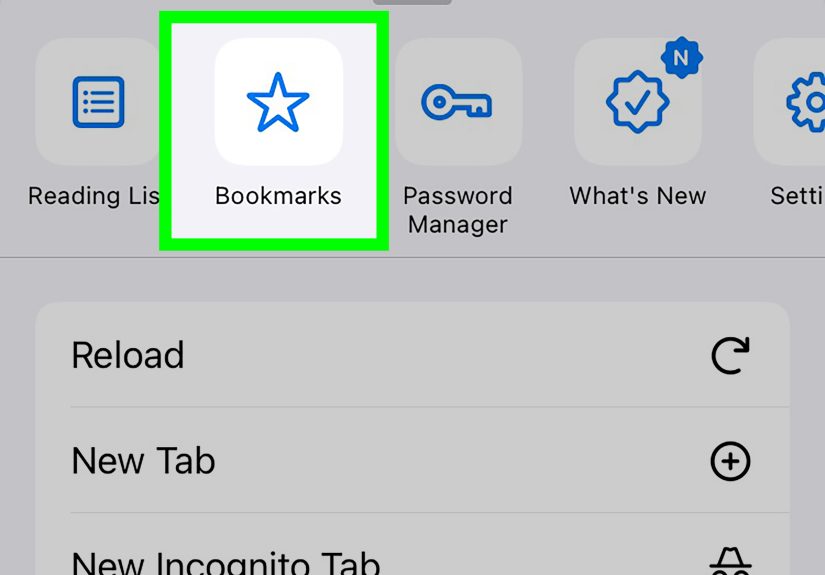
On Chrome for Android and iPhone, there usually isn’t a permanent desktop-style bookmarks bar. Instead, bookmarks are accessed through the menu:
- Tap the three-dot menu.
- Tap Bookmarks.
- Open the folder you want and tap a bookmark.
However, Chrome evolves constantly. Recently, there has been reporting about Chrome on Android tablets and foldables getting a more desktop-like bookmarks bar option (with limitations). If you don’t see it yet, that’s normalfeatures roll out gradually, and not every device gets the same UI at the same time.
Bonus: Show Bookmarks Without the Bar (Bookmark Manager + Side Panel)
Option A: Open Bookmark Manager (Full Control Mode)
The Chrome Bookmark Manager is where the real organizing happensfolders, bulk deletes, renaming, and searching across everything.
- Windows / Linux:
Ctrl + Shift + O - Mac:
Command (⌘) + Shift + O
You can also type chrome://bookmarks in the address bar. From there you can:
- Create folders like “Work,” “Recipes I’ll Totally Make,” and “Tax Panic 2026.”
- Drag-and-drop bookmarks into the right place.
- Search for a bookmark when you remember the vibe but not the website.
- Delete duplicates (yes, we all have them).
Option B: Use “Show all bookmarks” in the Side Panel
Many users like the side panel because it lets you browse bookmarks while keeping your current page open. If you see an option like Show all bookmarks from Bookmarks and lists, that can open bookmarks in the side panel for quick accessno permanent bar required.
How to Add, Remove, and Organize Bookmarks (So the Bar Doesn’t Become Chaos)
Add a Bookmark Quickly
- Open the page you want to save.
- Click the star icon in the address bar (or press
Ctrl + D/⌘ + D). - Name it something useful (future you will appreciate it).
- Choose a folder (or the bookmarks bar) and click Done.
Delete a Bookmark
There are a few quick ways:
- From the bookmarks bar: right-click the bookmark → Delete.
- From the star menu: click the star again on a bookmarked page → Remove.
- From Bookmark Manager: select the bookmark → three-dot menu → Delete.
Heads up: deleting is typically permanent, so if you’re unsure, consider moving it into a folder called “Archive” or “Maybe Later” instead of nuking it immediately.
Organize Bookmarks Like a Normal Person (or at Least Like One Online)
A bookmarks bar works best when it’s not trying to hold your entire internet history. Try this structure:
- Keep only 8–15 items on the bookmarks bar (your daily drivers).
- Create folders for categories: Work, Shopping, Learning, Travel.
- Use short names on the bar (e.g., “Mail,” “Docs,” “Bank”).
- Use the Bookmark Manager for everything else.
Troubleshooting: Why Your Bookmarks Bar Won’t Show (or Won’t Hide)
If your bookmarks bar is missing, stuck, or ignoring your commands like a teenager asked to unload the dishwasher, try these fixes:
1) You’re in Full Screen Mode
Full screen can hide Chrome UI elements. Exit full screen and try again:
- Windows:
F11 - Mac:
Control + Command (⌘) + F(or the green window button)
2) You’re on a “Special” Chrome Page
Some pages behave differently (like the New Tab page or internal Chrome pages). If the bar won’t toggle, open a normal website (any regular URL), then press Ctrl/⌘ + Shift + B again.
3) Chrome Profile Sync or Policies Are Involved
If you’re using a work/school Chrome profile, your organization may manage settings. If toggles look “stuck,” it may be enforced by admin policy. Switching to a personal profile (top-right avatar icon) can confirm whether this is the cause.
4) Extensions Are Messing with the UI
Rare, but it happensespecially with UI customization extensions. Try disabling extensions temporarily:
- Type
chrome://extensionsin the address bar. - Toggle off suspicious or recently installed extensions.
- Restart Chrome and test the bookmarks bar again.
5) Reset the Obvious Stuff (Because It Works More Than It Should)
- Close and reopen Chrome.
- Update Chrome (Menu → Help → About Google Chrome).
- Restart your computer if Chrome is really acting haunted.
Pro Tips: Make Bookmarks Faster, Cleaner, and Less Annoying
Use Favicons to Save Space
Want a super-clean bookmarks bar? You can rename bookmarks to a single character (or even an emoji) so the bar shows mostly icons. For example: “📧” for email, “💼” for work dashboard, “🧾” for receipts. Minimalism… but fun.
Sort Bookmarks with a Monthly “Digital Closet Cleanout”
Once a month, open Bookmark Manager and delete what you don’t use. If you hesitate, move it into a folder called “Archive.” If you never open that folder again, congratulationsyou’ve identified clutter in its natural habitat.
Sync Bookmarks Across Devices (So Your Phone Isn’t Living in 2019)
If you sign into Chrome with a Google account and enable sync, your bookmarks can follow you across computers and devices. This is especially helpful if you switch between a laptop at work and a home desktop, or if you’re constantly chasing chargers like it’s a sport.
Conclusion: Your Bookmarks Bar, Your Rules
Showing or hiding bookmarks in Google Chrome is easy once you know the shortcuts and menu paths. Use Ctrl/⌘ + Shift + B for instant control, the menu for click-based toggling, and Bookmark Manager when it’s time to organize the mess. If something seems broken, it’s usually full screen mode, a special Chrome page, or a managed profile setting.
Bottom line: the bookmarks bar should serve younot the other way around. Keep it visible when you’re working fast, hide it when you need focus, and let Bookmark Manager handle the long-term storage like the responsible adult in the room.
Real-World Experiences with Chrome Bookmarks ( of “Yep, Been There” Energy)
Most people don’t think about the bookmarks bar until one of two things happens: (1) it vanishes, or (2) it becomes a crowded yard sale of random links that seemed important at 2 a.m. Both situations are surprisingly universal.
A classic moment: you’re on a video call, sharing your screen, and suddenly you notice your bookmarks bar is proudly displaying something like “How to resign gracefully,” “Apartment listings,” and “Is caffeine a personality?” That’s when the bookmarks bar becomes less of a tool and more of a confession. The shortcut Ctrl/⌘ + Shift + B starts to feel like a panic buttontap it, and your browser instantly looks more professional. (At least on the outside. Internally, we’re all still Googling “how to be organized.”)
Another common experience: you switch to a new laptop or reinstall Chrome, and your bookmarks are either magically back or mysteriously missing. If you’re signed into Chrome and syncing, it often feels like a superhero entranceeverything returns right when you need it. If you’re not syncing, though, you might stare at an empty bar like it’s personally betrayed you. That’s usually the moment people realize bookmarks aren’t “stored in the air” unless you’ve actually enabled sync (or exported backups). It’s also why some folks keep a simple HTML bookmarks export as an emergency parachute.
Then there’s the “I’ll organize later” phase. At first, your bookmarks bar is tidy: email, calendar, maybe a news site. But over time it evolves into a chaotic timeline of your interests: a recipe blog next to a work dashboard next to a link titled “IMPORTANT!!!” that you’re afraid to click because you don’t remember why you saved it. The fix is usually simple: keep only daily-use links on the bar and move everything else into folders. People who do this swear it makes them feel calmer. People who don’t do this swear they’ll start tomorrow.
A surprisingly useful habit is creating “temporary folders” for projects. For example, if you’re planning a trip, you might make a folder called “NYC Weekend” and drop hotel options, maps, restaurant lists, and tickets inside it. When the trip is over, you can delete the folder or archive it. This keeps your bookmarks bar from becoming a permanent museum of past plans.
Finally, many users discover the bookmarks bar isn’t an “always” decisionit’s a situational tool. Some people show it during work hours for speed, hide it after hours for focus, and rely on the Bookmark Manager (or the side panel) when they want access without visual clutter. Once you treat the bookmarks bar like a modenot a lifestyleyou stop fighting it and start using it the way Chrome intended: quick, flexible, and one shortcut away from peace.