Table of Contents >> Show >> Hide
- Step Zero: Identify What Kind of “Pop-Up” You’re Actually Seeing
- Quick Fix Checklist (Do These First)
- Solution 1: Block Pop-Ups and Redirects in Chrome (The Classic Fix)
- Solution 2: Stop Website Notification Spam (The Sneaky “Pop-Up”)
- Solution 3: If Ads Appear Outside the Browser, It’s Usually an App
- Solution 4: Use Safe Mode to Prove It’s a Third-Party App
- Solution 5: Run Built-In Protection (Play Protect) and Do a Real Cleanup
- Solution 6: Reset Chrome When It Gets Possessed
- Solution 7: Optional Power Moves (Privacy & Network Tweaks)
- Solution 8: Handling Fake Virus Pop-Ups and Scareware
- Prevention: Keep Pop-Ups From Coming Back
- FAQ
- Experiences From the Pop-Up Trenches (Real-World Scenarios & What Worked)
Pop-ups on an Android phone are like that one friend who “just wanted to drop by for a second” and then
eats your snacks, takes over the TV, and somehow knows your Wi-Fi password. The good news: most pop-ups
come from a handful of common causes (browser settings, sketchy site notifications, or a thirsty adware app),
and you can usually shut them down in under 10 minutesno tech-degree required.
This guide walks you through fast fixes first, then deeper “find the culprit” solutions if your phone is acting
extra dramatic. Menu names can vary a bit by device (Samsung vs. Pixel vs. “mystery brand from 2019”), but the
ideas and paths stay consistent.
Step Zero: Identify What Kind of “Pop-Up” You’re Actually Seeing
“Pop-up” is a catch-all term. Before you start swatting randomly, figure out which category you’re dealing with:
- Browser pop-ups / redirects: Only appear while browsing (often in Chrome). You tap a site and it tries to open new tabs, new windows, or bounce you to weird pages.
- Website notification spam: Looks like phone notifications, even when you’re not browsing. Usually happens after you tapped “Allow” on a shady “Enable notifications to continue” prompt.
- App-based pop-ups: Ads appear over other apps or on your home screen/lock screen. This is typically a third-party app misbehaving (or straight-up adware).
- Fake virus / security alerts: Scare tactics (“Your phone is infected!”) that try to get you to call a number, install something, or grant permissions. Spoiler: it’s usually nonsense.
If you can answer “Where do the ads show uponly in the browser, or everywhere?” you’re already halfway to victory.
Quick Fix Checklist (Do These First)
If you want the fastest path to peace and quiet, do these in order. Stop when the pop-ups stop.
- Block pop-ups and redirects in Chrome.
- Disable spammy website notifications in Chrome.
- Check which apps can “Appear on top” (display over other apps) and remove suspicious ones.
- Run Play Protect and update your phone.
Solution 1: Block Pop-Ups and Redirects in Chrome (The Classic Fix)
If your problem happens while browsing, Chrome’s built-in controls are usually the main event.
Turn off Pop-ups & Redirects
- Open Chrome.
- Tap the three dots (top-right) → Settings.
- Tap Site settings → Pop-ups and redirects.
- Set it to Blocked.
Chrome blocks pop-ups by default, but settings can change (or a site can pressure you into allowing things).
Re-checking this is like locking your front door after you hear suspicious footsteps.
Block intrusive ads (Yes, Chrome has a switch for that)
- In Chrome Settings → Site settings, look for Ads (sometimes labeled “Intrusive ads”).
- Turn on blocking for sites known to show intrusive or misleading ads.
This won’t eliminate all advertising (the internet would riot), but it can reduce the “jump-scare ad” style
that triggers constant pop-up behavior.
Optional: Make downloads ask first
If pop-ups try to force downloads, make Chrome ask permission before downloading files automatically.
It’s the digital equivalent of “Don’t accept candy from strangers.”
Solution 2: Stop Website Notification Spam (The Sneaky “Pop-Up”)
Many people think they have a virus when the real culprit is simpler: they accidentally allowed a website to send
notifications. Those notifications then show up on your phone like they’re from “the system,” when they’re really
from some site with the vibe of a used-car lot at midnight.
Remove notification permission for sketchy sites (Chrome)
- Open Chrome → Settings.
- Tap Site settings → Notifications.
- Look under “Allowed” sites.
- Tap suspicious sites → choose Block or Remove.
Pro tip: If the site name looks like someone face-planted on a keyboard (for example: “xj9kq-best-dealz.biz”),
it doesn’t deserve notification privileges.
Turn off the “Allow notifications?” prompts (so you can’t accidentally accept again)
Chrome can also reduce or stop notification permission prompts entirely. If you’re tired of playing “Dodge the
Permission Popup,” this helps a lot.
Solution 3: If Ads Appear Outside the Browser, It’s Usually an App
When ads pop up on your home screen, lock screen, or over other apps, that’s rarely “Chrome being weird.”
It’s typically a third-party app running ads aggressively. Samsung’s own support guidance calls this out:
persistent pop-ups are generally caused by installed apps, not the phone itself.
Find the culprit by checking recent installs
- Open Settings → Apps (or Apps & notifications).
- Sort by Recently installed (if available), or scroll and focus on new/unfamiliar apps.
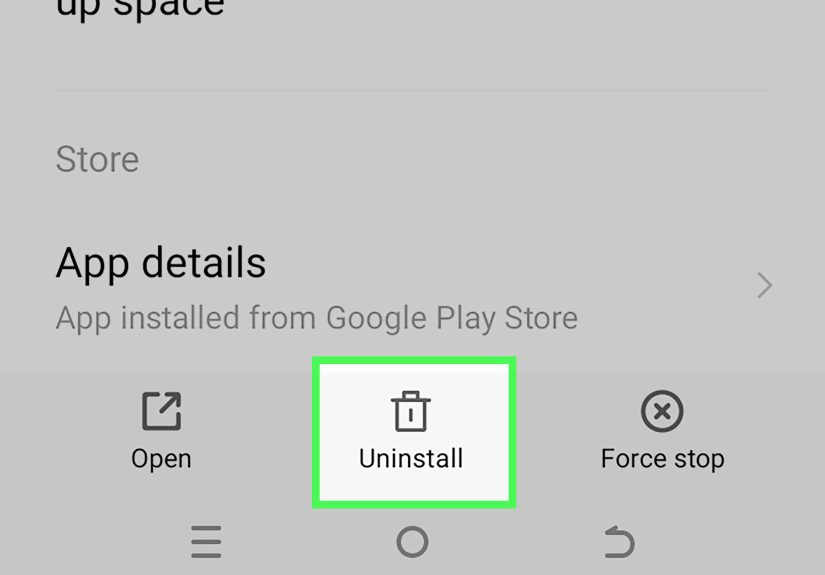
- Uninstall anything suspicious, especially “free” utilities like:
- flashlights, QR scanners, “battery savers,” “RAM boosters,”
- wallpaper/keyboard packs from unknown devs,
- apps with lots of 1-star reviews mentioning ads or pop-ups.
If you’re unsure, uninstall one suspicious app at a time and observe for a few minutes. (Yes, this is basically
“pop-up whack-a-mole,” but it works.)
Disable “Appear on top” / “Display over other apps” permissions
The most common way an app shows ads over everything is by having special permission to display on top of other apps.
If an app that shouldn’t be floating over your screen has this permission, that’s a red flag.
- Go to Settings → Apps.
- Find Special app access (sometimes under “Advanced”).
- Tap Display over other apps or Appear on top.
- Turn it off for anything that doesn’t absolutely need it (most apps don’t).
If the pop-ups stop after disabling this for one appcongrats, you found the gremlin.
Don’t forget basic notification controls
Even non-malicious apps can spam notifications that feel like pop-ups. Android lets you control notifications
per app:
- Go to Settings → Notifications.
- Open App notifications (wording varies).
- Turn off notifications for spammy apps, or set them to silent.
Solution 4: Use Safe Mode to Prove It’s a Third-Party App
Safe Mode temporarily disables most third-party apps. If the pop-ups vanish in Safe Mode, you can be confident the
cause is an installed appnot the operating system, not your carrier, not “Mercury in retrograde.”
How to enter Safe Mode (Pixel example)
- Press and hold the Power button (on some Pixels, Power + Volume Up).
- Touch and hold Power off (or Restart), then choose Safe mode.
- Use your phone for a bit and see if the pop-ups stop.
If Safe Mode is peaceful: restart normally, then uninstall suspicious apps (start with the most recently installed).
If Safe Mode still has pop-ups: you’re likely dealing with browser/notification settingsor a very persistent issue
that requires deeper cleanup.
Solution 5: Run Built-In Protection (Play Protect) and Do a Real Cleanup
Android has a built-in security layer called Google Play Protect. It scans apps (including some
installed outside the Play Store) and can warn you about harmful ones.
Turn on Play Protect scanning
- Open the Google Play Store.
- Tap your profile icon → Play Protect → Settings.
- Enable Scan apps with Play Protect (and related detection options if available).
After enabling it, run a scan and follow recommendations. If Play Protect flags an app, take it seriouslyespecially
if it’s a “helper” app you don’t remember installing.
If you suspect adware, remove it methodically
Security guides generally recommend a “holistic” cleanup: remove the suspicious app(s), clean the browser, and keep
protections on so the same thing doesn’t return two days later wearing a fake mustache.
Solution 6: Reset Chrome When It Gets Possessed
If Chrome is the only place you see pop-ups, and blocking settings didn’t fix it, clearing Chrome’s stored data can help.
This resets some local settings and wipes junk that can fuel persistent behavior.
- Go to Settings → Apps → Chrome.
- Tap Storage (or “Storage & cache”).
- Tap Clear cache first, then (if needed) Clear storage / Clear data.
Heads up: clearing storage may sign you out of sites and remove some local preferences. Annoying? Yes. Worth it to
stop the pop-up circus? Also yes.
Solution 7: Optional Power Moves (Privacy & Network Tweaks)
These aren’t always necessary, but they can reduce tracking and block some ad infrastructure at the network level.
Reset or delete your Android Advertising ID
Resetting (or deleting) the Advertising ID is mainly a privacy stepit won’t magically remove an adware appbut it
can reduce tracking-based targeting and is a solid “clean slate” move after a pop-up incident.
- Open Settings → Privacy → Ads.
- Tap Reset Advertising ID (or Delete Advertising ID, if available).
Use Private DNS to block common ad domains
Android supports Private DNS (DNS over TLS) on many devices. Some DNS providers block known ad and
tracking domains, which can reduce ads across apps and browsers. It’s not perfectsome ads come from the same domain
as the contentbut it can cut noise dramatically.
- Open Settings → search for Private DNS (often under Network/Internet).
- Choose Private DNS provider hostname.
- Enter the hostname provided by a reputable DNS service and save.
If something breaks (some apps rely on ad domains for loading content), set Private DNS back to “Automatic.”
No shame. It’s your phone, not a science fair project.
Solution 8: Handling Fake Virus Pop-Ups and Scareware
If you see a page screaming “Virus detected!” with a phone number or a button to “Clean Now,” treat it like a raccoon
hissing at you from a trash can: back away slowly and do not feed it.
- Don’t call phone numbers shown in pop-ups. Consumer protection guidance specifically warns against this tactic.
- Don’t install apps from the pop-up. If you want a security tool, get it from a legitimate source (and preferably the Play Store).
- Close the browser tab (or force close the browser if it keeps reopening), then clean browser data if needed.
The goal of scareware is urgency: panic-clicking. Your job is to become unbothered and boring. Scammers hate that.
Prevention: Keep Pop-Ups From Coming Back
- Install apps carefully. Read reviews, check the developer name, and be suspicious of “too good to be true” utilities.
- Keep Play Protect enabled and scan occasionally, especially after sideloading or installing something new.
- Audit permissions. If a flashlight app wants “Appear on top,” location, contacts, and microphone… it’s not a flashlight. It’s an extrovert.
- Be stingy with notification permissions. If a website asks to send notifications, your default answer should be “No, thank you.”
- Update Android and Chrome. Updates patch vulnerabilities and tighten permission behavior.
FAQ
Why am I suddenly getting pop-ups on my Android phone?
The most common reasons are: (1) you allowed site notifications, (2) a recently installed app is showing ads over
other apps, or (3) a browser setting got changed and a site is spamming pop-ups/redirects.
Do I need an antivirus app?
Many pop-up problems can be solved without installing anything new by using Play Protect, removing suspicious apps,
and tightening Chrome settings. If you do use a security app, choose a well-known provider and avoid “miracle cleaner”
apps with aggressive marketing.
Will a factory reset stop pop-ups?
A factory reset usually fixes persistent adwarebut it’s the nuclear option. Try Safe Mode testing and uninstalling
suspicious apps first. If you do reset, back up photos and important data, and reinstall apps carefully (don’t re-install
the same culprit).
Experiences From the Pop-Up Trenches (Real-World Scenarios & What Worked)
The advice above is the clean, professional version. Real life is messier. Here are five common “how did this happen
to me?” situations that mirror what people actually run intoand the fixes that usually win.
1) The “I Just Wanted to Read an Article” Notification Trap
You visit a site, it throws up a prompt: “Tap Allow to verify you’re not a robot.” You tap Allow. Boomnow your phone
starts getting notifications about giveaways, crypto, or “urgent system updates” while you’re just trying to text your mom.
In most cases, nothing is infected. You simply granted notification permission.
What worked: Opening Chrome → Settings → Site settings → Notifications and removing the allowed site.
Bonus points for disabling notification prompts so you don’t accept again when you’re half-asleep and thumb-happy.
2) The “Free Flashlight” That Needed to Be Fired
A “free” utility app (flashlight, scanner, wallpaper, keyboard) seemed harmless. A day later, ads start appearing over
other appssometimes even on the home screen. The app often has permission to “Appear on top,” which lets it float ads
over everything.
What worked: Settings → Apps → Special app access → Display over other apps. Turning off the permission
made the pop-ups stop instantly, which was a pretty loud hint. Uninstalling the app finished the job.
3) The “Chrome Is Cursed” Week
Pop-ups only happen in Chrome, and they keep returning even after you toggle Pop-ups & redirects to “Blocked.”
Sometimes this happens after a sketchy site drops aggressive scripts, or you’ve accumulated enough site permissions
and cached junk to recreate a haunted house.
What worked: Clearing Chrome cache first. If that didn’t do it, clearing Chrome storage/data (yes, it’s annoying).
Then re-checking Pop-ups & redirects, Ads blocking, and Notifications permissions.
4) The “It’s Not a Pop-Up, It’s a Notification Avalanche” Misdiagnosis
Some apps spam notifications so aggressively that it feels like pop-ups. Shopping apps, games, and even “system tool”
apps can go wild with alerts. Nothing is technically brokenyour phone is just being marketed at.
What worked: Long-pressing the notification, jumping to the app’s notification settings, and turning off the noisy
categories. Android’s notification controls are surprisingly powerful when you actually use them.
5) The “Fake Virus Alert” Jump Scare
The screen screams “Virus detected!” and begs you to call a number or install a cleaner. It’s designed to make you panic.
People click because fear is fast and reading is slow.
What worked: Doing nothing dramatic. Closing the tab (or force closing the browser), then cleaning Chrome data and
reviewing recent apps. The best move is refusing to engageno calling numbers, no installing mystery apps, no giving
permissions to “fix” the problem.
The big lesson from all of these: pop-ups are usually a permission problem (notifications, overlays, site settings)
or an app choice problem (something you installed). Once you treat it like a detective story instead of a curse,
you can fix it calmlyand keep it fixed.