Table of Contents >> Show >> Hide
- What Does “Zoom In” Mean in Google Earth?
- How to Zoom In on Google Earth on a Computer
- How to Zoom In Using Search
- How to Zoom In on Google Earth Mobile
- How to Zoom In With Keyboard Shortcuts
- How to Zoom In to Street View
- How to Zoom In Without Losing Your Place
- How to Get a Clearer View When Zooming In
- How to Zoom In for Measuring Distance or Area
- Best Zoom Method for Each Situation
- Common Problems When Zooming In on Google Earth
- Tips for a Better Google Earth Zoom Experience
- Experience Notes: What It Feels Like to Zoom In on Google Earth
- Conclusion
Google Earth is one of those tools that can make you feel like a space explorer, a geography teacher, a vacation planner, and a mildly nosy neighbor all at once. One second you are staring at the entire blue planet, and a few scrolls later you are hovering above a city block, a national park, a famous stadium, or the roof you are absolutely sure needs cleaning. The magic starts with one basic skill: learning how to zoom in on Google Earth smoothly.
The good news is that zooming in is easy. The better news is that there are several ways to do it, depending on whether you are using Google Earth on the web, the Google Earth mobile app, or Google Earth Pro on desktop. You can use the zoom buttons, your mouse wheel, a trackpad gesture, keyboard shortcuts, search, Street View, or even a more controlled camera movement for a cinematic fly-in effect.
This easy guide walks you through every practical way to zoom in on Google Earth, plus tips for getting clearer views, avoiding blurry imagery, using Street View, and making the whole experience feel less like wrestling with a digital globe and more like piloting a tiny satellite with excellent manners.
What Does “Zoom In” Mean in Google Earth?
In Google Earth, zooming in means lowering your virtual camera closer to the surface of the planet. At a high level, you might see continents, oceans, and cloud-like patterns of land and water. As you zoom closer, countries, cities, roads, rivers, buildings, parks, and 3D landmarks begin to appear.
Unlike a regular flat map, Google Earth is built around a 3D globe. That means zooming does more than enlarge a picture. It changes your viewpoint. You can move closer, tilt the camera, rotate around buildings, and switch between satellite view and Street View where available. Think of it as a digital helicopter tour, minus the noise, fuel bill, and awkward headset hair.
How to Zoom In on Google Earth on a Computer
If you are using Google Earth in a desktop browser, the controls are simple and beginner-friendly. Open Google Earth, wait for the globe to load, and choose the area you want to explore.
Method 1: Use the Plus Button
The most obvious way to zoom in is to use the navigation controls on the screen. Look for the plus (+) button, usually found near the lower-right area of the Google Earth interface. Click it once to move closer. Click it again to continue zooming.
This method is perfect for beginners because it gives you steady, predictable movement. You do not need special gestures or keyboard shortcuts. You simply click, watch the camera move closer, and stop when the view looks right.
Method 2: Scroll With Your Mouse Wheel
If you are using a mouse, place your cursor over the location you want to inspect and scroll upward with the mouse wheel. Google Earth will zoom toward the area under your cursor, which makes this method faster and more precise than clicking the plus button repeatedly.
For example, if you are viewing New York City and want to zoom in on Central Park, move your cursor over the park first. Then scroll up. Google Earth will pull you closer to that specific area instead of simply zooming toward the center of the screen.
Method 3: Use a Trackpad Gesture
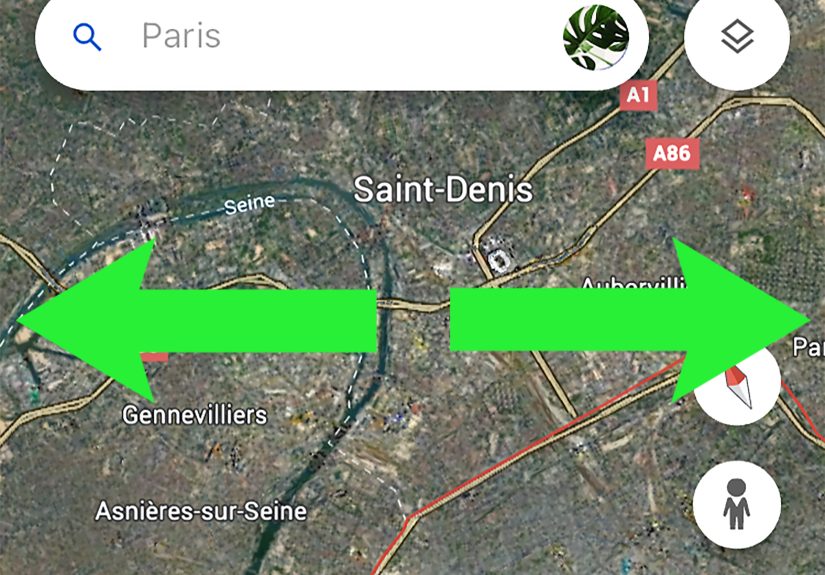
On a laptop, you can usually zoom in by placing two fingers on the trackpad and spreading them apart. This is often called a pinch-out gesture. It feels natural if you have used a smartphone or tablet before.
Trackpad zooming is great for smooth, gentle navigation. It can also be a little sensitive, especially on high-resolution screens. If your view suddenly dives toward the Earth like it has a personal vendetta against gravity, slow down and use smaller finger movements.
Method 4: Double-Click a Location
Another quick trick is to double-click the map. Google Earth will zoom in toward the point you clicked. This is useful when you are browsing casually and want to move closer without hunting for buttons.
Double-clicking works best when you already know the spot you want to inspect. For instance, if you see a stadium, lake, island, or mountain ridge, double-clicking it can bring you closer in a hurry.
How to Zoom In Using Search
Search is one of the fastest ways to zoom in on a specific place in Google Earth. Instead of manually spinning the globe like a contestant on a geography game show, you can let Google Earth fly you there.
Step-by-Step Search Method
- Open Google Earth.
- Click the search box.
- Type a place, address, landmark, city, country, or business name.
- Press Enter or select the result.
- Wait as Google Earth automatically zooms into that location.
This is the best method when you already know where you want to go. You can search for broad places like “Grand Canyon,” specific addresses, famous landmarks like “Eiffel Tower,” or natural features like “Mount Rainier.” Google Earth will move from the globe view to the selected place automatically.
For SEO-friendly clarity: if someone asks how to zoom in on Google Earth to see a house, a school, a park, or a landmark, search is usually the cleanest answer. Type the location, press Enter, and let the globe do the flying.
How to Zoom In on Google Earth Mobile
On the Google Earth app for Android, iPhone, or iPad, zooming is controlled mostly by touch gestures. The mobile version feels very intuitive because it behaves like most map apps.
Use the Pinch-Out Gesture
Place two fingers close together on the screen, then spread them apart. This zooms in. To zoom out, pinch your fingers back together. It is the same movement used in photos, maps, and many mobile apps.
The trick is to keep your fingers steady. If you spread and twist at the same time, you may rotate the globe while zooming. That can be fun, but it can also leave you wondering why north suddenly moved to the emotional support corner of the screen.
Double-Tap to Zoom
On many mobile map interfaces, double-tapping a location can zoom in quickly. If the gesture works on your device, it is a convenient way to move closer with one hand. This is especially helpful when you are browsing a city or landmark and want to inspect a smaller area.
Search on Mobile
The search method also works beautifully on mobile. Tap the search icon or search field, type the place you want, and select the result. Google Earth will automatically move to the location and zoom in.
For example, if you type “Yosemite Valley,” the app will take you to the area without forcing you to manually drag across half the planet. Your thumbs will thank you.
How to Zoom In With Keyboard Shortcuts
Keyboard shortcuts are excellent for users who want faster control or need an alternative to mouse navigation. In Google Earth, you can use shortcut keys to zoom, reset the view, stop motion, rotate, and move around the map.
Common zoom-related shortcuts include using the plus (+) key to zoom in and the minus (-) key to zoom out in supported Google Earth interfaces. Some desktop controls also use Page Up and Page Down for zooming or adjusting the camera altitude, depending on the version and platform.
If the keyboard does not behave as expected, click once inside the Google Earth window first. This tells your browser or app that you want your keystrokes to control the globe, not the address bar, the page, or whatever other digital creature is trying to steal focus.
How to Zoom In to Street View
Street View lets you move from satellite view to a ground-level 360-degree perspective where imagery is available. This is the closest Google Earth gets to letting you stand in a place without actually being there.
How to Enter Street View
- Zoom in on a location until Street View coverage becomes available.
- Look for the Pegman icon.
- Drag Pegman onto a highlighted road or area.
- Release to enter Street View.
Once you are in Street View, you can move along roads, rotate the view, and inspect nearby buildings, landmarks, landscapes, and streetscapes. It is especially helpful for checking travel destinations, exploring neighborhoods, previewing a route, or satisfying the classic question: “What does that place actually look like from the ground?”
Street View is not available everywhere. Rural areas, private roads, remote regions, and some countries may have limited coverage. If Pegman does not reveal highlighted paths, satellite view may be the closest view available for that location.
How to Zoom In Without Losing Your Place
One common beginner problem is zooming in too fast and suddenly losing the target. You start with a city, scroll aggressively, and somehow end up staring at a random parking lot with no idea how you got there. Google Earth is powerful, but it does not come with a “recover my dignity” button.
To avoid getting lost, zoom in gradually. Use the search result as your anchor, then scroll slowly or click the plus button step by step. If you are using a trackpad, make small pinch gestures instead of one dramatic spread. If the view tilts too much, use the reset or north-up control to return to a more familiar top-down view.
How to Get a Clearer View When Zooming In
Sometimes users zoom in and expect movie-level detail, only to find blurry imagery. This does not always mean something is wrong. Google Earth uses imagery from different sources, captured at different times and resolutions. Some cities have crisp 3D buildings and high-resolution imagery, while remote areas may look softer.
Try These Clarity Tips
- Wait a few seconds: Imagery may sharpen after loading.
- Check your internet connection: Slow connections can delay high-resolution tiles.
- Zoom out slightly: Some imagery looks clearer from a little higher up.
- Turn 3D buildings on or off: Depending on your goal, 3D can help or distract.
- Use Street View: For roads and buildings, Street View may show more useful detail than satellite view.
Also remember that Google Earth is not a live camera. The imagery may be months or years old. It is wonderful for exploration, education, planning, and visual research, but it should not be treated like a real-time security feed.
How to Zoom In for Measuring Distance or Area
Google Earth also includes measurement tools. If you want to measure a route, property outline, trail, field, or distance between two places, zoom in first so your points are easier to place accurately.
On Google Earth for web or app, choose the measurement tool, then click or tap points on the map. Google Earth may switch to a more top-down view, which helps improve accuracy. The closer you zoom, the easier it becomes to place points along roads, paths, borders, or building edges.
For example, if you are measuring a walking route around a park, zoom in until paths and intersections are clearly visible. Drop your first point at the entrance, add points along the route, and finish at your destination. The result will be much better than trying to measure from outer space like a very ambitious astronaut with a ruler.
Best Zoom Method for Each Situation
Not every zoom method is ideal for every task. Here is a practical way to choose:
- Use search when you know the exact place.
- Use the plus button when you want slow, controlled zooming.
- Use the mouse wheel when you want fast desktop navigation.
- Use pinch gestures on phones, tablets, and trackpads.
- Use keyboard shortcuts when you prefer hands-on precision.
- Use Street View when you want ground-level detail.
For most people, the best combination is search plus mouse wheel or search plus pinch gesture. Search gets you to the location; zoom controls help you fine-tune the view.
Common Problems When Zooming In on Google Earth
Problem: Google Earth Will Not Zoom In
If Google Earth is not zooming, first click inside the map area and try again. If you are using a mouse, check whether the scroll wheel works in other apps. If you are on a laptop, make sure trackpad gestures are enabled in your system settings.
Problem: The View Is Too Tilted
Google Earth can tilt into a 3D angle, which is great for mountains and buildings but not always ideal for navigation. Use the reset view or top-down control to flatten the perspective again.
Problem: The Image Is Blurry
Give the map time to load. If it remains blurry, the available imagery for that area may not be high resolution. Try zooming out slightly or checking nearby locations for clearer coverage.
Problem: Street View Is Missing
Street View coverage depends on location. If you do not see highlighted roads or available ground-level imagery, that area may not have Street View. Satellite and 3D view may still be available.
Tips for a Better Google Earth Zoom Experience
To make zooming smoother, start broad and narrow down. Search for a city or landmark first, then zoom toward the exact place. Keep your cursor over the target area when using the mouse wheel. If you overshoot, zoom out a little rather than dragging wildly across the screen.
Use the compass and reset controls whenever the view feels disoriented. A north-up, top-down view is often easiest for beginners. Once you are comfortable, experiment with tilt and rotation to enjoy the 3D effect.
If you are exploring for travel, combine satellite zoom with Street View. Satellite view helps you understand the layout. Street View helps you understand the real-world feel. Together, they are like having a map, a drone, and a walking tour guide who never complains about your itinerary.
Experience Notes: What It Feels Like to Zoom In on Google Earth
The first time many people use Google Earth, they do the same thing: zoom in on their home. It is practically a universal ritual. You open the globe, type an address, and watch the planet spin toward a familiar neighborhood. There is a tiny thrill in seeing your street from above, even if the image is old enough that your car, garden, or favorite tree has apparently traveled through time.
One of the best experiences with Google Earth is using zoom as a storytelling tool. For example, start with the whole planet, zoom into North America, move toward the western United States, glide into Arizona, and then settle over the Grand Canyon. That gradual movement gives context. You are not just looking at a canyon; you are seeing where it sits on the continent, how the river cuts through the land, and why the landscape feels so dramatic.
Zooming in is also useful for trip planning. Before visiting a city, you can search for the hotel, zoom out slightly to see nearby transit, parks, restaurants, and waterfronts, then zoom back in to inspect streets and walking routes. Street View adds another layer. A hotel may look “close to everything” on a booking page, but Google Earth can reveal whether “everything” means a pleasant walk, a confusing highway crossing, or a heroic expedition requiring snacks.
For students and teachers, zooming turns geography into something more alive. A lesson about volcanoes becomes more memorable when students can zoom into Mount St. Helens or Mauna Loa. A discussion about rivers becomes clearer when zooming from a continent down to a winding river delta. Instead of memorizing flat shapes, learners see patterns: mountains, coastlines, farms, deserts, cities, and roads all connected.
There is also a quiet joy in using Google Earth for curiosity. You might zoom into the pyramids of Egypt, then jump to Tokyo, then explore the canals of Venice, then inspect a tiny island in the Pacific because it looked interesting from above. That is the real charm of Google Earth: zooming is not just a technical action. It is an invitation. Every click says, “Go closer.” Every clear image says, “Look again.” And every surprising discovery reminds you that the world is much bigger, stranger, and more detailed than a normal map can show.
After using Google Earth for a while, you learn that the best zooming is patient zooming. Move too fast, and you miss the geography. Move slowly, and the world unfolds in layers. First the planet, then the region, then the city, then the neighborhood, then the street. It is one of the simplest digital experiences available, but it still feels a little magical.
Conclusion
Learning how to zoom in on Google Earth is the key to getting more out of the platform. Whether you use the plus button, mouse wheel, trackpad, mobile pinch gesture, keyboard shortcut, search bar, or Street View, each method gives you a different level of control. For quick results, search for a place and let Google Earth fly you there. For careful exploration, zoom in gradually and keep the target centered. For real-world context, switch to Street View when available.
The best part is that you do not need to be a tech expert. Google Earth is built for curiosity. Once you understand the basic zoom controls, you can explore cities, landmarks, natural wonders, neighborhoods, routes, and historical landscapes with confidence. The world is waiting. All you have to do is zoom in.