Table of Contents >> Show >> Hide
- What Does Dark Theme Do In Windows 10?
- Why Automatically Switch To Dark Theme At Night?
- The Easiest Method: Use Auto Dark Mode
- The Built-In Power User Method: Task Scheduler
- Which Method Should You Choose?
- How To Combine Dark Theme With Night Light
- Troubleshooting: Why Did Dark Mode Not Switch?
- Helpful Tips For A Better Dark Theme Setup
- Security And Safety Notes
- Real-World Example: A Simple Day And Night Theme Routine
- Extra Experience: What It Is Like Living With Automatic Dark Theme In Windows 10
- Conclusion
There are two kinds of people who use a computer after sunset: those who calmly switch to dark mode, and those who get blasted by a white Settings window at 10:43 p.m. and briefly see their ancestors. If you are in the second group, welcome. This guide is for you.
Windows 10 includes a dark theme, but it does not provide a simple built-in “switch to dark mode at night” schedule in the same polished way that phones often do. The good news is that you can still make Windows 10 change themes automatically. You can use a trusted third-party tool such as Auto Dark Mode, or you can create your own scheduled theme switch with Task Scheduler and a few registry commands.
This article explains how to automatically switch to the dark theme at night in Windows 10, why it is useful, what settings matter, and how to avoid the little annoyances that make your desktop look like it has commitment issues.
What Does Dark Theme Do In Windows 10?
The Windows 10 dark theme changes supported system areas and many compatible apps from bright backgrounds to darker ones. You can manually turn it on by going to Settings > Personalization > Colors and choosing a dark color mode. Depending on your Windows 10 version, you may see options for app mode, system mode, or a custom combination.
In practical terms, dark mode affects places such as the Settings app, Start menu, taskbar, Microsoft Store apps, and many modern Windows interface elements. It may also influence apps that follow the Windows system theme. For example, browsers, messaging tools, note apps, and productivity software may automatically change appearance when Windows changes theme.
However, dark mode is not magic paint. Some classic Windows areas, old Control Panel sections, older desktop programs, and certain dialog boxes may stay light. That is normal. Windows 10 dark mode is useful, but it is not a total blackout curtain for every pixel on your screen.
Why Automatically Switch To Dark Theme At Night?
Manually changing themes works, but it gets old quickly. You remember to do it for three nights, then forget, then suddenly your monitor becomes a tiny rectangular sunrise. Automating the switch saves effort and gives your desktop a rhythm that matches your day.
It Feels Better In Low Light
At night, a bright white interface can feel harsh, especially in a dim room. Dark mode lowers the amount of bright interface space on your screen, making late-night browsing, reading, writing, or spreadsheet wrestling feel more comfortable. Your eyes still need breaks, but dark mode can make the screen less visually aggressive.
It Keeps Your Workflow Consistent
When Windows switches automatically, you do not have to interrupt your work. You can keep typing, editing, coding, gaming, or pretending to organize your Downloads folder while the system quietly changes in the background.
It Pairs Well With Night Light
Windows 10 also includes Night light, which reduces blue-toned screen light and can be scheduled from Display settings. Night light is not the same as dark mode. Night light changes the color temperature of your display, while dark mode changes the interface theme. Used together, they make nighttime computer use feel much less like staring into a refrigerator.
The Easiest Method: Use Auto Dark Mode
For most users, the easiest way to automatically switch between light and dark theme in Windows 10 is to use Auto Dark Mode. It is a popular utility designed specifically for scheduled theme switching. Instead of building tasks manually, you choose your schedule, set preferences, and let the app handle the boring machinery behind the curtain.
What Auto Dark Mode Can Do
Auto Dark Mode can switch Windows between light and dark themes based on specific times. Depending on the version and configuration, it may also support sunrise and sunset scheduling, app-specific behavior, wallpapers, accent colors, and other customization options. That makes it more flexible than the basic manual approach.
This method is best if you want a clean interface, fewer registry concerns, and a setup you can adjust without digging through Windows Task Scheduler. In other words, it is the “I want this done before my tea gets cold” option.
How To Set It Up
- Open the Microsoft Store or visit the official Auto Dark Mode project page.
- Install Auto Dark Mode on your Windows 10 PC.
- Launch the app and choose a schedule.
- Set your preferred light mode time, such as 7:00 a.m.
- Set your preferred dark mode time, such as 7:00 p.m. or 8:00 p.m.
- Review any extra options for apps, system theme, wallpapers, or accent colors.
- Save your settings and let it run.
Once configured, your computer should switch automatically at the selected times. If nothing changes immediately, do not panic. Check that the app is allowed to run at startup and that no other theme utility is fighting it in the background like two raccoons in a trash can.
The Built-In Power User Method: Task Scheduler
If you prefer not to install another app, Windows 10 can automate dark mode using Task Scheduler. Task Scheduler is a built-in Windows tool that runs actions at specific times or when certain triggers happen. You can use it to run registry commands that change Windows theme values.
This method is more technical, but it is still manageable if you follow the steps carefully. The idea is simple: create one scheduled task that turns dark mode on at night, and another scheduled task that turns light mode back on in the morning.
Before You Begin: Know The Registry Values
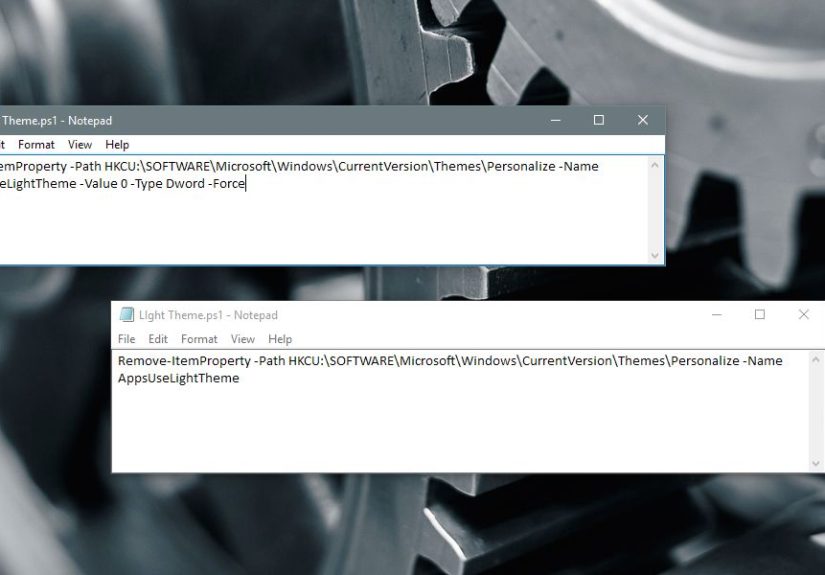
Windows stores theme preferences in the current user registry path:
Two common values control light and dark behavior:
- AppsUseLightTheme: controls the default app theme.
- SystemUsesLightTheme: controls the system interface theme.
A value of 0 means dark theme. A value of 1 means light theme. So, to switch to dark mode, you set both values to 0. To switch back to light mode, you set both values to 1.
Create A Task To Turn On Dark Theme At Night
Follow these steps to create your nighttime dark mode task:
- Click Start, type Task Scheduler, and open it.
- In the right panel, click Create Basic Task.
- Name it something clear, such as Switch to Dark Theme.
- Choose Daily as the trigger.
- Set the time you want dark mode to begin, such as 7:30 PM.
- For the action, choose Start a program.
- In the Program/script field, type
reg.exe. - In the Add arguments field, enter the app theme command below.
Finish the task. Then create a second task at the same time, or add another action in the advanced task settings, for the system theme command:
Using two separate actions is often cleaner if you are comfortable with the full Create Task interface. If you are using the Basic Task wizard, creating two tasks with similar names is easier. For example, name them Dark Theme Apps and Dark Theme System.
Create A Task To Turn Light Theme Back On In The Morning
Now repeat the process for morning. This task will return your PC to light mode when the sun comes back and your coffee starts doing its tiny heroic job.
- Open Task Scheduler.
- Click Create Basic Task.
- Name it Switch to Light Theme.
- Choose Daily.
- Set a morning time, such as 7:00 AM.
- Choose Start a program.
- Enter
reg.exeas the program. - Use the command below for apps.
Then add or create the matching system command:
After both morning and evening tasks are created, restart your PC or wait for the scheduled times. You can also right-click a task in Task Scheduler and select Run to test it immediately.
Which Method Should You Choose?
Choose Auto Dark Mode if you want convenience, a friendly interface, and extra theme options. It is the better pick for most people, especially if you want sunrise and sunset scheduling or app-specific control.
Choose Task Scheduler if you like built-in Windows tools, prefer not to install additional software, or enjoy the quiet satisfaction of making your PC obey a tiny automation spell. It is also useful in managed environments where third-party apps are restricted.
Both methods can work well. The real question is whether you want a polished app experience or a hands-on Windows automation setup.
How To Combine Dark Theme With Night Light
For a better nighttime setup, pair dark mode with Windows 10 Night light. To find it, go to Settings > System > Display > Night light settings. From there, you can schedule Night light from sunset to sunrise or set custom hours.
A practical schedule might look like this:
- 7:00 AM: Light theme turns on.
- 7:30 PM: Dark theme turns on.
- 8:00 PM: Night light turns on.
- 6:30 AM: Night light turns off.
This gives your desktop a natural day-to-night transition. During the day, Windows stays bright and crisp. At night, it becomes softer and easier to live with. Your monitor does not need to behave like a stadium floodlight at bedtime.
Troubleshooting: Why Did Dark Mode Not Switch?
If your automatic dark theme is not working, the problem is usually simple. Windows automation can be powerful, but it also has the emotional sensitivity of a printer.
Check The Task Time
Open Task Scheduler and confirm the trigger time is correct. Also check whether the task is set to run daily. If your PC was asleep at the scheduled time, the task may not run unless you allow it to wake the computer or run as soon as possible after a missed start.
Check The Registry Command
Make sure the command uses HKCU, not HKLM. The theme setting is user-specific, so it belongs under the current user path. Also make sure the value names are spelled correctly: AppsUseLightTheme and SystemUsesLightTheme.
Restart Explorer Or Sign Out
Most theme changes appear quickly, but some interface elements may not refresh instantly. If part of Windows looks stuck, sign out and sign back in, or restart Windows Explorer from Task Manager. This is not always required, but it can clear stubborn visual leftovers.
Check App Settings
Some apps ignore the Windows system theme or have their own theme setting. For example, a browser, editor, or office app may be locked to light mode inside its own preferences. Open that app’s settings and look for options such as Use system setting, Follow Windows theme, or Default theme.
Do Not Run Multiple Theme Tools
If you use Auto Dark Mode, another theme switcher, custom scripts, and Task Scheduler all at once, your PC may switch themes back and forth like it is trying to decide what to wear to brunch. Pick one main method and disable the others.
Helpful Tips For A Better Dark Theme Setup
Use A Dark Wallpaper At Night
A dark Windows theme looks strange if your wallpaper is still a giant white beach, snowy mountain, or close-up photo of a very enthusiastic cloud. If your tool supports wallpaper switching, use a lighter wallpaper during the day and a darker one at night.
Choose A Comfortable Accent Color
Accent colors affect buttons, highlights, tiles, and other interface details. In dark mode, very bright accent colors can look intense. Try a calmer blue, gray, green, or muted color. The goal is elegance, not “gaming keyboard sneezed on the desktop.”
Match Your Browser Theme
Your browser is probably where you spend most of your screen time. Make sure Chrome, Edge, Firefox, or your preferred browser is set to follow the system theme. Many websites now support dark color schemes, but not all of them. Browser extensions can help, but use them carefully because some can break website colors or make images look odd.
Keep Accessibility In Mind
Dark mode is not automatically better for everyone. Some people read more comfortably with dark text on a light background, especially in bright rooms. Others prefer dark backgrounds at all times. The best setup is the one that feels comfortable for your eyes and your work. Try different schedules and brightness levels before deciding.
Security And Safety Notes
The Task Scheduler method changes registry values. That is normal for this kind of customization, but you should still be careful. Do not paste random registry commands from unknown websites. Do not run scripts you do not understand. If you are using a work computer, check your organization’s IT policy before changing scheduled tasks or installing theme utilities.
If you choose a third-party tool, download it from a reputable source such as the Microsoft Store or the project’s official page. Avoid “download now” buttons on sketchy software sites. Those buttons have a long and proud history of installing everything except the thing you wanted.
Real-World Example: A Simple Day And Night Theme Routine
Here is a realistic setup for someone who uses Windows 10 for work during the day and personal browsing at night:
- 7:00 AM: Windows switches to light theme.
- 7:05 AM: Work apps open with bright, readable interfaces.
- 6:30 PM: Windows switches to dark theme.
- 7:00 PM: Night light begins warming the display.
- 11:00 PM: Browser, notes app, and chat apps are all easier to use in a dim room.
This routine works because it is predictable. You are not thinking about settings. You are just using the computer, and Windows adapts around you. That is what good automation should feel like: boring in the best possible way.
Extra Experience: What It Is Like Living With Automatic Dark Theme In Windows 10
After using automatic dark theme switching for a while, the biggest benefit is not dramatic. It is not the kind of feature that makes you stand up, point at the monitor, and shout, “Technology has peaked!” Instead, it quietly removes a daily annoyance. That is why it becomes hard to give up.
The first evening it works, you may barely notice it. You are reading something, replying to messages, or finishing a document, and suddenly the interface feels less sharp around the edges. The Settings app, Start menu, taskbar, and supported apps settle into darker colors. Nothing explodes. No parade arrives. But your screen stops feeling like a tiny office building with every fluorescent light turned on.
The best experience comes when the schedule matches your real habits. If you set dark mode too early, your screen may feel gloomy while there is still plenty of daylight in the room. If you set it too late, you still get the full blast of light during the evening. A good starting point is around sunset or about one hour before you usually wind down. For many people, that means somewhere between 6:30 p.m. and 8:30 p.m.
Morning scheduling matters too. Light mode is often easier to use in a bright room, especially if sunlight is coming through a window. If your PC stays in dark mode until noon, some apps may look muddy or low-contrast during daytime work. Setting light mode to return around 6:30 a.m. or 7:00 a.m. gives the computer a fresh daytime feel before the workday begins.
One thing you learn quickly is that not every app behaves perfectly. Some programs follow Windows immediately. Others need to be restarted. A few ignore the system theme completely because apparently independence is very important to them. This is not usually a deal breaker. It just means you may need to open individual app settings and select “follow system theme” where available.
Automatic dark mode is especially nice for writing, coding, research, and casual browsing. When the room gets darker, the reduced brightness of menus and panels makes long sessions feel less tiring. It also makes your desktop look more intentional. Instead of a random mix of bright apps and dark apps, the whole workspace begins to feel coordinated.
The Task Scheduler method gives a satisfying sense of control, but it can feel a little clunky. If you enjoy tinkering, it is great. You know exactly what is changing and when. If you just want the result, Auto Dark Mode is usually smoother. It gives you a dashboard, simpler controls, and fewer chances to mistype a registry value at 11 p.m. while wondering why you started this project.
The biggest practical tip is to test your setup manually before trusting it. Run the dark mode task and confirm that both apps and system elements change. Then run the light mode task and confirm everything returns. Testing takes one minute and saves you from waiting until evening only to discover that one command had a missing letter.
Another useful habit is to keep your theme schedule close to your Night light schedule, but not necessarily identical. Dark mode can start first, then Night light can warm the display later. This creates a gradual shift instead of one sudden visual change. Your eyes get a softer landing, and your screen feels less bossy.
Overall, automatically switching to the dark theme at night in Windows 10 is one of those small upgrades that makes the computer feel more personal. It will not make Windows 10 perfect. It will not fix your messy desktop. It will not explain why there are eleven copies of the same PDF in your Downloads folder. But it will make evening computer use more pleasant, and that is a win worth taking.
Conclusion
Automatically switching to the dark theme at night in Windows 10 is a practical upgrade for anyone who uses their PC after sunset. Windows 10 lets you change dark mode manually, but automation makes the experience smoother. The easiest path is Auto Dark Mode, especially if you want a friendly interface and flexible scheduling. The built-in route is Task Scheduler, which uses registry commands to switch app and system theme values at selected times.
For the best experience, combine dark theme scheduling with Night light, choose comfortable accent colors, and make sure your favorite apps follow the Windows system theme. Once everything is set, your PC can shift from daytime brightness to nighttime comfort automatically. Your eyes get a break, your desktop looks better, and you no longer have to dive into Settings every evening like it is a tiny administrative workout.
Note: This article is based on current Windows 10 personalization behavior, Microsoft documentation for Windows color settings, Night light, Task Scheduler, registry command usage, and reputable Windows utility references for automatic light and dark theme switching.