Table of Contents >> Show >> Hide
- What Does It Mean to Add Midjourney to a Discord Server?
- Why Add Midjourney to Your Own Discord Server?
- Before You Start: What You Need
- How to Add Midjourney to My Discord Server: Step-by-Step
- How to Organize Your Server for Midjourney
- How to Manage Midjourney Bot Permissions
- Important Privacy Note: Private Server Does Not Always Mean Private Images
- Common Problems and How to Fix Them
- Best Practices for Using Midjourney in Your Discord Server
- Examples of Useful Midjourney Server Setups
- My Practical Experience Adding Midjourney to a Discord Server
- Conclusion
Adding Midjourney to your own Discord server is one of those tiny digital chores that sounds mysterious until you do it once. Then it feels about as dramatic as inviting a friend to a group chatexcept this friend can turn “a cyberpunk raccoon barista on Mars” into an image before your coffee gets cold.
If you have been using Midjourney inside the official Midjourney Discord server, you already know the basics: type a command, describe an image, wait for the bot to work its magic, and then pretend you totally meant to create a wizard cat with seven fingers. But using Midjourney in the public channels can get messy fast. Prompts fly by, images get buried, and your carefully planned project starts looking like a sock drawer after laundry day.
That is why many creators, designers, marketers, teachers, small business owners, and AI hobbyists want to add the Midjourney Bot to a private Discord server. A personal server gives you cleaner organization, dedicated project channels, easier collaboration, and fewer distractions. This guide explains exactly how to add Midjourney to your Discord server, how to set permissions, how to troubleshoot common problems, and how to build a workflow that does not make your brain ask for a vacation.
What Does It Mean to Add Midjourney to a Discord Server?
When you add Midjourney to your Discord server, you are adding the official Midjourney Bot as an app inside a server you own or manage. Once installed, the bot can respond to Midjourney slash commands, such as /imagine, in channels where it has permission to work.
This does not create a new Midjourney account, and it does not give everyone in your server free access. Each person who wants to use Midjourney still needs their own Midjourney subscription. Think of the Discord server as the workshop and the subscription as the key to the power tools. You can invite people into the workshop, but they still need their own tool belt.
Why Add Midjourney to Your Own Discord Server?
The biggest reason is control. In the main Midjourney server, public channels are active and fun, but they can be chaotic. Your prompt might disappear under hundreds of other generations. Your image variations may get separated from your original idea. If you are working on a logo concept, a children’s book character, a product mockup, or a social media campaign, that chaos becomes old very quickly.
With your own Discord server, you can create channels for specific projects. For example, a brand designer might create channels called #logo-tests, #packaging-ideas, and #ad-concepts. A YouTuber might create #thumbnail-ideas, #background-art, and #character-designs. A teacher might create #history-visuals or #science-diagrams. Suddenly, Midjourney feels less like shouting into a busy cafeteria and more like working in a clean studio.
Before You Start: What You Need
1. A Discord Account
You need a Discord account because Midjourney’s Discord bot operates inside Discord. You can use Discord in a desktop browser, the desktop app, or the mobile app. For setup, desktop is usually easier because menus are larger and fewer buttons hide like mischievous gremlins.
2. A Discord Server You Own or Manage
You must own the server or have the Manage Server permission. If you created the server yourself, you are already in good shape. If someone else owns it, ask them to give you the right permissions or have them add the bot for you.
3. A Midjourney Subscription
Midjourney generally requires a paid subscription to generate images. Adding the bot to a server does not bypass subscription requirements. If your server members want to use the Midjourney Bot, each person needs their own account and plan.
4. Access to the Official Midjourney Bot
You can find the Midjourney Bot from the official Midjourney Discord server or through Discord’s App Directory. The safest approach is to use official sources, not random “Midjourney-looking” bots that pop up online wearing a suspicious mustache.
How to Add Midjourney to My Discord Server: Step-by-Step
Step 1: Create or Open Your Discord Server
Open Discord and look at the server list on the left side of the screen. If you already have a server, click it. If not, click the plus icon, choose to create a new server, and follow Discord’s setup prompts. You can name it something simple, such as “My Midjourney Studio,” “AI Art Lab,” or “Definitely Not a Secret Design Lair.”
Once the server exists, consider creating a few channels before adding the bot. You might start with:
- #midjourney-prompts for everyday image generation
- #finished-images for selected outputs
- #prompt-notes for useful prompt formulas
- #experiments for wild ideas that may or may not involve dragons
Step 2: Join the Official Midjourney Discord Server
If you have not already joined the official Midjourney Discord server, do that first. Inside Discord, click the plus icon in the server list, choose Join a Server, and enter the official Midjourney invite address. After joining, you will see public channels such as beginner or general channels where users interact with the Midjourney Bot.
Step 3: Find the Midjourney Bot
Inside the official Midjourney server, open a public channel where the bot is active. On desktop, open the member list and look for Midjourney Bot. You may also see the bot’s name attached to generated image messages. Click the bot’s name to open its profile card.
On mobile, the member list may be hidden behind the channel name at the top of the screen. Tap the channel name, open the member list, and find the bot there. Mobile setup works, but desktop is smoother if you dislike tapping through menus like you are trying to unlock a tiny digital escape room.
Step 4: Click “Add App”
When the Midjourney Bot profile opens, look for the Add App button. Click it. Discord will begin the authorization process and ask where you want to add the app.
If you cannot see the button, make sure you are viewing the real Midjourney Bot and that your Discord app is updated. You can also find the Midjourney Bot through Discord’s App Directory if you are not inside the official Midjourney server.
Step 5: Choose Your Server
Discord will show a dropdown menu listing servers where you have permission to add apps. Select the server where you want Midjourney to work. If your server does not appear, you probably do not have the required permission. In that case, check whether you own the server or have Manage Server enabled.
Step 6: Authorize the Bot
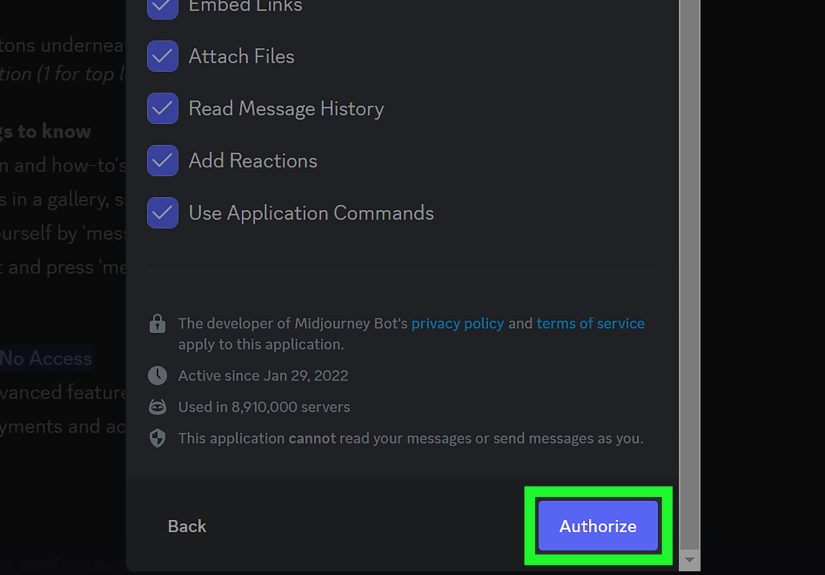
After selecting your server, click Continue, review the permissions, and click Authorize. Discord may ask you to complete a verification step. Once authorization is finished, the Midjourney Bot should appear in your server’s member list.
Step 7: Test the Bot with a Simple Prompt
Go to a channel where the bot has access and type:
If the command appears in Discord’s slash command menu and sends successfully, congratulations. Midjourney is now in your server, and your orange cat has officially entered the chat.
How to Organize Your Server for Midjourney
Adding the bot is only the beginning. The real magic happens when you organize your server in a way that supports your creative workflow. A messy server can become just as confusing as the public Midjourney channels, only now the chaos is wearing your username.
Create Channels by Project
If you work on multiple projects, create one channel for each project. For example, a small business owner creating visuals for a candle brand might use:
- #candle-product-shots
- #holiday-campaign
- #instagram-backgrounds
- #label-design-tests
This helps you compare prompts, track improvements, and avoid mixing unrelated ideas. Nobody wants a luxury candle concept accidentally blending with a medieval goblin tavern unless, of course, that is your brand. In that case, bold choice.
Use Threads for Variations
Discord threads are useful for keeping prompt experiments attached to one idea. If you generate a character design, start a thread for that character. Then you can keep all variations, refinements, and prompt notes together instead of scattering them across the channel.
Pin Your Best Prompts
When a prompt works well, pin it. Over time, your server becomes a reusable prompt library. This is especially helpful for teams because everyone can learn which styles, parameters, and descriptive patterns produce the best results.
How to Manage Midjourney Bot Permissions
By default, apps added to a Discord server may be available broadly, depending on your settings. If you want more control, adjust permissions so the Midjourney Bot works only where you want it.
Limit Midjourney to Specific Channels
Go to a channel, open Edit Channel, then review permissions. You can restrict whether members can use application commands in that channel. This is helpful if you want Midjourney active in #ai-art but not in #announcements, because nothing says “professional update” like someone accidentally generating a neon raccoon during a policy post.
Use Server Settings and Integrations
For broader control, open Server Settings, go to Integrations, and select the Midjourney Bot. From there, you can manage command permissions by role, channel, or member. This is a smart setup for community servers, classrooms, creative agencies, and client-facing workspaces.
Create Roles for Midjourney Users
If you run a team server, create a role such as AI Creators or Design Team. Then allow only that role to use Midjourney commands. This keeps your server tidy and prevents random experimentation in places where it does not belong.
Important Privacy Note: Private Server Does Not Always Mean Private Images
This part matters. A private Discord server keeps your Midjourney activity away from public Discord channels, but it does not automatically hide your creations from Midjourney’s website community areas. Midjourney is open by default, and creations may still be visible on midjourney.com unless you use privacy features such as Stealth Mode.
Stealth Mode is available only on certain higher-tier Midjourney plans, such as Pro and Mega plans. If privacy is important because you are creating client work, product concepts, unpublished campaign ideas, or personal images, do not assume that a private Discord server alone is enough. Use the correct Midjourney plan and privacy settings, and generate inside a private environment such as a private server or direct message with the bot.
Common Problems and How to Fix Them
The Server Does Not Appear in the Dropdown
If your server is missing during authorization, you likely do not have permission to add apps. Ask the server owner to give you Manage Server permission or have them add Midjourney directly.
The /imagine Command Does Not Show Up
First, make sure the Midjourney Bot has been added to the server. Then check whether the bot has access to the channel where you are typing. You can also type a forward slash and look through the command suggestions. If commands still do not appear, update Discord or restart the app.
The Bot Is in the Server but Does Not Respond
Check channel permissions. The bot may be blocked from using application commands, reading messages, or sending messages in that channel. Also confirm that your Midjourney account is active and that you are using a supported command.
Other Members Cannot Use the Bot
Each user needs their own Midjourney subscription. If they have a subscription but still cannot use the bot, check role permissions and channel restrictions. The problem may be Discord access, not Midjourney itself.
The Bot Feels Too Noisy
Create separate channels for experiments and final selections. Encourage users to move polished images into a “finished” channel. This simple habit saves time and prevents your server from becoming an endless waterfall of almost-perfect robots, moody landscapes, and suspiciously handsome astronauts.
Best Practices for Using Midjourney in Your Discord Server
Write Clear Prompts
Midjourney usually responds well to clear, visual descriptions. Instead of writing a giant paragraph, focus on subject, setting, style, mood, lighting, composition, and important details. For example:
This prompt is specific without becoming a grocery list wearing a trench coat.
Use Naming Rules
If you work with a team, agree on simple naming habits. For example, start prompts with project names like Brand A, Book Cover Test, or Spring Campaign. This makes search easier later.
Save Final Images Outside Discord
Discord is useful for generation and collaboration, but it should not be your only archive. Download important images and store them in organized folders on your computer, cloud drive, or asset management system. Discord search is helpful, but it is not a substitute for a clean file system.
Respect Community Guidelines
Midjourney’s rules apply even in private servers, direct messages, and hidden workflows. Private does not mean rule-free. Keep prompts safe, respectful, and within platform guidelines.
Examples of Useful Midjourney Server Setups
Setup for Solo Creators
A solo creator can keep things simple with three channels: #prompts, #favorites, and #notes. Use the first channel to generate, the second to save winners, and the third to store prompt formulas and reminders.
Setup for Marketing Teams
A marketing team may want channels for campaigns, products, social posts, ad concepts, and approved assets. Add permissions so only the creative team can generate images, while managers or clients can view selected results.
Setup for Classrooms
Teachers can create topic-based channels and restrict bot use to supervised areas. For example, one channel might focus on historical scenes, while another supports creative writing prompts. Clear rules help students use AI as a learning tool instead of a chaos button.
Setup for Client Projects
If you work with clients, create one channel per client or project. Keep drafts separate from approved concepts. For privacy-sensitive work, review Midjourney plan settings and avoid sharing prompts or images in public spaces.
My Practical Experience Adding Midjourney to a Discord Server
The first time you add Midjourney to your own Discord server, the biggest improvement is not the technology itself. It is the sudden feeling of quiet. In the public Midjourney channels, the energy is exciting, but it can feel like trying to sketch in the middle of a parade. Someone is making fantasy armor, someone else is generating futuristic sushi, and your minimalist product mockup disappears before you can say “upscale.”
In a private server, the workflow becomes calmer. You can test one idea, revise it, compare the results, and keep all versions in one place. For example, if you are designing a logo concept for a bakery, you can create a dedicated channel called #bakery-logo. Start with broad prompts, then gradually refine the style: vintage badge, soft pastel palette, hand-drawn wheat icon, clean typography space. Because everything stays in the same channel, you can scroll back and see exactly how the concept evolved.
One experience that stands out is how useful separate channels become after only a few sessions. At first, one general Midjourney channel seems fine. Then you generate product photos, character studies, website backgrounds, and Instagram post ideas all in the same place. Suddenly, your “simple” channel has become a creative junk drawer. The fix is easy: split projects early. Even if you are working alone, create channels by purpose. Your future self will thank you, possibly with snacks.
Another lesson is to treat prompts like recipes. When a prompt works, save it. Do not trust yourself to remember the exact phrase that produced the perfect lighting or composition. You will not. You will remember something vague like “I wrote cinematic but fancier,” which is about as useful as a map drawn by a squirrel. Pin good prompts, copy them into a notes channel, or store them in a document. Over time, you build a personal prompt library that makes every new project faster.
Team collaboration also becomes easier in a private server. Instead of sending screenshots back and forth, teammates can react to images, comment inside threads, and compare variations in context. A designer can generate options, a marketing manager can mark favorites, and a copywriter can suggest visual directions based on campaign language. The server becomes a shared creative room, not just a bot container.
However, the biggest mistake beginners make is assuming that “private Discord server” means “fully private Midjourney work.” It does not always work that way. If privacy matters, review Midjourney’s privacy settings and plan options carefully. For serious client work, unpublished product ideas, or sensitive brand concepts, combine a controlled Discord server with the right Midjourney privacy features. That extra step is much easier than explaining why a secret product concept was treated like public inspiration confetti.
Finally, do not overcomplicate the setup. Start with a clean server, a few channels, clear permissions, and a habit of saving good prompts. You can always improve the structure later. The goal is not to build the Pentagon of AI art servers. The goal is to make Midjourney easier, cleaner, and more useful for your actual creative work.
Conclusion
Learning how to add Midjourney to your Discord server is simple once you understand the flow: create or open your server, find the official Midjourney Bot, click Add App, choose your server, authorize the bot, and test it with a command like /imagine. The real value comes after installation, when you organize channels, manage permissions, save strong prompts, and build a workflow that supports your creative goals.
A private Discord server gives you more control, less noise, and better project organization. It is ideal for solo creators, design teams, marketers, educators, and anyone who wants Midjourney to feel less like a public art storm and more like a personal studio. Just remember the privacy rule: a private Discord server does not automatically make everything private on Midjourney’s website. If privacy matters, use the right Midjourney plan and Stealth Mode settings.
Set it up once, organize it well, and your Discord server can become a powerful AI image workspace. And yes, it can also become the place where your best idea starts as “just a quick test” and somehow turns into a full creative project by midnight. That is the Midjourney experience. Bring snacks.