Table of Contents >> Show >> Hide
- First, a Quick Reality Check: “iTunes” Might Not Be iTunes Anymore
- What Counts as “Free Music” (Legally)?
- Where to Get Free Music That You Can Actually Import to iTunes
- Step-by-Step: Download Free Music and Add It to iTunes (Windows)
- Step-by-Step: Download Free Music and Add It to Music (Mac)
- Bonus: The Old-School “Free Music” You Already OwnRip Your CDs
- Make Sure the File Format Plays Nice with iTunes
- How to Get Your Downloaded Music onto an iPhone or iPad
- Troubleshooting: When iTunes Acts Like It’s Never Met Your Song Before
- Conclusion: Free Music + iTunes, Without the Drama
- Extra: Real-World Experiences (500+ Words) That Will Save Your Sanity
Free music is awesome. “Free music that actually won’t get you in trouble” is even better. If you’re trying to download free music to iTunes (or the modern Apple apps that replaced iTunes on many devices), this guide walks you through the legit ways to do itstep by stepwithout sketchy pop-ups, fake download buttons, or the digital equivalent of stepping on a LEGO.
We’ll cover: where to find legal free downloads (Creative Commons, public domain, artist giveaways), how to bring those files into your iTunes library (or Apple Music app), how to keep everything organized, and how to get the songs onto your phone. Then, at the end, you’ll get a longer “real-world experience” sectionbecause the internet is full of “just click import” advice that ignores what actually happens in the wild.
First, a Quick Reality Check: “iTunes” Might Not Be iTunes Anymore
If you’re on a Mac, iTunes has been replaced by the Music app (plus separate apps for TV and podcasts). On Windows, Apple has been shifting people toward the Apple Music app (and a separate Apple Devices app for syncing), although many people still use iTunes depending on what’s installed.
Why this matters
- Mac: You’ll usually be importing songs into the Music app, not iTunes.
- Windows: You might be using iTunes OR the Apple Music app. The steps are similar, but menus can differ.
- iPhone/iPad: You don’t “download to iTunes” on the device. You add music to your library on a computer (or cloud library) and then sync or download to the device.
Don’t worry: this article uses “iTunes” the way people usually mean ityour Apple music library on a computerwhile showing the exact options for both iTunes (Windows) and the Music app (Mac).
What Counts as “Free Music” (Legally)?
There are two very different kinds of “free”:
1) Free as in “you’re allowed to download it”
This is what we want. Examples:
- Artist giveaways (a band releases a free EP, a single, or a “name your price” download)
- Creative Commons–licensed music (free to use under certain terms, often attribution if you use it publicly)
- Public domain recordings (free because copyright no longer applies, or the creator placed it in the public domain)
- Music you already own (like ripping your own CD into your library)
2) “Free” as in “someone uploaded it and said ‘trust me bro’”
This is the road to malware, copyright issues, and regrets. If a site is offering mainstream chart music for free downloads with no official permission, it’s probably not legit. We’re skipping that entire universe on purpose.
Where to Get Free Music That You Can Actually Import to iTunes
Here are reliable, legal places people use to download music files (like MP3, AAC, FLAC, or WAV) that can be added to your library.
Artist/indie platforms (often the best “free but legit” option)
- Bandcamp: Many artists set tracks/albums to “free” or “name your price,” meaning you can enter $0 if allowed. You usually choose the file format before downloading.
- SoundCloud: Some tracks have a real download button enabled by the uploader. (Not every track allows downloadsif it’s not enabled, don’t go hunting for shady “downloaders.”)
Libraries built around legal sharing
- Free Music Archive: A long-running collection of free music where many tracks use Creative Commons licenses. Great for discovering new sounds and downloading files the right way.
- Jamendo: Large catalog of independent music with free downloads, often tagged around licensing and usage terms.
Public domain and archival sources
- Internet Archive (Audio/Music collections): Massive audio collections, including public domain recordings and creator-uploaded material. Always check the item’s usage/licensing info before downloading.
Creator audio libraries (useful, but read the fine print)
If you’re a video creator, you may already know about YouTube’s Audio Library. It offers tracks you can download, with different rules depending on the license type. Even if you just want personal listening, it’s still smart to respect the stated termsespecially if you later use the music in a public project.
Step-by-Step: Download Free Music and Add It to iTunes (Windows)
These steps assume you’re using the classic iTunes for Windows app. If you’re using Apple Music for Windows instead, jump to the next section.
Step 1: Download the music files to your computer
Download the track/album from a legitimate source. Put it somewhere easy to findlike a folder named:
Music Downloads (To Import)
This single folder will save you from the “Where did it go?” scavenger hunt later.
Step 2: Tell iTunes to keep your library organized
Open iTunes, then go to:
- Edit > Preferences > Advanced
Look for options like:
- Keep iTunes Media folder organized
- Copy files to iTunes Media folder when adding to library
If you want iTunes to manage and copy the files into its own library folders (recommended for most people), turn those on. If you prefer files to stay exactly where you put them, you can leave copying offbut then you must be careful not to delete or move the original downloads later.
Step 3: Add the files to iTunes
In iTunes, use one of these:
- File > Add File to Library (for one or a few songs)
- File > Add Folder to Library (for an album or a folder full of downloads)
Alternatively, you can drag and drop files into the iTunes window.
Step 4: Find your music (and fix metadata)
Go to Songs (or your Library view) and search the artist name. If the track shows up as “Unknown Artist” or has weird capitalization like “tRaCk 01 FINAL final.mp3,” don’t panicthat’s normal with freebies.
To clean it up:
- Right-click the song > Song Info (or Get Info)
- Edit Title, Artist, Album, Year, Genre
- Add Album Art if you have it (drag an image into the artwork area)
Step-by-Step: Download Free Music and Add It to Music (Mac)
On macOS, you’ll usually use the Music app.
Step 1: Download the files
Same rule: download from legal sources, save to a clear folder, and avoid mystery “download” buttons that look like they were designed by a cartoon villain.
Step 2: Choose whether Music copies files into its Media folder
In the Music app, check settings so you understand what’s happening when you import:
- If you enable “copy files to Media folder,” Music will import and manage the files inside its library structure.
- If it’s off, Music can reference the files where they livefine, until you reorganize your folders and break the links.
Step 3: Add files to your library
Use either:
- File > Add To Library (adds songs; may not copy depending on settings)
- File > Import (imports and can copy into your Media folder depending on settings)
Or drag files into the Music window. Apple even notes that some sites provide actual audio files while others only provide linksmake sure you’re downloading real audio files you can import.
Bonus: The Old-School “Free Music” You Already OwnRip Your CDs
If you have CDs, you can import them into your library. That’s still one of the cleanest ways to build a legit collection, and it feels oddly satisfyinglike you’re running a tiny music museum that lives in your laptop.
In the Music app on Mac, you can choose what happens when you insert a CD (show it, play it, or import it). On Windows iTunes, you can import CDs too, depending on your setup and drive.
Make Sure the File Format Plays Nice with iTunes
Most free downloads come as MP3, which iTunes/Music typically handles easily. You’ll also commonly see:
- AAC (often .m4a)
- WAV and AIFF (bigger files, often uncompressed)
- FLAC (popular for lossless, but compatibility varies depending on app/version)
Practical tip
If your goal is easy syncing and wide compatibility, MP3 or AAC is usually the least dramatic choice. If you’re collecting higher-quality files, keep a “lossless” folderbut still import in a way that you can manage and back up.
How to Get Your Downloaded Music onto an iPhone or iPad
Once the tracks are in your library, you have a few common paths:
Option A: Sync via cable (classic, reliable)
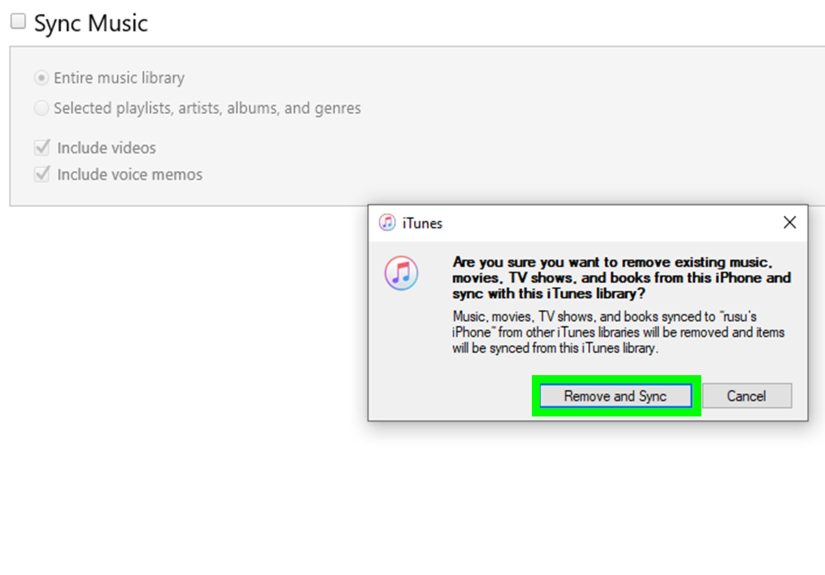
Connect your device and sync music using iTunes (Windows) or the current Apple device management method. This method is great if you don’t want to rely on internet access.
Option B: Use cloud library features (if enabled)
If you use Apple services that keep a cloud music library, some local tracks can show up across devices (depending on your settings and subscription). But don’t assume “cloud” means “free forever.” Subscription features can change access if you stop subscribing, and files may behave differently than local MP3s.
Troubleshooting: When iTunes Acts Like It’s Never Met Your Song Before
Problem: I added the files, but they don’t show up
- Check you didn’t add a shortcut/link instead of a real audio file.
- Try adding the folder again using “Add Folder to Library.”
- Search for the file name (some imports land under “Unknown Artist”).
Problem: Songs play, but later they show an exclamation mark or won’t play
This usually means the file was moved or deleted. If you turned off “Copy files to Media folder,” iTunes/Music may be pointing to the original download location. Keep your originals where they are, or turn on copying and re-import.
Problem: My library is chaos (duplicates, weird album splitting)
- Use consistent Album and Album Artist tags.
- For compilations, mark tracks as part of a compilation (where available).
- If you imported the same folder twice, sort by “Date Added” and remove duplicates carefully.
Problem: The “free” download looks suspicious
If the page is forcing you through multiple “download managers,” asking to install software, or redirecting you to unrelated sites: stop. Legit platforms (artist pages, archives, Creative Commons libraries) don’t need you to install “SuperFastDownloader9000.”
Conclusion: Free Music + iTunes, Without the Drama
You can absolutely build a solid iTunes/Music library with free, legal downloadsespecially if you stick to artist-friendly platforms (Bandcamp-style releases, download-enabled SoundCloud tracks), Creative Commons libraries (Free Music Archive, Jamendo, CC-listed sources), and public domain archives (Internet Archive collections). The key is simple: download real audio files, import them the right way, and let your library stay organized so it doesn’t turn into a digital junk drawer.
And if you remember only one thing: turn on “Copy files to Media folder” if you want fewer future headaches. “I’ll manage the files manually” is a beautiful dream… right up until you clean your Downloads folder and accidentally erase your entire vibe.
Extra: Real-World Experiences (500+ Words) That Will Save Your Sanity
Most guides make this process sound like a three-click victory lap. In reality, the “download free music to iTunes” journey often includes a few plot twists. Here are common experiences people run intoand what to do about themso you can skip the messy middle.
Experience #1: The Downloads Folder Black Hole
A classic scene: you download a free album, double-click it, iTunes opens, and you feel like a tech wizard. Two weeks later, you tidy your computer. The Downloads folder is full of mystery ZIP files, “final_final2.mp3,” and one PDF titled “coupon.” You delete everything. Suddenly your songs won’t play and iTunes looks personally betrayed. What happened?
This is almost always a file-location issue. If iTunes/Music is referencing the original file location (instead of copying it into its own media folder), deleting the download deletes the music. The fix is boring but powerful: either (a) keep your original downloaded music in a dedicated folder you don’t casually purge, or (b) enable the setting that copies files into your iTunes Media folder when importing. Boring wins. Boring always wins.
Experience #2: “Why is this album split into 17 different albums?”
You import one album and iTunes shows it as multiple mini-albumssometimes because track metadata disagrees on the album name, album artist, or even a tiny typo like “Greatest Hits” vs “Greatest hits.” This is extra common with free downloads from independent artists who tagged files quickly (or not at all).
The practical move: select all tracks from that album, open Song Info, and make the Album and Album Artist fields match exactly. If it’s a various-artist release, mark it as a compilation (where available). After that, the library usually snaps into place like it finally got enough sleep.
Experience #3: The “Free Download” That’s Actually a Link
Some sites provide a downloadable audio file. Others provide a link to stream. The difference matters: iTunes can import audio files, but a streaming link is not the same thing as a local MP3. If you download something and it’s a tiny file that doesn’t play like normal audio, you may have grabbed a link/redirect instead of the real track.
The fix: make sure you’re downloading an actual audio format (MP3, M4A, WAV, etc.). If the platform is reputable, it’s usually clear. If it’s confusing on purpose, that’s your sign to leave.
Experience #4: “Why does the volume jump like a haunted elevator?”
Free tracks can vary wildly in loudness. One song whispers, the next one shouts. That’s not youit’s inconsistent mastering. Many people handle this by enabling playback features that normalize volume (if available in your app), or by being a DJ with the volume slider. If you’re building playlists for workouts, studying, or a party, this is worth paying attention to so your ears don’t get jump-scared.
Experience #5: The ‘I Just Want It on My Phone’ Moment
Even when importing is perfect, people often hit the “why isn’t it on my iPhone?” wall. The missing step is usually syncing/downloading. Your computer library is not automatically your phone library unless you use syncing or cloud library features. If you prefer simple control, cable syncing remains the most dependable methodespecially when you’re dealing with local files from multiple sources.
Bottom line: downloading free music and adding it to iTunes is easy once it’s set up, but the best results come from a simple systemone download folder, clean imports, organized files, and a quick metadata touch-up when needed. Do that, and your library will feel curated instead of chaotic.