Table of Contents >> Show >> Hide
- Why overlay pictures in Word?
- Before you start
- How to overlay pictures in Word in 13 steps
- Step 1: Open your Word document
- Step 2: Insert the first picture
- Step 3: Insert the second picture
- Step 4: Select the first picture and change its text wrapping
- Step 5: Do the same for the second picture
- Step 6: Enable overlap if needed
- Step 7: Drag the pictures into position
- Step 8: Resize the images for balance
- Step 9: Change the stacking order
- Step 10: Fine-tune the placement
- Step 11: Use transparency, crop, or picture effects if needed
- Step 12: Group the pictures together
- Step 13: Save and test the layout
- Example: a simple overlay design in Word
- Common problems and how to fix them
- Best practices for cleaner results
- Is Word the best tool for overlaying pictures?
- Final thoughts
- Extra experience and practical insights: what people usually learn after using this feature
- SEO Tags
If you have ever tried to stack two pictures in Microsoft Word and watched them behave like toddlers fighting over the same toy, welcome. You are not alone, and more importantly, you are not cursed. Word can absolutely overlay pictures, but it hides the good stuff behind settings like Wrap Text, Allow overlap, and Bring Forward. Once you know where those tools live, the whole process becomes much easier.
This guide walks you through exactly how to overlay pictures in Word in 13 clear steps. You will also learn how to fix the usual “why is my image glued to the paragraph?” problem, how to keep your layout from shifting, and how to make your final design look polished instead of accidentally chaotic. Whether you are creating a flyer, school handout, product sheet, collage, or simple side-by-side image effect, this method gets the job done without turning your document into formatting soup.
Why overlay pictures in Word?
Overlaying images is useful when you want more than a basic document. Maybe you want one photo on top of another for a before-and-after effect. Maybe you need a logo placed over a background image. Maybe you are building a cover page and want something that says “professional” instead of “I discovered clip art five minutes ago.”
Word is not a full graphic design program, but for simple layered image work, it is surprisingly capable. The trick is knowing that pictures usually start out as In Line with Text, which makes them act like giant letters in a sentence. That is fine for essays. It is terrible for creative layout. To overlap pictures, you need to switch to a wrapping option that lets the images float freely.
Before you start
These steps work best in the desktop version of Microsoft Word, where picture arrangement controls are easiest to access. If you are working on a brochure, resume, classroom worksheet, or printable sign, save your file before you begin. Word is helpful, but it sometimes “helps” in ways nobody asked for.
How to overlay pictures in Word in 13 steps
Step 1: Open your Word document
Start with the document where you want the layered images to appear. You can use a blank page or an existing document. If text already exists on the page, decide roughly where the images should sit so you are not dragging them across six paragraphs and a table like a moving company with bad directions.
Step 2: Insert the first picture
Go to Insert and add your first image from your device, stock images, or an online source available through Word. This image will usually become the background or lower layer, although you can change that later.
Step 3: Insert the second picture
Now add the second image. At this point, the two pictures may sit in separate lines or push your text around. That is normal. Word has not gone off the rails yet. It is just waiting for you to give it better instructions.
Step 4: Select the first picture and change its text wrapping
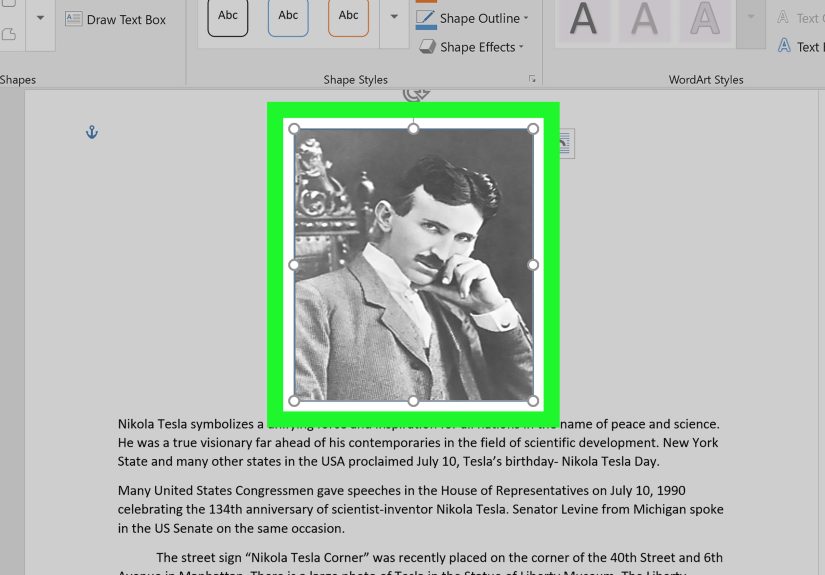
Click the first image. Then open Layout Options or use the Picture Format tab and choose Wrap Text. Select a wrapping style other than In Line with Text. Good choices include Square, Tight, Behind Text, or In Front of Text.
If your goal is pure image-on-image layering, In Front of Text is often the easiest option because it gives you more freedom to move the image anywhere on the page.
Step 5: Do the same for the second picture
Select the second image and change its wrapping style too. This matters more than people think. If one image is still set to In Line with Text, it may refuse to overlap properly, and you will spend ten unnecessary minutes blaming your mouse.
Step 6: Enable overlap if needed
With one picture selected, open Layout Options, choose See more, and look for the option to Allow overlap. Turn it on. Repeat for the other picture if necessary. This setting helps Word understand that yes, you really do want the images to share space instead of behaving like polite strangers at opposite ends of the page.
Step 7: Drag the pictures into position
Now click and drag the images until they overlap. You can place one directly over the other, offset them slightly for a collage effect, or line them up at an angle for a more dynamic layout. If the positioning feels sloppy, zoom in a bit so you can place them more precisely.
Step 8: Resize the images for balance
Use the corner handles to resize each picture. Hold the proportions naturally by dragging from a corner instead of stretching from the side unless you actively want your dog photo to look like it joined a funhouse mirror exhibit. A layered design usually looks best when one image is slightly larger and the second acts as a focal accent.
Step 9: Change the stacking order
If the wrong picture is on top, select the image and use Bring Forward, Bring to Front, Send Backward, or Send to Back. These commands control which image sits above the other. This is the moment where Word finally stops arguing and starts behaving like a layout tool.
Step 10: Fine-tune the placement
Once the pictures overlap, tweak the layout. You can nudge images slightly with your mouse, use arrow keys for careful movement, or explore more precise position controls in the picture layout settings. If text is nearby, decide whether the images should stay fixed on the page or move with the surrounding text.
Step 11: Use transparency, crop, or picture effects if needed
If one image is blocking too much of the other, reduce transparency, crop away unnecessary edges, or apply a subtle picture style. For example, a faded background image with a sharper foreground image often looks more intentional than two equally loud photos fighting for attention. Less visual shouting usually means better results.
Step 12: Group the pictures together
When the overlay looks right, select both images by holding Ctrl while clicking each one, then use Group. Grouping makes the pictures act like a single object so you can move or resize them together. This is especially helpful if you plan to keep editing the document later. One important note: images usually need a wrap setting other than In Line with Text before Word will let you group them.
Step 13: Save and test the layout
Save your document, then scroll through the page or switch to print layout to make sure the overlay still looks right. If your document includes a lot of text above or below the images, add a few test paragraphs and confirm that the pictures stay where you expect. Nothing is more humbling than creating a beautiful layered image only to watch it migrate halfway down the page after one sentence is added.
Example: a simple overlay design in Word
Let’s say you are making a product flyer. You insert a large lifestyle photo as the base image, then place a smaller product photo over one corner. Set both images to In Front of Text, allow overlap, resize the smaller image, and bring it forward. Add a caption nearby, and suddenly your plain document has some visual structure.
Another example is a photo collage for a class project. You can layer three or four pictures with slight rotation and overlapping edges, then group them together. It is a quick way to make a Word page feel less like a term paper and more like something designed by a human being with coffee and ambition.
Common problems and how to fix them
The pictures will not overlap
Check the wrap setting first. If either image is still In Line with Text, change it. Then make sure Allow overlap is enabled in the advanced layout settings.
The image keeps jumping when I drag it
That usually means the image is still tied too closely to the text flow. Try In Front of Text or Square, then set the image position again. If needed, choose a fixed page position.
I cannot select the image behind another image
Open the Selection Pane to view overlapping objects more easily. This is one of Word’s underrated lifesavers when multiple images are stacked in the same area.
Grouping is grayed out
Make sure both pictures use a wrap setting other than In Line with Text. Word is picky here, and yes, it absolutely means it.
Best practices for cleaner results
Use high-resolution images whenever possible. A fuzzy image layered over another fuzzy image does not magically become sharp. It becomes two fuzzy images having a meeting.
Keep spacing intentional. Slight overlap usually looks cleaner than random collision. If one image hides important details in the other, reduce the size or move it to a less important corner.
Use image borders or shadows sparingly. They can help separate layers, especially when two photos blend together too much, but too many effects make the page look busy fast.
Be thoughtful with accessibility. Decorative overlaps may look great, but documents that must be read clearly by screen readers or converted to accessible formats often work better with inline images, captions, and alt text rather than heavily layered graphics. If accessibility is the priority, choose clarity over cleverness.
Is Word the best tool for overlaying pictures?
For simple jobs, yes. Word is perfectly fine for quick layered layouts in reports, handouts, flyers, and internal documents. If you are creating a polished marketing piece with precise typography and complex image effects, a design tool like Canva, PowerPoint, or Adobe software may offer more control.
Still, if Word is what you have open and your deadline is glaring at you from across the room, it can absolutely handle picture overlays. You just need the right settings and a tiny bit of patience.
Final thoughts
Learning how to overlay pictures in Word is really about learning how Word thinks. By default, it treats images like part of the text. Once you switch wrapping styles, allow the images to overlap, and control the stacking order, everything starts to make sense. From there, resizing, grouping, and polishing the layout becomes much easier.
The best part is that once you do it once, you will remember it forever. Or at least until the next time Word hides a command behind a tiny menu and pretends that is normal behavior. Either way, you now know the 13 steps that turn a basic document into something much more visual and effective.
Extra experience and practical insights: what people usually learn after using this feature
One of the most common experiences people have with overlaying pictures in Word is discovering that the hard part is not the overlap itself. The hard part is understanding why Word behaves one way in one document and completely differently in another. In most cases, the difference comes down to wrapping. Once users realize that In Line with Text is the setting that makes images feel stuck, they usually have an “oh, so that was the problem” moment. It is not glamorous, but it is satisfying.
Another real-world lesson is that simple overlays usually look better than complicated ones. People often begin with the noble dream of building a magazine cover inside Word. Ten minutes later, they are rotating five images, moving three text boxes, and wondering why nothing lines up. Then they scale back, use two well-sized photos, add one subtle layer effect, and suddenly the page looks far more professional. Word rewards restraint. It does not always reward artistic overconfidence.
Teachers, office staff, students, and small business owners often use this trick for practical reasons rather than flashy design. A teacher might overlay a small icon on top of a worksheet image to highlight where students should focus. A business owner may place a logo over a product photo for a fast promotional one-pager. A student might build a title page collage that looks far more polished than plain stacked photos. In all of these cases, the feature is less about showing off and more about saving time while creating something visually clear.
There is also a strong “trial-and-error” part to the experience. Even when people follow the steps correctly, they usually spend a few minutes adjusting size, stacking order, and spacing to get the layout just right. That is normal. Good overlay work is rarely finished on the first drag. The nicest-looking Word documents are often the result of tiny tweaks: moving an image a few pixels, sending one backward, cropping a distracting edge, or grouping everything before the layout has a chance to wander off.
Perhaps the biggest takeaway is confidence. Once users learn this method, they tend to use Word more creatively. They stop seeing it as a place only for essays, meeting notes, and painfully formal memos. They start using it for flyers, mini portfolios, visual reports, event handouts, and branded internal documents. That is the real win. Overlaying pictures in Word is not just a formatting trick. It is one of those small skills that makes the software feel a lot more useful, and a lot less like a document prison with fonts.