Table of Contents >> Show >> Hide
- Sync vs. Merge: What Is the Difference?
- Step 1: Decide Which Calendar Will Be Your Main Calendar
- Step 2: Show Multiple Google Calendars in One View
- Step 3: Share a Google Calendar With Another Account
- Step 4: Subscribe to Another Calendar by URL
- Step 5: Export a Google Calendar Before Merging
- Step 6: Import Events Into Your Main Calendar
- Step 7: Avoid Duplicate Events
- Step 8: Sync Google Calendar With Android
- Step 9: Sync Google Calendar With iPhone or iPad
- Step 10: Sync Google Calendar With Outlook
- Step 11: Transfer Ownership When Needed
- Step 12: Clean Up After Merging
- Best Practices for Managing Multiple Google Calendars
- Common Problems and Quick Fixes
- Real-World Examples
- Personal Experience: What I Learned From Managing Multiple Calendars
- Conclusion
Running your life from one calendar is easy. Running your work account, personal Gmail, family schedule, school reminders, fitness classes, client calls, volunteer shifts, and that mysterious “Other Calendar” you created in 2019? That is where things start to feel like air-traffic control, except the planes are dentist appointments and soccer practice.
The good news: Google Calendar is flexible enough to help you organize multiple schedules in one place. The slightly less magical news: “syncing” and “merging” are not the same thing. Syncing lets you view or update calendars across devices and apps. Merging usually means copying events from one calendar into another, often by exporting and importing an .ics file. Once you understand that difference, you can avoid the classic calendar disaster: duplicate meetings multiplying like digital rabbits.
This guide explains how to sync multiple Google Calendars, merge calendars safely, import events, share calendars, connect Google Calendar with Apple Calendar or Outlook, and clean up the mess afterward. Coffee is optional, but recommended.
Sync vs. Merge: What Is the Difference?
Before clicking buttons with heroic confidence, it helps to know what you are trying to do.
Syncing Google Calendars
Syncing means one calendar can appear in another place and stay updated. For example, your Google Calendar events can show up on your Android phone, iPhone, iPad, Apple Calendar, Outlook, or another Google account if it has proper access. Syncing is best when you want to keep calendars separate but visible together.
Merging Google Calendars
Merging means moving or copying events from one calendar into another. This is useful when you want to combine old calendars, consolidate personal accounts, or retire a calendar you no longer use. Merging is usually done with export and import tools, and it is typically a one-time action.
The Simple Rule
If you want calendars to keep updating, sync them. If you want all events permanently copied into one calendar, merge them. If you want both, proceed carefully and back up everything first. Your future self will send you a thank-you card, probably scheduled in Google Calendar.
Step 1: Decide Which Calendar Will Be Your Main Calendar
The first step is choosing a “home base” calendar. This is the calendar you will check most often and trust as your master schedule. For many people, that is their main Gmail calendar. For business owners, it may be a Google Workspace calendar. For families, it may be a shared household calendar.
Ask yourself three questions:
- Which account do I use every day?
- Which calendar do I want new events to land on by default?
- Which calendar should remain active for the long term?
Do not merge everything into an account you might lose access to later, such as an old school account, former work account, or temporary project account. A calendar is only useful if you can still open it when life gets busy.
Step 2: Show Multiple Google Calendars in One View
If your goal is simply to see several calendars together, you may not need to merge anything. Google Calendar already lets you display multiple calendars in one view.
How to View Multiple Calendars
- Open Google Calendar on your computer.
- Look at the left sidebar under My calendars and Other calendars.
- Check the box beside each calendar you want to display.
- Uncheck calendars you want to hide temporarily.
- Use different colors so your brain does not file a complaint.
This is the easiest method for organizing work, personal, family, and project calendars without permanently combining them. Each calendar keeps its own identity, permissions, and color, but you can see everything in one place.
Step 3: Share a Google Calendar With Another Account
If you use multiple Google accounts, sharing may be better than merging. For example, you can share your work calendar with your personal account so you can see meetings without copying every event.
How to Share a Google Calendar
- Open Google Calendar on a computer.
- On the left, hover over the calendar you want to share.
- Click the three-dot menu and choose Settings and sharing.
- Scroll to Share with specific people or groups.
- Add the email address of your other Google account.
- Choose the right permission level.
- Click Send.
For simple visibility, choose permission such as “See all event details.” If you want the second account to edit events, choose a higher permission level. Be careful with “Make changes and manage sharing,” because that gives significant control over the calendar.
Step 4: Subscribe to Another Calendar by URL
Some calendars provide an iCal or ICS URL. You may see this with school schedules, booking systems, sports teams, project tools, rental platforms, or event management software. Subscribing to a calendar URL lets Google Calendar display that external calendar.
How to Add a Calendar From a URL
- Open Google Calendar on your computer.
- On the left, click the plus sign beside Other calendars.
- Choose From URL.
- Paste the calendar URL.
- Click Add calendar.
This method is useful for viewing events that update from another system. However, subscribed calendars may not update instantly. In many cases, Google checks the feed periodically, and the timing can vary. If a new event does not appear immediately, do not panic-click 47 times. Give it some time.
Step 5: Export a Google Calendar Before Merging
If you truly want to merge calendars, start by exporting the source calendar. This creates a backup file, usually in .ics format. Think of it as packing your events into a suitcase before moving them into a new home.
How to Export Google Calendar Events
- Open Google Calendar on a computer.
- Click the gear icon and select Settings.
- Choose Import & export from the left menu.
- Click Export.
- Google will download a ZIP file.
- Open the ZIP file to find individual
.icscalendar files.
Important: Calendar exporting is usually done from the desktop web version of Google Calendar, not the mobile app. If you are trying this from your phone and feel like the option is hiding from you, it probably is.
Step 6: Import Events Into Your Main Calendar
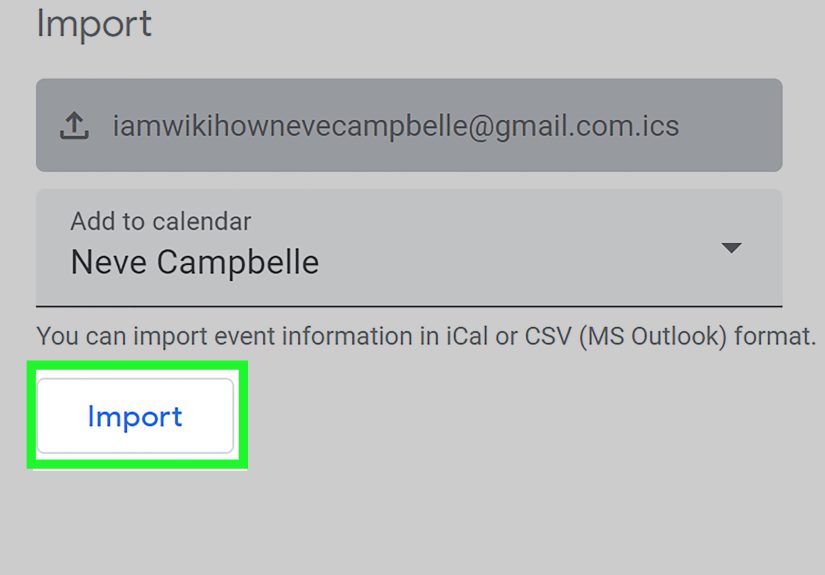
After exporting your calendar, you can import the .ics file into your chosen main calendar. This copies the events into that calendar.
How to Import Events Into Google Calendar
- Open Google Calendar on your computer.
- Click the gear icon and choose Settings.
- Select Import & export.
- Under Import, click Select file from your computer.
- Choose the
.icsfile you exported. - Select the destination calendar.
- Click Import.
Once imported, the events become part of the destination calendar. This does not create an ongoing live sync with the old calendar. If the old calendar changes later, those changes will not automatically appear in the merged calendar unless you import again or set up a sync method.
Step 7: Avoid Duplicate Events
Duplicate events are the glitter of calendar management: once they spread, they are annoying to clean up. Before importing, check whether the destination calendar already contains the same events.
Tips to Prevent Duplicates
- Export and import only once when possible.
- Import into a test calendar first if you are unsure.
- Do not import the same
.icsfile repeatedly. - Keep old calendars hidden until you confirm the merge worked.
- Use calendar colors to spot copied events more easily.
A smart trick is to create a temporary calendar called “Import Test.” Import the file there first. If everything looks right, you can repeat the process into your real calendar. If it looks wrong, delete the test calendar and escape with dignity.
Step 8: Sync Google Calendar With Android
Google Calendar usually works smoothly on Android because both are part of the Google ecosystem. Still, settings matter.
How to Check Android Calendar Sync
- Open your Android device settings.
- Go to Passwords, passkeys & accounts or a similar account menu.
- Select your Google account.
- Tap Account sync.
- Make sure Calendar is turned on.
- Open the Google Calendar app.
- Tap the menu icon and confirm the calendars you want are checked.
If events are missing, check your internet connection, update the app, confirm that the correct Google account is selected, and make sure the specific calendar is visible in the app. Sometimes the calendar exists; it is just wearing an invisibility cloak.
Step 9: Sync Google Calendar With iPhone or iPad
You can use the official Google Calendar app on iPhone or iPad, or you can sync Google Calendar with Apple Calendar. The Google Calendar app is usually the simplest option, especially if you rely on Google-specific features.
How to Add Google Calendar to Apple Calendar
- Open Settings on your iPhone or iPad.
- Go to Calendar, then Accounts.
- Tap Add Account.
- Select Google.
- Sign in to your Google account.
- Turn on the Calendars switch.
- Open Apple Calendar and tap Calendars.
- Check the calendars you want to display.
Some Google Calendar features may behave differently in Apple Calendar. If you want the most consistent Google experience, use the official Google Calendar app. If you prefer Apple’s built-in app, syncing through account settings works well for many everyday schedules.
Step 10: Sync Google Calendar With Outlook
Outlook can display Google Calendar in different ways depending on your version and setup. One common option is subscribing to a Google Calendar using an iCal link. This lets Outlook show the calendar and receive updates over time.
Import vs. Subscribe in Outlook
Importing an .ics file into Outlook creates a snapshot of events. Subscribing to an online calendar can keep it updated. If you want ongoing updates, subscription is usually better than a one-time import.
For work calendars, always check your organization’s sharing rules. Some companies restrict external sharing, calendar links, or event visibility for privacy and security reasons. That is not Outlook being dramatic; that is your admin doing admin things.
Step 11: Transfer Ownership When Needed
If you own a Google Calendar and want another person or account to manage it permanently, transferring ownership may be better than exporting and importing. This is common for team calendars, club calendars, classroom calendars, or business calendars that need a new manager.
Ownership transfer is different from sharing. Sharing gives access. Transferring ownership changes who controls the calendar. Use this carefully, especially if the calendar contains business meetings, private event details, or Google Meet links.
Step 12: Clean Up After Merging
After you merge calendars, do not immediately delete the old one. First, verify that important events made the trip safely.
Post-Merge Checklist
- Check recurring events.
- Confirm event times and time zones.
- Review reminders and notifications.
- Look for missing guests or meeting links.
- Compare a few important dates against the original calendar.
- Hide the old calendar before deleting it.
Recurring events deserve special attention. A weekly meeting with exceptions, changed locations, or custom reminders may not always behave exactly as expected after export and import. Test the important stuff before declaring victory.
Best Practices for Managing Multiple Google Calendars
Use Separate Calendars for Separate Roles
Instead of dumping everything into one giant calendar soup, create separate calendars for work, personal life, family, side projects, and appointments. This makes it easier to show, hide, share, or export only what you need.
Color-Code With Purpose
Use colors consistently. For example, blue for work, green for personal, yellow for family, red for deadlines, and purple for fitness. The actual colors do not matter as much as using them consistently. Your calendar should give you quick visual answers, not a modern art puzzle.
Name Calendars Clearly
Avoid vague names like “Calendar 2” or “Stuff.” Use names such as “Work Meetings,” “Family Schedule,” “Client Calls,” or “School Events.” Clear names reduce mistakes when importing, sharing, and choosing destination calendars.
Keep Sensitive Calendars Separate
Do not merge private medical appointments, confidential work meetings, or personal reminders into calendars that other people can access. When in doubt, keep sensitive events in a private calendar and share only free/busy information.
Back Up Before Big Changes
Before merging or deleting calendars, export a backup. It takes only a few minutes and can save you from a scheduling tragedy worthy of dramatic background music.
Common Problems and Quick Fixes
My Calendar Is Not Showing on My Phone
Check that the correct Google account is added, calendar sync is turned on, and the calendar is selected inside the Google Calendar app or Apple Calendar app. Also confirm that your device has internet access and that the calendar is visible on desktop.
My Subscribed Calendar Is Updating Slowly
Subscribed iCal calendars may update on a delay. Google and other calendar apps refresh external feeds periodically, but not always instantly. If timing is critical, consider direct sharing or a dedicated calendar sync tool instead of relying on a public feed.
I Imported the Same Calendar Twice
If duplicates appear, you may need to remove them manually or delete the destination calendar if it was newly created for the import. This is why testing with a temporary calendar is a beautiful little safety net.
My Work Calendar Will Not Share
Your organization may restrict calendar sharing. Google Workspace admins can control whether calendars can be shared outside the organization, how much detail is visible, and whether private links are available.
Real-World Examples
Example 1: Personal + Work Calendar
Suppose you have a personal Gmail calendar and a company Google Workspace calendar. You want to see both on your phone, but you do not want personal events copied into your work account. The best solution is syncing or sharing, not merging. Add both accounts to Google Calendar and display them together.
Example 2: Old Gmail Account + New Gmail Account
You are retiring an old Gmail address and moving everything to a new one. In this case, exporting the old calendar and importing the events into the new main calendar makes sense. Keep the old account active until you confirm the import worked.
Example 3: Family Calendar
A shared family calendar is better than merging everyone’s personal calendars. Create one calendar called “Family Schedule,” share it with family members, and give each person the right permission level. This keeps household events visible without exposing every private appointment.
Personal Experience: What I Learned From Managing Multiple Calendars
The biggest lesson from working with multiple calendars is that people rarely have a calendar problem at first. They have a decision problem. The calendar only becomes messy because every event gets added wherever it is fastest in the moment. A meeting lands in the work calendar. A dentist appointment goes into a personal calendar. A family birthday gets added to a shared calendar. A subscription calendar adds holidays. Then one day, you open your schedule and it looks like a confetti cannon exploded inside a spreadsheet.
The most helpful habit is choosing a default place for each type of event. Work meetings go on the work calendar. Personal commitments go on the personal calendar. Shared household events go on the family calendar. Temporary project events go on a project calendar. This sounds boring, but boring systems are usually the ones that survive Tuesday afternoon.
Another practical lesson is to avoid merging too soon. Many people think they want one giant calendar, but what they really want is one view. Google Calendar already provides that by letting you show several calendars at once. Keeping calendars separate gives you control. You can hide work on weekends, show only family events during vacation planning, or share one calendar without exposing another. Once everything is merged, separating it again can feel like unscrambling an omelet.
When merging is necessary, a test calendar is worth the extra minute. Create a temporary calendar, import your file there, and inspect the results. Look at recurring events, all-day events, reminders, and time zones. If it looks clean, proceed. If not, delete the test calendar and adjust your plan. This small step prevents big headaches, especially when moving years of events from one account to another.
Color-coding also matters more than people expect. A well-colored calendar gives instant context. You can glance at the week and know whether it is meeting-heavy, family-heavy, deadline-heavy, or suspiciously empty in a way that probably means you forgot something. The trick is not to use too many colors. Five meaningful colors beat fifteen decorative ones. A calendar should not look like a bag of candy unless your job is literally candy scheduling.
The final experience-based tip is to respect privacy. A shared calendar is convenient, but not every event belongs there. Use private calendars for sensitive appointments, personal reminders, financial tasks, or anything you would not want casually visible to a coworker, client, classmate, or family member. Syncing and sharing are powerful, but access should be intentional.
In short, the best calendar system is not the fanciest one. It is the one you actually trust. Sync calendars when you need visibility. Merge calendars when you are consolidating permanently. Back up before major changes. Use clear names. Keep private things private. And remember: the goal is not to make your calendar beautiful enough for a productivity influencer. The goal is to know where you need to be, when you need to be there, and whether you have time for lunch.
Conclusion
Learning how to sync and merge multiple Google Calendars is mostly about choosing the right method for the job. If you want one view across devices, sync your calendars or share them with the right accounts. If you want to permanently combine events, export the source calendar and import it into your main calendar. If you only need to see another schedule, subscribe by URL or add the shared calendar instead of merging.
The safest approach is simple: choose a main calendar, back up your events, test imports before committing, and keep sensitive schedules separate. Do that, and Google Calendar becomes less of a cluttered command center and more of a calm assistant that politely reminds you where to go next.
Note: This article is written for web publication and synthesizes current official calendar guidance, platform support practices, and practical productivity workflows without adding source-link clutter to the content.