Table of Contents >> Show >> Hide
- What the “hidden” Google Earth flight simulator really is
- Before you take off: what you need
- How to launch the hidden Google Earth flight simulator
- Choose your aircraft and starting point
- Core controls (a.k.a. “how not to immediately crash”)
- Reading the HUD like a pro (without pretending you are one)
- A mini flight lesson: takeoff, cruise, and landing
- Fun routes and challenges to try
- Pro tips for smoother flying and better visuals
- Troubleshooting: common problems and quick fixes
- Is the hidden Google Earth flight simulator “realistic”?
- Extra : the experience of discovering this “secret cockpit”
- Conclusion
Google Earth is famous for letting you spin the planet like a bored supervillain with a globe. But tucked inside the desktop app is an Easter egg that turns sightseeing into white-knuckle tourism: a built-in flight simulator. It’s not going to replace Microsoft Flight Simulator (no one’s checking your virtual logbook), but it will let you take off from a real airport, skim mountain ridgelines, and discover that landing is mostly a rumor.
In this guide, you’ll learn exactly how to launch the hidden Google Earth flight simulator, pick your aircraft, master the core controls, and avoid the classic beginner mistake: “full throttle + vibes.”
What the “hidden” Google Earth flight simulator really is
The flight simulator lives inside Google Earth Pro on desktop (Windows, Mac, Linux). It overlays a simple head-up display (HUD) on top of Google Earth’s imagery so you can “fly” across the map data. Translation: you’re piloting a lightweight simulation experience that prioritizes exploration and fun over hardcore aerodynamics.
Think of it like this: Google Earth’s flight simulator is the world’s coolest way to travel from Point A to Point B… while dramatically ignoring air-traffic control and physics homework.
Before you take off: what you need
1) The right app (this matters)
You need Google Earth Pro on desktop. The web and mobile versions are great for exploring, but the built-in flight simulator feature is a desktop thing. If you can’t find “Enter Flight Simulator,” you’re probably using the wrong version.
2) Controls: choose your chaos
- Mouse + keyboard: Totally workable, especially for casual flying.
- Joystick (optional): More “sim” feel and smoother control for turns, climbs, and landings.
3) A computer that can keep up
You’re streaming and rendering 3D terrain/buildings in many areas. A modern machine helps, but the biggest “secret” performance booster is simple: don’t ask your laptop to render an entire megacity in 3D while you’re pulling fighter-jet stunts at 600 knots.
How to launch the hidden Google Earth flight simulator
There are two ways to start the flight simulator: through the menu or with a keyboard shortcut. Use whichever makes you feel more like a hacker in a movie.
Method A: Use the menu
- Open Google Earth Pro on your computer.
- Click Tools.
- Select Enter Flight Simulator.
Method B: Use the “I know a secret” shortcut
- Windows: Ctrl + Alt + A
- Mac: Command (⌘) + Option + A
If the simulator doesn’t pop up, click back into the Google Earth window (so it’s “active”) and try again. Apps are like cats: if you’re not giving them attention, they don’t listen.
Choose your aircraft and starting point
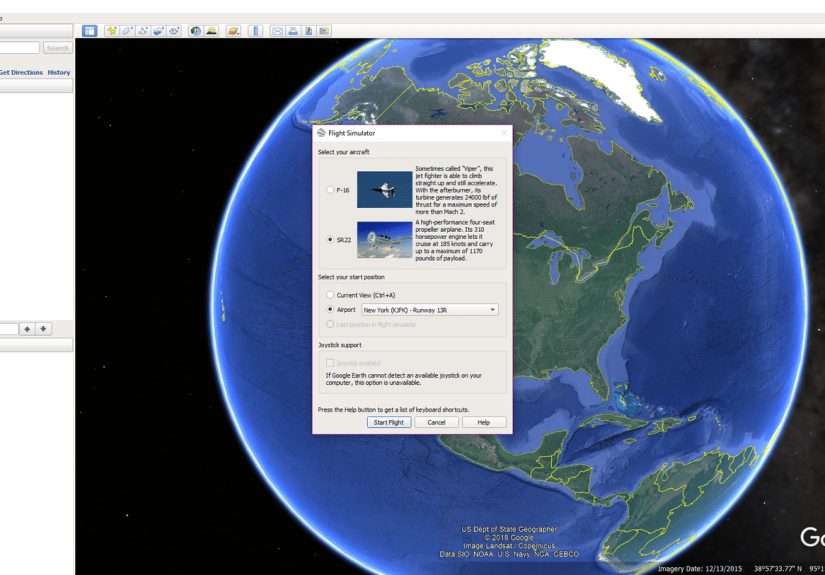
After launching, you’ll see a setup screen where you choose (1) your plane, (2) your start location, and (3) how you want to control the aircraft.
Pick your plane: SR22 vs F-16
- SR22 (prop plane): Slower, steadier, and much friendlier for beginners. If you want to learn basic control without instantly becoming a crater, start here.
- F-16 (jet): Fast, twitchy, and basically built for “I wonder what happens if I point straight up.” It’s fun, but it forgives nothing and no one.
Pick your start: Airport or Current View
- Airport: Start on a runway with a more “real” takeoff experience.
- Current View: Start from wherever your camera is pointed (great for sightseeing flights).
Pro tip: If your goal is to tour a landmark (Grand Canyon, Manhattan, Mount Rainier), zoom there in Google Earth first, then choose Current View so you spawn right where you want to fly.
Core controls (a.k.a. “how not to immediately crash”)
Google Earth’s flight simulator includes an on-screen HUD and built-in help. While flying, you can bring up help with a keyboard shortcut so you don’t have to memorize everything like it’s a pilot exam.
Mouse + keyboard basics
Takeoff and flight:
- Increase thrust: Page Up (taxi and accelerate)
- Lift off: As you speed up, move the mouse slightly down to pitch up and take off
- Level out: Center the mouse on the screen once you’re stable
- Turn / course corrections: Arrow keys (small taps work best)
Looking around (because sightseeing is the point):
- Look around slowly: Alt + Arrow keys
- Look around faster: Ctrl + Arrow keys
Pause (your panic button):
- Pause / resume: Spacebar
If you’re ever unsure, use the in-sim help (for example, the HUD help shortcut) and treat the first few flights as “keyboard calibration sessions,” not “serious aviation.”
Joystick basics
If you enable joystick support, the experience feels smoother. The general pattern is:
- Push forward to build speed during takeoff
- Pull back slightly to lift off
- Center for level flight
- Small movements for turns and corrections (big swings = big regrets)
Reading the HUD like a pro (without pretending you are one)
The head-up display shows useful flight data so you can understand what your aircraft is doing: heading, speed, bank angle, vertical speed, throttle, rudder, aileron, elevator, pitch angle, altitude, and indicators for flaps and gear. You don’t need to obsess over every number, but two are especially beginner-friendly:
- Speed: Too slow = you’ll mush into the ground. Too fast = turns get spicy.
- Altitude: More altitude = more time to recover from “oops.”
A mini flight lesson: takeoff, cruise, and landing
Takeoff (airport start)
- Increase throttle until you’re rolling quickly down the runway.
- Gentle pitch up (mouse slightly down, or pull joystick back slightly).
- Climb gradually and stabilize. Don’t yank the nose up like you’re trying to escape gravity itself.
Cruising (the “wow” phase)
- Use small corrections instead of constant steering.
- Pick a landmark and fly toward it using heading + visual reference.
- Pause with Spacebar if you need a breather or want to admire the view.
Landing (the “humbling” phase)
Landing in Google Earth’s flight simulator is a mix of skill, patience, and accepting that “good enough” is a valid outcome. A few practical tips:
- Slow down early. Most messy landings happen because you’re still flying like a jet while aiming for a runway.
- Line up from far away. Give yourself time to correct.
- Keep inputs gentle. Overcorrecting is the #1 way to turn a landing into modern art.
If your first landing looks like a controlled fall followed by emotional damage, congratulations: you’re learning exactly like everyone else.
Fun routes and challenges to try
The best part of the hidden Google Earth flight simulator is that the planet is your playground. Try these:
Beginner-friendly sightseeing flights
- Coastline cruise: Follow California’s coast and practice gentle turns.
- Big landmark loop: Circle the Statue of Liberty or the Golden Gate Bridge (carefully).
- Mountain pass: Fly near the Rockies and learn altitude management.
“Okay, now you’re showing off” challenges
- Runway hop: Take off from one airport and land at the next closest major field.
- City canyon: Weave between skyline views (keep altitude; don’t thread needles).
- Jet vertical climb: In the F-16, test climb performancethen recover smoothly without spinning into chaos.
Pro tips for smoother flying and better visuals
1) Pre-load your scenery
Before you launch the simulator, spend 15–30 seconds rotating and zooming around your start area. This encourages Google Earth to load imagery and 3D data so you’re not flying into a half-rendered slideshow.
2) Start simple, then upgrade your challenge
Start in the SR22, in daylight, from a runway. Once you can take off, turn, and level out without panic-pausing every 12 seconds, then switch to the F-16 and embrace your inner “this seems fine.”
3) Use pause strategically
The Spacebar pause is your secret weapon for learning. Pause, re-center your mouse, plan your turn, then resume. It’s like meditation, but with more instruments and fewer candles.
4) Don’t fight the controls
If you’re making constant aggressive inputs, you’ll feel like the simulator is “too sensitive.” It’s usually not sensitivityit’s oversteering. Tap and nudge. Pretend the plane is balancing a cup of coffee on the dashboard.
Troubleshooting: common problems and quick fixes
“I can’t find Enter Flight Simulator.”
- Make sure you installed Google Earth Pro on desktop, not the web version.
- Check the Tools menu for “Enter Flight Simulator.”
- Try the shortcut again (and ensure the app window is active).
“My laptop doesn’t have Page Up/Page Down.”
- Try Fn key combinations (common on compact keyboards).
- Consider plugging in an external keyboard for easier throttle control.
- Or use a joystick/gamepad setup if supported on your system.
“The plane keeps veering / I can’t fly straight.”
- Re-center your mouse and use tiny corrections.
- If using a joystick, check calibration in your operating system and confirm it’s not drifting.
- Reduce speedfaster flight exaggerates every mistake.
“Everything is laggy or blurry.”
- Give the area time to load before takeoff (pre-load tip above).
- Fly a little higherfast low-altitude flight can outrun streaming imagery.
- Close background apps and reduce graphics intensity where possible.
Is the hidden Google Earth flight simulator “realistic”?
It’s realistic in the sense that you’re flying over recognizable terrain and cities. It’s not realistic in the “I can earn a pilot license” sense. The flight simulator in Google Earth Pro is best viewed as:
- A fun exploration tool with aviation flavor
- A casual flight sim for experimenting with basic control
- A surprisingly charming Easter egg that turns geography into a game
If you want hardcore systems, weather, and physics, you’ll want a dedicated sim. If you want to buzz the coastline and shout “I AM THE CAPTAIN NOW” at your monitor, Google Earth has you covered.
Extra : the experience of discovering this “secret cockpit”
There’s a specific kind of joy that hits when you realize Google Earth has a hidden flight simulator. It’s the same feeling as finding an extra fry at the bottom of the bag: unexpected, unnecessary, and somehow deeply meaningful. One minute you’re using Google Earth Pro like a responsible adultchecking out a neighborhood, measuring distances, maybe time-traveling through historical imagery. The next minute you’ve pressed a key combo that feels like a cheat code from 2007, and suddenly you’re staring at a HUD wondering if the runway is supposed to look that narrow.
The first takeoff is almost always a comedy. You add thrust, the plane starts rolling, and your brain does the classic human thing: “More speed equals more better.” Then you nudge the controls and discover the second universal truth: “Small input equals huge consequence.” The aircraft lifts, wobbles, and you either climb majestically into the sky… or tap the wrong key and invent a new kind of runway excavation.
But after a few tries, something clicks. You stop fighting the controls and start guiding them. You learn to let the plane settle into level flight. You make one gentle turn around a landmark and suddenly the whole idea makes sense: this isn’t about “winning” the simulatorit’s about turning the world into a flyable postcard.
And then you start making up your own missions. You spawn near your hometown and do a “nostalgia flyover,” tracing routes you used to take in real life. You pick a famous coastline and follow it like a scenic road tripexcept the road is the ocean, and your car is a plane that doesn’t know what brakes are. You try the SR22 and feel like a calm weekend pilot. Then you switch to the F-16 and immediately understand why “fighter jet” and “relaxing” rarely appear in the same sentence.
The most satisfying part is that Google Earth’s familiar places feel different when you’re moving through them at flight speed. A city that felt like a static 3D model becomes a route you can approach, circle, and leave behind. Mountains stop being “terrain” and start being things you must respect (or they will humble you). And airports, those once-boring map labels, suddenly become destinations with stakes: can you line up with the runway, bleed off speed, and touch down without bouncing like a dropped shopping cart?
Even if you never master smooth landings, the hidden Google Earth flight simulator does something few features manage: it makes you curious. You’ll find yourself picking random placesdeserts, islands, mountain rangesjust to see what they look like from your new “cockpit.” It’s a playful reminder that maps aren’t just for directions. Sometimes, they’re for adventure. And sometimes, they’re for crash-landing into the ocean and immediately pretending it was an intentional “water landing.” Aviation is about confidence, after all.
Conclusion
The hidden Google Earth flight simulator is one of those rare tech features that feels like it was added purely for funand somehow, it still teaches you a little patience, control, and respect for runway alignment. Install Google Earth Pro on desktop, launch the simulator from the Tools menu (or with the shortcut), start with the SR22, and keep your inputs small. You’ll be sightseeing from the sky in minutesand laughing at your first “landing” for days.