Table of Contents >> Show >> Hide
- Quick iCloud Mail Settings Cheat Sheet (IMAP + SMTP)
- Before You Start: The 3 Things That Prevent 90% of iCloud Mail Problems
- Set Up iCloud Mail on Apple Devices (The “No Manual Settings Needed” Route)
- iCloud Email on Windows
- iCloud Email on Android (Yes, It’s Possible)
- Third-Party Desktop Email Clients (macOS, Windows, Linux)
- Special Cases: Aliases and Custom Email Domains
- Troubleshooting: When iCloud Mail Acts Like It Didn’t See Your Text
- FAQ: Quick Answers That Save You From Rage-Googling
- Wrap-Up: Your iCloud Email, Everywhere You Want It
- Real-World Experiences (500-ish Words of “Yep, Been There”)
iCloud Mail is a little like that friend who’s effortlessly put-together… as long as you meet them at their house.
The moment you try to hang out elsewhere (Outlook, Gmail app, Thunderbird, Android), they’re still coolbut now
you need the right “door code” (server settings) and sometimes a special one-time wristband (an app-specific password).
This guide gives you the exact iCloud email settings (IMAP/SMTP), plus platform-by-platform setup steps for
iPhone/iPad, Mac, Windows, Android, and popular third-party email clients. We’ll also cover the most common
“why won’t it send?” disastersbecause email loves drama.
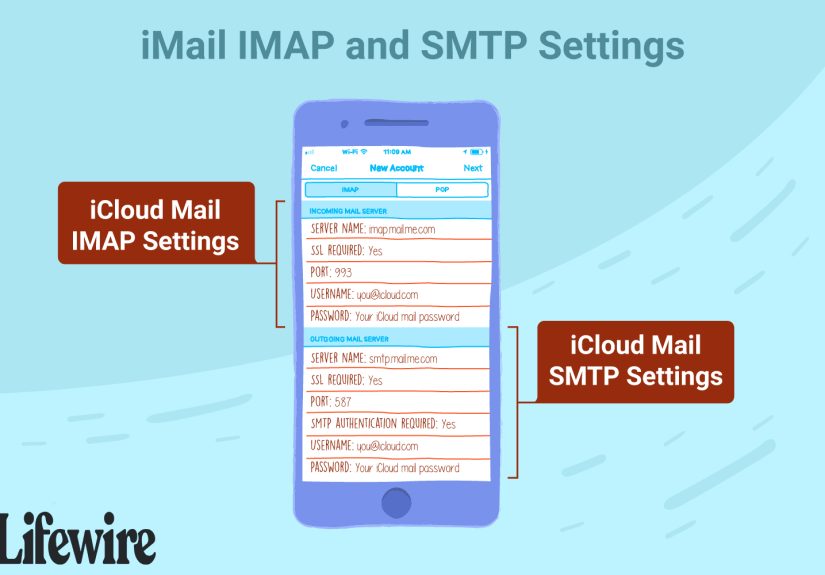
Quick iCloud Mail Settings Cheat Sheet (IMAP + SMTP)
If your email app asks for “incoming server” and “outgoing server,” you’re in the right place. iCloud Mail uses
IMAP (incoming) and SMTP (outgoing). It does not support POP for iCloud Mail.
| Type | Server | Port | Security | Username | Password |
|---|---|---|---|---|---|
| IMAP (Incoming) | imap.mail.me.com |
993 |
SSL/TLS |
Usually your full iCloud email (example: [email protected]).Some apps may work with only the part before “@” (example: name).
|
Typically an app-specific password (recommended for third-party apps, especially with 2FA). |
| SMTP (Outgoing) | smtp.mail.me.com |
587 |
TLS/STARTTLS (SSL accepted by many apps) | [email protected] |
Same as above (app-specific password recommended) |
Common fields your app might ask for (and what to pick)
- Authentication: “Password,” “Normal password,” or “Login.” (Avoid “None.” iCloud wants auth.)
- SMTP requires authentication: Yes.
- Use same credentials as incoming mail: Yes (unless your app has separate fieldsstill use the same iCloud login).
- IMAP path prefix: Leave blank.
Before You Start: The 3 Things That Prevent 90% of iCloud Mail Problems
1) Make sure iCloud Mail is actually turned on
This sounds obvious, which is exactly why it causes so much pain. If iCloud Mail isn’t enabled on your Apple Account,
your other apps can’t magically pull email from the void.
2) If you use two-factor authentication, plan to use an app-specific password
Many third-party apps (Outlook classic, Thunderbird, some Android mail apps) can’t use your normal Apple Account
password safely. Apple solves this with app-specific passwordsunique passwords you generate and
paste into the email app. You can revoke them later without changing your main password. It’s like giving the app
a temporary “guest key” instead of handing over your house keys.
3) Know your iCloud address flavor
iCloud Mail addresses commonly end in @icloud.com, but you might also have legacy domains like
@me.com or @mac.com. In most apps, the settings are the same; the key difference is
what you type as your email address and username.
Set Up iCloud Mail on Apple Devices (The “No Manual Settings Needed” Route)
iPhone / iPad (Apple Mail)
On iOS/iPadOS, the cleanest setup is adding your Apple Account in Settings so Mail configures itself.
You typically won’t need IMAP/SMTP fields at all.
- Open Settings → tap your name (Apple Account).
- Tap iCloud.
- Turn on Mail (or “Use on this iPhone/iPad”).
- Open the Mail app and confirm your iCloud inbox appears.
Mac (Apple Mail)
- Open System Settings (or System Preferences).
- Go to Apple Account → iCloud.
- Enable Mail.
- Open Mail and let it sync.
If you’re using Apple’s built-in apps, this method is easier and usually more secure because it can use Apple’s
authorization flow instead of raw IMAP passwords.
iCloud Email on Windows
New Outlook for Windows (Recommended if available)
Microsoft’s new Outlook can guide you through adding iCloud. If it prompts you to sign in with your Apple Account,
follow the on-screen flow. This may reduce the need for manual server entry.
- Open Outlook.
- Go to Settings → Accounts → Add account.
- Enter your iCloud email address and continue.
- If prompted, complete the Apple Account sign-in/authorization steps.
Classic Outlook (Manual IMAP Setup)
If you’re on classic Outlook or it refuses to cooperate, manual IMAP is your dependable backup plan.
- In Outlook, choose to add a new account and select manual/advanced setup.
- Choose IMAP.
- Enter the iCloud IMAP/SMTP settings from the cheat sheet above.
- When asked for a password, use an app-specific password (especially if your Apple Account uses 2FA).
Windows Mail App (Legacy) / Other Clients on Windows
The older Windows Mail app and many third-party Windows clients follow the same recipe:
IMAP imap.mail.me.com:993 (SSL/TLS) and SMTP smtp.mail.me.com:587 (TLS/STARTTLS),
plus an app-specific password if needed.
iCloud Email on Android (Yes, It’s Possible)
Android doesn’t have a built-in “Sign in with Apple Account for Mail” experience like iOS, so you’ll usually use
manual IMAP settings. Two popular routes: the Gmail app or the Outlook app.
Option A: Gmail App (Android) via “Personal (IMAP)”
- Open Gmail → tap your profile icon → Add another account.
- Select Other → enter your iCloud email address.
- Choose Personal (IMAP).
- Enter your password (use an app-specific password if prompted or if sign-in fails).
- When asked for server settings, enter:
- Incoming (IMAP):
imap.mail.me.com, Port993, SSL/TLS - Outgoing (SMTP):
smtp.mail.me.com, Port587, STARTTLS/TLS
- Incoming (IMAP):
Option B: Outlook App (Android)
The Outlook mobile app often detects settings automatically. If it asks for manual settings, use the same IMAP/SMTP
values. If you see repeated password prompts, generate a fresh app-specific password and try again.
Option C: Samsung Email / Other Android Email Apps
Most Android email apps follow the same manual fields. The gotchas are usually:
- For “Security type,” pick SSL/TLS for IMAP and STARTTLS (or TLS) for SMTP.
- For SMTP, make sure authentication is turned on.
- If the app asks for “username,” use your full email address first.
Third-Party Desktop Email Clients (macOS, Windows, Linux)
Mozilla Thunderbird
Thunderbird can usually auto-detect servers when you type your email, but iCloud authentication is the twist:
you’ll often need an app-specific password.
- In Thunderbird: Add Mail Account.
- Enter your name, iCloud email address, and an app-specific password.
- If auto-config fails, switch to manual and set:
- IMAP:
imap.mail.me.com, Port993, SSL/TLS - SMTP:
smtp.mail.me.com, Port587, STARTTLS
- IMAP:
Apple Mail (Manual mode) or Other IMAP Clients
If you’re configuring a generic IMAP client (including some Linux mail apps), the cheat sheet works the same way.
If the client complains about SSL, try switching between SSL/TLS and TLS/STARTTLS
on the outgoing serversome apps label these options differently even though the underlying security is equivalent.
Special Cases: Aliases and Custom Email Domains
Using iCloud Mail aliases
Aliases are great for newsletters, signups, and “I only gave that site an email once and now it won’t stop emailing me.”
In third-party apps, you generally sign in with your primary iCloud credentials, then choose your alias as a “From”
address if the app supports it.
Using a custom domain with iCloud Mail (iCloud+)
If you’re using iCloud+ Custom Email Domain, your email address may look like [email protected].
Many clients can receive mail for that address via iCloud’s servers, but authentication can be picky:
- You may need to authenticate using your primary iCloud identity (not always the custom-domain address), depending on the app.
- App-specific passwords are still the safest bet for third-party clients.
- If sending defaults to your
@icloud.comaddress, you may need to manually select the “From” address in the client.
Troubleshooting: When iCloud Mail Acts Like It Didn’t See Your Text
Problem: “Cannot send mail” (Receiving works, sending fails)
- Confirm SMTP server is
smtp.mail.me.comand port is587. - Ensure SMTP authentication is enabled.
- Try switching SMTP security between SSL and STARTTLS/TLS depending on what your app offers.
- Generate a new app-specific password and update the saved password in the app.
Problem: Password prompts over and over
- If you have 2FA enabled, your normal Apple Account password may not work in older clientsuse an app-specific password.
- Make sure you pasted the password exactly (no extra spaces).
- Remove and re-add the account if the app keeps clinging to the old credential like it’s a treasured family heirloom.
Problem: “Cannot verify server identity” or certificate errors
- Double-check server names:
imap.mail.me.comandsmtp.mail.me.com. - Use the recommended ports:
993for IMAP,587for SMTP. - If your app shows separate “SSL” vs “TLS,” try the other onelabels differ across apps.
Problem: Everything is correct… and it still won’t connect
At this point, don’t assume you’re cursed (yet). Check iCloud Mail service status and your network:
- Confirm your device has stable internet (try switching Wi-Fi ↔ cellular).
- Check Apple’s system status for iCloud Mail issues.
- Try logging in via webmail at
icloud.comto confirm the account is alive and well.
FAQ: Quick Answers That Save You From Rage-Googling
Does iCloud Mail support POP?
Generally, no. For iCloud Mail, plan on IMAP + SMTP.
What should I use as my username?
Start with your full email address (example: [email protected]). If an app specifically wants only the part
before the “@,” try that. When in doubt, full address is the most portable answer.
Which SMTP port is best?
587 with TLS/STARTTLS is the most commonly supported and widely recommended for authenticated submission.
If your app only offers other options, check whether it supports secure SMTP in a compatible way.
Wrap-Up: Your iCloud Email, Everywhere You Want It
Once you have the right IMAP/SMTP settings and (when needed) an app-specific password, iCloud Mail can live happily
across Apple devices, Windows PCs, Android phones, and third-party email clients. Most failures come down to
one of three things: wrong port/security combo, SMTP authentication turned off, or using a normal Apple Account
password in an app that really wants an app-specific one.
Save the cheat sheet, keep your app-specific passwords organized, and may your outbox be forever unblocked.
Real-World Experiences (500-ish Words of “Yep, Been There”)
The first time I set up iCloud email on a non-Apple device, I expected it to be a simple “type email, type password,
done” situation. You knowlike the internet promised in 2007. Instead, I met the classic iCloud Mail obstacle course:
sign-in loops, “unable to verify account,” and that one especially rude error message that basically says,
“No, and also how dare you.”
What finally made it click was realizing iCloud Mail behaves differently depending on the app. On an iPhone or a Mac,
Apple does the heavy lifting behind the scenes. It’s not just convenience; it’s a whole authorization flow designed
to keep your main Apple Account password out of random apps. The moment you jump to Outlook classic or Thunderbird,
you’re back in the land of manual server settingswhere one wrong dropdown choice (SSL vs STARTTLS) can ruin your day.
The biggest “aha” moment usually comes with app-specific passwords. I’ve seen people try their normal Apple Account
password ten times, then reset it, then try ten more times (same result, just more tired). Once they generate an
app-specific password and paste it in, the account connects instantlylike the app was just waiting for the secret
handshake. The funny part is that app-specific passwords feel scary at first (“What do you mean I need a special
password?”), but they’re actually safer. You can revoke them later if you stop using that app, and your main password
never gets exposed.
On Android, the Gmail app setup tends to be the smoothestmostly because the flow is well-designed: “Other” →
“Personal (IMAP)” → enter settings. Still, the hiccups happen when you forget SMTP authentication or the app
auto-fills port numbers incorrectly. I’ve also run into the “receiving works, sending doesn’t” scenario more times
than I’d like. In every case, the fix was boring but effective: confirm SMTP is smtp.mail.me.com, port
587, and authentication is on. Email troubleshooting is 80% “check the port,” 15% “check the password,”
and 5% “stare into the void and wonder why we’re like this.”
The most unexpectedly helpful habit I’ve picked up: test iCloud Mail in the browser first. If icloud.com
works, your account is fine and the issue is local to the app settings. If the browser login doesn’t work, stop
wrestling with IMAP fields and fix the Apple Account side first. It’s like checking if your car has gas before you
replace the engine.
In the end, getting iCloud email working across platforms isn’t hardit’s just picky. But once it’s configured,
it’s surprisingly stable. And nothing feels more satisfying than watching your iCloud inbox sync on a device Apple
didn’t “intend,” like you just beat a small but stubborn level in a video game.