Table of Contents >> Show >> Hide
- Why a Windows PC Keeps Restarting
- 12 Troubleshooting Tips for a Windows PC That Keeps Restarting
- 1. Turn Off Automatic Restart So You Can Catch the Real Error
- 2. Check Event Viewer and Reliability Monitor
- 3. Rule Out Overheating First
- 4. Inspect Your Power Source, Charger, Battery, or PSU
- 5. Undo Any Overclocking and Reset BIOS or UEFI Defaults
- 6. Update Windows, Drivers, and BIOS Carefully
- 7. Boot Into Safe Mode
- 8. Perform a Clean Boot
- 9. Scan for Malware
- 10. Repair Corrupted Windows Files
- 11. Test Your RAM
- 12. Check Storage Health and Free Space
- 13. Use Startup Repair, System Restore, or Reset This PC
- Signs the Problem Is Probably Hardware
- What to Do First, in Order
- Final Thoughts
- Real-World Restart Experiences and Lessons Learned
Few tech problems are more annoying than a Windows PC that restarts like it has somewhere better to be. One minute you are answering emails, gaming, or pretending to work on a spreadsheet. The next minute, your screen goes black, the fans spin, and Windows greets you like nothing happened. Rude.
If your computer keeps restarting, the cause is usually not “Windows being dramatic” all by itself. Random restarts are often tied to a handful of common issues: overheating, unstable power, buggy drivers, failed updates, corrupted system files, memory problems, dying storage, malware, or a hardware setting that changed behind the scenes. The good news is that most of these problems can be narrowed down with a smart, step-by-step process.
This guide explains why a Windows PC may keep rebooting and walks you through practical troubleshooting tips that work for laptops and desktops. You do not need to try everything at once. Start with the easiest checks, then move toward the deeper fixes until the restart mystery finally stops ruining your day.
Why a Windows PC Keeps Restarting
Unexpected restarts usually fall into two big buckets: software trouble and hardware trouble.
Software-related restarts often come from Windows update glitches, driver conflicts, failed startup items, malware, or damaged system files. These can trigger blue screen errors, restart loops, or silent reboots that leave you staring at your desktop wondering what just happened.
Hardware-related restarts are more physical. Think overheating CPU, failing RAM, unstable power supply, worn battery, loose charger, or an SSD that is slowly giving up on life. These problems often show up under load, during gaming, while waking from sleep, or during startup.
The trick is to stop guessing and start isolating variables. That is how you turn “my computer is possessed” into “oh, my graphics driver was broken” or “wow, that fan is basically a decorative dust sculpture.”
12 Troubleshooting Tips for a Windows PC That Keeps Restarting
1. Turn Off Automatic Restart So You Can Catch the Real Error
Windows sometimes restarts so quickly after a system failure that you never see the blue screen or stop code. Disable automatic restart first. That way, if the system crashes again, you may get the exact error message instead of a useless surprise reboot.
Open advanced system settings, go to Startup and Recovery, and uncheck Automatically restart under system failure. This small change can turn a mystery into a clue. If you start seeing stop codes like WHEA_UNCORRECTABLE_ERROR or IRQL_NOT_LESS_OR_EQUAL, you are already making progress.
2. Check Event Viewer and Reliability Monitor
Windows keeps receipts. If your PC restarted unexpectedly, there is usually a record somewhere. Open Event Viewer and look around the time of the crash for critical or error entries. Also search for View reliability history in Windows. Reliability Monitor is one of the most underrated tools on a PC. It gives you a timeline of crashes, failed updates, driver issues, and app failures in plain English.
If the restarts happen after a specific update, driver installation, or app launch, these tools often reveal the pattern faster than random internet guessing.
3. Rule Out Overheating First
Heat is one of the most common causes of sudden restarts. When the CPU or GPU gets too hot, the system may shut down or reboot to protect itself. Laptops are especially good at trapping heat like tiny aluminum ovens.
Check whether your PC restarts during gaming, video editing, heavy browser use, or while charging. Listen for loud fans, feel for extreme heat near vents, and inspect for dust buildup. Clean vents and fans carefully, make sure the laptop sits on a hard surface, and confirm that airflow is not blocked. On desktops, check that case fans are working and that nothing is choking the intake or exhaust path.
If temperatures spike before every reboot, you likely found your villain.
4. Inspect Your Power Source, Charger, Battery, or PSU
Random restarts are often power problems wearing a software costume. A loose laptop charger, damaged cable, flaky power strip, worn battery, or failing desktop power supply can all cause reboot behavior.
For laptops, test with the original charger, inspect the charging port, and notice whether the issue only happens on battery or only when plugged in. For desktops, reseat the power cable, skip questionable surge protectors, and pay attention to whether the PC restarts under load. A weak PSU may look fine while browsing but panic the second your GPU gets ambitious.
If the restart feels sudden and “hard,” with no warning and no blue screen, power instability becomes a stronger suspect.
5. Undo Any Overclocking and Reset BIOS or UEFI Defaults
If you ever changed CPU, GPU, RAM, or power settings in BIOS or UEFI, revert them to default. Even a once-stable system can become unstable after a firmware update, heat change, aging component, or new Windows patch.
Default settings are boring, yes. They are also excellent for troubleshooting. If your PC stops restarting after a BIOS reset, congratulations: the problem was not black magic, just unstable settings.
6. Update Windows, Drivers, and BIOS Carefully
Outdated or corrupted drivers can absolutely cause restart issues, especially graphics, chipset, storage, Wi-Fi, and power-management drivers. Firmware and BIOS updates can also fix compatibility and stability bugs. Start with Windows Update, then check your PC maker’s support page for the latest drivers and BIOS for your exact model.
Do not install random driver packs from sketchy websites. Go straight to Microsoft or your device manufacturer. If the restart problem started right after a driver or BIOS update, rolling back that specific item may help more than updating again.
7. Boot Into Safe Mode
Safe Mode loads Windows with minimal drivers and startup services. If your PC behaves normally there, that points toward a third-party driver, startup app, or service conflict rather than a major hardware failure.
You can get into the Windows Recovery Environment and then open Startup Settings to boot into Safe Mode. If the system stays stable in Safe Mode for hours but restarts in normal mode, that is a huge clue.
8. Perform a Clean Boot
A clean boot is like making Windows leave its extra baggage at the door. It starts the system with Microsoft services and essential components only, while disabling non-Microsoft services and startup programs. This is one of the best ways to isolate background software conflicts.
If the restarts stop after a clean boot, re-enable items in small groups until the bad actor reveals itself. Common troublemakers include antivirus conflicts, RGB control software, motherboard tuning tools, overlay apps, VPN clients, and “performance boosters” that actually boost your stress levels.
9. Scan for Malware
Malware is not the most common reason for random restarts, but it does belong on the list. If your PC reboots with other strange behavior such as security alerts, pop-ups, browser hijacking, or unexplained performance drops, run a full security scan. Windows Security is a good place to start, and an offline scan can help remove threats that hide while Windows is running normally.
This step is especially smart if the restarts began after installing suspicious software, cracked files, or browser extensions that felt “free” in the most expensive possible way.
10. Repair Corrupted Windows Files
Corrupted system files can trigger crashes and reboot loops. Windows includes built-in repair tools for exactly this reason. Open Command Prompt as administrator and run:
DISM /Online /Cleanup-Image /RestoreHealth
Then run:
sfc /scannow
DISM checks and repairs the Windows image. SFC scans protected system files and replaces corrupted ones. If your PC began restarting after a failed update or a rough shutdown, this step can be surprisingly effective.
11. Test Your RAM
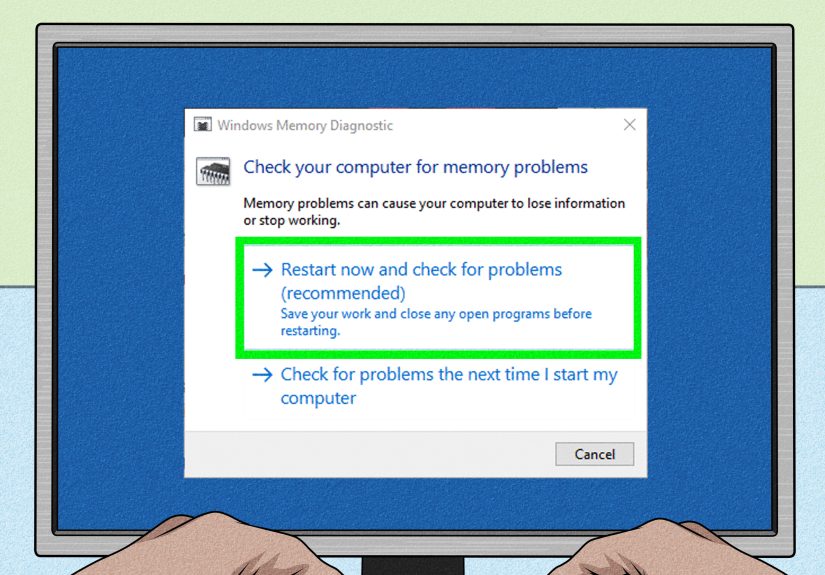
Bad memory can cause some of the weirdest Windows behavior on Earth: random restarts, blue screens, app crashes, installation failures, and errors that seem to move around for no reason. Use Windows Memory Diagnostic to test RAM. If the tool reports errors, your memory may be failing or seated incorrectly.
On a desktop, reseating RAM sticks can help. On either a laptop or desktop, recurring memory errors usually mean one thing: hardware time. And no, wishing very hard at the motherboard does not count as a repair strategy.
12. Check Storage Health and Free Space
A failing SSD or hard drive can produce startup crashes, file corruption, update failures, and unexpected restarts. If your computer is also freezing, taking forever to boot, or showing file-system errors, check the health of the drive using your manufacturer’s utility.
Also make sure your system drive is not nearly full. Windows hates working with zero breathing room. If your drive is cramped, clear space, delete junk, and restart. It is not glamorous, but neither is losing a whole afternoon to a reboot loop.
13. Use Startup Repair, System Restore, or Reset This PC
If the problem appeared recently and nothing else has fixed it, move to recovery tools. Startup Repair can help if Windows fails during boot. System Restore can roll the system back to a point before the restarts began. Reset this PC is the bigger hammer when Windows is deeply broken.
Choose the least destructive option first. A restore point can save you from a full reinstall. A reset can save you from a week of arguing with your computer. Both are more productive than yelling “why?” at the screen, even though that part is understandable.
Signs the Problem Is Probably Hardware
If your PC keeps restarting after Safe Mode, clean boot, updates, malware scans, and system file repairs, hardware becomes much more likely. Watch for these warning signs:
- Restarts happen during gaming or heavy workloads
- The system shuts off instantly without a blue screen
- You hear fans ramping hard right before reboot
- The battery is swollen or power connection is inconsistent
- The drive shows errors, bad sectors, or disappearing behavior
- Memory tests report problems
- The PC recently had a spill, drop, power surge, or hardware upgrade
At that point, the smartest move may be professional diagnostics, especially if the machine is under warranty.
What to Do First, in Order
If you want the shortest possible action plan, use this order:
- Disable automatic restart
- Check Reliability Monitor and Event Viewer
- Inspect heat and power issues
- Install Windows and driver updates
- Test Safe Mode and clean boot
- Run malware scans, DISM, and SFC
- Test RAM and storage
- Use Startup Repair or System Restore
- Suspect hardware if the problem still remains
Final Thoughts
If your computer keeps restarting, do not assume the whole machine is doomed. Most random restart issues come from a manageable set of causes, and each one leaves clues. Heat, power, drivers, Windows corruption, and memory problems are the usual suspects. The fastest path to a fix is not panic. It is process.
Work from the simplest checks to the more advanced repairs, and pay attention to patterns. Does it restart under load? After updates? Only on battery? Only when waking from sleep? Those details matter. Once you stop treating the reboot as random, it usually becomes fixable.
And if nothing works, at least you can finally tell a repair tech something more helpful than “it just kind of… does stuff.”
Real-World Restart Experiences and Lessons Learned
In real troubleshooting situations, restart problems rarely look identical. One common pattern is the gaming desktop that reboots only during intense play. The owner usually blames Windows first, then the game, then fate itself. But once temperatures and power draw are checked, the issue often points to cooling or PSU instability. The system may browse the web for hours just fine, then restart the instant a demanding title loads the GPU. That is a strong sign the machine is stable at light load but falls apart when the hardware gets pushed.
Another common experience involves laptops that restart during sleep, wake, or charging. A user closes the lid, walks away, and later finds the machine freshly rebooted with all apps closed. In many of those cases, the cause turns out to be a buggy driver, a firmware issue, or a power-management conflict. It feels random because it happens when the machine is idle, but the trigger is actually a transition state like sleep, resume, or switching power sources.
Then there is the classic post-update panic. A Windows update installs, the PC reboots, and suddenly the machine becomes unstable. People often assume the update “destroyed the computer,” but the real issue may be a driver that no longer plays nicely, a startup service that broke, or corrupted files left behind after an interrupted restart. In those situations, clean boot, SFC, DISM, or System Restore can be the hero of the day.
Memory problems create some of the strangest stories. A PC may restart while opening a browser today, crash during a video call tomorrow, and blue screen while doing absolutely nothing on Friday. That inconsistency makes people chase software fixes forever. But bad RAM is chaotic by nature. Once a memory test flags errors, the weirdness suddenly makes sense.
Storage failures can be just as deceptive. A dying SSD may not fail all at once. Instead, it causes longer boot times, update problems, corrupted files, and occasional restarts. Users often describe the machine as “acting haunted” for weeks before the drive finally gives up. That is why checking drive health early can save time and data.
The biggest lesson from all these experiences is simple: random restarts are usually not truly random. They follow a pattern tied to heat, power, software changes, or failing hardware. The second lesson is even more useful: the fix becomes easier the moment you stop trying ten things at once. Track what happened, change one variable at a time, and let the PC tell its story. Computers are bad at many things, but they are very good at repeating the same problem until someone finally pays attention.