Table of Contents >> Show >> Hide
- Why Convert WhatsApp Voice Messages to MP3?
- Before You Convert: Get the Voice Message Out of WhatsApp First
- Way 1: Convert WhatsApp Voice Messages to MP3 on Your Device
- Way 2: Use an Online Converter to Turn WhatsApp Audio Into MP3
- Offline vs. Online: Which Method Should You Choose?
- Best MP3 Settings for WhatsApp Voice Messages
- Common Problems When Converting WhatsApp Voice Messages
- Real-World Examples of When MP3 Conversion Helps
- Extra Experience: What This Process Feels Like in Real Life
- Final Thoughts
- SEO Tags
WhatsApp voice messages are brilliant for quick updates, long-distance catchups, and those chaotic “I’m driving, so I can’t text” monologues that somehow become podcasts. But the moment you need to save one outside the app, upload it somewhere else, edit it, or share it with someone who doesn’t live inside WhatsApp all day, things get awkward fast. That is when MP3 becomes the hero in a very small, very specific cape.
If you have ever tried to move a WhatsApp voice note into an email, a presentation, a transcription app, a cloud folder, or a media editor, you already know the problem: WhatsApp voice messages do not always come out in the easiest format to work with. Depending on the device and export method, you may end up with an OPUS or OGG-style audio file, which is fine for playback in many apps but not always ideal for editing, uploading, or sharing. MP3 is still one of the most universally recognized audio formats around, which makes it a practical destination format for everyday use.
In this guide, you will learn 2 ways to convert WhatsApp voice messages to MP3: one using software on your device, and one using an online converter. We will also cover the pros, cons, privacy considerations, best settings, common mistakes, and real-world use cases so you can choose the method that fits your workflow instead of fighting your files like they personally offended you.
Why Convert WhatsApp Voice Messages to MP3?
Before we jump into the how-to, let’s answer the obvious question: why bother converting at all?
The main reason is compatibility. MP3 works almost everywhere. It is recognized by phones, laptops, cloud storage services, media players, presentation tools, and editing platforms. If your original WhatsApp audio file feels like the weird cousin at the family reunion who only talks to two people, MP3 is the friendly extrovert who knows everyone.
There are also practical reasons to convert a WhatsApp voice note to MP3:
- You want to archive an important message in a format that is easy to store and reopen.
- You need to upload the audio to a transcription or editing tool.
- You want to trim, enhance, or combine the message with other audio.
- You need to send the file to someone who is not using WhatsApp.
- You want a file format that is widely supported across work tools and media apps.
One important reality check, though: converting a voice note to MP3 does not magically improve audio quality. If the original recording sounds like it was made inside a cereal box during a windstorm, MP3 cannot perform miracles. Conversion helps with usability, not resurrection.
Before You Convert: Get the Voice Message Out of WhatsApp First
You cannot convert what you have not exported. So step one is always to save or share the voice message outside WhatsApp.
On iPhone
On iPhone, you can usually forward or share the voice note to yourself, save it to the Files app, or email it to yourself. If the direct save route is being moody, the email-to-yourself trick often works surprisingly well. It is not glamorous, but neither is arguing with your phone for twenty minutes.
On Android
On Android, you can often share the file from the chat, export the chat with media, or locate the saved audio after sharing it to another app or storage location. The exact path can vary by phone model and Android version, so the easiest route is usually sharing the message to your email, cloud storage, or local files app first.
Once the audio file is saved somewhere you can access it outside WhatsApp, you are ready to convert it.
Way 1: Convert WhatsApp Voice Messages to MP3 on Your Device
If you care about privacy, want more control, or plan to convert multiple files, this is the better method. It keeps the process mostly on your own computer or phone instead of sending your audio into the wild blue internet.
How This Method Works
You export the WhatsApp voice message, open it in a media converter or audio editor, and then save or export it as MP3. Free tools like VLC can often handle the job, while more advanced tools like Adobe Audition or desktop editing apps give you more control over format settings, trimming, and batch exports.
Step-by-Step
- Export the voice note from WhatsApp. Save it to Files, email it to yourself, or place it in a folder you can access on your computer.
- Open the file in a converter or editor. A free media tool or audio editor usually works fine.
- Choose Export, Save As, or Convert. The wording depends on the program, but the idea is the same.
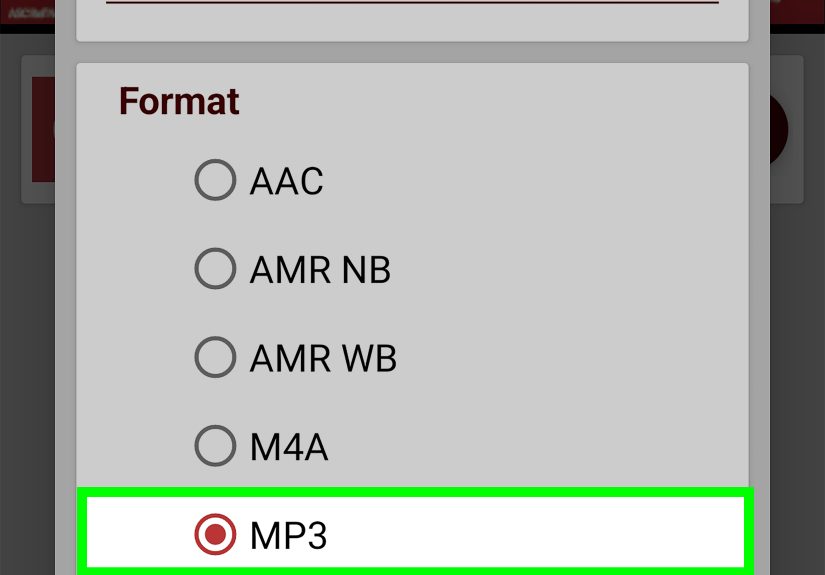
- Select MP3 as the output format. For voice recordings, MP3 is usually more than enough.
- Pick your settings. For speech, 96 kbps to 128 kbps is usually fine. If you want a little more breathing room, use 160 kbps.
- Save the file. Name it clearly, such as
client-call-note-march-02.mp3orgrandma-lasagna-instructions.mp3.
Why This Method Is Great
- Better privacy: You are not uploading sensitive audio to a third-party converter.
- More control: You can choose bitrate, mono or stereo, naming, and destination folder.
- Batch friendly: If you have ten voice notes, converting them locally is often easier.
- Editing bonus: You can trim silence, reduce noise, or normalize volume before exporting.
Best Use Cases
This method is ideal if you are handling work messages, interview clips, customer support notes, lecture recordings, or family audio you do not want floating around on random websites. It is also the better choice if you convert files regularly and want a repeatable workflow.
The Downsides
The only real downside is setup. You may need to install a converter or learn where the export menu is hiding. Sometimes software loves playing hide-and-seek with the “Convert” button like it is training for the Olympics.
Way 2: Use an Online Converter to Turn WhatsApp Audio Into MP3
If you just need a quick one-off conversion and do not want to install anything, an online converter is the easy button.
How This Method Works
You save the WhatsApp voice message to your device, upload the file to an online converter, choose MP3 as the output format, and download the converted result. Many web-based tools support OPUS, OGG, M4A, and similar audio formats, so they can often handle WhatsApp audio without much drama.
Step-by-Step
- Export the WhatsApp voice message. Save it to your phone, tablet, or computer first.
- Open an online audio converter. Choose one with a clear privacy policy and deletion rules.
- Upload the file. Drag and drop usually works.
- Select MP3 as the output format.
- Adjust optional settings. For speech, you do not need extreme quality settings. Keep it sensible.
- Convert and download the MP3.
Why People Like This Method
- No installation: Handy on a work computer, Chromebook, or borrowed laptop.
- Fast for one file: Great when you need a result in minutes.
- Simple interface: Upload, convert, download, done.
When Online Conversion Makes Sense
This is the right method if the audio is not especially sensitive, you only have one or two files, and convenience matters more than power-user control. It is also useful when you are moving between devices and need a browser-based workflow.
The Privacy Catch
Here is the big warning label: online conversion means your voice file is being uploaded to another service. Even when a platform offers deletion policies or secure handling, it is still a different privacy situation than keeping the file local. If the voice note contains client details, personal information, medical updates, legal discussions, or deeply embarrassing karaoke confessions, local conversion is the smarter choice.
Offline vs. Online: Which Method Should You Choose?
If you are torn between the two methods, here is the simplest breakdown:
- Choose device-based conversion if you want privacy, better control, editing features, or batch processing.
- Choose online conversion if you need speed, convenience, and a no-install solution for one or two files.
In most serious situations, local conversion wins. In casual situations, online conversion is perfectly fine. Think of it like cooking: sometimes you meal-prep like a responsible adult, and sometimes you eat cereal over the sink. Both are technically solutions.
Best MP3 Settings for WhatsApp Voice Messages
Because WhatsApp voice notes are usually speech-heavy rather than music-heavy, you do not need enormous file sizes. Here are practical settings for most use cases:
- Bitrate: 96 kbps to 128 kbps for speech; 160 kbps if you want extra headroom.
- Channel: Mono is usually enough for voice-only recordings.
- Sample rate: Keep the default unless your tool requires a change.
- Trim silence: Optional, but helpful for cleaner playback.
- Keep the original: Always save the source file in case you need it later.
The golden rule is simple: do not over-engineer a voice memo. This is not a Grammy submission. A clean, compatible MP3 is the goal.
Common Problems When Converting WhatsApp Voice Messages
The File Will Not Open
If your file refuses to open, the issue is often format support. Try opening it in a more flexible audio tool rather than the default player on your device. If the player throws a tiny digital tantrum, a dedicated converter usually handles the file better.
The Audio Sounds Worse After Conversion
That can happen when you convert from one lossy format to another. Keep the original file, convert only once if possible, and avoid ultra-low MP3 bitrates unless you really need the smallest size possible.
The MP3 Is Too Big
For voice recordings, lower the bitrate slightly. Going from 160 kbps to 96 or 128 kbps can reduce size without turning the speaker into a robot living in a tunnel.
The File Name Is a Mess
Rename it right away. “PTT-2026-02-26-WA0007.mp3” may be technically accurate, but it is also a crime against future organization.
Real-World Examples of When MP3 Conversion Helps
Students: A professor sends spoken feedback through WhatsApp. Converting the file to MP3 makes it easier to archive by class and semester.
Remote teams: A manager drops voice instructions in a group chat. Exporting and converting them to MP3 makes it easier to store in a shared drive.
Journalists and researchers: A source sends a voice message with useful information. MP3 makes that clip easier to transcribe and organize.
Families: A relative sends a heartfelt message. Saving it as MP3 helps preserve it in a format you can back up almost anywhere.
Creators: A client sends spoken revision notes through WhatsApp. Converting them to MP3 makes them easier to drop into an editing workflow.
Extra Experience: What This Process Feels Like in Real Life
Now for the practical, human side of the topic, because tutorials often pretend we all live in a spotless universe where every app behaves and every file is exactly where it should be. In real life, converting WhatsApp voice messages to MP3 is usually less “technical challenge” and more “tiny daily friction that becomes annoying if you do it often.”
The first time most people do it, they are not trying to become audio engineers. They just want to save a message. Maybe it is a note from a client with important instructions. Maybe it is a voice message from a parent who refuses to text anything shorter than a novella. Maybe it is a friend sending directions that somehow include three landmarks, two jokes, and one unrelated side quest. Whatever the case, the goal is simple: get the audio into a format that is easy to keep, replay, share, and organize.
In practice, the hardest part is often not the conversion itself. It is the export step. Once the file leaves WhatsApp and lands in your email, Files app, downloads folder, or desktop, the rest is usually straightforward. That is why experienced users develop little habits that save time. They name files immediately. They create folders like WhatsApp Audio, Client Notes, or Family Messages. They keep the original file before converting. These are not glamorous habits, but they prevent the future headache of opening a folder full of mystery audio named like a malfunctioning barcode.
Another real-world lesson is that local conversion feels calmer for important audio. If the message is personal or work-related, using software on your own device just feels cleaner. You are not wondering where the upload went, whether the file is cached somewhere, or if the browser tab froze halfway through. You just convert it, save it, and move on with your life like the competent audio wizard you were always meant to be.
Online conversion, on the other hand, shines when convenience wins. It is excellent for one file, one deadline, one quick task. It is the “I just need this done before lunch” method. For occasional use, that is perfectly reasonable. You do not always need a full desktop workflow when the audio in question is a 23-second message saying, “I’m outside, can you open the gate?”
What surprises many people is how useful MP3 versions become after conversion. Suddenly the audio can live in cloud storage, slide decks, project folders, podcast drafts, editing timelines, or note-taking systems. It becomes portable in a way that app-locked voice notes are not. That portability is the real value here. Not glamour. Not audio perfection. Just fewer barriers.
So if this is a task you do regularly, the smartest move is to build a tiny repeatable system: export, rename, convert, store. Nothing fancy. Just reliable. Because the goal is not to impress anyone with your file-format expertise. The goal is to make sure the next time someone sends you a crucial WhatsApp voice message, you do not spend twenty confused minutes staring at a file extension like it just insulted your family.
Final Thoughts
If you are wondering how to convert WhatsApp voice messages to MP3, the answer is refreshingly simple: use a local converter for privacy and control, or use an online converter for speed and convenience. Those are the two best approaches for most people.
If the message matters, save the original file first. If the audio is sensitive, convert it on your own device. If you just need a quick result, a trusted online tool can do the job in a few clicks. Either way, once the file becomes an MP3, it is much easier to archive, share, edit, and reuse.
And that, really, is the whole magic trick. Not wizardry. Not rocket science. Just one stubborn voice note, one practical format, and one less digital headache.