Table of Contents >> Show >> Hide
- Why Printer Drivers Matter More Than People Think
- Way 1: Let Your Operating System Install the Driver Automatically
- Way 2: Download the Official Driver From the Printer Manufacturer
- Way 3: Install or Update the Driver Manually
- Common Mistakes to Avoid When Installing Printer Drivers
- How to Tell Whether the Driver Installed Properly
- Conclusion
- Experience and Real-World Lessons From Installing Printer Drivers
- SEO Tags
Installing printer drivers sounds like one of those tasks that should take 90 seconds but somehow turns into a minor emotional event. You plug in the printer, your computer stares back at you, and suddenly you are deep in a menu called “Devices,” wondering whether you accidentally bought a fax machine from 2007. The good news is that installing printer drivers is usually much easier than people expect once you know which route makes the most sense.
In plain English, a printer driver is the translator between your computer and your printer. Your computer says, “Please print this spreadsheet.” Your printer says, “Cool, but I speak Printer.” The driver makes sure both sides understand each other. Without the right one, you may get missing features, weird formatting, scanning problems, or a printer that acts like it has never met you before.
This guide walks through three easy ways to install printer drivers, from the fastest automatic setup to manual installation when your device is being stubborn. Along the way, you’ll also learn when you really need a full driver package, how to avoid sketchy downloads, and what to do when the printer installs but still refuses to cooperate.
Why Printer Drivers Matter More Than People Think
A lot of modern printers can print with a basic built-in driver, especially on Windows and macOS. That is convenient, but basic does not always mean best. A generic driver may let you print a document, yet leave out useful features like double-sided printing controls, custom paper sizes, high-resolution photo settings, ink or toner tools, scan utilities, fax tools, and firmware helpers.
That is why printer setup usually falls into two categories. First, there is the “good enough to print right now” setup. Second, there is the “I want all the features I paid for” setup. Knowing the difference saves time and prevents a lot of head-scratching later.
Way 1: Let Your Operating System Install the Driver Automatically
If you want the easiest way to install printer drivers, start here. Modern operating systems are surprisingly good at finding and installing the right software on their own. For many home users, this is the fastest route from unopened printer box to actual printed page.
How It Works on Windows
Windows often detects printers automatically when you connect them through USB or add them over the same Wi-Fi network. In many cases, Windows can install a usable driver without requiring you to hunt down files yourself. This is especially handy for common inkjet and laser printers from major brands.
To try automatic installation on Windows:
- Turn on the printer.
- Connect it by USB, or make sure it is already connected to the same network as your computer.
- Open Settings > Bluetooth & devices > Printers & scanners.
- Click Add device or Add printer or scanner.
- Wait while Windows searches for available printers.
- Select your printer and follow the prompts.
If Windows finds the printer, great. If it also pulls a driver through Windows Update, even better. That often gives you a stable, official setup with minimal drama. It is the computer equivalent of a self-cleaning kitchen: rare, beautiful, and not to be questioned too hard.
How It Works on Mac
On a Mac, automatic setup can feel even smoother. Many printers support AirPrint, which lets macOS connect and print without installing extra drivers. If your printer and Mac are on the same Wi-Fi network, the printer may show up almost magically in Printers & Scanners.
To add a printer on a Mac:
- Open System Settings.
- Click Printers & Scanners.
- Select Add Printer, Scanner, or Fax.
- Choose your printer from the list.
- Let macOS select the recommended software or AirPrint option.
If the printer supports AirPrint, you may not need to install anything else. That is the dream scenario. Still, if you need advanced settings or scanning tools, the manufacturer’s software may be worth adding later.
When Automatic Installation Is the Best Choice
- You need a quick setup for basic printing.
- Your printer is a recent model from a major brand.
- You are using Windows 10, Windows 11, or a current version of macOS.
- You do not need advanced scanning, fax, accounting, or fleet-management features.
This method is perfect for students, home offices, and anyone who would like to print one document without earning an honorary IT certificate.
Way 2: Download the Official Driver From the Printer Manufacturer
If automatic setup only installs basic printing, or if your printer is not detected correctly, the next best option is downloading the official driver package from the manufacturer. This is often the smartest way to install printer drivers when you want full functionality.
Why the Official Driver Is Often Better
Official manufacturer software usually includes more than just the driver. Depending on the brand and model, you might also get:
- Scanner utilities
- Fax tools
- Ink or toner management
- Wireless setup assistants
- Firmware updaters
- Diagnostic tools
- Advanced print preferences
That is especially useful with all-in-one printers. A basic driver might let you print, but an official package may unlock scanning to PDF, document feeder options, photo presets, duplex controls, or maintenance features like printhead cleaning.
How to Download the Right Driver
The most important rule is simple: download only from the printer maker’s official support page. Avoid random “driver update” websites that promise one-click miracles. A real driver should come from the brand that made the printer, not from a mystery website that looks like it was last redesigned during the ringtone era.
Here is the safest process:
- Find your printer’s exact model number on the front, back, inside panel, or product label.
- Go to the brand’s official support or downloads page.
- Search for the exact model.
- Select your operating system carefully, including the correct version.
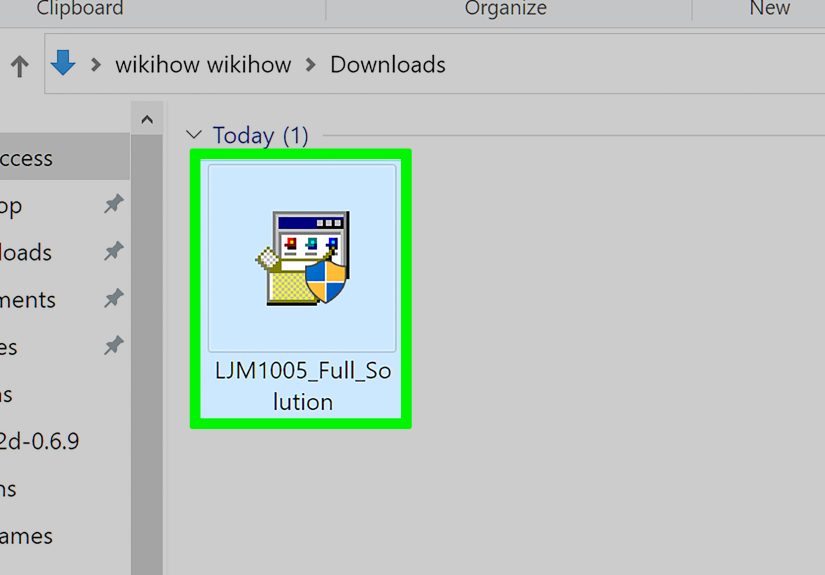
- Download the recommended full driver or software package.
- Run the installer and follow the on-screen prompts.
Common examples include using an HP setup app, Canon’s driver and scan utility installer, Brother’s full driver and software package, Epson’s standard or universal driver tools, or support download pages from Lexmark, Ricoh, Dell, and Xerox for business devices.
Best Times to Use the Manufacturer Driver
- Your printer is not detected automatically.
- You need scan, fax, or maintenance features.
- The printer works, but important settings are missing.
- You are installing a network printer for a small office.
- You have a specialty device such as a label printer, photo printer, or multifunction business printer.
For example, imagine you connect a multifunction printer to your laptop and Windows installs a basic print queue. You can print your grocery list, but the scan button on the printer suddenly feels decorative. Installing the manufacturer’s full package often fixes that problem fast.
Way 3: Install or Update the Driver Manually
Sometimes your printer refuses to cooperate. Maybe Windows sees the device but uses the wrong driver. Maybe the manufacturer installer crashes. Maybe the printer is old enough to remember DVDs. That is when manual installation becomes your friend.
This method sounds advanced, but it is manageable if you go step by step.
Manual Installation on Windows
There are two common manual routes in Windows: using the Add Printer wizard or updating the driver through Device Manager.
Option A: Use Add Printer
- Download the official driver from the manufacturer’s support page.
- If the file is compressed, extract it first.
- Open Settings > Bluetooth & devices > Printers & scanners.
- Choose Add device.
- If the printer is not listed, select the option for a printer that I want is not listed.
- Pick the correct connection type, such as USB, TCP/IP address, or shared printer.
- When prompted for driver files, browse to the folder you downloaded.
- Finish the wizard and print a test page.
Option B: Use Device Manager
- Right-click the Start button and open Device Manager.
- Expand the printer-related category.
- Right-click the printer and select Update driver.
- Choose Browse my computer for drivers.
- Point Windows to the folder containing the downloaded driver.
- Continue through the installation steps.
This is especially useful when Windows recognizes the hardware but chooses a generic or incorrect driver. It is also handy in offices where IT teams use universal print drivers for multiple devices. Universal drivers from brands like Lexmark, Epson, Xerox, and Ricoh can simplify setup when managing several compatible printers.
What About Manual Setup on Mac?
Mac users usually do less manual driver wrangling, but there are still times when you need to remove and re-add the printer, choose a different driver option, or install software from the manufacturer site if AirPrint is too limited. If a printer is added with a generic protocol or limited feature set, re-adding it after installing official software can often restore missing functions.
If your Mac printer queue is acting weird, it is often worth removing the printer, restarting, and adding it again. Yes, that is the digital version of “turn it off and back on again,” but printer troubleshooting became a cliché for a reason: it works surprisingly often.
Common Mistakes to Avoid When Installing Printer Drivers
- Downloading from unofficial sites: This is the fastest route to junk software, outdated packages, or security headaches.
- Choosing the wrong model: Printer names can be annoyingly similar. One extra letter can mean a totally different driver.
- Ignoring your operating system version: Make sure the driver matches Windows 11, Windows 10, or your specific macOS release.
- Installing before connecting the printer correctly: Some installers want the printer connected first, while others want it disconnected until prompted.
- Forgetting network basics: For wireless setup, the printer and computer usually need to be on the same network.
- Assuming “it prints” means “it is fully installed”: Printing can work while scanning, duplexing, or maintenance tools still do not.
How to Tell Whether the Driver Installed Properly
Once installation is finished, do not stop at “the printer appears in the list.” Test it like a mildly suspicious adult.
- Print a test page.
- Open printer preferences and check whether paper size, quality, and duplex options appear correctly.
- Try a scan if the device is an all-in-one printer.
- Confirm the printer shows as online.
- Check whether your computer lists the printer by its actual model name, not just a generic label.
If anything looks incomplete, reinstalling with the official manufacturer package often solves the problem. If that fails, remove the printer, restart the computer, and set it up again from scratch. It is not glamorous, but neither is arguing with a printer at 11:48 p.m. because a boarding pass will not print.
Conclusion
The easiest way to install printer drivers is usually to start simple and escalate only if you need to. First, let Windows or macOS do the work automatically. Second, move to the official manufacturer download if you want full features or your printer is not behaving. Third, use manual installation when the automatic tools get confused or when you need tighter control over the setup.
If you remember only one thing, make it this: use official sources and match the driver to your exact printer model and operating system. That one habit prevents most installation disasters before they start. Once the right driver is in place, your printer becomes much less mysterious and much more useful, which is exactly how office equipment should behave.
Experience and Real-World Lessons From Installing Printer Drivers
Real-life printer driver installs are rarely dramatic, but they are full of tiny lessons that make the next setup much easier. One common experience is the “it worked on my old laptop” problem. A printer may have been running perfectly for years on an older computer, then suddenly refuses to cooperate on a new Windows 11 laptop. In many cases, the printer itself is fine. The issue is that the new computer installs a generic driver first, while the old machine had the full manufacturer package with all the correct features. The fix is often simple: uninstall the generic queue, download the official software, and reinstall properly.
Another common scenario happens in homes after a Wi-Fi change. The printer driver may still be installed, but the printer looks offline because it is trying to connect to the old network. People often assume the driver is broken when the real problem is the connection. In that case, using the manufacturer’s setup tool can save the day because it walks you through reconnecting the printer to the new network while keeping the driver matched correctly.
In offices, shared printers create their own type of chaos. One employee can print, another cannot, and a third can print only in black and white even though the printer definitely supports color. That often comes down to different driver versions installed on different computers. This is why IT departments love universal print drivers and standardized deployment methods. They are not exciting, but they reduce the number of support tickets from “many” to “slightly fewer than many,” which in printer land counts as victory.
Older printers also teach an important lesson: age does not always mean useless. Plenty of older laser printers still print beautifully, but they may need a manual driver install because the latest operating system does not recognize them automatically. Users sometimes give up too soon, when a quick search on the manufacturer support page or a compatible driver option in the Add Printer wizard would have solved it.
Mac users often have the opposite experience. AirPrint makes setup so easy that people assume all features will be there automatically. Then they realize they can print but cannot access special paper trays, scanning options, or maintenance tools. That is when installing the official software fills in the missing pieces. So yes, the “no driver needed” message is wonderful, but sometimes “driver optional” is a more accurate way to think about it.
The biggest practical takeaway is this: printer driver installation is usually less about technical genius and more about choosing the right method. Start with automatic setup, move to the official manufacturer package when needed, and use manual installation only when the easy routes fail. That approach works for most people, keeps frustration low, and dramatically improves the odds that your printer will do the radical thing you bought it to do: print.