Table of Contents >> Show >> Hide
- Why Adding Friends in Counter-Strike Is Really a Steam Task
- Before You Start
- How to Add Friends in Counter Strike: 15 Steps
- Step 1: Launch Steam and sign in
- Step 2: Open Counter-Strike
- Step 3: Open the Steam overlay
- Step 4: Open your Friends list
- Step 5: Go to Add a Friend
- Step 6: Find your own Steam Friend Code
- Step 7: Ask your friend for their Friend Code
- Step 8: Enter the Friend Code or search by name
- Step 9: Double-check the correct profile
- Step 10: Click Add as Friend
- Step 11: Wait for the request to be accepted
- Step 12: Refresh or reopen Friends & Chat
- Step 13: Right-click your friend to invite them
- Step 14: Use a Quick Invite link if search fails
- Step 15: Use Recent Players or the mobile app as a backup
- The Easiest Methods, Ranked
- Common Problems and How to Fix Them
- Why Building a Good Friends List Actually Matters in Counter-Strike
- Best Practices for Adding New Counter-Strike Friends
- Experience: What Adding Friends in Counter-Strike Actually Feels Like
- Conclusion
If you have ever finished a Counter-Strike match thinking, “That teammate was amazing, and I will probably never see them again,” good news: you do not have to let that relationship vanish into the smoky chaos of a B-site retake. Adding friends in Counter-Strike is actually pretty simple once you understand one important thing: the social system runs through Steam. So whether you play Counter-Strike 2, call it CS2, or still lovingly say “Counter-Strike” like it is 2007, the path to building your squad is basically the same.
This guide walks you through how to add friends in Counter-Strike in a clear, beginner-friendly way, with real-world troubleshooting, practical examples, and a few jokes to keep the bomb timer from exploding in your head. By the end, you will know how to use friend codes, invite links, profile search, the Steam overlay, and a few backup methods when the obvious route decides to act mysterious.
Why Adding Friends in Counter-Strike Is Really a Steam Task
Counter-Strike does not use a completely separate friends system the way some online games do. Instead, your Counter-Strike friends list is tied to your Steam friends list. That means once someone is added on Steam, they can usually appear in your social features, lobbies, invites, and chat options inside or around the game.
In plain English: if you want to play with a friend in Counter-Strike, you usually need to add them on Steam first. Think of Steam as the front desk, and Counter-Strike as the loud room where everybody is yelling about mid control.
Before You Start
Before jumping into the steps, make sure you have the basics covered:
- A working Steam account
- Counter-Strike installed and updated
- Your friend’s Steam Friend Code, exact profile name, or invite link
- A non-limited Steam account if you want to send requests yourself
That last part matters. Some newer or limited Steam accounts cannot freely send friend requests right away. If that happens, do not panic and do not assume your PC has betrayed you. Often, the easiest fix is having the other person send you the friend invite instead.
How to Add Friends in Counter Strike: 15 Steps
-
Step 1: Launch Steam and sign in
Start with the Steam desktop client and make sure you are logged into the correct account. This sounds obvious, but you would be surprised how many gaming problems begin with “Oops, wrong account.”
-
Step 2: Open Counter-Strike
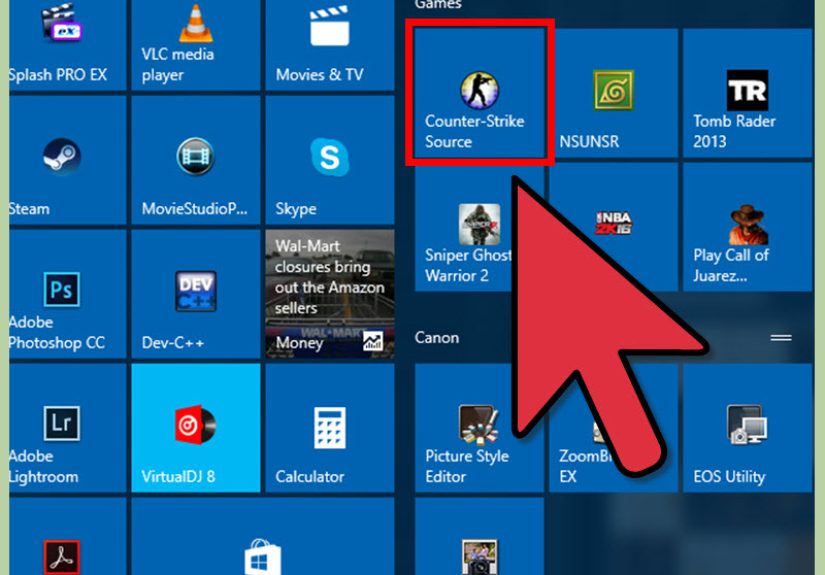
Launch Counter-Strike from your Steam library. You can add friends from the Steam client alone, but opening the game helps if you plan to invite them to a lobby right after.
-
Step 3: Open the Steam overlay
Once the game is running, press Shift + Tab to open the Steam overlay. This is one of the fastest ways to handle friends, chat, and invitations without fully leaving the match menu.
-
Step 4: Open your Friends list
Inside the overlay, open Friends & Chat. If you are not in the overlay, you can also open the same area from the lower-right corner of the Steam desktop client.
-
Step 5: Go to Add a Friend
Look for the Add a Friend option. This page is your social headquarters. It gives you multiple ways to add someone instead of forcing you into a single “hope for the best” search box.
-
Step 6: Find your own Steam Friend Code
On the Add a Friend page, you will see your personal Steam Friend Code. This code is extremely useful because it avoids confusion caused by duplicate names, weird symbols, or profiles named something like “sn1p3r_xXx_2026.”
-
Step 7: Ask your friend for their Friend Code
If your friend already has their code, great. That is usually the cleanest way to add them. If not, they can also send you a Quick Invite link or tell you their current Steam profile name.
-
Step 8: Enter the Friend Code or search by name
Type your friend’s code into the Add a Friend page. If you do not have the code, use the search field and enter their exact profile name. The search method works, but friend codes are usually more reliable.
-
Step 9: Double-check the correct profile
Before clicking anything, verify that you found the right person. Check their profile image, display name, mutual friends, or profile details. Sending a friend request to the wrong “Alex” is not tragic, but it is awkward.
-
Step 10: Click Add as Friend
Once you find the right account, click Add as Friend. Steam will send the request, and now the ball is in your friend’s court.
-
Step 11: Wait for the request to be accepted
Your friend must accept the invitation before they appear fully on your Steam friends list. Until then, they are basically in social limbo, which sounds dramatic because it is.
-
Step 12: Refresh or reopen Friends & Chat
After your friend accepts, reopen your friends list if needed. Sometimes Steam updates immediately, and sometimes it behaves like it needs a small coffee break before showing the new connection.
-
Step 13: Right-click your friend to invite them
Once they are on your list, right-click their name and look for options like Invite to Lobby, Join Game, or chat-related actions. This is the moment where the whole process becomes useful instead of theoretical.
-
Step 14: Use a Quick Invite link if search fails
If Steam search is being stubborn, copy your Quick Invite link from the Add a Friend page and send it through Discord, text, or another chat app. Your friend can open the link, sign in, and add you directly. This method is a lifesaver when names are hard to find.
-
Step 15: Use Recent Players or the mobile app as a backup
If you just met someone in a match and forgot to add them immediately, check your Recently Played With area on Steam if available, or use the Steam mobile app to search, add, or send invite links on the go. Not every backup method works perfectly every time, but they are excellent recovery tools.
The Easiest Methods, Ranked
If you want the short version, here is the reality:
1. Friend Code
This is usually the best method. It is fast, precise, and avoids mistaken identity. When somebody has a common name, this method saves you from digging through a digital phone book of strangers.
2. Quick Invite Link
This is the best backup when search refuses to cooperate. It is especially helpful for newer players, friends using unusual characters in their names, or anyone whose profile is hard to locate.
3. Search by Profile Name
This works fine when you know the person’s exact current profile name. The problem is that Steam users can change display names, which means the name you remember from last week may no longer exist today.
4. Recently Played With
This can be super handy after a good match, but it is more of a rescue tool than a primary method. Treat it like a backup goalie: useful, but not the first plan.
Common Problems and How to Fix Them
You cannot send a friend request
Your account may be limited. If so, ask your friend to send you a request instead, or use a Quick Invite link. If you are a brand-new Steam user, this is one of the most common hiccups.
You cannot find your friend in search
Try their Steam Friend Code instead of their name. If that fails, ask for their Quick Invite link or have them send one to you. Also make sure you are using their current profile name, not an old one they abandoned after their “edgy gamer phase.”
Your friend accepted, but you still do not see them
Refresh Steam, reopen Friends & Chat, or restart the client. Sometimes the list updates instantly. Sometimes Steam decides suspense builds character.
The overlay is not opening
Check your Steam settings, confirm the overlay is enabled, and make sure your client is updated. The overlay is incredibly useful for Counter-Strike players because it lets you handle invites without bouncing around windows like a confused squirrel.
You met someone in a match and forgot to add them
Check Recent Players, search their profile name, or ask them to drop their friend code in chat before the next match starts. Future You will be grateful.
Why Building a Good Friends List Actually Matters in Counter-Strike
Adding friends in Counter-Strike is not just about convenience. It can seriously improve your experience. Solo queue can be funny, chaotic, and occasionally educational, but it can also feel like entering a talent show where nobody agreed on the same song.
When you build a solid Steam friends list, you make it easier to:
- Queue with people who communicate clearly
- Invite reliable teammates to your lobby fast
- Avoid repeatedly gambling on random matchmaking chemistry
- Practice smokes, callouts, and strategies with the same group
- Turn good one-off matches into long-term gaming friendships
In a game where teamwork can decide whether your round ends in victory or five people yelling “Why didn’t anyone watch flank?” a trusted friends list is basically a quality-of-life upgrade.
Best Practices for Adding New Counter-Strike Friends
Be polite right after a match
If somebody was a good teammate, send a quick message like, “Nice game, want to queue again?” That works far better than silently adding them and hoping they remember who you are.
Use nicknames for memorable teammates
If you add a lot of people, nicknames can help you remember who is who. “Mirage A-site caller” is much more useful than trying to remember which dragon-anime profile picture belonged to your favorite support player.
Do not wait too long
If you plan to add someone, do it while the memory is fresh. The longer you wait, the harder it becomes to remember their exact profile details.
Prefer codes over guesswork
When possible, ask for a Friend Code. It is quicker, cleaner, and dramatically less annoying than profile-name detective work.
Experience: What Adding Friends in Counter-Strike Actually Feels Like
There is a very specific kind of magic that happens when you stop treating Counter-Strike as a never-ending parade of strangers and start building a real friends list. At first, most players just hit Play, enter matchmaking, and hope the random teammates are decent human beings with microphones, map awareness, and at least a passing interest in teamwork. Sometimes you get lucky. Sometimes you get silence, chaos, and one person buying an auto-sniper every round like it is a personality trait.
Then one day, you meet a great teammate. Maybe they drop you a rifle without being asked. Maybe they give clean callouts. Maybe they do not scream the second the round goes wrong. You win a few rounds together, laugh at a ridiculous clutch, and suddenly the match feels less like survival and more like an actual team game. That is the moment when adding friends matters.
Once you start adding the right people, Counter-Strike changes. Queueing becomes faster because you already know who you want to invite. Warm-up chat becomes more relaxed. Strategy gets better because people remember your habits, your favorite positions, and the utility you actually know how to throw without accidentally flashing everyone on your team. Even losses feel less miserable when you are playing with people who communicate well and do not act like every missed shot is a federal crime.
There is also something deeply satisfying about watching your Steam friends list turn into a little network of reliable players. You recognize names. You know who likes Mirage, who always wants to lurk, who will absolutely call for a force-buy, and who somehow top-frags while sounding half asleep. That familiarity helps. Counter-Strike is a game built on split-second trust, and trust is a lot easier when you are not playing with five complete mysteries.
For newer players, adding friends can be the difference between sticking with the game and giving up too early. Playing with familiar people makes it easier to ask questions, learn lineups, and improve without feeling judged every five seconds. For experienced players, it is a shortcut to better matches and fewer random headaches. Either way, building your list of Counter-Strike friends is not just about social features. It is about creating a better version of the game for yourself.
And honestly, some of the best gaming memories start with something very small: one good match, one friend request, one lobby invite, and one “run it back?” message. That is how random teammates become regular teammates, and regular teammates become the people you always hope are online when you launch the game.
Conclusion
If you want to add friends in Counter-Strike, the smartest move is to think through Steam. Use a Friend Code when possible, fall back to a Quick Invite link when needed, and keep the Steam overlay ready so you can invite people to your lobby without leaving the action. The whole process is easy once you know where to click, and it gets even better when you start building a reliable circle of teammates.
In other words, the next time you find that one teammate who can aim, communicate, and stay calm after a lost pistol round, do not let them disappear into the internet fog. Add them. Future matches will thank you.