Table of Contents >> Show >> Hide
- What Is the Safe Senders List (and Why Should You Care)?
- Before You Start: Confirm You’re Using Hotmail/Outlook.com on the Web
- How to Add to the Safe Senders List in Hotmail: 6 Easy Steps
- Two Faster “Rescue Moves” When an Email Is Already in Junk
- How to Check If Your Safe Sender Entry Actually Saved
- Troubleshooting: Why Emails Still Go to Junk (Even After Safelisting)
- Best Practices: Safelist Without Inviting Trouble
- FAQ: Safe Senders in Hotmail/Outlook.com
- Conclusion
- Real-World Experiences: What People Notice After Whitelisting (Plus a Few Lessons Learned)
Hotmail is still alive… it just grew up, got a new outfit, and started answering to Outlook.com. (Same inbox, different name tag.) If important emails keep swan-diving into your Junk folderclient messages, school updates, receipts, password resetsadding a trusted address to your Safe Senders list is the simplest way to tell Outlook: “This one’s with me.”
In this guide, you’ll get the exact six-step process for Outlook.com (a.k.a. Hotmail on the web), plus practical tips, examples, and troubleshooting so your “trusted” emails actually land where they belong: your Inbox.
What Is the Safe Senders List (and Why Should You Care)?
Outlook.com’s junk filter is goodbut sometimes it’s too enthusiastic. The Safe Senders list is your “VIP pass” for addresses and domains you trust. Once added, messages from those senders are far less likely to be treated as junk.
Think of it like a bouncer at a club. The spam filter is the bouncer. Safe Senders is the list of names you texted ahead of time: “Let them in. They’re cool.”
Safe Sender vs. Safe Domain: What’s the Difference?
- Safe email address: Allows one specific sender (example: [email protected]). Best for high-security or sensitive senders.
- Safe domain: Allows an entire domain (example: yourbank.com). Best when a company uses multiple “From” addresses.
If you’re unsure, start with the exact email address first. You can always widen to the domain laterlike you’re testing the waters instead of cannonballing into the deep end.
Before You Start: Confirm You’re Using Hotmail/Outlook.com on the Web
These six steps apply to the web version of Outlook.com (which is what Hotmail accounts use today). If you’re using an app (Outlook for iOS/Android) or desktop Outlook, don’t worrythere are quick alternatives later in this article.
How to Add to the Safe Senders List in Hotmail: 6 Easy Steps
Follow these steps exactly, and don’t skip the last one (yes, we’re looking at you, “I totally saved it” people).
- Sign in to your Hotmail inbox
Go to Outlook.com and log in to your Hotmail account so you’re inside your mailbox view. - Click the Settings gear
In the top-right corner, select the gear icon to open Settings. - Open the full settings panel
Choose View all Outlook settings (this is where the “real” controls live). - Navigate to Junk Email settings
In the settings window, go to Mail > Junk email. - Add the sender (or domain) to Safe Senders
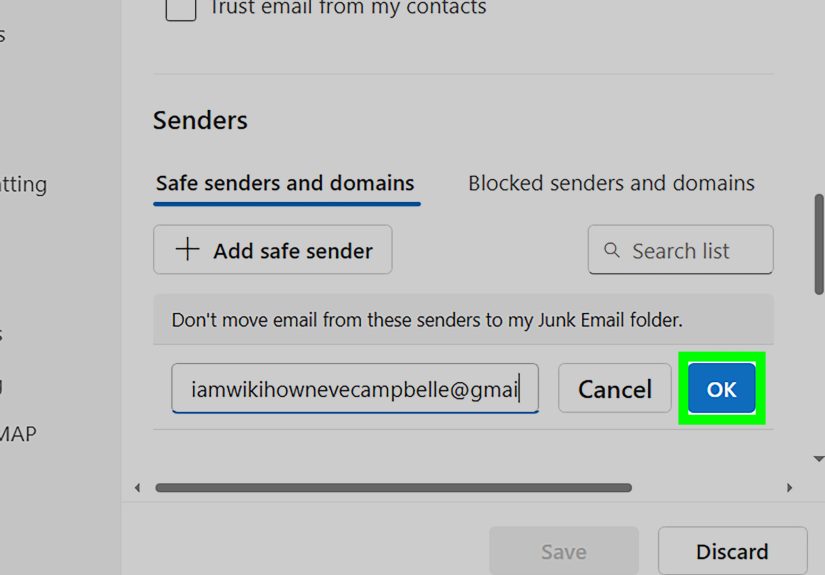
Under Safe senders and domains, select + Add (or Add safe sender), then enter:- An email address (example: [email protected]), or
- A domain (example: store.com)
Click OK to confirm the entry.
- Hit Save (the step everyone forgets)
Select Save to lock in the change. If you close the window without saving, Outlook will happily pretend this never happened.
Quick Example: Whitelist a School Domain
Let’s say your child’s school emails come from different addressesattendance, classroom updates, admin announcementsbut all end with @district.edu. Add district.edu as a safe domain. Now you’re not playing “Where did the principal’s email go?” every morning.
Quick Example: Whitelist a Single Sender (Safer for Banking)
For banks, payroll, healthcare portals, or anything that makes your stomach drop if it’s spoofed, whitelist the exact address only: [email protected]. That keeps the door narrower while still letting the legitimate messages through.
Two Faster “Rescue Moves” When an Email Is Already in Junk
If the email is already stuck in Junk, adding a safe sender is greatbut you also want to teach Outlook that it misjudged a legitimate message. These two moves are fast and surprisingly effective:
1) Mark the message as “Not junk”
Open the message in your Junk folder, choose Not junk, and move it back to your Inbox when prompted. This helps correct the filter’s behavior going forward.
2) Add the sender to your Contacts
Adding a sender to Contacts often improves deliverability across email platforms. It’s not as direct as Safe Senders, but it’s a strong “this person is legit” signalespecially when paired with marking a message as Not junk.
How to Check If Your Safe Sender Entry Actually Saved
If emails still go to Junk, don’t panic. First, verify the entry exists:
- Settings gear > View all Outlook settings
- Mail > Junk email
- Look under Safe senders and domains for your entry
If it’s not there, it didn’t save. Outlook is not being mean; it’s just being Outlook.
Troubleshooting: Why Emails Still Go to Junk (Even After Safelisting)
You added the wrong thing (address vs. domain)
Some services send from multiple addresses (billing@, no-reply@, support@). If you only safelist one address, other messages may still get filtered. In that case, safelisting the domain can helpif it’s a domain you truly trust.
You forgot to Save
This deserves its own paragraph because it’s the #1 cause of “Safe Senders is broken” complaints. Outlook settings often require an explicit Save. No Save, no change.
Your inbox has additional filtering (Rules, Focused Inbox, or Sweep)
Safe Senders affects junk filtering, but rules can still move mail elsewhere. If your “missing” emails are in another folder, check:
- Rules that redirect messages
- Other/Focused tabs (if enabled)
- Archive or custom folders
It’s a work/school account with extra security filtering
If you’re not on a personal Hotmail inbox but a managed Microsoft 365 account, your organization may apply additional filtering that ignores some “safe domain” behaviors. In those cases, IT policy can override personal preferences.
Best Practices: Safelist Without Inviting Trouble
Whitelisting is powerfulso use it like you’d use a spare house key: only for people you trust.
Do this
- Safelist exact addresses for financial, medical, and login/security emails.
- Safelist domains for trusted organizations that use many sender addresses (schools, large retailers you use often).
- Review your Safe Senders list every few months and remove entries you no longer recognize.
Maybe don’t do this
- Don’t safelist a domain just because one email looked “kind of legit.”
- Don’t safelist a domain from a random coupon site you visited once at 2 a.m. (we’ve all been there).
- Don’t safelist look-alike domains (example: paypaI.com with a capital i) those are often scams.
FAQ: Safe Senders in Hotmail/Outlook.com
Can I add multiple safe senders at once?
Yes. Add them one-by-one in the Safe senders and domains section, then click Save. If you’re adding several, keep a short list in a notes app so you don’t lose track mid-click.
How do I remove a safe sender?
Go back to Mail > Junk email, select the entry in Safe senders and domains, remove it, and click Save.
Does this work on mobile?
Mobile apps and mobile browsers can have limited settings views. If you can’t find Junk settings on mobile web, switch your browser to “Desktop site” mode, or make the change from a computer. On the Outlook mobile app, the fastest workaround is usually marking a message as Not junk and adding the sender to Contacts.
Will Safe Senders stop phishing?
No. Safe Senders reduces unwanted filtering of trusted senders; it doesn’t magically verify identity. If something looks suspiciouseven from a “known” brandverify before clicking.
Conclusion
If your Hotmail inbox feels like it’s playing hide-and-seek with important messages, Safe Senders is the peace treaty. The six-step path is simple: open settings, find Junk Email, add the sender or domain, and save. After that, combine it with “Not junk” and smart habits (like checking rules) and you’ll spend less time digging in Junk and more time actually reading the emails you wanted in the first place.
Real-World Experiences: What People Notice After Whitelisting (Plus a Few Lessons Learned)
Once someone adds a sender to Safe Senders in Hotmail/Outlook.com, the first reaction is usually relief: “Finallymy order updates are back.” That’s especially common with retailers and shipping notifications, where messages can come from a rotating cast of addresses like no-reply@, orders@, and updates@. In practice, people often start by whitelisting one address, only to realize the next email comes from a slightly different one. That’s when the domain approach becomes the “ohhh, that’s why” momentbecause it covers the whole organization, not just the single mailbox that happened to email you yesterday.
Another super common experience: the “I did it… and nothing changed” panic. About half the time, it’s not that Safe Senders failedit’s that the setting window got closed without hitting Save. Outlook settings can be like a shopping cart: you can add items all day, but if you don’t check out, you’re leaving with nothing. People also discover that even when junk filtering is fixed, their message wasn’t “missing” at all; it got routed by a rule, landed in Archive, or slipped into an inbox tab they don’t check. The practical takeaway is that Safe Senders is step one, but “search your mailbox for the sender” is step two when you’re troubleshooting.
Password reset emails are the biggest emotional rollercoaster. Someone requests a login code, refreshes the inbox like a slot machine, andnothing. Ten minutes later, they find three codes sitting in Junk, quietly judging them. After safelisting the sender and marking a message as Not junk, the next login attempt usually goes smoother. The subtle lesson here: if an email is time-sensitive, don’t wait for the filter to “learn.” Rescue one message from Junk immediately and whitelist the sender so the next code doesn’t take a detour.
Newsletters create a different kind of learning curve. People often whitelist a newsletter because they genuinely want itthen later realize they subscribed to five more “partner emails” they didn’t expect. Whitelisting is a trust decision, so it helps to be picky: whitelist the exact address for newsletters, and only whitelist the domain if you’re confident the organization won’t send a bunch of unrelated mail from random sub-brands. That way you’re preventing false positives without opening the floodgates.
Finally, there’s the “too broad” experience: someone whitelists a domain that turns out to be a platform domain used by many senders (or they misread the domain entirely). Suddenly, the Junk folder is quieter… but the Inbox is louder, and not in a good way. The safer pattern people settle into is: start narrow (one address), confirm it works, then widen to the domain only when needed. It’s the email equivalent of adding one ingredient at a time when cookingyou can always add more, but you can’t un-salt a soup without effort.