Table of Contents >> Show >> Hide
- First: A Quick Reality Check (So You Don’t Fight Your Phone)
- Method 1: Close an App from the Recent Apps Screen (Fastest)
- Method 2: Close All Apps at Once (The “Clean Desk” Button)
- Method 3: Force Stop an App in Settings (The “No Really, Stop” Method)
- Bonus: If You’re Closing Apps for Battery, Do This Instead
- Troubleshooting: “I Closed It, But It Still Feels Open”
- Quick Decision Guide: Which Method Should You Use?
- Real-World Experiences: What It’s Like Using These 3 Methods Day-to-Day (About )
- Conclusion
Android is basically a tiny robot assistant living in your pocket: it remembers what you were doing, keeps things ready, and quietly cleans up after you when it needs to. Which is why the “OMG, I must close every app!” habit is usually about as necessary as vacuuming your driveway.
Stillsometimes you do want to close apps. Maybe an app froze, your phone’s getting warm, your battery is dropping like it’s auditioning for a trampoline team, or you just want to stop something from running right now. Whatever the reason, you’ve got a few simple options.
In this guide, you’ll learn three easy, reliable ways to close apps on Android (including “close everything” and the “no really, stop it” Force Stop), plus how to decide when closing apps helpsand when it’s just finger cardio.
First: A Quick Reality Check (So You Don’t Fight Your Phone)
When you open an app, Android may keep it in your Recents (also called the Overview screen). That doesn’t always mean the app is actively chewing through battery. In many cases, it’s paused in the background so it can reopen faster. Android is designed to manage memory and background activity on its own.
So why close apps at all? Here are the best reasons:
- An app is frozen or won’t respond.
- An app is misbehaving (crashing, overheating, draining battery, playing audio when it shouldn’t).
- You want to reset an app quickly without rebooting your phone.
- Privacy moment: you’re handing your phone to someone and don’t want your stuff sitting in Recents.
If your only reason is “I heard it saves battery,” the better approach is usually managing background activity, not rage-closing everything after every text message.
Method 1: Close an App from the Recent Apps Screen (Fastest)
This is the everyday, no-drama method. It’s quick, it’s built-in, and it works on basically every Android phonethough the exact gesture depends on how you navigate (gesture navigation vs. 3-button navigation).
If you use gesture navigation
- Swipe up from the bottom of the screen and hold for a second (then release).
- You’ll see your open apps as cards. Find the app you want to close.
- Swipe the app card away (usually up or sideways, depending on your phone).
If you use 3-button navigation
- Tap the Recents button (often a square or three-line icon).
- Find the app card.
- Swipe it away to dismiss it from Recents.
Tip: On some phones (especially Samsung), you can tap the app’s icon at the top of its card for extra options, like viewing app info or keeping an app open. It’s like a secret menuminus the milkshake.
When to use this: You’re done with an app, you’re cleaning up Recents, or you want an app off-screen and out of the way. If the app is truly stuck, jump to Method 3.
Method 2: Close All Apps at Once (The “Clean Desk” Button)
If you’ve got a mile-long stack of app cards and it’s stressing you out like unread email, you can close them all in one move. This is also handy if you’re troubleshooting and want a quick reset of what’s sitting in Recents.
Steps (most Android phones)
- Open the Recent apps screen (same as Method 1).
- Look for a button like Clear all or Close all.
- Tap it to dismiss everything from Recents.
If you don’t see “Clear all” immediately
- Scroll to the far end of your app cards (some phones hide “Clear all” on the left or right edge).
- If your phone is a budget model or Android Go edition, the placement may be differentbut it’s usually still there.
Important note: “Clear all” mainly clears your Recents list. It doesn’t always mean every app process is fully “killed.” Android decides what stays cached and what gets cleaned up based on system needs.
When to use this: Your phone feels cluttered, you’re handing the phone to someone, or you’re doing quick troubleshooting. If you’re trying to fix one stubborn app, Method 3 is usually the better tool.
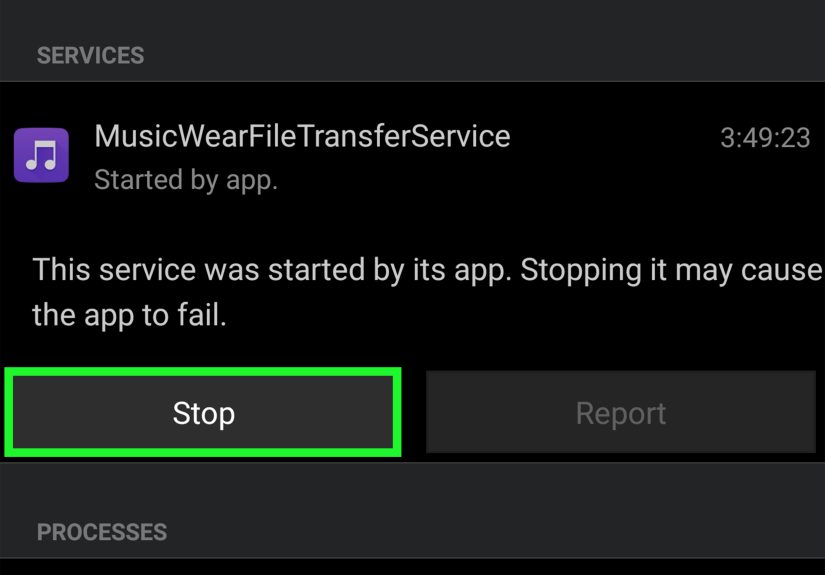
Method 3: Force Stop an App in Settings (The “No Really, Stop” Method)
Force Stop is the strongest, most direct way to shut down an app and its background activity. Think of it as flipping the breaker, not just turning off the lights.
Use this when an app is frozen, crashing, overheating your device, draining battery unusually fast, or refusing to behave (like a toddler who just discovered the word “no”).
Steps to Force Stop (works on most Android phones)
- Open Settings.
- Tap Apps (or Apps & notifications).
- Select See all apps if needed.
- Tap the app you want to stop.
- Tap Force stop and confirm.
Shortcut method (sometimes faster)
- Press and hold the app icon on your home screen or app drawer.
- Tap App info (the little “i” in a circle).
- Tap Force stop.
What happens next? The app won’t run again until you open it (or something explicitly triggers it). If the app uses background services (like messaging or fitness tracking), Force Stop can temporarily interrupt that behavior.
When to use this: The app is glitchy, frozen, overheating, draining battery, or you need a clean restart. If you’re Force Stopping the same app daily, consider updating it, clearing cache, or reinstalling (more on that below).
Bonus: If You’re Closing Apps for Battery, Do This Instead
If your main goal is better battery life, the most effective moves usually aren’t “close everything.” They’re about finding what’s draining power and limiting its background behavior.
Check battery usage by app
- Go to Settings > Battery.
- Open Battery usage (wording varies).
- Look for apps with unusually high usage.
Restrict background activity (when it makes sense)
- In an app’s settings page, look for Battery options like Restricted, Optimized, or Unrestricted.
- Use restrictions carefully: limiting background activity can delay notifications or stop background syncing.
Clear cache (for stubborn app issues)
If an app is bloated or glitchy, clearing its cache can help without deleting your login or personal data. You’ll typically find this under Settings > Apps > [App Name] > Storage > Clear cache.
If you go further and choose Clear storage / Clear data, that’s a full resetoften helpful, but it can sign you out and remove app settings. Use it when you’re troubleshooting and you’re okay setting the app up again.
Troubleshooting: “I Closed It, But It Still Feels Open”
1) The app card disappeared, but the app keeps running
Some apps run background services (music players, VPNs, device companions, health tracking, messaging). Removing the app from Recents might not stop those background tasks. If it’s truly a problem, use Force Stop (Method 3) or adjust background permissions.
2) “Clear all” didn’t clear everything
On certain devices, “Clear all” clears the Recents list but Android may keep some system apps or services ready in the background. That’s normal. Android is designed to keep the system responsive.
3) An app keeps freezing when you reopen it
- Force Stop the app (Method 3), then reopen it.
- Update the app in the Play Store.
- Restart your phone (the classic fix that still works because physics).
- Clear cache, then try again.
- If it persists, uninstall and reinstall the app.
Quick Decision Guide: Which Method Should You Use?
- You’re done with an app and want it out of Recents: Method 1 (swipe it away).
- You want a clean Recents screen fast: Method 2 (Clear all / Close all).
- The app is stuck, crashing, overheating, or draining battery: Method 3 (Force Stop).
If you remember nothing else: Android is usually fine managing apps on its own. Close apps when there’s a reasonlike performance issues, privacy, or troubleshootingnot because your phone will “run out of air” if you don’t.
Real-World Experiences: What It’s Like Using These 3 Methods Day-to-Day (About )
In real life, closing apps on Android tends to be less of a “maintenance routine” and more of a “situational superpower.” You’ll probably notice that Method 1 (swiping away an app from Recents) feels like tidying your workspace: it’s quick, satisfying, and mostly about keeping your brain calm. A lot of people do it after finishing a tasklike closing a shopping app after buying something, or swiping away a game before classbecause it’s a visual cue that says, “We’re done here.”
Method 2 (Clear all / Close all) often shows up in two common moments: before handing your phone to someone and when your device feels chaotic. For example, if a friend says, “Can I see your photos?” you might not want your banking app, your group chat, and that embarrassing “Is this a rash?” search sitting in the Recent apps carousel like a museum exhibit. Clearing Recents is a fast way to reduce accidental snooping without changing any passwords or settings.
The second “Clear all” moment is when you’ve been bouncing between appsmaps, rideshare, camera, messages, and a restaurant waitlist and your phone feels a little sluggish. Even if clearing Recents doesn’t magically boost performance every time, it can help you reset your flow. It’s like wiping crumbs off the counter. The kitchen might not be spotless, but you immediately feel more in control.
Method 3 (Force Stop) is the one you’ll remember the first time you truly need it. This is what people reach for when an app refuses to load, keeps crashing, gets stuck on a blank screen, or does something weirdlike continuing to play audio after you closed it. Force Stop feels more “serious” because you’re going into Settings and basically telling Android, “Please escort this app out of the building.” After you Force Stop, reopening the app often feels like starting fresh: the glitches may disappear, the lag can improve, and you’re not stuck in a loop of tapping the same broken screen.
Over time, most users land on a simple rhythm: swipe away apps when you’re done, “Clear all” when you want privacy or mental clarity, and Force Stop when an app is actively causing trouble. If you find yourself Force Stopping the same app constantly, that’s usually your cue to update it, clear cache, or replace it with a better alternativebecause your phone shouldn’t require daily negotiations.
Conclusion
Closing apps on Android doesn’t have to be complicated. For everyday cleanup, swipe apps away in the Recent apps screen. When you want a quick reset of everything visible, use Clear all / Close all. And when an app is frozen or acting up, Force Stop is your best friend. Use the right method for the right moment, and let Android do the rest of the heavy liftingbecause your thumb deserves a break.