Table of Contents >> Show >> Hide
- What “Expired Subscription” Means on iPhone
- Can You Actually Delete Expired iPhone Subscriptions?
- Option 1: Confirm the Subscription Is Really Expired
- Option 2: Cancel Any Subscription That Is Still Active
- Option 3: Hide the Related App From Your App Store Purchase List
- Option 4: Delete the App From Your iPhone
- Option 5: Check Purchase History for Charges
- Option 6: Request a Refund If the Charge Is Eligible
- Option 7: Remove or Update Your Payment Method
- Why Expired Subscriptions Still Show Up
- What Not to Do When Trying to Delete Expired Subscriptions
- How to Keep Your iPhone Subscription List Cleaner
- Common Problems and Easy Fixes
- Best Practical Answer: What Should You Do?
- Experience: Cleaning Up Expired iPhone Subscriptions in Real Life
- Conclusion
Expired iPhone subscriptions are like old takeout menus in a kitchen drawer: technically harmless, oddly annoying, and somehow always there when you are trying to feel organized. You open Settings, tap your name, choose Subscriptions, and there they areold trials, forgotten apps, fitness plans you used twice, and that one mysterious photo-editing subscription from three phones ago.
So, how do you delete expired iPhone subscriptions? Here is the honest answer: Apple does not currently give iPhone users a simple “Delete” button for expired subscriptions in the Subscriptions screen. If a subscription is expired, canceled, or shows no cancel button, it is usually already inactive. You can manage it, renew it, hide related app purchases from your App Store purchase list, remove the app from your iPhone, clean up payment methods, and review purchase historybut you usually cannot permanently erase the subscription record from your Apple Account yourself.
That may sound like a tiny digital betrayal, but do not throw your iPhone into a decorative pond just yet. There are still several easy options to reduce clutter, protect privacy, avoid accidental renewals, and make sure old subscriptions stop haunting your wallet.
What “Expired Subscription” Means on iPhone
An expired iPhone subscription is a subscription that has ended and is no longer renewing. It may have expired because you canceled it, a free trial ended, a payment failed, or you chose not to renew. In Apple’s subscription menu, expired subscriptions are typically separated from active subscriptions so you can tell what is still billing you and what is not.
The important detail is this: expired does not mean dangerous. It does not automatically mean Apple will charge you again. If there is no “Cancel Subscription” button, or if the screen says the plan has expired, that subscription is generally already canceled. Apple may still show it because your Apple Account keeps a record of subscriptions, purchases, and billing activity.
Can You Actually Delete Expired iPhone Subscriptions?
In most cases, no, you cannot manually delete expired iPhone subscriptions from the Apple subscription list. Apple treats subscriptions as part of your account and purchase record. Think of it less like deleting an app icon and more like trying to erase a receipt from a store’s accounting system. You may not want to see it, but the system keeps records for billing, refunds, family sharing, tax, security, and account-history reasons.
However, you do have useful options. You can cancel subscriptions that are still active, hide related apps from the App Store purchase list, remove apps from your device, check whether a subscription is tied to another Apple Account, request a refund for eligible purchases, and contact Apple Support if something looks wrong.
Option 1: Confirm the Subscription Is Really Expired
Before trying to delete anything, first make sure the subscription is not still active. This is the “check the stove before leaving the house” step. It takes a minute and can save you from surprise charges.
How to check subscriptions on iPhone
- Open the Settings app.
- Tap your name at the top of the screen.
- Tap Subscriptions.
- Look for sections such as Active and Expired.
- Tap the subscription you want to review.
If you see renewal options, the subscription is expired and can be restarted. If you see a cancel button, the subscription is still active or still within a paid period. If you see an expiration message and no cancel button, it is already canceled.
Option 2: Cancel Any Subscription That Is Still Active
If your real goal is to stop future billing, focus on active subscriptions first. Expired subscriptions are yesterday’s problem. Active subscriptions are the ones that can still sneak into your bank statement wearing sunglasses and a fake mustache.
How to cancel an active iPhone subscription
- Open Settings.
- Tap your name.
- Tap Subscriptions.
- Select the active subscription.
- Tap Cancel Subscription.
- Confirm your choice if prompted.
After canceling, you may still have access until the end of the billing period. For example, if you paid for a monthly video app on May 1 and canceled on May 10, you may still be able to use it until the paid month ends. Canceling does not always mean instant shutdown; it usually means “do not renew.”
Option 3: Hide the Related App From Your App Store Purchase List
Here is where many users get confused. You may not be able to delete the expired subscription record, but you can hide the related app from your App Store purchase list. This is helpful if you do not want the app casually appearing when you or a family member looks through previous downloads.
Hiding an app does not erase the subscription from your full Apple purchase history. It also does not delete billing records. But it can make your App Store purchase list cleaner and less awkward. Yes, that includes hiding the meditation app you downloaded during your “I will become a morning person” phase.
How to hide an app from App Store purchases
- Open the App Store.
- Tap your profile picture in the top-right corner.
- Tap Apps or Purchased.
- Find the app connected to the expired subscription.
- Swipe left on the app.
- Tap Hide.
If you use Family Sharing, hiding an app can also prevent family members from downloading it from your shared purchase list. This is useful for privacy, but it is not a total invisibility cloak. The app and subscription may still appear in complete purchase history or account records.
Option 4: Delete the App From Your iPhone
Deleting the app does not cancel a subscription by itself. This point deserves a tiny spotlight and maybe a dramatic drumroll. Many people remove an app and assume the subscription is gone. Unfortunately, the app icon disappearing from your Home Screen does not automatically stop billing.
Still, after you confirm the subscription is expired or canceled, deleting the app can make your iPhone feel cleaner.
How to delete the app
- Press and hold the app icon.
- Tap Remove App.
- Choose Delete App.
- Confirm your choice.
For best results, cancel the subscription first, then delete the app. That order matters. App first, subscription later is how people accidentally keep paying for services they no longer use.
Option 5: Check Purchase History for Charges
If an expired subscription still bothers you because you think you were charged, check your purchase history. This can show App Store purchases, subscriptions, and other Apple media charges connected to your account.
How to view Apple purchase history
- Go to Apple’s purchase-history area through your Apple Account or the App Store account settings.
- Sign in with the Apple Account used for the subscription.
- Review recent charges.
- Use date filters if you need older records.
- Look for the app name, subscription name, amount, and billing date.
This is especially useful if you have more than one Apple Account, share devices with family, or cannot remember whether a charge came from Apple, the app developer, or a separate website subscription.
Option 6: Request a Refund If the Charge Is Eligible
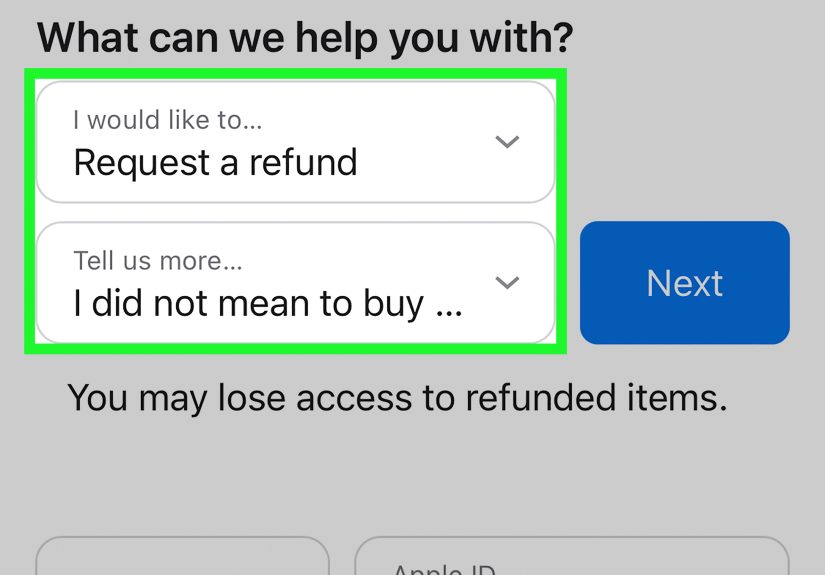
If a subscription renewed by accident, a child made a purchase, or you forgot to cancel a trial before it converted into a paid plan, you may be able to request a refund. Apple does not guarantee every refund, but eligible App Store purchases and subscriptions can be reviewed.
When a refund request may make sense
- You were charged after canceling.
- You did not recognize the subscription.
- A free trial converted unexpectedly.
- The app did not work as described.
- A family member made the purchase by mistake.
When requesting a refund, be clear and factual. “I canceled this subscription before renewal, but I was charged again” is more useful than “Apple, why must you test me?” even if the second one feels emotionally accurate.
Option 7: Remove or Update Your Payment Method
If your goal is to prevent future accidental billing, review your Apple payment methods. On iPhone, you can go to Settings, tap your name, choose Payment & Shipping, and manage your cards or payment options.
Sometimes Apple may not let you remove a payment method if you have an active subscription, unpaid balance, purchase sharing requirement, or another billing issue. In that case, cancel active subscriptions, resolve unpaid charges, or add a new payment method before removing the old one.
How to remove a payment method on iPhone
- Open Settings.
- Tap your name.
- Tap Payment & Shipping.
- Tap Edit.
- Tap the delete button next to the payment method.
- Tap Remove.
This will not delete expired subscriptions, but it can help you control future App Store billing.
Why Expired Subscriptions Still Show Up
Expired subscriptions remain visible for several practical reasons. Apple may need to show your subscription history for renewals, receipts, refunds, Family Sharing, billing support, account security, and legal recordkeeping. In other words, your iPhone is not being dramatic; it is being administrative.
The expired list can also be useful. If you canceled a language-learning app but later decide to try again, you can return to the expired subscription and renew it. If you need to confirm that a trial ended, the expired section gives you proof. If you need to compare old pricing, the record may help jog your memory.
Still, users often want the list gone for privacy or cleanliness. That is understandable. A tidy phone feels good. A tidy subscription screen feels like folding laundry and finding money in a pocket.
What Not to Do When Trying to Delete Expired Subscriptions
Do not create a new Apple Account just to hide old subscriptions
Creating a new Apple Account may sound tempting, but it can create a much bigger mess. Your apps, purchases, subscriptions, iCloud data, backups, photos, messages, and Family Sharing setup may be tied to your existing account. Starting over just to avoid seeing expired subscriptions is like moving houses because one drawer is messy.
Do not delete the app and assume billing stopped
Again, deleting an app does not automatically cancel its subscription. Always cancel through Settings or the App Store subscription page first.
Do not ignore active trials
Free trials are the tiny ninjas of subscription billing. They look harmless, then suddenly they renew. If you sign up for a trial, set a reminder one or two days before renewal or cancel immediately if you only wanted temporary access.
Do not trust every third-party “subscription remover” app
Some subscription-tracking apps can be useful for budgeting, but be cautious before giving any app access to email, banking, or personal data. Use built-in Apple settings first. If you use a third-party tool, choose reputable services and read the privacy policy carefully.
How to Keep Your iPhone Subscription List Cleaner
You may not be able to wipe expired subscriptions away with one magical button, but you can keep future clutter under control.
- Audit subscriptions monthly: Open Settings > your name > Subscriptions and review active plans.
- Cancel trials early: If you do not plan to keep a trial, cancel before renewal.
- Turn on renewal receipts: This helps you notice when subscriptions renew.
- Use one Apple Account: Multiple accounts make tracking subscriptions harder.
- Check Family Sharing: A family member’s purchase may explain an unfamiliar app.
- Search your email: Look for terms like “Apple receipt,” “subscription,” “renewal,” and “trial.”
Common Problems and Easy Fixes
The subscription does not appear on my iPhone
If you cannot find a subscription, it may be tied to a different Apple Account, billed directly through the app developer, purchased on the web, or connected to a family member’s account. Check old emails, other Apple IDs, and the app’s own account settings.
The app says I subscribed, but Apple does not show it
Some services bill outside Apple. For example, streaming, dating, fitness, cloud storage, and productivity apps may offer website-based billing. In that case, you must cancel through the company’s website or customer account portal, not through iPhone Settings.
I see an expired subscription but no cancel button
That usually means the subscription is already canceled. There is nothing else to cancel. You can leave it alone, hide the related app from your App Store purchase list, or contact Apple Support if you believe it is still billing you.
I want privacy because someone else uses my phone
Use Face ID, Touch ID, or a strong passcode. Avoid sharing your Apple Account password. Hide related apps from the App Store purchase list if appropriate. Remember, hiding purchases helps reduce visibility in some places, but it does not erase complete account history.
Best Practical Answer: What Should You Do?
If you want the simplest path, follow this order:
- Open Settings and check your Subscriptions page.
- Cancel anything still active that you no longer want.
- Confirm old subscriptions show as expired.
- Delete apps you no longer use.
- Hide related apps from your App Store purchase list if privacy matters.
- Review purchase history for unexpected charges.
- Request a refund if a charge seems wrong or eligible.
- Update or remove payment methods if needed.
This gives you the cleanest result Apple currently allows without causing account chaos.
Experience: Cleaning Up Expired iPhone Subscriptions in Real Life
Let’s talk about the real-world experience, because the official steps are one thing and the emotional journey is another. Cleaning up expired iPhone subscriptions usually starts with confidence. You think, “I will spend five minutes organizing this.” Then you open the list and discover subscriptions from apps you barely remember. A weather app. A scanner app. A sleep app. A workout app from a week when you were very inspired by someone on YouTube with impossible abs.
The first reaction is usually panic: “Am I still paying for all of this?” Most of the time, no. If the subscriptions are expired, they are not actively renewing. That realization helps. The second reaction is annoyance: “Then why are they still here?” That is the part many users dislike. Apple gives you control over cancellation, renewal, payment, and purchase visibility, but not full manual deletion of expired subscription records.
In practice, the best experience is to treat the subscription screen like a financial dashboard, not a decoration. It does not need to be beautiful; it needs to be accurate. When reviewing a messy list, start with the Active section. That is where the money lives. Cancel anything you no longer use. Then look at Expired as a reference area. It may be ugly, but it is usually not dangerous.
A helpful habit is to pair subscription cleanup with app cleanup. If you see an expired subscription for an app you no longer use, delete the app from your iPhone. Then open the App Store and hide that app from the purchase list if you do not want it casually visible. This will not erase every record, but it makes your day-to-day iPhone experience feel much cleaner.
Another useful habit is checking email receipts. Apple receipts are surprisingly helpful when your memory fails. Search your inbox for “Apple receipt,” “subscription,” “renewal,” or the app name. This can show when you subscribed, when you canceled, and whether a charge was recent. It is not glamorous, but neither is paying $7.99 a month for an app you used once to add sparkles to a selfie.
The biggest lesson from cleaning up expired iPhone subscriptions is this: cancel early and review often. If you start a free trial, decide immediately whether you want to keep it. If you are unsure, cancel right away; many trials still allow access until the trial ends. If you subscribe to something for a specific projectediting a video, scanning documents, learning a language before a tripcancel once the project is done.
Finally, do not confuse “not deletable” with “not manageable.” You may not be able to remove every expired subscription from view, but you can absolutely stop renewals, reduce clutter, protect your purchase list, manage payment methods, and challenge questionable charges. That is the practical win. Your expired subscription list may never look like a minimalist art gallery, but your wallet can be safe, your apps can be tidy, and your future self can avoid another surprise billing mystery.
Conclusion
Deleting expired iPhone subscriptions is not as simple as tapping a trash can icon, because Apple does not generally let users manually erase expired subscription records from the Subscriptions page. But you still have easy options. You can confirm the subscription is inactive, cancel active plans, hide related App Store purchases, delete unused apps, review purchase history, request refunds when eligible, and manage payment methods.
The key is to focus on what matters most: stopping future charges and reducing visible clutter. Expired subscriptions may remain in your account history, but they do not have to keep confusing youor quietly nibbling at your budget like a digital raccoon.