Table of Contents >> Show >> Hide
- What Is Dark Theme in Comet Browser?
- How to Enable Dark Theme on Comet Browser for Windows
- How to Disable Dark Theme on Comet Browser for Windows
- Use Device Mode to Match Windows Light or Dark Mode
- Dark Theme vs. Dark Websites: Know the Difference
- Why Dark Theme May Not Work the Way You Expect
- Best Settings for Different Windows Users
- Accessibility Tips for Dark Theme in Comet
- Quick Troubleshooting Checklist
- Common Questions About Comet Dark Theme on Windows
- Real-World Experience: Using Comet Dark Theme on Windows
- Final Takeaway
Dark theme is one of those tiny browser settings that feels oddly powerful. One click, and suddenly your screen stops behaving like a miniature office ceiling light. If you use Perplexity’s Comet Browser on Windows, switching between dark theme, light theme, and device-based appearance is refreshingly simple once you know where the setting lives.
This guide explains how to enable or disable dark theme on Perplexity’s Comet Browser on Windows, how the Device option works with Windows color mode, what to do when a website refuses to follow your dark-mode wishes, and how to troubleshoot the usual suspects. Think of it as your calm little flashlight in the settings caveexcept, naturally, it prefers dark mode.
What Is Dark Theme in Comet Browser?
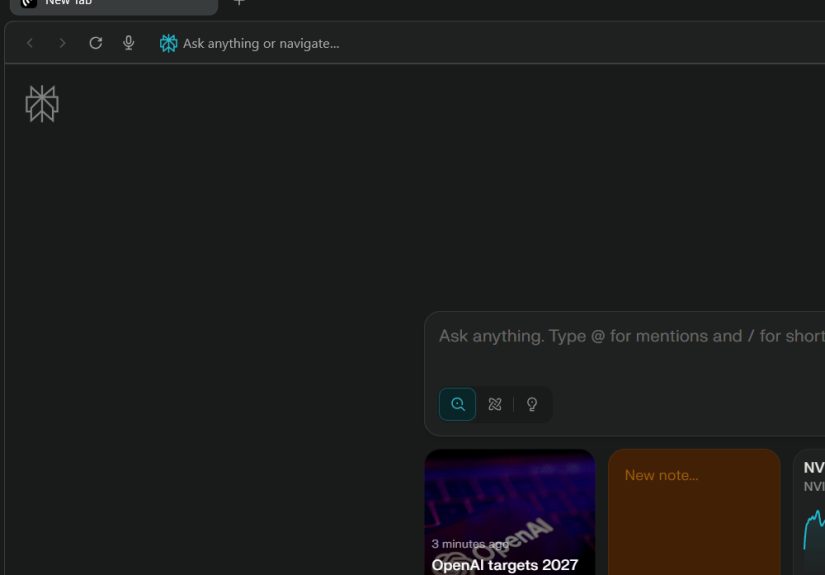
In Comet Browser, dark theme changes the browser interface so key areas such as the homepage, toolbar, settings pages, and other built-in browser surfaces use darker colors. It is not exactly the same thing as forcing every website to become dark. That difference matters, because many people turn on dark theme and then wonder why one stubborn website still looks like it was designed inside a lighthouse.
Comet is a Chromium-based browser with Perplexity’s AI features built into the browsing experience. That means its general layout feels familiar if you have used Chrome, Edge, Opera, or other modern browsers, but Comet adds AI-powered search and an assistant panel for working with pages, tabs, and information more directly. The theme setting is part of that familiar browser-style settings area.
Comet gives you three main theme choices:
- Light: Uses the standard bright browser appearance.
- Dark: Applies a darker interface across Comet’s own browser surfaces.
- Device: Makes Comet follow your Windows system color setting.
For most Windows users, the best choice depends on how often you switch environments. If you work in a bright room during the day, light theme may feel sharper. If you browse at night, dark theme can feel more comfortable. If you already use Windows to control your app colors, Device mode is the neatest option because Comet follows the mood of the system instead of doing its own dramatic solo performance.
How to Enable Dark Theme on Comet Browser for Windows
Turning on dark theme in Perplexity’s Comet Browser takes less than a minute. The menu wording may shift slightly as Comet updates, but the path is straightforward.
Method 1: Use the Comet Settings Menu
- Open Comet Browser on your Windows computer.
- Look at the top-right corner of the browser window.
- Click the menu or dropdown area near your profile icon.
- Select Settings.
- Go to Appearance.
- Find the Theme option.
- Open the theme dropdown and select Dark.
Once selected, Comet should immediately apply the dark appearance to the browser interface. You should see darker colors across built-in areas like the toolbar, homepage, and settings page. No ceremonial restart should be required, no ancient Windows ritual, no sacrificing a USB cable to the update gods.
Method 2: Open the Appearance Page Directly
If you prefer the faster route, you can open the Appearance settings page directly from the address bar:
comet://settings/appearance
Paste or type that into Comet’s address bar, press Enter, and look for the Theme setting. Choose Dark, and Comet will switch to the darker interface.
How to Disable Dark Theme on Comet Browser for Windows
Disabling dark theme is just as easy. This is useful if you are outdoors, working near a sunny window, presenting your screen, or simply realizing that dark mode made your spreadsheet feel like it was plotting something.
- Open Comet Browser.
- Click the top-right menu or dropdown near your profile icon.
- Choose Settings.
- Select Appearance.
- Find Theme.
- Choose Light from the dropdown.
After choosing Light, Comet will return to its brighter browser interface. This disables Comet’s own dark theme, but it does not necessarily force every website to use a light design. Some websites remember their own theme preference, while others follow your operating system or account settings. In other words, the internet remains the internet: mostly useful, occasionally moody.
Use Device Mode to Match Windows Light or Dark Mode
The Device option is one of the most practical choices in Comet Browser. Instead of manually switching Comet between light and dark, you can tell it to follow Windows. When Windows is set to dark mode, Comet uses dark theme. When Windows is set to light mode, Comet uses light theme.
How to Set Comet to Follow Windows
- Open Comet Browser.
- Go to Settings.
- Open Appearance.
- Find Theme.
- Select Device.
This is the cleanest setup if you like consistency. Your taskbar, Windows apps, and Comet Browser can all share the same visual style. It also reduces the tiny friction of changing the same setting in three different places, which is exactly the kind of micro-annoyance computers were invented to create.
How to Change Windows Color Mode
To control what Comet does in Device mode, change your Windows color mode:
- Open the Windows Settings app.
- Go to Personalization.
- Select Colors.
- Find Choose your mode.
- Select Light, Dark, or Custom.
If you choose Custom, Windows may let you set separate modes for Windows elements and apps. For Comet’s Device option, the app color setting is usually the one that matters most. If Comet does not change immediately, close and reopen the browser.
Dark Theme vs. Dark Websites: Know the Difference
Here is the important part: Comet’s dark theme changes the browser interface, but it does not guarantee that every website will become dark. A website can have its own theme switch, follow your system preference, ignore both, or choose chaos before breakfast.
For example, Comet’s toolbar and settings may look dark, but a shopping site, school portal, or news website might still use a white background. That is normal. Websites are controlled by their own design code, and not all of them respond to browser or system theme preferences.
Use Comet’s Website Dark Mode Shortcut
Comet has also been reported to include a site-level shortcut for toggling dark mode on individual pages. On Windows, the shortcut is commonly listed as:
Alt + N
This shortcut is meant for the active tab. That means it can darken a specific website without changing the entire browser theme. It is especially useful when one page is too bright while the rest of your browser already looks comfortable.
Think of it this way:
- Comet Theme > Dark: Changes Comet’s browser interface.
- Windows Dark Mode: Changes Windows and supported apps.
- Alt + N website toggle: Helps darken the active webpage.
- Website account settings: May override everything because websites enjoy having opinions.
Why Dark Theme May Not Work the Way You Expect
If dark theme is not behaving, do not panic. The problem is usually one of a few simple causes.
1. Comet Is Set to Device Mode
If Comet is set to Device, it will follow Windows. If Windows is in light mode, Comet may appear light even though you expected dark. Go to Settings > Appearance > Theme and choose Dark directly if you want Comet to stay dark all the time.
2. Windows Is Using Custom Mode
Windows Custom mode can style system elements and apps differently. For example, your taskbar may be dark while apps are light. If Comet is following the app setting, this can create confusion. Check Settings > Personalization > Colors in Windows and confirm your app mode.
3. Private or Incognito Windows May Look Different
Private browsing windows often use a darker look to visually separate them from regular windows. If only a private window looks dark, that does not necessarily mean your main Comet theme is set to Dark. Open a regular window and check the Appearance setting.
4. A Website Has Its Own Theme Setting
Many websites have their own dark mode switch inside account settings. You might set Comet to Light, but a website can still appear dark because your account preference on that site says so. Check the site’s profile, display, accessibility, or appearance settings.
5. Extensions Can Interfere
Because Comet is Chromium-based, it supports many Chrome-style extensions. Some extensions can force dark mode, adjust contrast, invert colors, or change page styling. If a page looks strange, disable appearance-related extensions one at a time and reload the tab.
6. The Browser Needs a Restart or Update
If the theme menu changes but the interface does not, close Comet and reopen it. You can also check for updates in Settings > About or use the update prompt if one appears in the top-right area. Comet is still evolving, so small interface changes and fixes can arrive through updates.
Best Settings for Different Windows Users
The best Comet dark theme setup depends on when and where you browse. Here are practical recommendations.
For Night Browsing
Choose Dark in Comet and lower your screen brightness. Dark theme can make the browser feel less glaring in a dim room, but brightness still matters. A dark interface on a screen set to maximum brightness is like whispering through a megaphone: technically quieter, spiritually not.
For Daytime Work
Use Light if you work in a bright office or near sunlight. Light interfaces can be easier to read in well-lit spaces, especially for documents, forms, spreadsheets, and long blocks of text.
For Mixed Use
Choose Device. Then control your overall look through Windows. This works well if you like a consistent desktop and do not want to micromanage Comet separately.
For Students and Heavy Researchers
Use Dark at night, but do not assume dark theme alone prevents eye strain. Digital eye comfort also depends on screen distance, brightness, blinking, room lighting, font size, and breaks. If you are reading for long sessions, zooming text slightly may help more than chasing the perfect theme.
Accessibility Tips for Dark Theme in Comet
Dark theme is personal. Some users love it. Some users find it harder to read. Neither side is wrong; eyes are not one-size-fits-all accessories.
For better comfort, try these adjustments:
- Increase page zoom with Ctrl + Plus if text feels too small.
- Use Ctrl + Minus to zoom back out.
- Use Ctrl + 0 to reset zoom.
- Reduce screen brightness in dark rooms.
- Avoid pure darkness around a bright monitor; soft room lighting can help.
- Switch back to Light if dark backgrounds make text look blurry or fuzzy.
Dark mode is not a medical treatment, and it is not automatically better for every reader. It is a comfort setting. Use it when it feels good, disable it when it does not, and remember that your eyes get a vote.
Quick Troubleshooting Checklist
If Comet Browser will not enable or disable dark theme correctly on Windows, run through this checklist:
- Open comet://settings/appearance and confirm the Theme setting.
- Choose Dark directly instead of Device if you want dark theme always on.
- Choose Light directly if you want dark theme off.
- Check Windows Settings > Personalization > Colors if using Device mode.
- Close and reopen Comet.
- Check whether you are in a private or incognito window.
- Disable dark-mode or contrast extensions temporarily.
- Check the website’s own appearance settings.
- Try the site-level dark toggle shortcut on the active tab.
- Update Comet from the About section if an update is available.
Common Questions About Comet Dark Theme on Windows
Does Comet dark theme turn every website dark?
No. It mainly changes Comet’s own interface. Some websites may follow system or browser preferences, but others use their own design. For individual bright pages, try the website’s own theme switch or Comet’s site-level dark toggle if available.
Can I make Comet follow Windows automatically?
Yes. In Comet, go to Settings > Appearance > Theme and select Device. Then change Windows mode from Settings > Personalization > Colors.
Why is Comet dark in private browsing?
Private or incognito windows may use a darker visual style to make them easier to distinguish from normal windows. Check a regular Comet window before assuming your global theme changed.
Is dark theme better for battery life?
It depends on your display. Dark interfaces may save some power on OLED screens because black pixels can use less energy. On many standard LCD laptop screens, the difference is usually much smaller. Comfort is often the bigger reason to use dark theme on Windows PCs.
Is dark theme better for your eyes?
Sometimes, especially in low-light rooms where bright screens feel harsh. But dark theme is not automatically best for everyone. Good lighting, readable font size, comfortable brightness, and regular breaks matter just as much.
Real-World Experience: Using Comet Dark Theme on Windows
In everyday use, the best thing about Comet’s dark theme is that it makes the browser feel calmer without making the setup complicated. On Windows, many users already bounce between apps all day: email, school portals, dashboards, documents, video calls, research tabs, and maybe one suspiciously important tab titled “best lunch near me.” When the browser is the center of that workflow, appearance settings become more than decoration. They affect how tiring the screen feels after several hours.
Dark theme works especially well when Comet is used in the evening. The toolbar becomes less visually loud, settings pages feel softer, and the new-tab experience blends better with a dim room. This is useful for research sessions because Comet’s AI assistant and search features often encourage deeper browsing. You ask one question, open three sources, summarize a page, compare a claim, and suddenly the quick five-minute search has evolved into a full academic expedition with snacks.
The Device option is the most convenient setup for people who like consistency. If Windows is already set to dark mode, Comet blends into the desktop instead of looking like a bright rectangle that wandered into the wrong neighborhood. If Windows is set to light mode during the day, Comet follows along. This is the least fussy configuration for users who switch between work, school, and entertainment.
However, the most common surprise is that dark theme does not magically repaint the entire web. A browser can control its own interface, but websites have their own styling rules. That is why you may see a dark Comet toolbar above a bright webpage. At first, it feels like Comet forgot the assignment. In reality, the website is simply not following the same theme preference. When that happens, the site-level dark mode shortcut can be very handy. It gives you a quick way to darken a page without digging through settings.
The other practical lesson is that dark mode should be flexible, not permanent. Light theme can be better in daylight or for dense reading. Dark theme can be better at night or in a low-light room. Device mode is better when you want Windows to make the decision. The smartest setup is the one you barely notice because it fits your environment. A good theme should feel like comfortable shoes: helpful, quiet, and not something you have to think about every ten minutes.
Final Takeaway
To enable or disable dark theme on Perplexity’s Comet Browser on Windows, go to Settings > Appearance > Theme. Choose Dark to turn it on, Light to turn it off, or Device to let Comet follow your Windows color mode.
The main trick is understanding the layers. Comet’s theme controls the browser interface. Windows color mode controls supported apps when Comet is set to Device. Individual websites may still use their own appearance settings. Once you know those layers, switching themes stops feeling mysterious and starts feeling like what it should be: a simple comfort setting, not a side quest.