Table of Contents >> Show >> Hide
- Quick Navigation
- What the “CPU Over Temperature Error” Means
- Before You Fix Anything: 2-Minute Safety Check
- 11 Easy Methods to Fix the “CPU Over Temperature Error”
- 1) Check CPU Temperature and Fan/Pump RPM in BIOS
- 2) Confirm the CPU Cooler Is Plugged into the Right Header
- 3) Set the Pump/Fan Control Correctly (Especially for AIO Coolers)
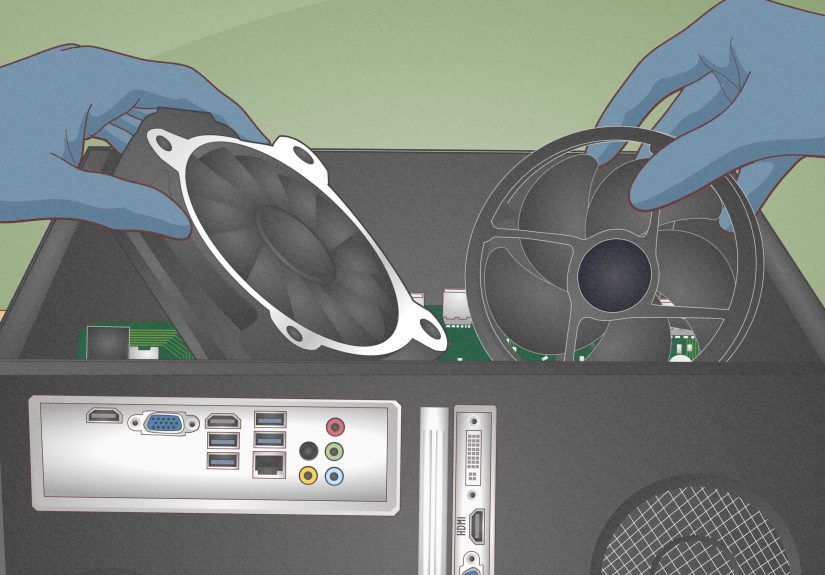
- 4) Clean Dust Out of the Heatsink, Fans, and Vents
- 5) Reseat the CPU Cooler (Mounting Pressure Matters)
- 6) Reapply Thermal Paste (Yes, It Can Actually Fix It)
- 7) Improve Case Airflow (Intake/Exhaust the Right Way)
- 8) Remove Overclocking (or Load BIOS Defaults)
- 9) Update BIOS/UEFI (Especially if the Error Is New)
- 10) Fix High CPU Usage in Windows (Heat Can Be a Software Problem)
- 11) Replace Failing Cooling Hardware (Fan, AIO Pump, or the Cooler Itself)
- When It’s a “False Alarm” (and What to Do)
- FAQ: CPU Temps, Throttling, and Best Practices
- Extra: of Real-World Experiences (So You Don’t Repeat the Classics)
- Conclusion
You press the power button, your PC starts to wake up… and then BAM:
“CPU Over Temperature Error! Press F1 to Run SETUP”.
Congratulationsyour computer just served you a hot warning with a side of panic.
The good news: this message is usually your motherboard doing its jobstopping things before your CPU turns into a tiny space heater.
The better news: most causes are fixable without a degree in rocket science (though a screwdriver and a bit of patience help).
In this guide, we’ll break down what the error means, why it happens, and the 11 easiest, most reliable fixesplus real-world
“I can’t believe that was the problem” experiences at the end.
What the “CPU Over Temperature Error” Means
This error typically appears at startup (often in BIOS/UEFI) when your motherboard detects the CPU temperature is dangerously high,
or it can’t confirm your CPU cooling system is working. Think of it as your PC saying:
“I’m not letting you drive until I know the brakes exist.”
Common triggers include: a CPU fan that isn’t spinning (or isn’t detected), an AIO pump that isn’t running,
a cooler that isn’t seated properly, dried-out thermal paste, dust-choked heatsinks, aggressive overclocks/voltage,
or poor airflow inside the case.
The key idea: heat isn’t the enemyuncontrolled heat is. Your CPU can handle brief spikes, but sustained high temps
can cause throttling, shutdowns, crashes, and long-term wear.
Before You Fix Anything: 2-Minute Safety Check
- Shut down the PC (don’t keep rebooting like it’s a video game checkpoint).
- Unplug power and wait a few minutes.
-
Open the side panel (desktop) and look for obvious issues: fans not spinning, cables hitting fan blades,
dust blankets, or an AIO pump that’s suspiciously silent. -
If you must enter BIOS, do it brieflyjust long enough to check temperatures and fan/pump RPM.
If temps shoot up fast, power off again.
If you smell burning, see smoke, or the CPU temp skyrockets immediately: stop and go straight to the cooling hardware checks below.
No hero points for “seeing what happens.”
11 Easy Methods to Fix the “CPU Over Temperature Error”
1) Check CPU Temperature and Fan/Pump RPM in BIOS
When the error appears, press F1 (or the key shown) to enter BIOS/UEFI and find the hardware monitor page.
You’re looking for two things:
- CPU temperature (if it’s already extremely high at idle, cooling is failing).
- CPU fan speed (RPM) (if it shows N/A or 0, the board may think the cooler isn’t working).
If the CPU fan is not detected, your motherboard may trigger the warning even if the CPU isn’t truly roasting yet.
That’s still a serious clue. [1]
2) Confirm the CPU Cooler Is Plugged into the Right Header
This is the #1 facepalm fix. Many boards want the primary cooler fan connected to CPU_FAN.
If it’s plugged into a case fan header (like CHA_FAN), BIOS may complaineven if the fan is spinning.
If you have an AIO (liquid cooler), the pump usually goes to AIO_PUMP or PUMP, while radiator fans
go to CPU_FAN (and sometimes CPU_OPT). The goal is: BIOS must “see” something on CPU_FAN. [1]
3) Set the Pump/Fan Control Correctly (Especially for AIO Coolers)
If your pump is connected but running too slowly (or not at all), your CPU can overheat fast.
Many AIO pumps are meant to run at a constant high speed, while fans ramp up/down with temperature.
- In BIOS, set the pump header to the correct mode (PWM or DC depending on the pump).
- Set pump speed to a steady value (often near 100%) unless your manufacturer says otherwise.
- Make sure fan curves aren’t set so low that fans barely spin at idle.
If the system suddenly started throwing this error after a BIOS reset or update, fan/pump control settings are a prime suspect.
[5]
4) Clean Dust Out of the Heatsink, Fans, and Vents
Dust is basically insulation for electronics. A thick layer on a heatsink can make your cooler about as effective as blowing on soup.
Desktop tip: Use short bursts of compressed air to clear heatsink fins and case filters. Hold fans still while blowing air so you don’t overspin them. [8]
Laptop tip: Start by clearing intake/exhaust vents with compressed air. If temps stay high, you may need deeper cleaning (or service). [9]
5) Reseat the CPU Cooler (Mounting Pressure Matters)
A cooler can look “installed” and still have poor contact with the CPU. If the heatsink isn’t evenly tightened, heat transfer drops,
temps spike, and the motherboard freaks out (understandably).
- Power off, unplug, remove the cooler carefully.
- Check for missing brackets, loose screws, or uneven mounting.
- Reinstall with even pressuretighten in a cross pattern (like lug nuts on a wheel).
If your PC was recently built, shipped, or moved, reseating is especially important. [1]
6) Reapply Thermal Paste (Yes, It Can Actually Fix It)
Thermal paste fills microscopic gaps between the CPU and the cooler. If it’s dried out, poorly applied, or missing in spots,
your CPU may overheat even with a good cooler.
Simple method: clean the old paste with isopropyl alcohol and a lint-free cloth, then apply a small, CPU-appropriate amount and reinstall the cooler. [10]
Pro tip: more paste isn’t “more better.” Too much can create a mess and reduce effectiveness. Think “enough to cover,” not “frosting a cake.”
7) Improve Case Airflow (Intake/Exhaust the Right Way)
Even the best CPU cooler struggles inside an oven. If hot air can’t exit your case, everything runs warmerCPU included.
- Front/side fans usually work best as intake.
- Top/rear fans usually work best as exhaust.
- Make sure nothing blocks the front panel vents or dust filters.
Not sure which way a fan blows? Many fans have airflow arrows, and fan labels can indicate direction. [3]
Need a simple baseline layout? A common sweet spot is “front intake + rear exhaust,” then add a top exhaust if needed. [4]
8) Remove Overclocking (or Load BIOS Defaults)
Overclocking isn’t just higher speedit’s often higher voltage, which means more heat.
If you recently enabled XMP/EXPO, boosted CPU ratios, or tweaked voltage settings, roll back to stock and test.
In BIOS, use Load Optimized Defaults (or similar), then save and reboot. If the error disappears, your previous settings were likely pushing temps too far.
9) Update BIOS/UEFI (Especially if the Error Is New)
BIOS updates can improve fan control behavior, sensor handling, and CPU microcode. If your system suddenly started warning after a hardware change,
or if monitoring looks wrong (like impossible temps), updating BIOS can help.
Follow your motherboard manufacturer’s official instructions carefullyBIOS updates are not the place for “freestyle mode.”
10) Fix High CPU Usage in Windows (Heat Can Be a Software Problem)
Sometimes the cooler is fine, but Windows is making your CPU sprint nonstopthink runaway background tasks, driver issues, or malware.
High CPU usage creates heat, and sustained heat can trigger thermal warnings on reboot.
- Open Task Manager and identify processes pegging CPU.
- Update Windows and drivers (especially chipset drivers).
- Run a reputable malware scan.
Microsoft’s troubleshooting guidance focuses on identifying the top CPU-consuming process firstthen addressing the root cause. [7]
11) Replace Failing Cooling Hardware (Fan, AIO Pump, or the Cooler Itself)
Fans wear out. Pumps can fail. Bearings get loud. And sometimes a cooler that “worked yesterday” is the same cooler that “gave up today.”
Warning signs:
- CPU fan RPM reads 0 or fluctuates wildly
- AIO pump makes grinding noises (or no noise at all)
- Temps rise extremely fast even at idle
- Dust cleaning + repaste did nothing
If the fan or pump is dead, replacement is usually the most time-efficient fix. And yesthis is also a great excuse to upgrade your cooler “for thermal reasons.” Totally noble. [6]
When It’s a “False Alarm” (and What to Do)
Occasionally, the warning appears even when the system doesn’t feel hot. That usually happens when:
- The motherboard can’t detect CPU_FAN RPM (wrong header, splitter issue, or fan monitor setting)
- An AIO pump is connected but not configured correctly in BIOS
- BIOS settings got reset and now fan curves are too conservative
- A sensor reading is incorrect or miscalibrated after a change
If temps in BIOS look normal but the warning persists, fix detection first (header + monitoring settings)
but don’t just disable warnings as a permanent “solution.” That’s like removing the smoke alarm batteries because you don’t like beeping.
[6]
FAQ: CPU Temps, Throttling, and Best Practices
How hot is too hot?
It depends on your CPU model, but every processor has a manufacturer-defined maximum operating temperature.
Brief spikes can happen, but sustained operation near the limit usually triggers throttling to protect the chip. [2]
Why does this error appear at startup?
Because BIOS checks cooling immediately. If it sees high temperature or can’t verify cooling (like missing CPU_FAN RPM),
it stops the boot process to prevent damage. [1]
Should I run my fans at 100% all the time?
For most air coolers, a sensible fan curve is better than “full blast forever.”
For many AIO pumps, a steady high pump speed is common, while radiator fans ramp with temperature.
Your exact best setup depends on your cooler and your noise tolerance. [5]
How do I prevent this from happening again?
- Clean dust filters and heatsinks regularly
- Keep cables tidy so airflow isn’t blocked
- Replace aging fans before they fail completely
- Monitor temps occasionally (especially after upgrades)
- Avoid unnecessary voltage increases
Extra: of Real-World Experiences (So You Don’t Repeat the Classics)
Over the years, the “CPU over Temperature Error” has earned a spot in the PC Hall of Fameright next to
“Why is my monitor black?” (answer: it’s not plugged in) and “My Wi-Fi is broken” (answer: airplane mode).
Here are some real-world scenarios that come up again and again, plus what actually fixed them.
The Case of the Wrong Header: A brand-new build boots, throws the error, and the builder swears the CPU fan is spinning.
It is! But it’s plugged into CHA_FAN because it was closer and “a fan header is a fan header, right?”
The motherboard disagrees. Moving the connector to CPU_FAN instantly clears the warning. Moral of the story:
your motherboard is picky, and it’s allowed to be.
The AIO That Wasn’t Pumping: This one is brutal because it heats up fast. The PC turns on,
you see temps climbing in BIOS like a thermostat in the desert, and then it shuts down.
The pump is connected, but the BIOS header is set to the wrong control mode (PWM vs DC), or it’s running at a low duty cycle.
Switching the header mode and setting pump speed correctly makes temps stabilize almost immediately.
Also, sometimes the pump cable is slightly loosejust enough to fail intermittently, which is the most annoying kind of failure.
The “I Cleaned It and Now It’s Worse” Special: Someone opens the case, blasts compressed air everywhere,
and suddenly fans spin like turbine engines. That overspin can stress bearings (and in some cases generate voltage back into headers),
and dust can get shoved deeper into heatsink fins if you blow from the wrong direction.
The fix is usually: hold the fan still, use short bursts, blow dust out through the path it came in,
and clean filters separately. The “cleaning” didn’t cause the overheatingpoor technique just didn’t actually remove the blockage.
The Thermal Paste Surprise: The system ran “fine” for a long time… until it didn’t.
Paste can dry out, especially in hotter environments or on older builds. The user expects a dramatic hardware failure,
but the actual fix is boring: clean old paste, apply a fresh amount, remount the cooler evenly.
Suddenly idle temps drop, load temps stop slamming the ceiling, and the BIOS warning disappears.
It’s the PC equivalent of changing the oil and the car stops making scary noises.
The Software Heat Trap: Not every overheating story starts with dust.
Sometimes Windows is pushing the CPU hard in the backgrounddriver issues, stuck updates, a rogue process, or malware.
The PC runs hot during normal use, then on reboot BIOS complains because everything is still heat-soaked.
The fix is diagnosing high CPU usage, updating drivers, and scanning for malware.
Once the CPU stops doing marathon training at idle, the thermal warnings vanish.
The takeaway: this error is usually caused by something simplebut it rarely announces which simple thing.
Start with the easy checks (headers, RPM detection, dust, airflow), then move to reseating and paste.
If temps still rocket upward, suspect a failing fan/pump or a cooler that just can’t keep up anymore.