Table of Contents >> Show >> Hide
- What Is a Hyperlink in Canva?
- Before You Start: What Can You Hyperlink in Canva?
- How to Hyperlink on Canva Using a Computer
- How to Hyperlink on the Canva App
- Best Types of Canva Projects for Hyperlinks
- Why Your Canva Hyperlink Is Not Working
- Canva Hyperlink Best Practices
- Computer vs. App: Which Is Better for Adding Canva Links?
- Specific Examples of Hyperlinks You Can Add in Canva
- Extra Experience: Practical Lessons From Using Canva Hyperlinks
- Conclusion
Adding a hyperlink in Canva is one of those tiny design tricks that makes your project feel instantly more professional. A plain PDF says, “Here is some information.” A clickable Canva PDF says, “Here is some information, and here is the exact button that takes you to the next step, because I respect your fingers and your time.” Whether you are creating a resume, media kit, classroom handout, digital planner, lead magnet, portfolio, presentation, business flyer, or social media resource page, hyperlinks can turn a static design into an interactive experience.
The good news: learning how to hyperlink on Canva is easy. The slightly-less-glamorous news: links only work in the right formats. If you download your design as a PNG or JPG, your link will look cute but behave like a decorative sticker. If you want clickable links, you usually need to share the design digitally, present it, publish it in an interactive format, or download it as a PDF where links are preserved. In other words, Canva can do the magic, but you still have to choose the right rabbit hat.
This guide walks you through how to add hyperlinks in Canva on a computer and in the Canva mobile app. You will also learn what you can link, how to test your links, why some links do not work after downloading, and how to make your clickable designs clearer, cleaner, and more user-friendly.
What Is a Hyperlink in Canva?
A hyperlink in Canva is a clickable connection added to text, an image, a button shape, an icon, a logo, or another design element. When a viewer clicks or taps that linked item in a supported digital format, it opens a web page, email address, document, landing page, form, online store, booking calendar, portfolio, or another destination.
For example, you might hyperlink the words “View my portfolio” in a resume PDF so hiring managers can jump straight to your work samples. A real estate agent might link a property flyer to a virtual tour. A teacher might link a classroom handout to a Google Form. A small business owner might link a pricing guide to a checkout page. A content creator might link a media kit to YouTube, TikTok, Instagram, or a sponsorship inquiry form.
The key idea is simple: clickable links reduce friction. Instead of asking readers to copy and paste a long URL, you give them one obvious action. That is better for user experience, better for conversions, and frankly better for everyone’s patience.
Before You Start: What Can You Hyperlink in Canva?
Canva allows you to add links to many types of objects inside a design, including:
- Text boxes and selected words
- Images and photos
- Icons, shapes, stickers, and graphic elements
- Buttons or call-to-action blocks
- Logos and social media icons
- Some video or presentation elements, depending on how the design is viewed
The most common use is hyperlinking text, such as “Download the free checklist” or “Book a consultation.” However, linking a button shape often looks more polished. Instead of dropping a full URL into your design, you can create a rounded rectangle, add text like “Start Here,” and attach the link to the whole button. That makes your design look cleaner and gives users a larger clickable target.
How to Hyperlink on Canva Using a Computer
If you are using Canva in a desktop browser, the process is quick. You can add a hyperlink in just a few clicks, and once you have done it once, you will probably start linking everything in sight. Try to resist hyperlinking your coffee mug. It has done nothing wrong.
Step 1: Open Your Canva Design
Log in to Canva and open the design where you want to add a clickable link. This can be an existing project or a new design. Hyperlinks are especially useful in PDFs, presentations, worksheets, ebooks, newsletters, brochures, digital business cards, pitch decks, menus, portfolios, and downloadable guides.
Before adding links, think about the reader’s journey. What should they do next? Visit your website? Register for an event? Watch a tutorial? Email you? Download a file? Your hyperlink should support a clear purpose, not just exist because the chain-link icon looked lonely.
Step 2: Select the Text, Image, or Element You Want to Link
Click the text box, image, icon, shape, logo, or button you want to make clickable. If you want to link only part of a text box, highlight the exact words instead of selecting the whole text block. For instance, in the sentence “Download the free Canva checklist,” you may want only “Download the free Canva checklist” to be clickable.
For best results, choose link text that describes the destination. Instead of “click here,” use a clear phrase such as “View the pricing guide,” “Download the PDF template,” or “Schedule a free consultation.” Descriptive link text helps readers understand what will happen before they click.
Step 3: Click the Link Icon or Use the More Menu
After selecting your text or element, look for the link icon in the toolbar. It usually looks like a small chain. Depending on your screen size and design type, you may need to click the three-dot More menu first, then choose Link.
Desktop users can often use the keyboard shortcut Ctrl + K on Windows or Command + K on Mac to open the link field faster. This shortcut is a tiny productivity gem. It is not flashy, but neither is a dishwasher, and we all know how valuable that is.
Step 4: Paste or Type the URL
Paste the destination URL into the link field. Use the full web address when possible, including https://. A complete link is less likely to break or behave strangely when the design is exported or shared.
You can link to many types of destinations, including:
- A website homepage
- A specific blog post or product page
- A Google Form, Typeform, or Jotform
- A Calendly or booking page
- A downloadable file
- A portfolio page
- A social media profile
- An email address using a mailto link, such as mailto:[email protected]
If you are creating a professional document, avoid pasting long, messy URLs directly into the design unless the URL must be visible. A button that says “Download the worksheet” looks much better than a blue snake of characters that wraps across three lines and scares the reader.
Step 5: Apply, Test, and Download Correctly
Click Apply, Done, or press Enter, depending on what Canva shows. Then test the hyperlink. In Canva, you can usually click the linked item and check whether the correct URL appears. If you are preparing a presentation, test it in present mode. If you are preparing a PDF, download a test copy and open it in a reliable PDF viewer or web browser.
To preserve clickable links in a downloaded file, choose a PDF format rather than an image format. PNG and JPG files do not keep interactive hyperlinks. For many common Canva PDF projects, PDF Standard is the safest choice when you want clickable links and easy digital sharing. Always open the downloaded PDF and click every important link before sending it to clients, students, customers, or your boss, who will definitely find the one link you forgot to test.
How to Hyperlink on the Canva App
The Canva mobile app lets you add hyperlinks from your phone or tablet. The workflow is similar to desktop, but the buttons are tucked into mobile-friendly menus. If you are working on a small screen, patience helps. So does zooming in before selecting tiny icons that seem determined to escape your thumb.
Step 1: Open the Canva App and Choose Your Design
Open the Canva app on your iPhone, iPad, or Android device. Sign in and tap the design you want to edit. If you are starting from scratch, create a new design type such as a document, presentation, flyer, resume, or social media layout.
Step 2: Tap the Element You Want to Hyperlink
Tap the text, button, image, logo, icon, or graphic element you want to make clickable. If you are linking text, tap into the text box and select the specific words when possible. On mobile, selecting exact text can feel a little fiddly, so zoom in if needed.
Step 3: Open the Link Option
Look along the bottom toolbar for a Link option. If you do not see it immediately, tap More, the three-dot menu, or scroll sideways through the editing options. Canva often places additional tools in expandable menus on smaller screens.
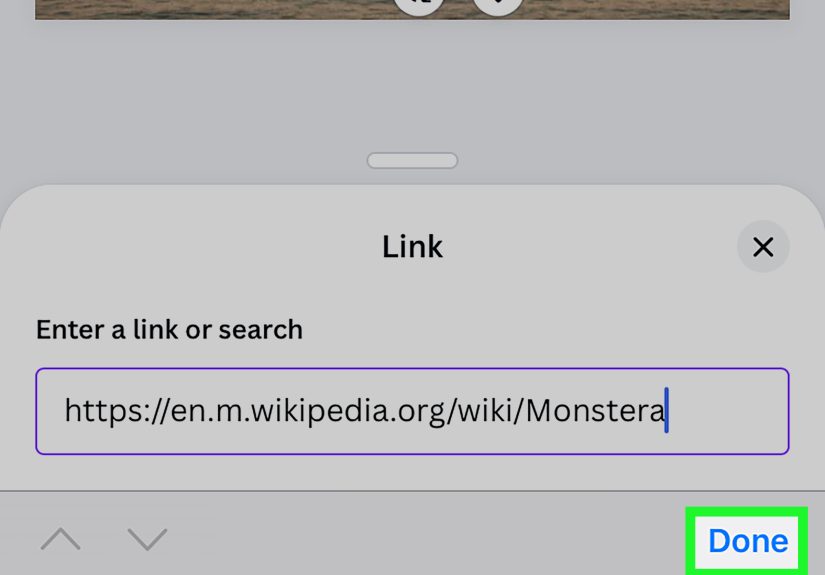
Step 4: Paste the Destination Link
Paste your URL into the link field. Again, use the complete address, including https://. For email links, use the mailto format. For example, mailto:[email protected] can open a new email draft when someone clicks it, depending on their device and mail settings.
Step 5: Save, Preview, and Test
Apply the link, preview the design, and test it before sharing. If you plan to send the design as a PDF, download it as a PDF and open the file on your phone or computer to confirm that the link works. Mobile apps update frequently, so testing is not optional; it is the seatbelt of digital design.
Best Types of Canva Projects for Hyperlinks
Hyperlinks are useful in almost any Canva project that will be viewed digitally. However, they shine brightest in designs where the reader needs to take action. Below are practical examples.
Digital Resumes and Portfolios
A resume can include links to a portfolio, LinkedIn profile, GitHub page, writing samples, design work, or case studies. Instead of listing a raw URL, hyperlink phrases like “View my UX portfolio” or “Explore published writing samples.” This keeps the resume neat while giving employers easy access to proof of your work.
Lead Magnets and Ebooks
If you create free guides, checklists, templates, or ebooks, hyperlinks can guide readers to related resources. A fitness coach might link to a meal plan sign-up page. A marketing consultant might link to a strategy call. A photographer might link to a booking calendar.
Classroom Materials
Teachers can link worksheets to videos, quizzes, reading materials, and assignment forms. Students benefit because they do not need to retype complicated URLs. Teachers benefit because fewer students say, “I could not find the link,” which is one of the unofficial theme songs of modern education.
Business Flyers and Menus
A restaurant menu PDF can link to online ordering. A spa brochure can link to appointment booking. A nonprofit flyer can link to a donation page. A conference agenda can link to speaker bios, maps, and registration pages.
Social Media Resource Pages
Canva is often used to create link-in-bio style pages, media kits, and promotional PDFs. Hyperlinks make these resources more actionable. Just remember that links inside image posts on social platforms usually will not be clickable after upload. For clickable experiences, share a PDF, website, or hosted page instead.
Why Your Canva Hyperlink Is Not Working
If your Canva hyperlink is not working, do not panic. The problem is usually one of a few common issues.
You Downloaded the Wrong File Type
Hyperlinks do not work in flat image files like PNG or JPG. If you export a flyer as an image, the design becomes a picture. Viewers can see the button, but they cannot click it. Download as a PDF when you need clickable links.
The PDF Was Flattened
Some export settings or processing tools can flatten a PDF, turning interactive layers into a static page. If links disappear after downloading or uploading the file somewhere else, test a fresh PDF export and avoid tools that compress, flatten, or convert the PDF into images.
The URL Is Incomplete or Incorrect
A missing character can break a link. Check spelling, punctuation, slashes, and tracking parameters. The safest method is to open the destination page in your browser, copy the full URL from the address bar, and paste it directly into Canva.
The Link Is Hidden Under Another Element
Canva designs often use layers. If a transparent shape, image, or decorative element sits on top of your linked button, the click may not land where you expect. Use Canva’s position or layer tools to bring the linked item forward, then test again.
The Viewing Platform Does Not Support the Link
Some platforms preview PDFs in ways that limit interactivity. If you upload a PDF to a social media post, the links may not behave as they do in a normal PDF viewer. Test the file in a browser, Adobe Acrobat Reader, or another reliable PDF viewer before assuming the link is broken.
Canva Hyperlink Best Practices
Adding a link is easy. Adding a useful link is where the strategy comes in. A good hyperlink should be clear, visible, and worth clicking.
Use Descriptive Link Text
Instead of vague labels like “Click here” or “Read more,” write link text that explains the destination. Good examples include “Download the event schedule,” “View the Canva template,” “Book a free design consultation,” and “Explore the full product catalog.” Clear link text helps readers, supports accessibility, and gives search engines better context when the linked document is published online.
Make Links Visually Obvious
In body text, links should stand out from regular copy. Underlined text, contrasting color, or button styling can help. If everything looks clickable, nothing looks clickable. Do not make readers play “guess the link” like it is a low-budget escape room.
Create Large Clickable Areas
When designing for mobile users, avoid tiny linked words or small icons. A button shape with clear text is easier to tap. If you use social icons, make sure each icon is large enough and spaced far enough apart that users do not accidentally open your Pinterest profile when they meant to email you.
Link to the Most Relevant Page
Do not always link to your homepage. If your button says “Shop the spring collection,” link directly to the spring collection. If your resume says “View writing samples,” link directly to the writing samples. The fewer steps users need, the better the experience.
Test Every Link Before Publishing
Testing is the most boring step and the most important one. Click every link after exporting your file. Test on desktop and mobile if your audience will use both. If the design is important, ask another person to test it too. Fresh eyes catch tiny errors, especially when you have been staring at the same PDF for two hours and no longer trust the alphabet.
Computer vs. App: Which Is Better for Adding Canva Links?
Both desktop Canva and the Canva app can add hyperlinks, but the computer version is usually faster for link-heavy projects. Desktop gives you more screen space, easier text selection, faster copying and pasting, and keyboard shortcuts like Ctrl + K or Command + K. If you are creating a 20-page ebook, a media kit with multiple buttons, or a portfolio with many external links, desktop will probably feel smoother.
The Canva app is excellent for quick edits. If you spot a typo in a button link while waiting in line for coffee, you can fix it from your phone. If you need to add one link to a flyer before sending it, the app works well. But for detailed link testing, page-by-page navigation, and layer troubleshooting, a computer is still the more comfortable choice.
Specific Examples of Hyperlinks You Can Add in Canva
Here are a few realistic examples you can adapt for your own designs:
- Resume: Link “View my portfolio” to your portfolio website.
- Business card PDF: Link your email address with a mailto link.
- Restaurant menu: Link “Order online” to your ordering page.
- Webinar flyer: Link “Reserve your seat” to your registration form.
- Teacher worksheet: Link “Watch the lesson video” to a video resource.
- Real estate flyer: Link “Take the virtual tour” to a property tour page.
- Influencer media kit: Link platform icons to Instagram, YouTube, TikTok, and a contact form.
The principle is the same every time: choose the object, add the link, apply it, export correctly, and test like your reputation depends on it. Because sometimes, it does.
Extra Experience: Practical Lessons From Using Canva Hyperlinks
After working with clickable Canva designs, one thing becomes clear: the hyperlink itself is rarely the hard part. The real challenge is designing the path around the hyperlink. A link can be technically correct and still perform poorly if the reader does not notice it, trust it, or understand why they should click it. That is why the best Canva hyperlinks are planned before the design is finished, not sprinkled on at the end like digital confetti.
For example, imagine you are creating a downloadable pricing guide for a photography business. You add a beautiful button that says “Book Now,” but it sits at the bottom of page six after a long wall of package details. The link works, but readers may never reach it. A better approach is to include smaller calls to action throughout the guide: “Check available dates,” “View full galleries,” and “Ask about custom packages.” Each link serves a different reader need. Someone ready to book can act immediately. Someone still researching can explore more proof. Someone with questions can contact you without hunting for your email.
Another lesson: visible does not always mean obvious. Designers love subtlety. Users love clarity. A pale beige text link on a cream background may match the brand palette, but if readers cannot tell it is clickable, the design is working against itself. In Canva, button-style links often perform better because they look interactive. A simple rounded rectangle with strong contrast and action-focused wording can do more than a delicate text link that whispers, “Maybe I am clickable, maybe I am just decorative.”
It also helps to build a link checklist before exporting. For any important Canva PDF, check four things: destination, wording, placement, and file format. Destination means the URL opens the right page. Wording means the link label clearly explains the action. Placement means the link appears where the reader naturally needs it. File format means the final shared version still supports clicking. This tiny checklist can prevent embarrassing mistakes, like sending a polished brochure where the “Schedule a Call” button opens last year’s holiday sale page. Festive, yes. Helpful, no.
Mobile testing is another underrated habit. Many Canva documents are opened on phones, even if they were designed on a large desktop monitor. A button that looks roomy on your laptop may feel tiny on a smartphone. Before publishing, open the PDF on your phone and tap the links with normal human thumbs, not imaginary precision instruments. If the link is hard to tap, enlarge the button, add spacing, or simplify the layout.
Finally, remember that hyperlinks are promises. When your Canva button says “Download the template,” users expect a template. When it says “See pricing,” they expect pricing, not a homepage maze with seven menu items and a pop-up asking them to subscribe before they have learned anything. The more honestly your link label matches the destination, the more professional your design feels. Good linking is not just a technical skill. It is a trust-building skill.
Conclusion
Learning how to hyperlink on Canva takes only a few minutes, but it can dramatically improve how people use your digital designs. On a computer, open your design, select the text or element, click the link icon or use Ctrl + K or Command + K, paste the URL, apply it, and test the final PDF. On the Canva app, the process is nearly the same: tap the object, find the Link option in the toolbar or More menu, paste the destination, save, and test.
The biggest rule is simple: links need the right format. If you want clickable hyperlinks, do not rely on PNG or JPG exports. Use a supported digital format such as a PDF, and always test after downloading. Pair that with descriptive link text, visible button styling, and relevant destinations, and your Canva project becomes easier to navigate, more polished, and more effective.
In short, a Canva hyperlink is small, but mighty. It can turn a pretty design into a practical tool, a reader into a subscriber, a browser into a buyer, or a hiring manager into someone who actually sees your portfolio. Not bad for one little chain icon.