Table of Contents >> Show >> Hide
- What “Unlock” Means on a Motorola Phone
- What You Need on Your Windows PC
- Method 1: Carrier Unlock a Motorola Phone Using Windows
- Method 2: Unlock the Motorola Bootloader with Windows
- Method 3: Regain Access If You Forgot the Screen Lock
- How Windows Helps During the Unlock Process
- Common Problems and Fixes
- Best Practices Before You Unlock Any Motorola Phone
- Final Thoughts
- Real-World Experiences Unlocking Motorola Phones with Windows
If you searched for how to unlock Motorola phones with Windows, you are probably dealing with one of three very different headaches: your phone is carrier-locked, your bootloader is locked, or you forgot the screen lock and now your Motorola is staring back at you like a tiny judgmental brick. The good news? Windows can help with all three. The even better news? You do not need sketchy software from a website that looks like it was built in a basement in 2009.
In this guide, we will walk through the safest, most realistic ways to unlock a Motorola phone using a Windows PC. We will cover official carrier unlocks, Motorola bootloader unlock tools, and what to do if you are locked out of the screen on a phone you actually own. No magic tricks. No shady “one-click miracle unlocker.” Just real methods that work in the real world.
What “Unlock” Means on a Motorola Phone
Before you plug anything into your Windows computer, let’s clear up the vocabulary. The word unlock gets tossed around like confetti, but it can mean very different things:
1. Carrier unlock
This removes the network restriction so your Motorola phone can use another carrier’s SIM card. If your phone was bought through AT&T, T-Mobile, Verizon, or another carrier, this is usually the unlock people mean.
2. Bootloader unlock
This unlock lets advanced users modify the software, flash custom images, or root the device. It is a developer-style move, not a casual Sunday-afternoon activity. It can also void warranties, erase data, and increase risk if you are not careful.
3. Screen unlock recovery
If you forgot your PIN, password, or pattern, there is no official “bypass” button. The standard path is usually a factory reset and then signing back in with the Google account that was previously on the phone. That keeps your data safe from strangers, which is annoying when it is your phone and helpful when it is not.
What You Need on Your Windows PC
If you plan to unlock a Motorola phone with Windows, set up your computer first. Trust me, this is faster than troubleshooting driver chaos later while your phone hangs in Fastboot mode like it is posing for a dramatic movie poster.
- A Windows 10 or Windows 11 PC
- A reliable USB data cable
- Your Motorola phone charged to at least 50%
- Your phone’s IMEI number for carrier unlock requests
- Motorola USB drivers or Motorola Device Manager if Windows does not recognize the device
- Android SDK Platform-Tools if you are doing a bootloader unlock
- Your Google account credentials if the phone must be reset
To find your IMEI, dial *#06# on the phone if you still have access, or check the SIM tray box, device packaging, or the phone settings. Keep it handy because carriers treat that number like the phone’s passport.
Method 1: Carrier Unlock a Motorola Phone Using Windows
If your Motorola is locked to a mobile carrier, your Windows PC mainly acts as the command center. You use it to check eligibility, submit a request, receive your unlock approval, and follow the final activation steps.
Step 1: Confirm the phone is paid off and eligible
Most U.S. carriers only unlock phones that meet their rules. In plain English, that usually means:
- The phone is fully paid off
- The account is in good standing
- The device is not reported lost or stolen
- The phone has been active for the required number of days
This is where many people hit a wall. They think the phone is “locked by Motorola,” when the real issue is that the carrier has not cleared it yet. Motorola makes the phone, but the carrier often controls the SIM lock.
Step 2: Open the carrier’s unlock portal on your Windows browser
Use Chrome, Edge, or another browser on your PC and go to your carrier’s official device unlock page. Enter the IMEI, confirm your account details, and submit the request if the phone qualifies.
For example, AT&T, T-Mobile, and Verizon each have their own unlocking policy and process. Some devices unlock automatically once eligible. Others still require a request or a status check. So yes, sometimes “unlocking” means clicking through a web form and waiting like a civilized adult.
Step 3: Insert another SIM card
Once the unlock is approved, power off the Motorola phone and insert a SIM card from a different carrier. When the phone powers back on, it may:
- Start working immediately
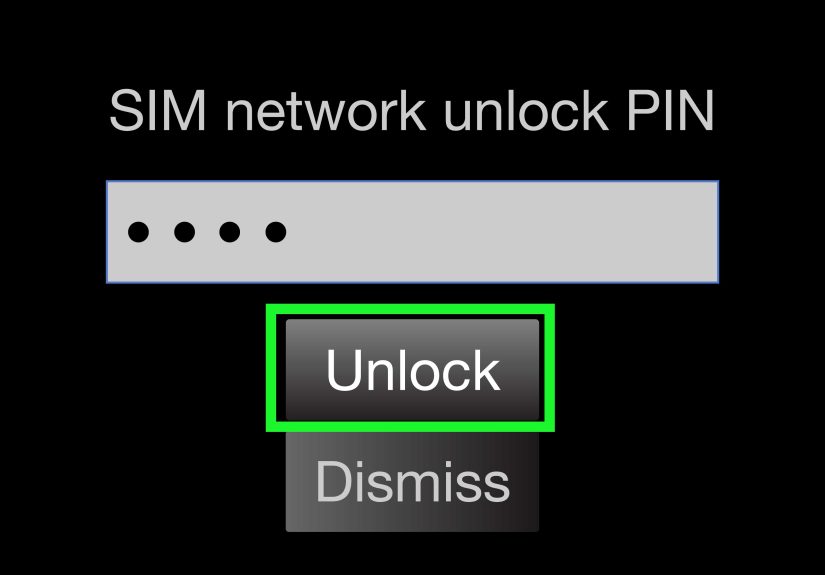
- Prompt for an unlock code
- Ask you to confirm network settings
If a code is required, enter only the code provided by the official carrier. Do not guess. Most phones give you a limited number of attempts, and turning a simple unlock into a permanent lock is not a fun hobby.
Step 4: Test calls, texts, and data
After the SIM network unlock, place a test call, send a message, and check mobile data. If the phone connects but data does not work, update the APN settings for the new carrier. That part is not glamorous, but it is often the final step between “unlocked” and “why is this thing only good for Wi-Fi?”
Method 2: Unlock the Motorola Bootloader with Windows
This method is for advanced users who want to modify software, flash images, or install custom ROMs. It is not for carrier unlocking. It is definitely not for bypassing a forgotten screen lock. Different mission, different toolbox.
Important warning before you continue
Bootloader unlocking usually wipes the phone. It may reduce security. Some Motorola models are not eligible at all. Some carrier-branded phones block it completely. If your goal is just to switch carriers or recover access to a personal device, skip this section and save yourself an afternoon of command-line stress.
Step 1: Install Motorola drivers on Windows
Connect your phone to the PC. If Windows does not recognize it correctly, install the proper Motorola USB drivers. Without drivers, your computer may act like the phone is a mysterious potato with a charging port.
Step 2: Download Android Platform-Tools
Get the Windows version of Android SDK Platform-Tools. This gives you adb and fastboot, which are the standard command-line tools used to talk to Android devices from a PC.
Step 3: Enable Developer Options
On the Motorola phone, go to Settings > About phone and tap the build number multiple times until Developer Options are enabled. Then go into Developer Options and enable:
- OEM unlocking
- USB debugging
If OEM unlocking is missing or grayed out, the device may not support official bootloader unlocking. That is your cue to stop, not your cue to start Googling weird workarounds.
Step 4: Reboot to bootloader mode
Open Command Prompt or PowerShell in the platform-tools folder on Windows, then connect the phone and use the appropriate reboot command to enter bootloader mode. Once there, you can retrieve the unlock data string required by Motorola’s official unlock portal.
Step 5: Request the unlock key from Motorola
Motorola provides an official bootloader unlock page for supported devices. You paste in the unlock data, sign in, agree to the warnings, and request an unlock key if the phone is eligible.
Step 6: Use the unlock key in Fastboot
Once Motorola emails the key, you run the official fastboot unlock command from your Windows PC. The phone will usually wipe itself and restart unlocked. After that, you can continue with whatever advanced software project sent you down this rabbit hole in the first place.
Method 3: Regain Access If You Forgot the Screen Lock
Let’s keep this honest: if you forgot the PIN, password, or pattern, there is no official Windows tool that magically removes the lock screen while preserving all your data. Android security is designed specifically to prevent that.
The safe and legitimate recovery path is usually to erase the device and then sign back in with the Google account previously synced to the phone.
Option A: Use Google Find My Device from your Windows PC
If the Motorola phone is online and tied to your Google account, sign in from your Windows browser and use Google’s device management tools to erase it remotely. This is often the cleanest option if the phone is lost, locked, or simply refusing to cooperate.
Option B: Factory reset from recovery mode
If the phone is offline or you cannot reach it through Google’s dashboard, you can perform an external reset using the hardware buttons to enter recovery mode. This wipes the device. Afterward, Android’s Factory Reset Protection will require the Google account that was already on the phone before the reset.
That is a feature, not a bug. It helps make stolen phones less useful, which is great for society and mildly inconvenient for anyone who forgets their own login details.
Option C: Recover your Google account first
Before you reset the phone, make sure you know the correct Google username and password. If you reset first and then discover you forgot the account password too, you may create a larger problem with smaller patience.
How Windows Helps During the Unlock Process
Windows is not the thing that unlocks the Motorola phone by itself. Instead, it helps you do the job properly:
- Use a browser to submit carrier unlock requests
- Check IMEI compatibility and unlock status
- Install Motorola USB drivers
- Run Android Platform-Tools for supported bootloader unlocks
- Access Google account recovery and Find My Device
- Back up files before you do anything risky
In other words, Windows is your workshop bench. The real unlocking authority usually belongs to the carrier, Motorola, or Google, depending on the type of lock.
Common Problems and Fixes
Windows does not detect the phone
Try another USB cable, another port, and reinstall the Motorola drivers. Also confirm the cable supports data, not just charging. Some cables are basically electronic noodles with ambition issues.
The carrier says the phone is not eligible
Check outstanding payments, fraud flags, lost/stolen reports, or activation-age requirements. Sometimes the solution is not technical at all. It is billing.
OEM unlocking is unavailable
Your Motorola model or carrier version may not support official bootloader unlocking. That is common on certain branded devices.
The phone asks for the previous Google account after reset
That is Factory Reset Protection doing its job. Sign in with the Google account previously used on the device. If needed, recover that account first.
Best Practices Before You Unlock Any Motorola Phone
- Back up photos, contacts, and important files
- Charge the battery before starting
- Use only official carrier, Motorola, and Google tools
- Double-check whether you need a SIM unlock, bootloader unlock, or reset
- Write down your Google account details before wiping the phone
- Do not trust random “instant unlock” desktop apps
Final Thoughts
Learning how to unlock Motorola phones with Windows gets much easier once you know what kind of lock you are dealing with. A carrier lock needs carrier approval. A bootloader lock needs Motorola support and Android tools. A forgotten screen lock usually means a reset and Google account verification. Three problems, three different paths, one Windows PC doing the heavy support work.
The biggest mistake people make is chasing a one-size-fits-all unlock tool. Real Motorola unlocking is much less dramatic. It is a mix of eligibility checks, official portals, USB drivers, and a little patience. Not as cinematic as hacking scenes in movies, but much more likely to leave your phone working afterward.
Real-World Experiences Unlocking Motorola Phones with Windows
In practice, most people who search for this topic are not trying to do anything exotic. They usually have a Moto G, Moto Edge, or another Motorola device that came from a carrier deal, and now they want to switch networks, sell the phone, or fix a lockout after forgetting the screen PIN. The experience often starts with confusion because the phrase “unlock phone” sounds simple, while the actual situation is anything but simple.
One of the most common experiences is the carrier unlock route. A user opens their Windows laptop, types in the phone’s IMEI, and expects an instant green light. Instead, they discover the device still has an installment balance, or it has not been active long enough. That moment is frustrating, but it is also useful because it saves hours that might otherwise be wasted on fake software. Once the device becomes eligible, though, the process usually feels surprisingly boring in a good way. Submit request, wait for approval, pop in another SIM, and suddenly the phone starts acting like a free citizen.
Bootloader unlocking feels very different. This is where Windows becomes more hands-on. People often describe the first attempt as part technology project, part trust exercise with a USB cable. You install drivers, download platform-tools, open Command Prompt, and hope the phone appears when you ask the computer to list connected devices. When it works, it feels fantastic. When it does not, it feels like the phone and the PC are in a silent argument you somehow got dragged into. The biggest lesson most users report is that preparation matters more than speed. Drivers, cables, battery level, and model compatibility are everything.
Screen-lock recovery is usually the most emotional situation. Nobody searches that topic because they are having a calm, luxurious day. It usually happens when someone has not used an old Motorola in months, turns it on, and suddenly cannot remember the PIN they were absolutely sure they would never forget. In those cases, Windows helps less as a technical unlock machine and more as a recovery hub. You use the browser for Google account recovery, Find My Device, backup checks, and support pages. It is not glamorous, but it is effective.
A lot of users also learn a practical truth the hard way: the safest method is rarely the flashiest one. The internet is full of tools promising instant unlocking, total bypassing, and miracle-level convenience. Real-world experience says official methods may feel slower, but they are more reliable, less risky, and far less likely to turn a perfectly good Motorola phone into an expensive paperweight. In the end, the people who have the smoothest experience are usually the ones who slow down, identify the exact type of lock, and use Windows as a support tool instead of a magic wand.