Table of Contents >> Show >> Hide
- How Pandora Evolved Into a Standalone Apple Watch App
- What You Need to Use Pandora Without Your iPhone
- How to Set Up Pandora on Your Apple Watch
- Listening Without Your iPhone: Streaming and Offline Modes
- Pandora vs. Other Apple Watch Music Apps
- Tips and Troubleshooting for a Smooth Experience
- Is Pandora on Apple Watch Without iPhone Worth It?
- Real-World Experiences with the Pandora Apple Watch App
For years, Apple Watch owners had one big complaint: you still had to bring
your iPhone if you wanted to listen to Pandora on the go. That kind of
defeats the purpose of having a tiny computer strapped to your wrist,
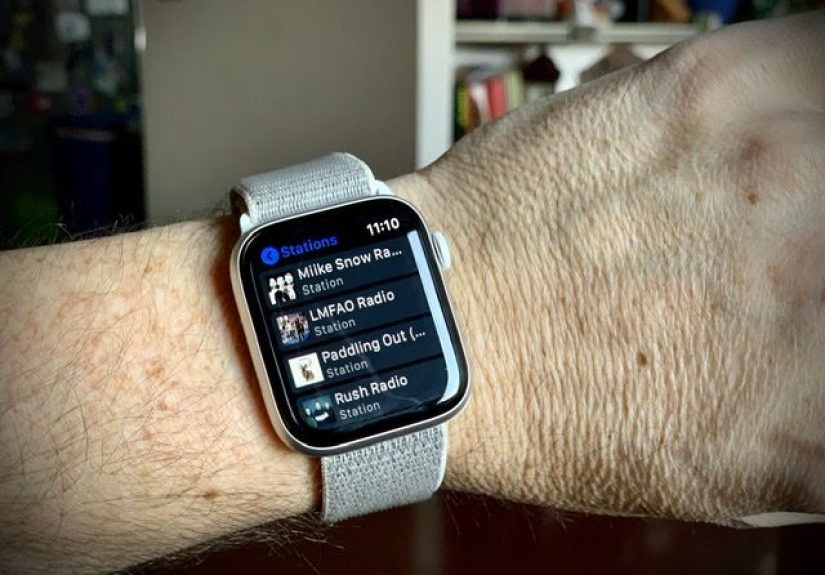
right? The good news is that those days are over. The Pandora Apple Watch
app now works without your iPhone, letting you stream music and podcasts or
listen offline straight from your wrist.
Whether you are training for a marathon, lifting at the gym, or just
grabbing groceries, you can finally leave your phone at home and still
bring your favorite stations with you. In this in-depth guide, you will
learn what “no iPhone required” really means, what you need to get started,
how to set everything up, and how to get the best experience out of Pandora
on your Apple Watch.
How Pandora Evolved Into a Standalone Apple Watch App
A quick timeline of Pandora on Apple Watch
Pandora has not always been this independent on Apple Watch. At first, the
watch app was basically a handy remote for the iPhone app. You could skip
songs, give a thumbs up, and see what was playing, but all the heavy lifting
still happened on your phone.
Things started to change in early 2019, when Pandora updated its iOS app
with a redesigned Apple Watch experience that added offline playback. Plus
and Premium subscribers could sync stations to the watch and listen even
when the iPhone was out of range. It was still tied to the phone for setup,
but it was the first big step toward real phone-free listening.
In 2020, Pandora pushed things further by introducing a fully standalone
Apple Watch app. With this update, you no longer needed a connected iPhone
to stream music or podcasts. The app could live on the watch, connect to
Wi-Fi or cellular, and pull in your stations and playlists directly. For
many users, that was the moment Pandora finally “caught up” to what the
Apple Watch hardware had been capable of for a while.
What “no iPhone required” really means
When Pandora says its Apple Watch app now works without an iPhone, it does
not mean you never need a phone again. You will still use an iPhone to
create your Pandora account, manage your subscription, and handle some
initial setup. But once everything is configured, you can:
- Stream stations and podcasts directly from your watch over Wi-Fi or cellular.
- Access offline content you have downloaded to your Apple Watch.
- Control playback, thumbs up/down, and station changes from your wrist.
- Use Bluetooth headphones or earbuds paired directly with the watch.
In day-to-day life, that means you can go out without your phone and still
have full access to your Pandora listening, as long as your watch has a
network connection or offline content stored.
What You Need to Use Pandora Without Your iPhone
Before you try to stream “Thumbprint Radio” from the treadmill with your
phone safely sitting on your dresser at home, make sure you meet these
basic requirements.
Compatible Apple Watch and software
- Apple Watch Series 3 or later.
- watchOS 6 or later (newer is better for performance and battery life).
- An iPhone running a modern version of iOS to handle initial setup.
Most people using an Apple Watch from the last few years are already good
here. If you are on a much older model or watchOS version, it is time to
consider upgrading before you expect smooth standalone streaming.
Pandora account and subscription level
You can install and use Pandora on Apple Watch with a free account, a Plus
subscription, or a Premium/Premium Family subscription. However, your
experience will differ:
-
Free plan: Stream stations with ads when your watch is
online. Offline listening is not officially included. -
Pandora Plus: Ad-free personalized radio plus offline
listening to a limited number of stations. -
Pandora Premium: On-demand music and podcasts, custom
playlists, and more robust offline options.
If you care about reliable offline listening straight from your wrist,
upgrading to Plus or Premium is worth serious consideration.
Connectivity and headphones
To enjoy independent listening on your Apple Watch, you also need:
-
Wi-Fi or cellular: A cellular Apple Watch with its own
data plan lets you stream anywhere you have coverage. A GPS-only watch
can still stream when it is connected to a known Wi-Fi network. -
Bluetooth audio: The Apple Watch does not play full
music tracks through its tiny built-in speaker. Pair Bluetooth
headphones, earbuds, or a speaker directly to the watch.
How to Set Up Pandora on Your Apple Watch
Once your devices and account are ready, setting up Pandora on Apple Watch
takes just a few minutes.
1. Install Pandora on the watch
- On your iPhone, open the Watch app.
- Scroll down to the list of available apps and find Pandora.
- Tap Install to add it to your Apple Watch.
-
Alternatively, on your Apple Watch, open the
App Store, search for “Pandora,” and install it
directly on the watch.
2. Sign in and sync your content
After installation:
- Open the Pandora app on your iPhone and sign in, if you have not already.
- Open Pandora on your Apple Watch. It will automatically use your account.
-
Give the app a few moments to sync your favorite stations, playlists, and
podcasts.
You should now see your usual listening options right on your wrist,
similar to the layout in the iPhone app.
3. Choose where the audio plays from
One sneaky setting trips up a lot of people: Pandora can still default to
playing from your iPhone instead of the Apple Watch.
- On your Apple Watch, open the Pandora app.
-
Scroll down to the section that shows where audio is playing from (often
labeled something like Playing From). -
Make sure you change the source from iPhone to
Watch.
Once that is set to Watch and your Bluetooth headphones are paired, you are
truly ready to go phone-free.
Listening Without Your iPhone: Streaming and Offline Modes
With everything set up, you now have two main ways to listen to Pandora on
your Apple Watch without your iPhone nearby: live streaming and offline
playback.
Option 1: Stream directly from your wrist
Streaming is the most flexible way to listen. You are pulling content from
Pandora’s servers in real time, which means you can:
- Start any supported station on the fly.
- Browse and play podcasts.
- Discover new artists and tracks based on your thumbs up/down.
To stream without your iPhone:
- Make sure your Apple Watch has cellular service or is on a Wi-Fi network.
- Open Pandora on your watch.
- Pick a station, playlist, or podcast and press play.
Keep in mind that streaming uses data and battery. Cellular streaming,
especially, can drain your battery faster than you might expect, so it is a
good idea to start a run fully charged rather than at 15%.
Option 2: Download stations for offline listening
If you have Pandora Plus or Premium, you can download stations or playlists
for offline use. This is ideal when:
- You often work out in areas with weak cellular coverage.
- You want to save on mobile data.
- You fly frequently or commute underground.
The basics of offline listening on Apple Watch are:
-
On your iPhone, use the Pandora app to choose which stations or
playlists you want to download. -
Make sure your Apple Watch is charging, connected to your iPhone, and on
Wi-Fi so the offline content can sync to your watch. -
Once synced, open Pandora on the watch and look for your downloadable or
offline stations.
After that, you can head out with just your watch and headphones and play
your offline content even with zero signal.
Pandora vs. Other Apple Watch Music Apps
Pandora is not the only streaming service on Apple Watch, but it offers a
distinctive experience:
-
Apple Music: Deeply integrated with Apple’s ecosystem,
Apple Music lets you sync albums and playlists to your watch and stream
with a cellular model. It is great if you are heavily invested in Apple
devices. -
Spotify: Spotify also supports offline playback and
standalone streaming on Apple Watch, but it leans more on on-demand
playlists and albums. -
Pandora: Pandora shines with its personalized radio
experience. You pick a station, thumb songs up or down, and let the
algorithm handle the rest. On the watch, that “press play and go” style
works extremely well.
If you prefer effortless, mood-based listening where you are not constantly
hunting for the next track, Pandora’s station-based approach feels right at
home on your wrist.
Tips and Troubleshooting for a Smooth Experience
Fixing playback issues when you are away from your phone
If Pandora refuses to play when your iPhone is not nearby, try this
checklist:
- Confirm that your watch has cellular service or is on a Wi-Fi network.
-
Open Pandora on the watch and make sure the audio source is set to
Watch, not iPhone. - Verify that Bluetooth headphones are connected directly to the watch.
- Restart both your Apple Watch and iPhone if the app is acting up.
-
If offline content will not play, keep the watch on the charger and
connected to Wi-Fi to allow syncing to finish.
Managing battery life
Streaming over cellular, especially at higher volumes and for long
workouts, will always tax your Apple Watch battery. To stretch battery
life:
- Use offline stations whenever possible instead of constant streaming.
- Lower your headphone volume a bit.
-
Turn off other power-hungry features you do not need during your workout,
like always-on display or constant background refresh for nonessential
apps.
Is Pandora on Apple Watch Without iPhone Worth It?
If you are a fan of Pandora’s “set it and forget it” stations, the Apple
Watch app finally delivers on the promise of true wrist-only listening. You
can leave your phone at home, throw on wireless earbuds, and head out the
door with nothing but your watch and your keys.
Runners, cyclists, and gym-goers benefit the most, since they often do not
want to carry a bulky phone. Frequent travelers and commuters also gain a
lot from offline listening, especially when service is unreliable or
expensive. As long as you understand the basic requirements and set things
up properly, Pandora on Apple Watch is a surprisingly powerful partner for
everyday listening.
Real-World Experiences with the Pandora Apple Watch App
So what does life actually look like when you rely on Pandora on your Apple
Watch instead of lugging your phone around? Picture a few common
scenarios.
First, imagine an early-morning runner. You wake up, glance at the time on
your watch, and decide you have just enough energy (and caffeine) to knock
out a 5K. Instead of hunting for your phone, armband, and wired earbuds,
you simply grab your wireless headphones, strap them on, and tap the
Pandora icon on your watch. Your favorite “Upbeat Cardio” station is right
there. Within seconds, you are out the door, tracking your pace with the
Workout app while Pandora keeps the tempo steady. When a song really hits,
a quick thumbs-up tap tells the algorithm to send more like it, no phone
required.
Now think about a gym session. In a crowded weight room, trying to juggle
your phone, earbuds, a water bottle, and a towel can feel like an obstacle
course. With the Pandora Apple Watch app, you can leave your phone in your
locker (or at home entirely if your watch has cellular) and keep things
simple. You flip your wrist between sets, switch from a rock station to a
podcast, and pause playback instantly when someone comes over to talk. The
less you have to fuss with your gear, the more mental energy you can spend
actually working out.
Commuters also get a big quality-of-life boost. Suppose you are taking a
train or bus to work. Instead of staring at your phone the whole time, you
can slip it into your bag and let the watch handle the soundtrack. Maybe
you listen to a news podcast in the morning and a mellow station on the way
home. Using your watch controls, you can adjust volume, skip a song, or
switch stations without diving into your pockets every few minutes. It is a
small change, but it makes your commute feel a little less hectic.
One of the most underrated perks is how easy it becomes to curate your
listening on the fly. When you are walking the dog, doing chores, or
grocery shopping, it is incredibly convenient to tap thumbs up or thumbs
down directly from your wrist. Over time, that fine-tunes your stations
into something that feels tailor-made for your day. The watch does not just
replace your phone; it subtly encourages you to interact with Pandora more
often, because it is always right there.
Of course, there are a few lessons most users learn early. One is that
planning offline stations ahead of time pays off. If you know you will be
flying or heading somewhere with spotty coverage, syncing a couple of
favorite stations to your watch the day before can be the difference
between a peaceful, music-filled trip and a quiet, slightly grumpy one.
Another lesson is to keep an eye on battery life. Long LTE streaming
sessions will chew through power faster than offline listening, so it is
smart to start your day with a decent charge if you know you will be
streaming from your wrist for hours.
Overall, the experience of using Pandora on Apple Watch without your iPhone
feels like the way the watch was meant to work all along. You get freedom
from your phone, a steady soundtrack for your day, and an easy way to
personalize what you hear without breaking your stride. Once you get used
to that level of convenience, going back to carrying your phone just to
listen to music can feel strangely old-fashioned.