Table of Contents >> Show >> Hide
- Why Does TikTok Say “Video Is Being Processed”?
- 9 Ways to Fix a TikTok Video Still Processing
- 1. Wait a Few Minutes Before You Touch Anything
- 2. Check Your Internet Connection
- 3. Restart the TikTok App and Your Device
- 4. Clear TikTok Cache
- 5. Update TikTok to the Latest Version
- 6. Reduce the Video File Size
- 7. Re-Export the Video From Your Editor
- 8. Check Whether TikTok Is Having Server Problems
- 9. Review the Video for Content Issues and Contact TikTok Support
- Extra Fixes That Can Help
- How to Prevent TikTok Videos From Getting Stuck Processing
- Common Questions About TikTok Video Processing
- Real Creator Experiences: What It Feels Like When TikTok Gets Stuck Processing
- Conclusion
Note: This article is written for creators, small business owners, social media managers, and everyday TikTok users who just want their video to post without turning into a digital fossil. The steps below focus on safe, practical troubleshooting methods before you delete everything, throw your phone into a pillow, or blame the algorithm for having “personal beef” with you.
You finished editing your TikTok video. The transitions are smooth. The caption is clever. The sound is perfect. You hit “Post,” take a confident sip of coffee, and then TikTok says your video is still processing. Five minutes pass. Then twenty. Then an hour. At this point, your masterpiece is not viralit is trapped in a waiting room with bad Wi-Fi.
The “TikTok video still processing” error can happen for several reasons: a weak internet connection, a large video file, a buggy app version, TikTok server delays, low phone storage, cache problems, content review, or an upload that simply got stuck. The good news is that most processing issues are fixable. The better news? You usually do not need to be a tech wizard. If you can restart an app, check a connection, and resist panic-deleting your drafts for ten minutes, you are already halfway there.
Below are nine practical ways to fix a TikTok video stuck on processing, plus real-world creator experience tips to help you avoid the same headache next time.
Why Does TikTok Say “Video Is Being Processed”?
When you upload a video, TikTok has to receive the file, compress it, scan it, prepare it for playback, and sometimes review it for safety or policy reasons. That process usually happens quickly. But when something goes wrong, the video may stay in a “processing,” “under review,” or not-quite-posted state.
In simple terms, TikTok is saying, “I have your video, but I am not done dealing with it yet.” Sometimes the app is the problem. Sometimes the file is too heavy. Sometimes your internet connection has the emotional stability of a folding chair. And sometimes TikTok itself is having a rough day.
9 Ways to Fix a TikTok Video Still Processing
1. Wait a Few Minutes Before You Touch Anything
Yes, waiting is annoying. No one wants to hear “be patient” when their video is dressed up and ready for the For You Page. But a short delay is not always an error. If you posted a longer video, uploaded during peak hours, used a high-resolution file, or added multiple effects, TikTok may simply need extra time to prepare the post.
Give it 10 to 30 minutes before taking aggressive action. During this time, avoid repeatedly tapping buttons, deleting the post, or uploading the same video five times. Multiple duplicate uploads can create more confusion, and your profile may end up looking like a glitchy video buffet.
If the video is still processing after a reasonable wait, move to the next fixes.
2. Check Your Internet Connection
A weak or unstable internet connection is one of the most common reasons a TikTok video gets stuck while processing. Uploading is different from watching. You might be able to scroll TikTok just fine, but uploading a large video requires a steady connection with enough upload speed.
Try switching between Wi-Fi and mobile data. If you are on public Wi-Fi at a cafe, airport, school, or office, the network may block or slow uploads. If you are using mobile data, make sure you have a strong signal and that data saver mode is not limiting background activity.
Here is a simple test: open another app and upload a photo or short video somewhere else. If that also struggles, the issue is probably your connection, not TikTok. Restart your router if you are on home Wi-Fi, move closer to the signal, or wait until you are on a better network.
3. Restart the TikTok App and Your Device
This is the classic tech fix because it works more often than people want to admit. Closing TikTok completely and reopening it can clear temporary glitches. Restarting your phone can also free memory, reset background processes, and give the app a cleaner environment to work with.
On iPhone, swipe up from the bottom of the screen and close TikTok from the app switcher. On Android, open recent apps and swipe TikTok away. Then reopen the app and check whether the video has finished processing.
If that does not help, restart your phone. It takes less than a minute and may save you from overthinking the problem for the next hour. Consider it a tiny digital nap for your device.
4. Clear TikTok Cache
TikTok stores temporary files to help the app load faster. Over time, that cache can become cluttered or corrupted. When this happens, uploads may freeze, previews may fail, drafts may act strange, and videos can get stuck processing.
To clear TikTok cache inside the app, go to your profile, tap the menu icon, open Settings and privacy, then look for Free up space or cache-related options. Clear the cache, then restart TikTok.
On Android, you can also go to your phone’s Settings, open Apps, choose TikTok, tap Storage, and clear the cache. Be careful not to clear all app data unless you understand what will be removed. Cache clearing is usually safe; clearing data may log you out or remove local app information.
On iPhone, cache controls are more limited, so clearing cache inside TikTok or reinstalling the app is often the cleaner option.
5. Update TikTok to the Latest Version
An outdated TikTok app can cause upload bugs, editing glitches, and processing errors. App updates often include performance improvements and bug fixes, so keeping TikTok current is a smart moveespecially if you post regularly.
On iPhone, open the App Store, tap your profile icon, and check for available updates. On Android, open Google Play, search for TikTok, and tap Update if the option appears.
After updating, reopen TikTok and check the stuck video. If the video still does not process, save the original file to your phone, delete the stuck attempt if necessary, and try uploading again from the updated app.
6. Reduce the Video File Size
Large videos are more likely to fail, freeze, or take forever to process. TikTok supports high-quality uploads, but that does not mean every giant file is upload-friendly. A 4K video with a high bitrate, multiple edits, filters, captions, stickers, and effects can become a heavy little monster.
For most TikTok posts, a vertical 9:16 video at 1080 x 1920 resolution is a strong choice. Exporting in MP4 format with H.264 encoding is usually reliable. If your video is very large, compress it before uploading. You can also reduce the bitrate, shorten the video, remove unnecessary effects, or export again from your editing app.
Creators often assume “bigger file equals better quality,” but that is not always true on social platforms. TikTok compresses videos after upload, so an oversized file may only make processing harder without noticeably improving the final result.
7. Re-Export the Video From Your Editor
If one specific video keeps getting stuck, the file itself may be the problem. A corrupted export, unsupported codec, strange frame rate, or audio issue can interrupt processing. This is especially common when using third-party editing apps, screen recordings, downloaded clips, or videos passed through multiple tools.
Open the project in your editing app and export it again. Use common settings: MP4 file format, H.264 video codec, AAC audio, 30 frames per second, and vertical 1080 x 1920 resolution when possible. Avoid unusual frame rates unless you have a specific reason to use them.
If the re-exported file uploads successfully, the original file was probably damaged or difficult for TikTok to process. Congratulationsyou have defeated the invisible codec goblin.
8. Check Whether TikTok Is Having Server Problems
Sometimes the problem is not your phone, your video, or your Wi-Fi. It is TikTok. Large platforms occasionally experience outages, delays, or regional service problems. When this happens, uploads may stay stuck, videos may show zero views, comments may fail to load, or posts may appear on your profile but not for other users.
Before you spend an hour changing settings, check whether other users are reporting TikTok problems. You can search social platforms for recent complaints, check outage-tracking sites, or look at TikTok’s support channels. If many people are reporting the same issue at the same time, waiting may be the only realistic fix.
In that situation, do not keep re-uploading the same video. Save your file, keep your caption handy, and post again when service stabilizes. The algorithm is mysterious enough; no need to feed it six duplicate uploads in a trench coat.
9. Review the Video for Content Issues and Contact TikTok Support
If your TikTok video is still processing for a long time, it may be under review. TikTok may review videos that trigger automated systems or appear to involve sensitive subjects, copyrighted material, graphic content, misleading claims, unsafe behavior, or other policy concerns.
Look at the video carefully. Does it include a copyrighted TV clip? A song that may not be available for your account type? A risky challenge? Harsh language in text overlays? A product claim that sounds too good to be true? A thumbnail that could be misunderstood? Even when your content is harmless, automated systems may still flag something for review.
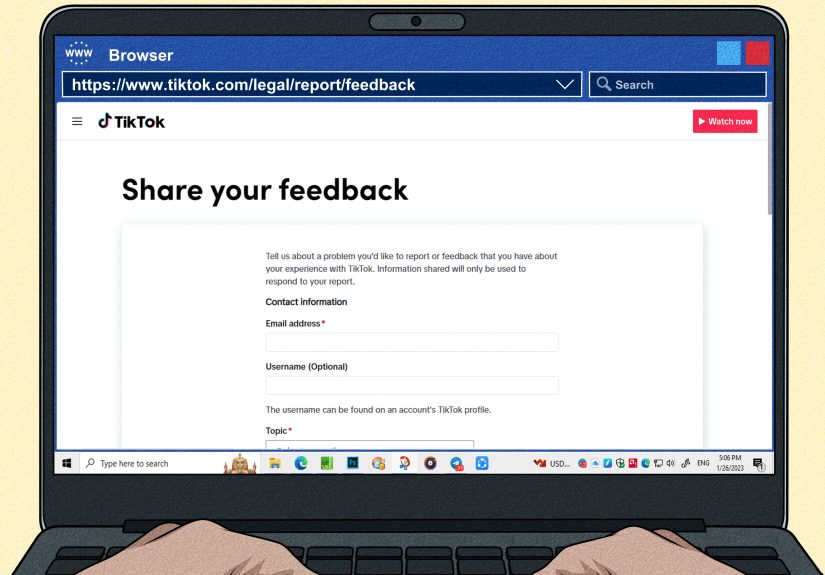
If the video seems stuck and none of the fixes work, use TikTok’s built-in support option. Go to Profile, tap the menu icon, open Settings and privacy, choose Report a problem, and follow the prompts. Include clear details: when you uploaded the video, what device you used, whether you tried Wi-Fi and mobile data, and whether the issue happens with all videos or only one.
Extra Fixes That Can Help
Free Up Phone Storage
Low device storage can cause apps to behave badly. If your phone is nearly full, TikTok may struggle to process drafts, store temporary files, or complete uploads. Delete unused apps, old downloads, duplicate videos, and blurry screenshots of things you definitely meant to remember but never did.
Disable VPN or Data Saver Temporarily
A VPN, private DNS setting, or aggressive data saver mode may interfere with TikTok uploads. Try disabling them temporarily, then upload again. If the video posts normally, you found the culprit.
Try Uploading From Another Device
If the file is saved safely, send it to another phone or upload through TikTok on desktop. This helps identify whether the problem is your device, your app installation, or the video file itself.
How to Prevent TikTok Videos From Getting Stuck Processing
Prevention is less exciting than emergency troubleshooting, but it is also less stressful. Before posting, make sure your internet connection is stable, your TikTok app is updated, your phone has enough storage, and your video is exported in a standard format. Keep a clean copy of every important video outside TikTok drafts. Drafts are convenient, but they should not be your only backup.
If you create content for a business, build a small pre-upload checklist. Confirm the video format, review the caption, check the audio, save the final file, and test your connection. A two-minute checklist can prevent a thirty-minute meltdown.
Common Questions About TikTok Video Processing
How long does TikTok video processing usually take?
Most TikTok videos process within a few minutes. Longer videos, larger files, slow connections, app bugs, or content review can make processing take much longer.
Should I delete a TikTok video that is still processing?
Not immediately. Wait a little first. If the video remains stuck after trying basic fixes, save the original file, then consider deleting the stuck upload and reposting.
Will clearing TikTok cache delete my drafts?
Clearing cache usually removes temporary files, not your posted videos. However, because app behavior can vary, always save important drafts to your device before making major changes like reinstalling the app or clearing app data.
Can a video be stuck because it is under review?
Yes. If TikTok needs to review a video, posting may be delayed. This can happen because of automated detection, copyright questions, safety concerns, or potential Community Guidelines issues.
Real Creator Experiences: What It Feels Like When TikTok Gets Stuck Processing
Anyone who posts regularly on TikTok knows the feeling: the video that gets stuck is never the lazy one. It is always the one you actually cared about. You spent forty minutes trimming clips, adjusting captions, choosing the sound, moving text boxes so they do not sit under the buttons, and replaying the hook until even your pet could lip-sync it. Then TikTok freezes on processing like it has suddenly joined a meditation retreat.
One common creator experience is the “almost posted” problem. The video appears on your profile for you, but friends cannot see it. Or it shows zero views for a suspiciously long time. This can make people think they have been shadowbanned, punished, or quietly escorted out of the algorithm’s VIP room. In reality, it may simply be delayed processing, a server hiccup, or a review queue. The best response is to check from another account, wait a short period, and avoid making dramatic conclusions too quickly.
Another familiar situation happens after editing in multiple apps. A creator might record in the phone camera, edit in CapCut or another editor, add subtitles somewhere else, compress the file, save it again, and finally upload it to TikTok. By then, the poor file has been through more transformations than a superhero origin story. If processing fails, re-exporting a clean version often solves the issue. The fewer unnecessary conversions, the better.
Small business owners experience a different kind of stress. A stuck TikTok video can disrupt a product launch, flash sale, restaurant special, or event announcement. If a video is time-sensitive, always save the final file outside TikTok and prepare a backup caption. If the app refuses to cooperate, you can post from another device, use another platform temporarily, or publish later without rebuilding the entire post from scratch.
Social media managers also learn one lesson quickly: never upload important content five minutes before it must go live. TikTok usually works smoothly, but “usually” is not a strategy. Upload early when possible, keep the original video file organized, and avoid making final edits only inside TikTok drafts. Drafts are useful, but they are not a full content management system. They are more like a backpack: handy, but not where you store your passport forever.
From experience, the best mindset is calm troubleshooting. First, wait. Second, check the connection. Third, restart the app. Fourth, clear cache or update TikTok. Fifth, test another upload. If only one video gets stuck, suspect the file. If every video gets stuck, suspect the app, account, connection, or TikTok service. This simple separation saves a lot of frustration.
Finally, do not take processing errors personally. TikTok is a massive platform handling huge amounts of video every day. A stuck upload does not mean your content is bad, your account is doomed, or the algorithm has chosen violence. Most of the time, it means something technical needs a reset, a smaller file, a better connection, or a little patience. Annoying? Absolutely. Fixable? Usually, yes.
Conclusion
A TikTok video stuck processing can feel like watching your content disappear into a digital fog machine. But in most cases, the fix is straightforward. Start with the basics: wait a few minutes, check your internet connection, restart TikTok, and clear the cache. Then move to deeper fixes like updating the app, reducing the file size, re-exporting the video, checking for TikTok outages, and reviewing the content for possible policy or copyright issues.
The smartest creators do not just fix the error once; they build better habits. Keep your app updated, export videos in a TikTok-friendly format, save backups outside the app, and avoid posting urgent content at the last possible second. That way, the next time TikTok says your video is still processing, you will know exactly what to doand your phone will be much safer from dramatic pillow throws.