Table of Contents >> Show >> Hide
- Why Windows Activation Matters
- Quick Comparison: Which Method Should You Use?
- 1. Check Windows Activation in the Settings App
- 2. Use the Run Command: slmgr /xpr
- 3. Check Activation with Command Prompt
- 4. Use PowerShell to Check Windows Activation
- 5. Use the Activation Troubleshooter
- Common Signs Windows Is Not Activated
- What to Do If Windows Is Not Activated
- Important Safety Tip: Avoid Shady Activators
- Extra Experience: Real-World Lessons from Checking Windows Activation
- Conclusion
- SEO Tags
Wondering whether Microsoft Windows is activated on your computer? Good news: you do not need a magnifying glass, a computer science degree, or a dramatic soundtrack. Windows gives you several fast ways to check your activation status, from the friendly Settings app to command-line tools that look a little more “IT department,” but are still easy to use.
Windows activation confirms that your copy of Windows is genuine and properly licensed for your device. When Windows is activated, you can use personalization features, receive normal system updates, and avoid the famous “Activate Windows” reminder that sits on your desktop like a tiny unpaid bill. If Windows is not activated, the computer may still run, but the experience can become limited, annoying, and risky if the license came from a suspicious source.
This guide explains five quick ways to check if Windows is activated on Windows 11 and Windows 10. You will also learn what the common activation messages mean, when to use each method, and what to do if Windows says it is not activated.
Why Windows Activation Matters
Before we start clicking buttons and typing commands, let’s make one thing clear: Windows activation is not just a decorative stamp of approval. It connects your installed copy of Windows to a valid digital license or product key. A digital license is tied to your device hardware and, in many cases, your Microsoft account. A product key is the familiar 25-character code that looks like five groups of letters and numbers.
If you bought a new PC from a major manufacturer, Windows is usually activated automatically. Many modern laptops and desktops store the product key in the motherboard firmware, which is why you may never see a sticker or card. If you upgraded from an eligible version of Windows, bought Windows from Microsoft, or signed in with a Microsoft account connected to your license, you may be using a digital license instead.
Checking activation is especially useful after reinstalling Windows, upgrading from Windows 10 to Windows 11, replacing major hardware such as the motherboard, buying a used computer, or seeing a watermark on the desktop. It is also a smart step before selling, gifting, or troubleshooting a PC.
Quick Comparison: Which Method Should You Use?
| Method | Best For | Difficulty | Works On |
|---|---|---|---|
| Settings app | Most everyday users | Very easy | Windows 11 and Windows 10 |
| Run command with slmgr /xpr | Fast activation confirmation | Easy | Windows 11 and Windows 10 |
| Command Prompt | Detailed license information | Moderate | Windows 11, Windows 10, and many Windows Server editions |
| PowerShell | Advanced users and IT checks | Moderate | Windows 11 and Windows 10 |
| Activation troubleshooter | Fixing activation problems | Easy | Windows 11 and Windows 10 |
1. Check Windows Activation in the Settings App
The easiest way to check if Windows is activated is through the Settings app. This is the best method for most users because it shows your activation state in plain English. No cryptic commands. No blinking cursor judging your life choices.
How to Check Activation on Windows 11
- Click the Start button.
- Open Settings.
- Select System.
- Click Activation.
- Look for Activation state.
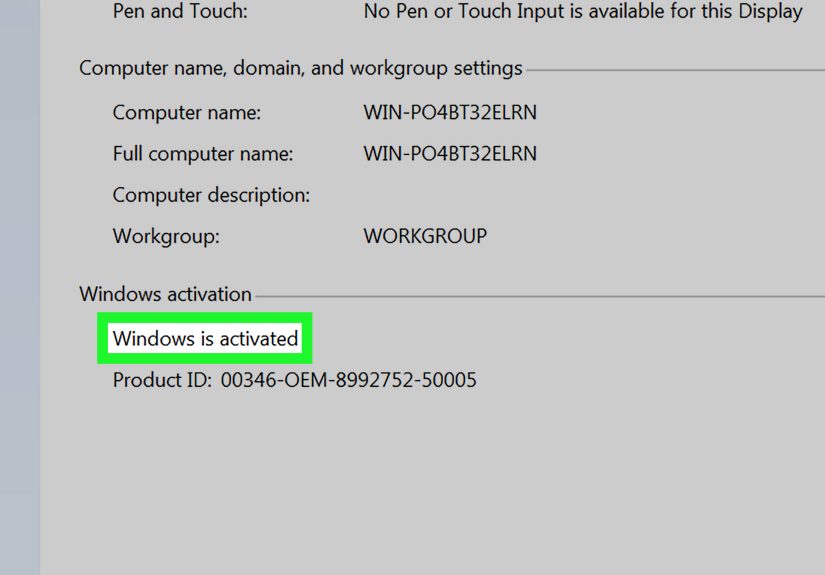
If your copy is activated, Windows may show a message such as Active, Windows is activated, or Windows is activated with a digital license linked to your Microsoft account. The exact wording can vary slightly depending on your Windows version, edition, and account setup.
How to Check Activation on Windows 10
- Click Start.
- Open Settings.
- Select Update & Security.
- Click Activation.
- Review the activation message under the Windows section.
This page is also where you can change a product key, open the Microsoft Store to buy a license, or run the activation troubleshooter if Windows reports a problem.
What the Settings Messages Mean
If you see Windows is activated, your system has passed activation. If you see Windows is activated with a digital license, your device is activated without needing you to manually enter a product key. If the message says the digital license is linked to your Microsoft account, that is even better for future troubleshooting, especially after hardware changes.
If Windows says it is not activated, do not panic. It may be a temporary server issue, a mismatch between Windows editions, a missing product key, or a hardware change that needs reactivation. In other words, your PC is not necessarily doomed; it may just be asking for paperwork.
2. Use the Run Command: slmgr /xpr
If you want the fastest “yes or no” answer, use the Run dialog with the slmgr /xpr command. The slmgr tool is Windows’ Software Licensing Management Tool, and /xpr displays whether the current Windows license is permanently activated or has an expiration date.
Steps to Check Activation with Run
- Press Windows + R on your keyboard.
- Type
slmgr /xpr. - Press Enter or click OK.
- Wait for a small Windows Script Host pop-up.
If Windows is activated with a normal retail or OEM license, the pop-up often says something like The machine is permanently activated. If your computer uses a volume license, such as KMS activation in a business or school environment, the message may show an expiration date instead. That does not always mean something is wrong; some organization-managed licenses renew periodically.
When This Method Is Useful
This method is perfect when you want a quick answer and do not want to browse through menus. It is also handy when helping someone over the phone: “Press Windows plus R, type this, read me what the box says.” Simple, fast, and far less painful than asking them to find a hidden settings page while their cat walks across the keyboard.
One important reminder: slmgr /xpr checks the activation expiration status. For deeper license details, use slmgr /dli or slmgr /dlv, which we will cover next.
3. Check Activation with Command Prompt
Command Prompt gives you more control and more information. It is a good option if you are troubleshooting, documenting a PC setup, or simply enjoy the retro charm of a black window with white text. Windows still includes command-line activation tools because they are reliable, scriptable, and useful for both home users and IT administrators.
Basic Command Prompt Method
- Click Start.
- Type cmd or Command Prompt.
- Open Command Prompt.
- Type
slmgr /xprand press Enter.
This gives the same quick activation pop-up as the Run method. If Windows is permanently activated, you will see a clear confirmation. If it is not activated or if it uses a time-limited license, the message will tell you more.
View Basic License Information
To see more license information, run:
The /dli option displays license information for the active Windows edition. It may show the Windows edition, partial product key, license status, and activation channel. This is useful if you want to know whether the machine is using a retail, OEM, or volume licensing channel.
View Detailed License Information
For a deeper report, run:
The /dlv command displays detailed license information. This can include activation ID, application ID, license status, remaining rearm count, trusted time, and more. Most casual users do not need all of this, but it can be valuable when diagnosing stubborn activation errors.
What to Look For
The key line is usually License Status. If it says Licensed, Windows is activated. If it says Unlicensed, Notification, or another non-licensed state, activation is not fully successful. You may also see partial product key information, but Windows will not reveal your full product key through these activation status checks.
For most people, slmgr /xpr is enough. For troubleshooting, slmgr /dli and slmgr /dlv provide the extra details needed to understand what Windows is actually doing behind the curtain.
4. Use PowerShell to Check Windows Activation
PowerShell is another quick way to check activation status, especially if you manage multiple computers or prefer scriptable tools. It can query Windows licensing information through WMI or CIM classes. That sounds fancy, but the basic command is manageable.
PowerShell Command for Activation Status
- Right-click the Start button.
- Select Terminal or Windows PowerShell.
- Run the following command:
This command searches for Windows licensing products that have a partial product key and shows the name, license status, and partial key. The most important field is LicenseStatus.
Common LicenseStatus Values
- 0 usually means unlicensed.
- 1 usually means licensed.
- 2 may indicate an out-of-box grace period.
- 3 may indicate an out-of-tolerance grace period.
- 4 may indicate a non-genuine grace period.
- 5 usually means notification mode.
- 6 may indicate an extended grace period.
For regular users, the magic number is 1. If the relevant Windows entry shows LicenseStatus as 1, your Windows installation is licensed. If you see another number, open Settings > Activation for a friendlier explanation or run the activation troubleshooter.
Who Should Use PowerShell?
PowerShell is best for advanced users, technicians, and administrators. If you only need to check one home PC, Settings or slmgr /xpr is faster. But if you are checking several machines, PowerShell can save time and reduce clicking. It is the difference between opening every drawer in the kitchen and simply asking the kitchen where it put the spoons.
5. Use the Activation Troubleshooter
The Activation Troubleshooter is not only for fixing problems. It is also a practical way to confirm what Windows thinks is wrong when activation fails. This is especially useful after reinstalling Windows, changing hardware, switching from Windows Home to Pro, or signing in with a different Microsoft account.
How to Run the Troubleshooter on Windows 11
- Open Settings.
- Go to System.
- Select Activation.
- If Windows is not activated, choose Troubleshoot.
- Follow the on-screen instructions.
How to Run the Troubleshooter on Windows 10
- Open Settings.
- Select Update & Security.
- Click Activation.
- Select Troubleshoot if the option appears.
The troubleshooter can detect common activation issues and may offer a fix automatically. If you recently replaced major hardware, it may let you select I changed hardware on this device recently and reactivate using a digital license linked to your Microsoft account.
When the Troubleshooter Helps Most
Use the troubleshooter when Windows was activated before but suddenly is not activated now. This can happen after a motherboard replacement, major repair, edition mismatch, or clean installation. For example, if your license is for Windows 11 Home but you installed Windows 11 Pro, activation may fail because the edition does not match the license. The computer is not being dramatic; it is simply asking for the correct version.
Common Signs Windows Is Not Activated
Sometimes you do not need to check because Windows starts dropping hints. The most obvious sign is an Activate Windows watermark on the desktop. You may also see activation messages in Settings, limited personalization options, or prompts asking you to enter a product key.
However, do not rely only on visual signs. A missing watermark does not always guarantee that everything is perfect, and a temporary activation message may appear because of a server or network issue. The reliable approach is to check Settings or use slmgr /xpr.
What to Do If Windows Is Not Activated
If Windows is not activated, start with the basics. Make sure your device is connected to the internet. Restart the PC. Open the Activation page again. If you recently bought Windows, confirm that you entered the correct 25-character product key and installed the matching edition. A Windows Home key will not activate Windows Pro, no matter how politely you ask.
If your PC came with Windows preinstalled, the license may be embedded in the device firmware. In that case, reinstalling the same edition of Windows should usually activate automatically once connected to the internet. If you bought a refurbished PC, the seller should provide a valid license or Certificate of Authenticity when required.
If you recently changed hardware, sign in with the Microsoft account linked to your digital license and run the Activation Troubleshooter. If you are using a work or school computer, contact your IT department because the device may rely on organization-based activation such as KMS or subscription licensing.
Important Safety Tip: Avoid Shady Activators
If Windows is not activated, do not download random “one-click activators,” cracked KMS tools, or suspicious scripts from forums. These tools often promise free activation but may install malware, steal credentials, damage system files, or create licensing problems. Saving money is nice. Turning your PC into a haunted vending machine for hackers is not.
The safest options are to use a valid digital license, a legitimate product key, Microsoft Store activation, or official support channels. If a deal looks too good to be true, it probably comes with a free side dish of regret.
Extra Experience: Real-World Lessons from Checking Windows Activation
After working with Windows PCs for years, one pattern becomes obvious: activation problems usually appear at the worst possible time. Nobody checks activation while sipping coffee on a peaceful Tuesday. They check it after reinstalling Windows at midnight, after replacing a motherboard, or right before joining an important video meeting when the desktop suddenly displays an activation warning like a tiny billboard of shame.
The first lesson is to check activation before making big changes. If you plan to reinstall Windows, upgrade to Windows 11, replace hardware, or sell your PC, open the Activation page first. Confirm that Windows is activated and, if possible, linked to your Microsoft account. This simple step can save you from a long troubleshooting session later. Think of it as checking your passport before going to the airport, except the airport is your BIOS screen and everyone is slightly more confused.
The second lesson is that edition mismatch causes more headaches than people expect. Many users install Windows Pro because it sounds more powerful, then wonder why their Windows Home license will not activate it. Windows activation is picky about editions. A Home license activates Home. A Pro license activates Pro. Enterprise and Education editions have their own licensing paths. If activation fails right after a clean install, checking the installed edition should be one of your first moves.
The third lesson is that the Settings app is the best starting point, but command-line tools are better for confirmation. Settings gives you the readable answer. The slmgr /xpr command gives you a quick second opinion. If both say Windows is activated, you can usually relax. If Settings says one thing and command-line tools seem unclear, use the Activation Troubleshooter or check whether the device is managed by an organization.
The fourth lesson is about used computers. If you buy a secondhand laptop, check activation before you rely on it for work. A used PC may look perfect on the outside, but the license situation can be messy. It may have been activated through a company, school, temporary volume license, or a questionable key. Open Settings > Activation as soon as possible. If the seller advertised genuine Windows, the activation page should support that claim.
The fifth lesson is that hardware changes matter. Replacing RAM or storage usually does not cause activation trouble, but replacing a motherboard can. Windows uses hardware information as part of digital licensing, and a motherboard swap can make the PC look like a different device. If your digital license is linked to your Microsoft account, the troubleshooter may help you reactivate. If not, you may need your original product key or support from the manufacturer.
Finally, do not treat activation as a one-time checkbox that never matters again. It is worth checking after major updates, repairs, and system migrations. The process takes less than a minute, and it gives you peace of mind. Your computer may still find creative ways to annoy you, but at least Windows activation will not be one of them.
Conclusion
Checking whether Microsoft Windows is activated is quick, simple, and worth doing. The easiest method is the Settings app, where Windows clearly shows the activation state. For a faster check, use slmgr /xpr through Run or Command Prompt. For deeper details, try slmgr /dli, slmgr /dlv, or a PowerShell command. If Windows is not activated, the Activation Troubleshooter can help diagnose and fix common problems.
For most users, the best routine is simple: check Settings first, confirm with slmgr /xpr if needed, and avoid unofficial activation tools. A properly activated Windows installation means fewer interruptions, better peace of mind, and one less mysterious computer problem waiting to jump out of the bushes.
Note: This article is intended to help users verify legitimate Windows activation status. It does not recommend bypassing Windows licensing, using cracked activation tools, or installing unauthorized product keys.