Table of Contents >> Show >> Hide
- Before You Start: How Voicemail Works on Android
- Method 1: Use Do Not Disturb to Silence Calls and Let Voicemail Catch Them
- Method 2: Forward All Calls to Voicemail from the Phone App
- Method 3: Use Your Carrier’s Call Forwarding Tools or Dial Codes
- Method 4: Schedule Voicemail Time with Modes, Bedtime, or Samsung Routines
- Method 5: Send Specific Numbers or Unknown Callers Straight to Voicemail
- Which Method Is Best?
- Troubleshooting: Why Are Calls Still Ringing?
- Common Real-Life Scenarios
- Experience: What Using These Android Voicemail Methods Actually Feels Like
- Final Thoughts
- SEO Tags
If your Android phone has been ringing like it is auditioning for a soap opera, you may be ready for a little peace and quiet. Maybe you are in back-to-back meetings. Maybe you are sleeping. Maybe you simply do not have the emotional bandwidth for a surprise call from an unknown number at 4:57 p.m. on a Friday. Fair enough.
The good news is that you can send calls straight to voicemail on Android. The mildly annoying news is that there is not one magical universal switch on every Android phone labeled “Make everyone leave a message and let me live.” Android settings vary by brand, carrier, and phone app. Still, there are several reliable ways to make incoming calls stop ringing through and roll over to voicemail instead.
In this guide, you will learn how to send all calls to voicemail on Android using five practical methods, plus when each option makes the most sense. We will also cover troubleshooting tips, common mistakes, and real-world examples so you do not accidentally turn your phone into a communication black hole.
Before You Start: How Voicemail Works on Android
On most Android phones, voicemail picks up when you do not answer, when a call is declined, or when calls are forwarded by your phone or carrier. That means the best method depends on what you are trying to do:
- Want temporary quiet? Use Do Not Disturb or a custom Mode.
- Want every call rerouted? Use call forwarding.
- Want a set-it-and-forget-it schedule? Use Modes or Samsung Routines.
- Want only spam or specific people sent away? Use blocking tools.
One important note: menu names can differ. On one phone you may see Call forwarding. On another, it might be under Calling accounts, Supplementary services, or your carrier profile. If your phone seems to be speaking a slightly different dialect of Android, that is normal.
Method 1: Use Do Not Disturb to Silence Calls and Let Voicemail Catch Them
Best for: meetings, naps, travel days, and “I need one blessed hour of silence” moments
This is the fastest option for most people. On many Android phones, if Do Not Disturb blocks incoming calls and you do not answer, callers will usually roll to voicemail as long as your voicemail service is active.
- Open Settings.
- Tap Modes or Sound & vibration, depending on your phone.
- Select Do Not Disturb.
- Open the section for People or Calls.
- Set calls to None or Don’t allow any calls.
- Turn Repeat callers off if you do not want the same person getting through by calling twice.
- Turn on Do Not Disturb from Settings or Quick Settings.
This method is excellent because it is quick, easy, and built into Android. It is also reversible in seconds. Swipe down, tap the Do Not Disturb tile, and you are back in business.
The catch? It is not always a perfect “forward everything directly to voicemail” tool. It is really a call-blocking and interruption-filtering tool. In practice, though, it often accomplishes the same thing for callers: they do not reach you live, and your voicemail becomes the next stop.
Pro tip: If your phone still rings for certain contacts, check whether favorites, starred contacts, or repeat callers are allowed through. Android loves a helpful exception. You may not.
Method 2: Forward All Calls to Voicemail from the Phone App
Best for: the closest thing to a true all-calls-to-voicemail setup
If you want every incoming call redirected, call forwarding is usually the cleanest option. Many Android phones let you enable Always forward in the Phone app. If your carrier supports it, you can send all calls to your voicemail number or mailbox access number.
- Open the Phone app.
- Tap the three-dot menu.
- Go to Settings.
- Look for Calling accounts, Calls, or Supplementary services.
- Tap Call forwarding.
- Select Always forward.
- Enter your voicemail number or the forwarding number your carrier recommends.
- Save the setting and test it from another phone.
This is the method people usually want when they search for send all calls to voicemail on Android. It is direct. It is effective. And it does not rely on you remembering to turn a mode on every time life gets noisy.
However, this is also the method most likely to be limited by your carrier. Some phones show the menu but will not let you change it. Some carriers manage forwarding through their own apps or network settings. Some hide the option entirely unless the line supports it.
If you are not sure what voicemail number to enter, try one of these:
- Check your carrier app or account dashboard.
- Call your voicemail manually and look for number details in the setup area.
- Contact carrier support or dial 611.
Important: If visual voicemail starts acting strange after you change forwarding, turn the forwarding rule off and test again. Forwarding settings can interfere with how voicemail behaves on some networks.
Method 3: Use Your Carrier’s Call Forwarding Tools or Dial Codes
Best for: when the Android settings are missing, grayed out, or just being dramatic
Sometimes the Phone app gives you nothing. No forwarding menu. No editable settings. No cooperation. In that case, go straight to the source: your carrier.
Major carriers often let you manage call forwarding through one or more of these:
- A carrier support app
- Your online account settings
- Short dial codes
- Customer support
For example, carriers commonly offer forwarding features for all calls, busy calls, or unanswered calls. The exact codes and setup steps vary by provider, so this is one place where guessing is a bad idea. Punching in random symbols like you are trying to unlock a cheat code from 2004 is not the move.
Instead, use your carrier’s official instructions. If you are on AT&T, Verizon, T-Mobile, Google Fi, or another U.S. carrier, look up call forwarding in the official support area or ask support to route calls to voicemail for your line.
This option is especially useful when:
- Your phone’s Call forwarding menu is unavailable
- You have a work phone or carrier-managed line
- You want network-level forwarding instead of a device-only setting
Smart move: After enabling carrier forwarding, place a test call from another phone. Confirm whether the call goes straight to voicemail, rings once, or routes somewhere unexpected. Test first, celebrate second.
Method 4: Schedule Voicemail Time with Modes, Bedtime, or Samsung Routines
Best for: recurring quiet hours and people who prefer automation over memory
If you regularly want calls sent away during certain hours, Android’s Modes can help. Samsung phones go even further with Modes and Routines, which can automate call behavior based on time, place, or activity.
Here is a practical example:
- Turn on a Sleep or Bedtime mode from 10 p.m. to 7 a.m.
- Block calls from everyone
- Disable repeat callers
- Let voicemail handle whatever cannot wait until morning
On Samsung Galaxy phones, you can open Modes and Routines, create a custom mode, and choose what gets blocked or allowed. On many Android phones, you can schedule Do Not Disturb so it activates automatically during meetings, gym time, bedtime, or work blocks.
This is a fantastic option if your goal is not to avoid calls forever, but to create reliable quiet windows. It also reduces the odds that you forget to turn voicemail mode on before a presentation or off after dinner.
In other words, this is the grown-up version of putting your phone in a drawer and pretending technology no longer exists.
Method 5: Send Specific Numbers or Unknown Callers Straight to Voicemail
Best for: spam calls, private numbers, and selected contacts you do not want ringing through
Okay, this one is not a true all calls to voicemail method, but it is still incredibly useful. If your real problem is not everybody, but certain people or unknown numbers, Android gives you tools to block them so they no longer ring your phone.
- Open the Phone app.
- Tap the three-dot menu.
- Open Settings.
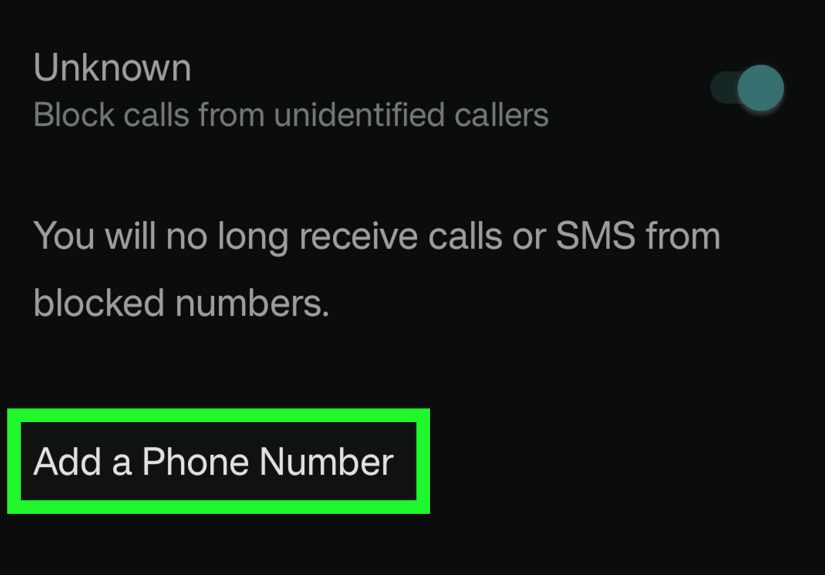
- Tap Blocked numbers or Block numbers.
- Add specific numbers, or turn on the option to block unknown or unidentified callers.
On many phones, blocked callers go straight to voicemail or are silently rejected, depending on the phone app and carrier behavior. Samsung also includes options for blocking unknown callers and scam or spam calls.
This is the right choice if you want to preserve calls from family, doctors, schools, and actual humans while sending mystery callers into the voicemail abyss.
Use this when:
- You are overwhelmed by spam calls
- You only want contacts to ring through
- You need a partial solution, not a total shutdown
Which Method Is Best?
Here is the short version:
- Fastest temporary fix: Do Not Disturb
- Best true all-call solution: Always forward to voicemail
- Best when settings are hidden: Carrier forwarding tools
- Best for recurring schedules: Modes or Routines
- Best for spam and selective silence: Blocked numbers
If you only need a temporary quiet zone, use Do Not Disturb. If you really want every call rerouted, start with call forwarding. If Android refuses to show the forwarding option, let your carrier do the heavy lifting.
Troubleshooting: Why Are Calls Still Ringing?
1. Repeat callers are allowed
Some Android phones let a second call from the same person through within a short time. If you want true silence, turn this off.
2. Favorite contacts are allowed
Check whether starred contacts, family contacts, or priority people are still whitelisted in your Do Not Disturb settings.
3. Voicemail is not set up correctly
If calls do not ring and also do not reach voicemail, your voicemail service may not be active or configured properly. Call your voicemail manually and confirm it works.
4. Call forwarding is pointing to the wrong number
If you entered the wrong mailbox or forwarding number, calls may fail, ring oddly, or disappear into the telecommunications void.
5. Your carrier controls forwarding, not your phone
Some Android phones show settings that depend entirely on carrier support. If the menu is missing or errors out, contact your carrier instead of wrestling your phone for another 45 minutes.
6. Dual-SIM settings are involved
If you use two SIMs, make sure you are editing forwarding rules for the correct line. Android can be very polite about this and still quietly let you configure the wrong one.
Common Real-Life Scenarios
You are in a conference or onstage
Use Do Not Disturb with no callers allowed. It is quick, reversible, and does not require digging through network settings.
You are going on vacation
Use call forwarding or a scheduled Mode. That gives you a more reliable setup than trying to remember to silence your phone every day.
You are getting crushed by spam calls
Use Blocked numbers and, if available, your phone’s spam protection features. This keeps normal calls coming through while sending the digital gremlins elsewhere.
You want work-life boundaries
Create a scheduled Work Off or Personal Time mode so calls stop breaking into dinner, family time, or your very serious relationship with the couch.
Experience: What Using These Android Voicemail Methods Actually Feels Like
In real life, sending all calls to voicemail on Android is less about technology and more about control. The first time most people try it, the feeling is not “Wow, I mastered a phone setting.” It is usually closer to “So this is what peace sounds like.” That may be especially true if your phone has been buzzing all day with unknown callers, work calls after hours, or relatives who believe every thought deserves an immediate live conversation.
The easiest experience is usually with Do Not Disturb. You flip it on, your phone goes quiet, and the world stops barging into your pocket. For short stretches, it feels almost magical. During meetings, workouts, movies, naps, or bedtime, it is the least complicated solution. The only slightly annoying part is remembering that Android often allows exceptions. So if one person still gets through, it does not necessarily mean the feature failed. It may just mean your phone decided your mother, your boss, or a repeat caller counts as urgent. Helpful in theory. Startling in practice.
Call forwarding feels more official. Once it is set up correctly, it is the option that most closely matches what people imagine when they say they want all calls sent straight to voicemail. It can be great during travel, during a busy work season, or anytime you need a firm communication boundary. But it also comes with the most setup anxiety. People often wonder whether they entered the right number, whether visual voicemail will keep working, and whether they will accidentally forget to turn it off. A quick test call usually solves that stress.
Scheduled modes are where Android starts to feel genuinely smart. When your phone automatically quiets down every night or every weekday evening, it creates a rhythm. You stop reacting to your phone and start training it to behave around your life. That feels surprisingly good. It also reduces decision fatigue. You do not have to remember to tap a setting at 10 p.m. every night. Your phone just knows it is bedtime, and callers can leave a message like civilized people.
The most emotionally satisfying method, though, may be blocking unknown callers or spam numbers. There is something deeply restorative about realizing that a fake car warranty robot no longer has direct access to your nervous system. You still keep important calls from saved contacts, but the random chaos gets filtered out. It is not a full all-calls-to-voicemail solution, but for many people it solves the actual problem better than total silence would.
Overall, the experience depends on why you are doing it. If you want rest, Do Not Disturb feels immediate. If you want structure, scheduled modes feel polished. If you want a true reroute, call forwarding feels powerful. And if you simply want your phone to stop acting like the front desk of a busy hotel, even a partial voicemail setup can make your Android feel a lot more manageable.
Final Thoughts
If you have been wondering how to send all calls to voicemail on Android, the answer is not one-size-fits-all, but it is absolutely doable. For most people, Do Not Disturb is the easiest starting point. For a stronger all-call solution, call forwarding is the better long-term move. And if you want automation, Android Modes or Samsung Routines can do a lot of the work for you.
The trick is choosing the method that matches your actual goal. Temporary quiet? Use a mode. Total reroute? Use forwarding. Selective peace? Block the usual suspects. Once you set it up properly, your phone stops running the day and starts behaving like a tool again. Which, frankly, is a beautiful thing.