Table of Contents >> Show >> Hide
- What Does “Sync iPhone Wallet Data to iCloud” Actually Mean?
- Before You Start: Quick Requirements
- Step 1: Turn On Wallet Sync in iCloud
- Step 2: Turn On iCloud Keychain for Card AutoFill
- Step 3: Check Wallet & Apple Pay Settings
- Step 4: Turn On iCloud Backup
- Step 5: Confirm Your Passes on Another Device
- What Syncs and What Does Not?
- How to Add Missing Passes Back to Apple Wallet
- How to Re-Add Apple Pay Cards on a New iPhone
- Troubleshooting: Wallet Data Is Not Syncing
- Security Tips for Syncing Wallet Data
- Common Questions About iPhone Wallet and iCloud
- Best Practices Before Switching to a New iPhone
- Real-World Experience: What It Feels Like to Sync Wallet Data
- Conclusion
Your iPhone Wallet is no longer just a digital pocket for boarding passes and coffee rewards. It can hold event tickets, loyalty cards, transit passes, IDs in supported regions, car keys, hotel keys, Apple Pay cards, AutoFill card numbers, and transaction information. In other words, it has quietly become the tiny command center of your daily life. Convenient? Absolutely. Slightly terrifying when you buy a new iPhone and wonder where everything went? Also yes.
The good news is that syncing iPhone Wallet data to iCloud is usually simple. The important catch is that not all Wallet items sync in exactly the same way. Passes can be kept up to date with iCloud Wallet syncing. AutoFill card numbers use iCloud Keychain. Apple Pay payment cards are protected by device-specific security and may need to be added or verified again on each iPhone, Apple Watch, iPad, or Mac. That difference matters, because tapping the wrong setting and expecting every card to magically appear is how people end up staring at their phone like it owes them money.
This step-by-step guide explains how to sync Wallet passes with iCloud, how to turn on iCloud Keychain for payment AutoFill data, how iCloud Backup fits into the picture, what does not sync automatically, and what to do when Wallet data seems missing after switching devices.
What Does “Sync iPhone Wallet Data to iCloud” Actually Mean?
Before changing settings, it helps to understand what Apple means by Wallet data. The Wallet app contains different kinds of information, and each category has its own syncing and security rules.
Wallet Passes
Wallet passes include boarding passes, event tickets, coupons, movie tickets, loyalty cards, membership cards, and similar items added through an app, website, email, QR code, or “Add to Apple Wallet” button. These are the items most people expect to move between Apple devices. When Wallet is enabled in iCloud, supported passes can stay updated across devices signed in to the same Apple Account.
Apple Pay Cards
Credit, debit, prepaid, and transit cards used with Apple Pay are handled with much stricter security. Apple Pay does not simply upload your payment card to iCloud like a vacation photo. Instead, Apple and your bank use a device-specific number stored securely on the device. This is why your card may appear as available to add on a new device, but you may still need to verify it with your bank.
AutoFill Card Numbers
AutoFill card numbers are different from Apple Pay cards. These are saved card details that help fill payment information in apps and on websites where Apple Pay is not available. Apple stores these in iCloud Keychain when syncing is enabled, so you can use them on approved devices signed in to your Apple Account.
Transaction and Order Information
Some Wallet cards show recent transactions, order tracking, balances, rewards, or account activity. Availability depends on the bank, merchant, card issuer, region, and the feature itself. If a feature disappears or does not sync, the cause may be the issuer’s support policy rather than an iCloud problem.
Before You Start: Quick Requirements
To sync iPhone Wallet data to iCloud smoothly, check these basics first. You need to be signed in with the same Apple Account on each device. Your iPhone should be connected to Wi-Fi or cellular data. iCloud should have enough available storage for backups if you plan to use iCloud Backup. Your device should also be updated to a recent iOS version, because older software can cause sync settings to appear in slightly different places.
Also make sure two-factor authentication is enabled for your Apple Account. Apple uses strong account security for services such as iCloud Keychain and Apple Pay. If your account security is incomplete, Wallet-related syncing may not work as expected.
Step 1: Turn On Wallet Sync in iCloud
This is the main setting for keeping supported Wallet passes up to date through iCloud.
- Open the Settings app on your iPhone.
- Tap your name at the top of the screen.
- Tap iCloud.
- Look for Saved to iCloud or Apps Using iCloud.
- Tap See All if Wallet is not immediately visible.
- Find Wallet and turn it on.
Once Wallet is enabled, supported passes should sync with iCloud and stay updated on your other Apple devices using the same Apple Account. This is especially useful for loyalty cards, tickets, and passes you do not want to rebuild one by one. Nobody wants to hunt through old emails for a concert ticket while standing outside the venue, pretending everything is fine.
Step 2: Turn On iCloud Keychain for Card AutoFill
If you want saved card numbers, payment AutoFill details, passwords, and passkeys available across devices, turn on iCloud Keychain. This setting is separate from the Wallet iCloud toggle.
- Open Settings.
- Tap your name.
- Tap iCloud.
- Under Saved to iCloud, tap Passwords. On some versions, this may appear as Passwords and Keychain.
- Turn on Sync this iPhone.
- Enter your device passcode or Apple Account password if asked.
With iCloud Keychain enabled, your approved devices can share saved payment AutoFill information, passwords, Wi-Fi information, and other secure account data. Apple protects this information with encryption, which is why your iPhone may ask for authentication before showing or using saved card information.
Step 3: Check Wallet & Apple Pay Settings
Next, review the Wallet settings that affect daily use. This does not replace iCloud syncing, but it helps make sure Wallet behaves the way you expect.
- Open Settings.
- Scroll down and tap Wallet & Apple Pay.
- Review your payment cards, transaction defaults, shipping address, email, and phone number.
- Choose your default card if you use Apple Pay.
- Check whether double-clicking the side button opens Wallet.
This area is also where you can manage Apple Pay cards already added to the iPhone. Remember, these payment cards are not simple iCloud duplicates. If you get a new device, you may need to add them again and verify them through your bank, card issuer, or the Wallet app.
Step 4: Turn On iCloud Backup
iCloud Backup is not the same as real-time Wallet syncing, but it is still important when replacing, restoring, or resetting an iPhone. It helps preserve device data and settings so your new iPhone can be restored more easily.
- Open Settings.
- Tap your name.
- Tap iCloud.
- Tap iCloud Backup.
- Turn on Back Up This iPhone.
- Tap Back Up Now if you are preparing to switch devices.
For automatic backups, connect your iPhone to power, connect it to Wi-Fi, and keep the screen locked. If iCloud says there is not enough storage, clean up old backups or upgrade your iCloud storage before relying on it. A backup that fails quietly is like an umbrella with decorative holes: stylish, but not helpful when the storm arrives.
Step 5: Confirm Your Passes on Another Device
After turning on Wallet in iCloud, check another Apple device signed in to the same Apple Account. Open the Wallet app and look for the passes you expect to see. If they do not appear immediately, give iCloud some time, connect to Wi-Fi, and restart the device.
If you are moving from an old iPhone to a new iPhone, keep the old device nearby and connected until the new phone is fully set up. Do not erase the old iPhone until you confirm your important Wallet passes, payment methods, passwords, photos, messages, and app data are where you need them.
What Syncs and What Does Not?
This is the part of the guide that saves headaches. Wallet syncing is useful, but it is not a magic photocopier for everything inside the Wallet app.
Usually Syncs Through Wallet in iCloud
- Supported loyalty cards
- Supported membership cards
- Supported event tickets
- Supported boarding passes
- Some order and pass updates, depending on the issuer
Syncs Through iCloud Keychain
- Saved AutoFill card numbers
- Passwords
- Passkeys
- Some secure account information
May Require Re-Adding or Re-Verification
- Apple Pay credit cards
- Apple Pay debit cards
- Some transit cards
- Student IDs, car keys, hotel keys, or access cards depending on issuer rules
The reason is security. Apple Pay cards are tied to a secure device-specific credential. That design protects your real card number and helps prevent payment data from being copied casually between devices.
How to Add Missing Passes Back to Apple Wallet
If a pass does not appear after enabling iCloud Wallet sync, you may need to add it again from the original source. Look for the “Add to Apple Wallet” button in the airline app, event ticket app, hotel booking app, loyalty program app, merchant website, confirmation email, or text message.
For example, if a boarding pass is missing, open the airline app and check your upcoming trip. If a concert ticket is missing, open the ticket provider’s app. If a loyalty card is missing, sign in to the retailer’s app and look under rewards, membership, or account settings. Many Wallet passes are controlled by the company that issued them, so the fastest fix is often inside that company’s app.
How to Re-Add Apple Pay Cards on a New iPhone
If your payment cards do not automatically appear as ready-to-use cards, add them again manually.
- Open the Wallet app.
- Tap the plus button.
- Choose Debit or Credit Card or another available card type.
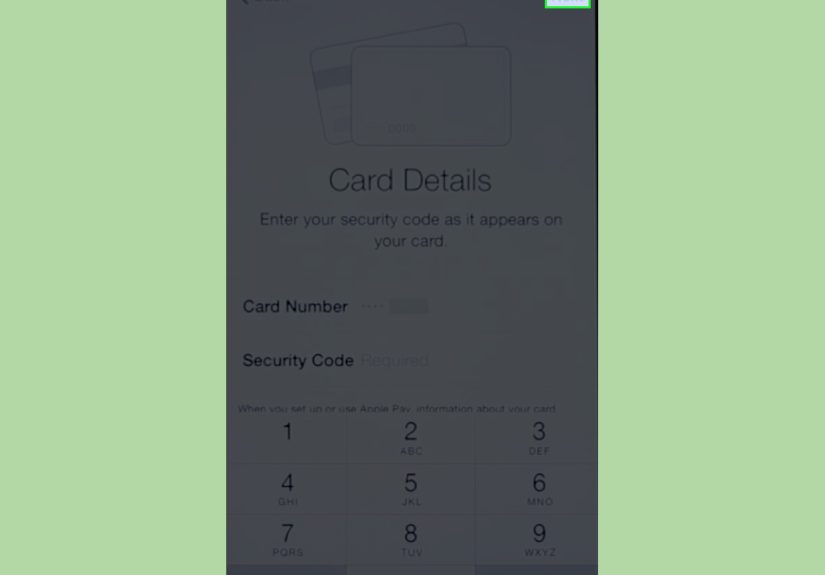
- Scan the card or enter the card details manually.
- Follow the bank or issuer’s verification steps.
- Set your default card if needed.
Some banks verify instantly. Others send a text, email, phone call, or app notification. This extra step can feel annoying, but it is there to stop someone from adding your card to a device you do not control.
Troubleshooting: Wallet Data Is Not Syncing
1. Make Sure You Are Using the Same Apple Account
Wallet syncing depends on your Apple Account. If your iPhone uses one account and your iPad or Mac uses another, Wallet data will not sync the way you expect. Check Settings > your name on each device.
2. Check the Wallet iCloud Toggle
Go back to Settings > your name > iCloud and confirm Wallet is enabled. If it is already on, turn it off, restart the iPhone, and turn it back on. Use this carefully, and do not remove important passes unless you know you can add them again.
3. Turn On iCloud Keychain
If the issue involves saved payment AutoFill details rather than Wallet passes, check iCloud Keychain. Go to Settings > your name > iCloud > Passwords and make sure syncing is enabled.
4. Update iOS
Software updates often fix sync bugs, Wallet display issues, and account-related glitches. Open Settings > General > Software Update and install the latest available version for your iPhone.
5. Check the Issuer’s App
Some passes are controlled by airlines, banks, hotels, schools, ticket companies, gyms, or retailers. If Wallet does not show an item, the issuer’s app may need you to sign in again or re-add the pass.
6. Be Patient With Sync Timing
iCloud syncing is usually quick, but not always instant. Large restores, weak Wi-Fi, Apple Account verification prompts, or server delays can slow things down. Restarting the device and connecting to reliable Wi-Fi can help.
Security Tips for Syncing Wallet Data
Because Wallet can contain payment details, tickets, IDs, and access cards, treat it like a real wallet with a tiny computer attached. Start with a strong iPhone passcode. Avoid easy codes like 123456, your birthday, or the classic “I’ll remember this because it’s my dog’s birthday.” Your dog deserves better security.
Turn on Face ID or Touch ID. Keep Find My enabled so you can locate, lock, or erase your iPhone if it is lost. If a device disappears, use Find Devices on iCloud.com or another Apple device to mark it as lost. You can also remove Apple Pay cards from the missing device so payment credentials are suspended.
Avoid sharing screenshots of tickets, barcodes, QR codes, or membership passes online. A boarding pass posted on social media can reveal more than people realize. It may contain confirmation numbers, travel details, or scannable codes. Save the humble brag for the airport lounge snack plate instead.
Common Questions About iPhone Wallet and iCloud
Does iCloud save my Apple Pay card numbers?
Apple Pay does not store your actual card number in iCloud as a reusable copy. Apple Pay uses secure, device-specific payment credentials. Saved AutoFill card numbers are a different feature and can be stored in iCloud Keychain when you enable it.
Will my Wallet passes appear on a new iPhone?
Many supported passes can appear when Wallet is turned on in iCloud and you use the same Apple Account. However, some passes may need to be re-added from the airline, ticket provider, merchant, school, or other issuer.
Why are my Apple Pay cards missing after restoring my iPhone?
Apple Pay cards often require re-verification after restoring or switching devices. This is normal and does not necessarily mean your backup failed.
Can I sync Wallet data without iCloud?
You can manually re-add many passes from apps, emails, websites, and QR codes, but automatic cross-device syncing depends on iCloud settings and issuer support.
Does Wallet syncing use iCloud storage?
Wallet syncing and iCloud Backup are related to iCloud, but they are not the same thing. iCloud Backup can use storage space, while Wallet and Keychain syncing are service-based features tied to your Apple Account.
Best Practices Before Switching to a New iPhone
If you are upgrading to a new iPhone, do not rush the migration. First, turn on Wallet in iCloud. Next, enable iCloud Keychain. Then run a fresh iCloud Backup. Open Wallet and review your important passes, especially anything time-sensitive like flights, concerts, hotel reservations, transit cards, or student IDs.
Keep your old iPhone until the new one is fully ready. Test Apple Pay at least once before you leave home expecting it to work. Check your default card, billing address, shipping address, and contact details. If you rely on Wallet for transit, add and test the transit card before your commute. Morning train platforms are not famous for their patience.
Real-World Experience: What It Feels Like to Sync Wallet Data
In everyday use, syncing iPhone Wallet data to iCloud feels less like a dramatic tech project and more like organizing a digital junk drawer. At first, you think, “I only have two cards in here.” Then you open Wallet and discover a boarding pass from 2022, three coffee rewards cards, a movie ticket, an old hotel key, a gym membership you definitely meant to cancel, and a coupon that expired during a previous presidential administration.
The first practical lesson is to clean up before you sync. Delete passes you no longer need, archive old tickets if the option exists, and remove duplicate loyalty cards. This makes the new device easier to check later. When everything transfers, you will know what is supposed to be there. When something is missing, you will not be comparing two chaotic stacks of digital confetti.
The second lesson is to separate “passes” from “payments” in your mind. Many people expect Wallet to behave like Photos: turn on iCloud, and everything appears everywhere. Wallet is more complicated because it deals with money, identity, access, and merchant-controlled passes. A grocery loyalty card may sync easily. A debit card may need bank verification. A hotel key may expire. A transit card may have region-specific transfer rules. That is not a bug; it is the price of keeping sensitive credentials from floating around the cloud like loose change in a washing machine.
The third lesson is to test Wallet before you need it. If you are traveling, open Wallet the night before and confirm your boarding pass is there. If you are going to a concert, check the ticket before you reach the entrance. If you use Apple Pay as your main payment method, verify your default card after setting up a new iPhone. These checks take less than a minute and can save you from becoming the person holding up the line while whispering, “It worked yesterday.”
A smart workflow is simple: turn on Wallet in iCloud, turn on iCloud Keychain, run an iCloud Backup, update iOS, and keep original issuer apps installed. For example, keep your airline app until after your trip, your bank app until Apple Pay cards are verified, and your ticketing app until after the event. Once the important items are confirmed in Wallet, you can relax and let your iPhone do what it does best: quietly manage a surprising amount of your life from a rectangle that also receives spam calls about car warranties.
The best experience comes from realistic expectations. iCloud can help keep Wallet passes updated across devices. iCloud Keychain can sync secure AutoFill information. iCloud Backup can make device recovery smoother. But Apple Pay cards and some access credentials may still require issuer approval. Once you understand those lanes, syncing Wallet data becomes far less mysterious and much easier to manage.
Conclusion
Syncing iPhone Wallet data to iCloud is straightforward once you know which switch controls which type of information. Turn on Wallet in iCloud for supported passes, enable iCloud Keychain for saved AutoFill card details, and keep iCloud Backup active before switching or restoring devices. For Apple Pay cards, expect secure re-verification because payment credentials are designed to be device-specific.
The key is not to treat Wallet as one giant cloud folder. It is a secure collection of passes, payment tools, account data, and issuer-controlled items. When each piece is set up correctly, your Wallet becomes easier to restore, safer to use, and far less likely to surprise you at the worst possible moment.
Note: Wallet syncing behavior can vary by iOS version, region, bank, transit agency, ticket provider, school, hotel, or merchant. Always confirm important passes and payment cards before travel, events, or device trade-in.